
Right vs. Left Click Modes: Optimize Your Auto Clicker Settings
Auto Clicker is a tool that automates mouse clicks, letting you perform repeated actions without physically clicking your mouse.
Whether you’re gaming or working, choosing the right click mode can dramatically change how effective your setup is.
In this guide, we’ll break down how right vs. left click modes work, why they matter, and how to optimize them in Auto Clicker on Steam.
By the end, you’ll know exactly when to use auto left click, auto right click, and how to switch between them for the best results.
Understanding Right vs. Left Click Modes in Auto Clicker
Both click modes serve unique roles, and learning how they function is essential for creating efficient automated click setups.
What Is Left Click Mode?
Left click mode simulates standard left mouse clicks. This is the same action you’d use for selecting items, dragging objects, or firing in many games.
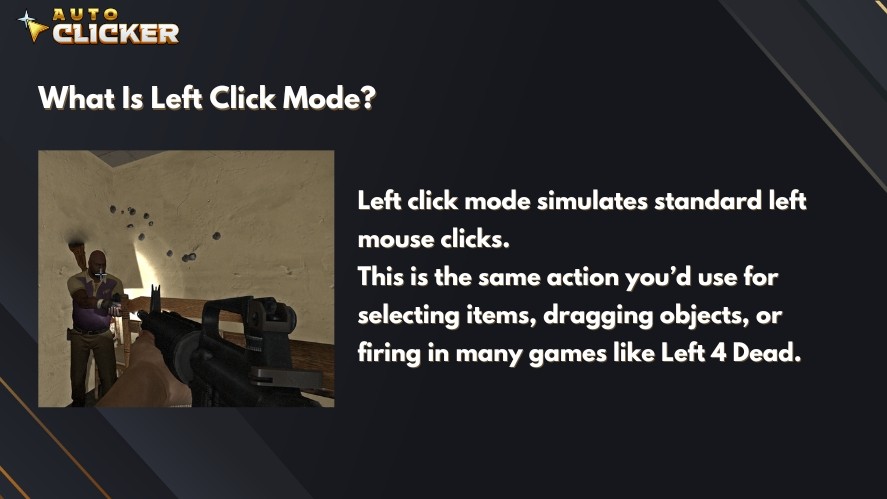
It’s the most common mode in automated click setups because it covers primary in-game actions.
These include button presses in productivity tools, repetitive crafting, and tasks that rely on rapid automated click input.
With a free auto clicker or auto clicker free download, this mode is often the default because of how versatile and universally needed it is.
What Is Right Click Mode?
Right click mode simulates right mouse clicks, which are typically tied to context menus. They’re also used in secondary actions or alternate abilities in software and games.
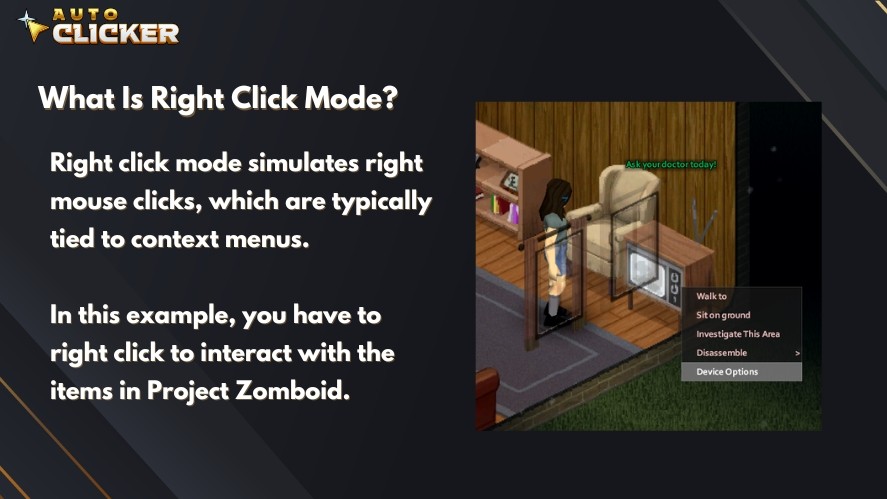
If you need automated right-clicking for MMOs, strategy games, or workflows that rely on opening context menus repeatedly, this mode becomes essential.
It’s especially useful when paired with advanced setups like custom intervals, auto right click loops, or right-click automation in tools like Auto Clicker for Mac.
How to Switch Between Right vs. Left Click Modes in Auto Clicker on Steam
Switching click modes in Auto Clicker on Steam only takes a few seconds. Here’s how to change right and left click on mouse:
- Open Auto Clicker on Steam and go to the Standard tab.
- Find the Mouse Button option in the Click Options section
- Select “Left” or “Right” from the dropdown menu.
- Set your intervals, click type, repeat options, and click position based on your needs.
- Press the hotkey (F6 by default) to begin automated clicking.
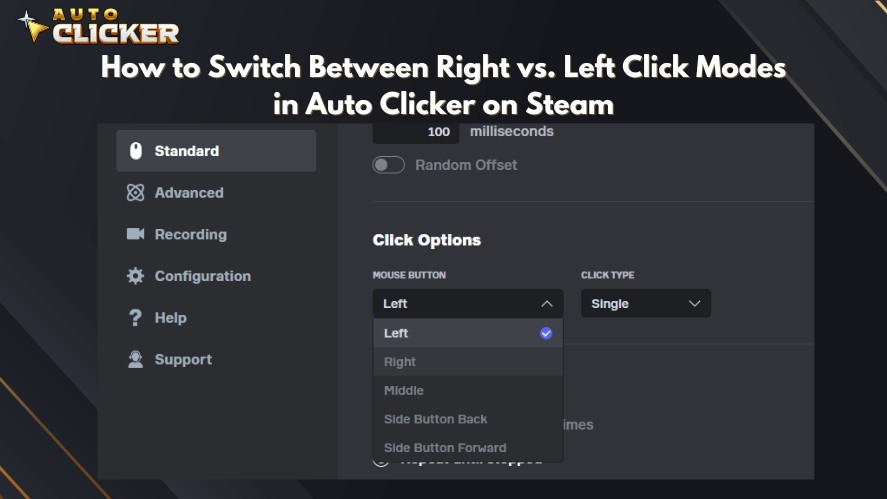
The interface makes it extremely straightforward to set up right vs. left click modes.
Use Cases for Left Click Mode
Left click mode covers most primary actions, making it the go-to choice for both gaming and productivity tasks where rapid, repeated clicking is needed.
Gaming Scenarios
Left click is the standard action input in many games, so automating it can dramatically boost efficiency.
Players often use auto left click for continuous firing in FPS games. This removes the need to constantly hold the mouse button during long battles or grinding sessions.
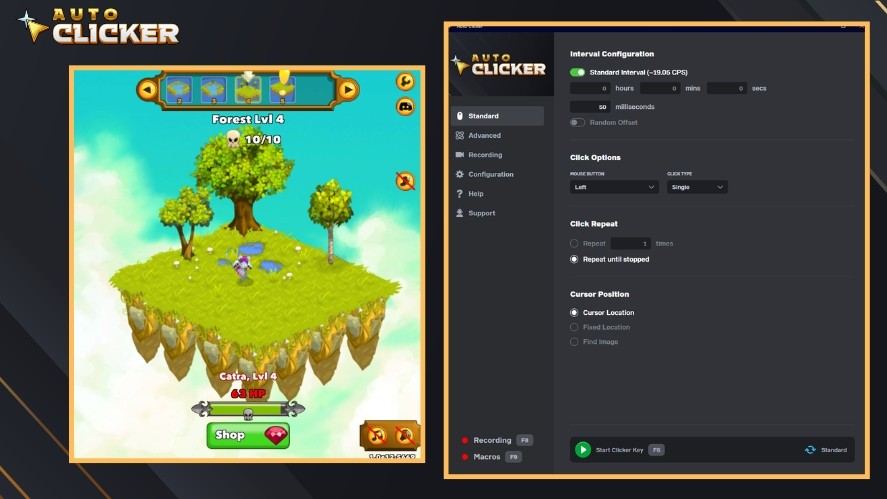
It’s equally valuable in idle clicker games or incremental games, where repetitive crafting, resource tapping, or leveling actions are required.
With an auto left click holder or a free auto clicker setup, these actions run smoothly without manual effort.
Productivity and Workflow Automation
Outside of gaming, left click mode shines in productivity and testing environments.
It can automate repetitive button presses in forms, dashboards, or software tools, especially useful when you need to process large volumes of tasks.
Developers and QA testers often use automated left clicks to simulate rapid input, run interface stress tests, or speed through repetitive UI interactions.
Whether you’re using a best free auto clicker or a paid auto clicker, the efficiency gains are immediate.
Use Cases for Right Click Mode
Right click mode handles secondary or contextual actions, making it ideal for workflows that rely on opening menus or triggering alternate interactions.
Gaming Contexts
In many MMOs, strategy games, and RPGs, right click controls important secondary functions.
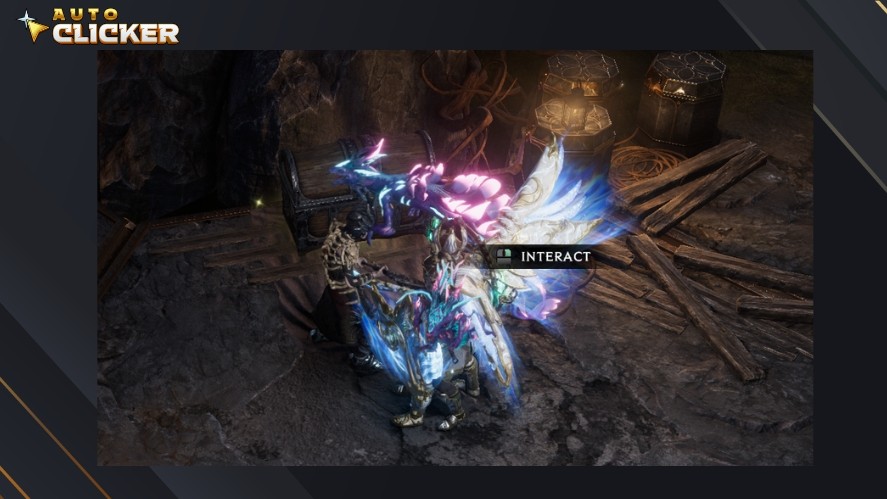
Automating it lets you repeatedly open context menus, activate special abilities, or manage resources more efficiently.
Auto-right-click loops are especially helpful for tasks like rotating the camera, managing units, or handling resource actions that require constant right-clicking in long sessions.
Software and Utility Applications
Right click is central to many productivity and creative tools, making automation a powerful time-saver.
Auto clicker for free can repeatedly open right-click menus to access advanced features, perfect for workflows in graphic design programs, IDEs, or file-management tasks.
If your work involves constant contextual interactions, such as editing nodes, adjusting layers, or accessing hidden options, automated right clicking helps reduce fatigue and keep your workflow fast and consistent.
Choosing the Right vs. Left Click Modes: Tips and Best Practices
Choosing between right vs. left click modes isn’t just a preference; it depends on what your game or application requires.
A few small checks can save you from misfires, missed inputs, or unnecessary automation loops.
Understand Your Task or Game Requirements
Before activating automated click settings, identify whether the action you need is tied to the right or left mouse button.
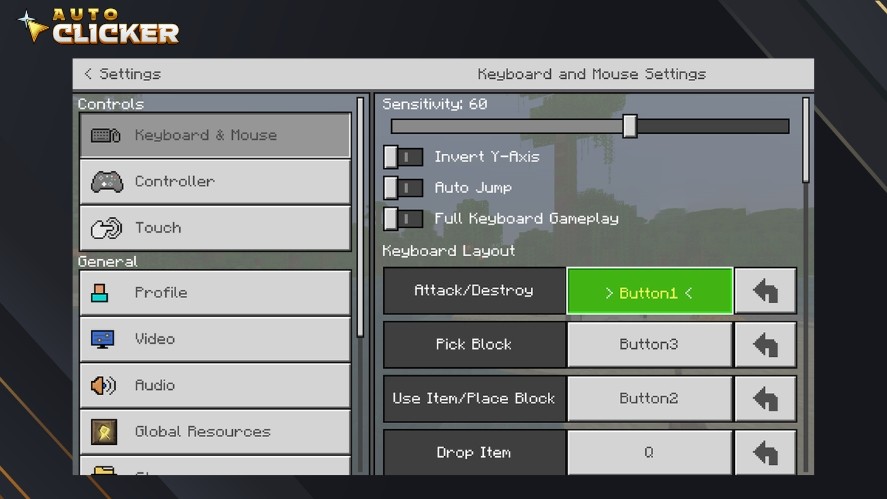
Many games bind primary attacks or actions to left click, while context menus, secondary abilities, or special interactions may use right click.
Matching the click mode to the task ensures the auto clicker free behaves exactly as intended.
Test Before Long-Term Use
The best auto clicker free tools can behave differently depending on the software, window mode, or OS.
So, always run a short test session in your specific game or app to confirm that the automated clicks register correctly.
This helps avoid wasted time, unintended actions, or triggering cooldowns incorrectly.
Combine with Other Auto Clicker Features
To get the most consistent performance, pair the correct click mode with additional tool settings.
Adjust delay settings to control click speed, fine-tune custom intervals for smoother automation, and use hotkey toggles to start and stop clicking instantly.
These features help optimize automated click behavior for both gaming and productivity.
Safety and Compatibility Considerations
Before relying heavily on Auto Clicker, make sure its use aligns with the rules of your platform, game, or work environment.
Many competitive games have strict anti-cheat systems, and using automated click tools can risk penalties if the game disallows them.
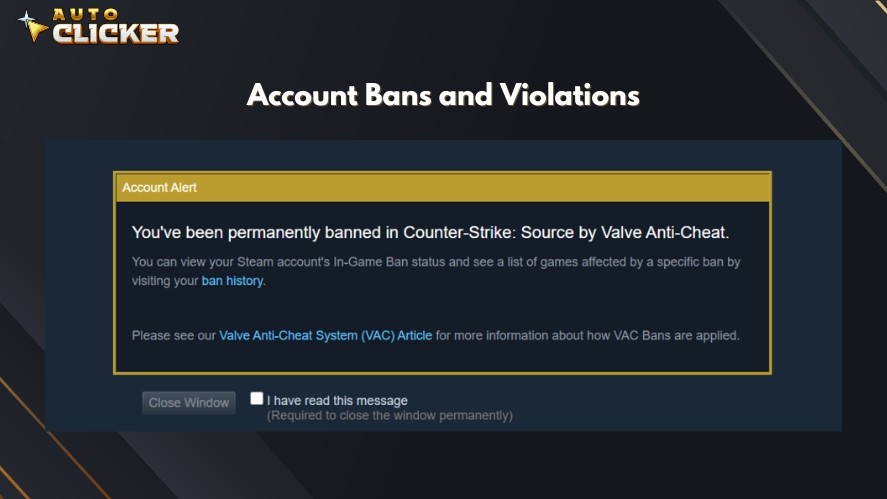
For safety, run speed auto clicker only in secure environments where automation is permitted, such as single-player games, productivity tasks, or testing workflows.
Always keep your hotkey toggle ready so you can instantly disable automated clicks if something behaves unexpectedly.
Why Auto Clicker on Steam Stands Out
Here are the standout features that make Auto Clicker on Steam a strong choice:
- Easy-to-use interface for switching between right and left click modes
- Fully customizable click intervals, delay settings, and click patterns
- Flexible hotkey system for quick start/stop control
- Reliable, stable performance for gaming, productivity, and automated tasks
- Regular updates through Steam for long-term compatibility
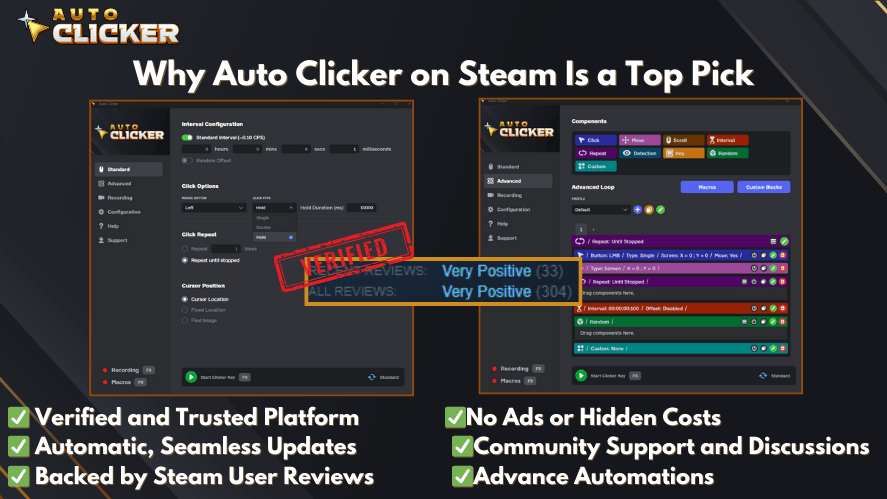
Overall, Auto Clicker on Steam delivers a polished, secure, and hassle-free experience that free standalone tools often can’t match.
Conclusion
Right vs. left click modes may seem like a small detail, but choosing the correct one can dramatically improve how efficiently you automate tasks, farm resources, or handle repetitive workflows.
Left click is your go-to for core interactions like firing, selecting, or rapid crafting, while right click shines for context menus, secondary actions, and specialized software workflows.
Try both modes, experiment with intervals and delays, and see which setup fits your needs best.
Download Auto Clicker on Steam and fine-tune your clicking strategy today!

Best Auto Clicker for Mac in 2026 (Updated & Ranked)

Best Click Interval Settings for Games: Key Tips for Gamers

Excel Auto Clicker Guide for Automating Repetitive Tasks
About The Author
