
Auto Clicker with Random Intervals for Safety Automation
Using an auto clicker with random intervals can be a game-changer if you’ve ever felt nervous about getting flagged or banned for automating clicks. Whether you’re farming in a click-heavy game, testing an app, or automating simple computer tasks, regular clickers that follow a fixed pattern just don’t cut it anymore. They’re too predictable. And when systems or games detect that kind of behavior, you’re risking everything progress, accounts, and in some cases, your reputation.
That’s where auto clickers with randomized intervals come in. They mimic the way humans behave. Think about it: nobody clicks a mouse every 500 milliseconds like a robot. Human timing is messy. You pause a bit here, speed up there. With a tool that can reflect that randomness, your automated actions blend in better, making them safer for long-term use.
In this guide, we’ll walk through the best auto clickers with random intervals you can use right now. All the tools listed support custom delays, work well on Windows, and offer reliable automation without drawing unwanted attention. Let’s look at your best options.
Top Auto Clickers with Random Intervals in 2024
1. Auto Clicker on Steam ★ Recommended
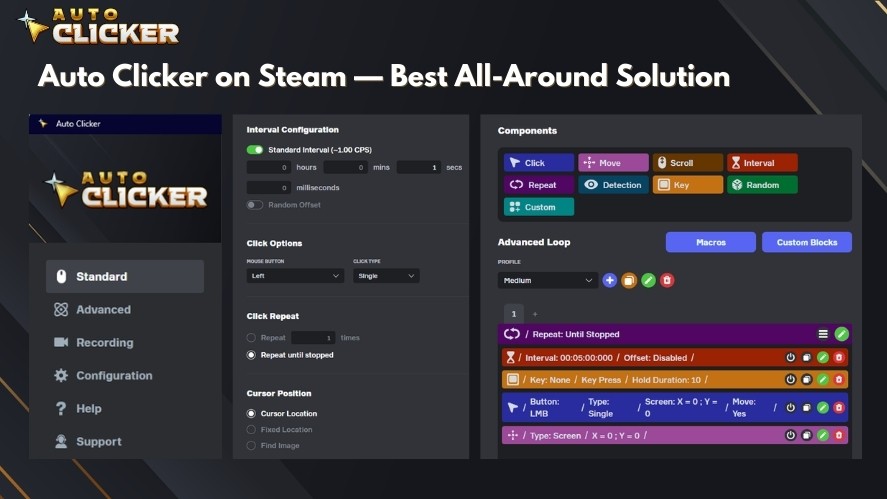
- Platform: Windows (Steam)
- Random Interval Support: Yes – set custom delay ranges
If you’re automating clicks in games, especially on Steam, this tool fits right in. The auto clicker with random intervals from Steam isn’t bloated with features you don’t need. It’s easy to use, responsive, and stays out of the way while it works. You can set your delay range, use global hotkeys, and even save presets for different games or tasks.
For example, when you’re grinding in a game like Clicker Heroes or Cookie Clicker, you want the software to behave differently each time. One moment, it clicks in 200 ms, the next in 320 ms, then maybe 500. This clicker does that well. It’s built by indie developers, updated often, and has a growing Steam community behind it.
Key Features
- Random delay generator
- Supports left, right, and middle clicks
- Save and load profiles
- Global hotkeys for quick control
- Lightweight and easy on system resources
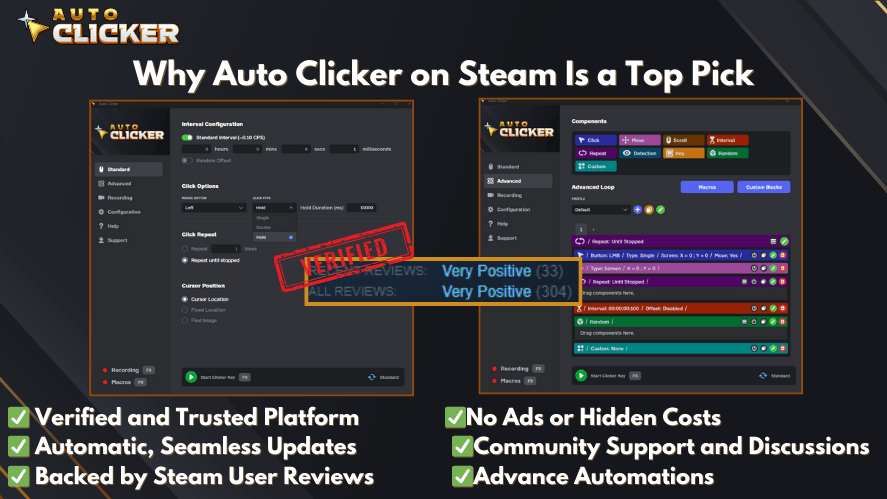
Why It’s Great It’s one of the few safe auto clickers that feels built for real people, not just developers. It doesn’t require coding, and it plays nice with most modern games.
2. GS Auto Clicker
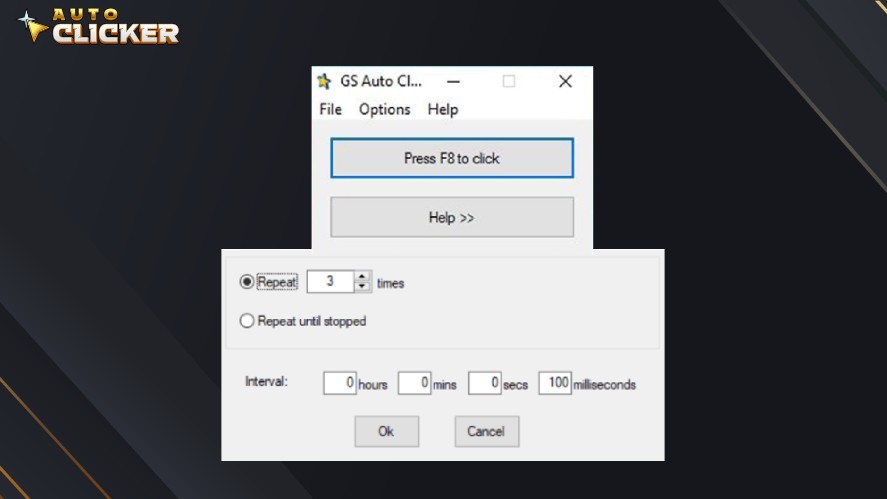
- Platform: Windows
- Random Interval Support: Yes – min and max delay options
If you’re new to automation or just want something that works right out of the box, GS Auto Clicker is a solid choice. It’s been around for a while and is known for its no-fuss interface. You don’t have to dig through menus to get started.
When you try to set up an automated click session for the first time, it’s easy to get overwhelmed. GS Auto Clicker makes that setup quick. You open the app, choose your delay range, assign a hotkey, and you’re done. For most basic gaming and repetitive clicking tasks, this is more than enough.
Key Features
- Set min and max intervals for click delay
- Easy start/stop with keyboard hotkeys
- No installation required
- Works with left and right mouse buttons
Who It’s Best For Beginners and anyone looking for a random interval auto clicker that doesn’t feel complicated. It’s completely free and handles basic click automation smoothly.
3. Free Auto Clicker by Advanced Mouse Auto Clicker
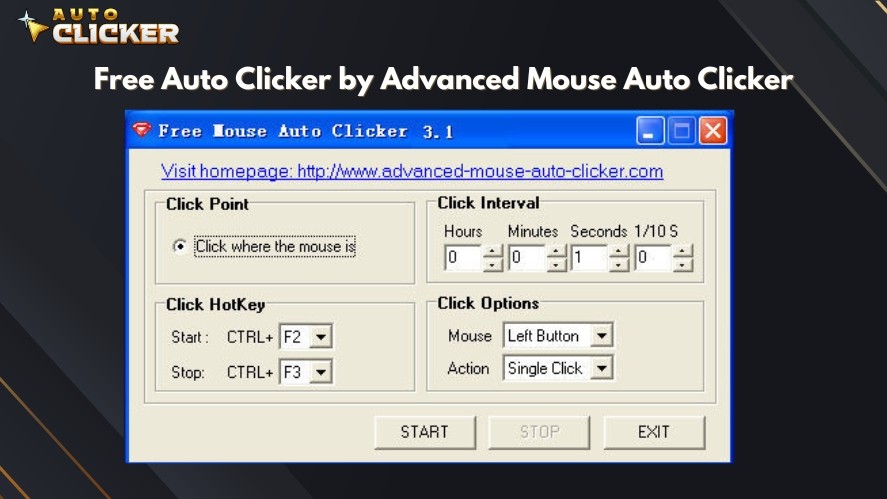
- Platform: Windows
- Random Interval Support: Yes – user-defined range
Some clickers try to do too much. Others don’t do enough. This one finds a nice middle ground. Free Auto Clicker by Advanced Mouse is ideal if you want more control than GS Auto Clicker but without the steep learning curve of pro-level tools.
It allows for click type selection, location targeting, and detailed interval configuration. You can save multiple click patterns and set schedules too. This means you could use it for more than just games. For example, if you need to test how a webpage reacts to random clicks or want to keep an app active during long downloads, this works well.
Key Features
- Custom delay range for random intervals
- Simulates different mouse buttons
- Schedules and loops supported
- Save/load automation profiles
Why Choose This One This automatic mouse clicker is good for low-complexity tasks that still need randomization. It’s free, flexible, and doesn’t take up much space on your PC.
4. MurGee Auto Clicker
- Platform: Windows
- Random Interval Support: Yes – detailed options for delay and patterns
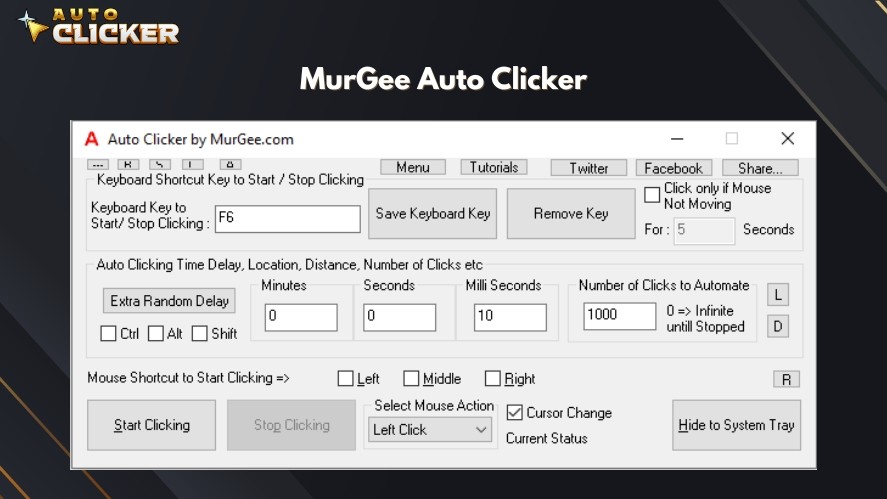
If you want full control over how, when, and where your clicks happen, MurGee Auto Clicker is your best option. It’s not free, but it gives you every customization feature you could want. You can schedule click sessions, change between single and double clicks, choose random intervals, and even set it to stop automatically after a period of time.
Let’s say you’re stress-testing an app, automating a tedious spreadsheet workflow, or botting in a game where detection could get you banned. In those situations, the random interval settings in MurGee can help your clicks appear more natural and less suspicious.
Key Features
- Click frequency and interval customization
- Supports keyboard and mouse automation
- Set random delay between clicks
- Can run in the background quietly
- Paid software with trial available
Best For Power users and anyone serious about detailed automation. If you’ve tried other mouse clicking software and felt limited, this one removes the restrictions.
Why Random Intervals Matter in Auto Clickers
Avoid Detection in Games and Software
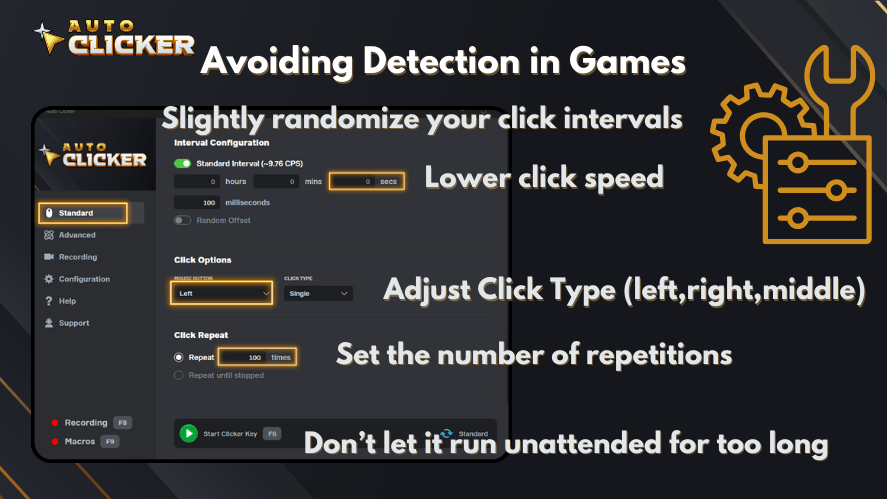
Games are getting smarter. They look for patterns that bots leave behind. When your click timing is always the same, it raises flags. That’s why having an auto clicker with random intervals helps. Instead of being easy to trace, your clicks look more like a person’s random, imperfect, and believable.
Anti-cheat systems in games like Roblox, RuneScape, or even newer browser-based games often detect uniform click patterns. Using a mouse clicker with variable delays spreads out the pattern, making it much harder to detect.
Simulate Real Human Behavior
When people use a mouse, they don’t click in exact time intervals. There’s always a small variation. You might pause to think, hesitate for half a second, or speed up when you’re confident. That’s exactly what a auto clicker random intervals setup tries to recreate.
Even just adjusting your delay range from 300 to 800 milliseconds can add that sense of randomness. You’re not just clicking. You’re mimicking the rhythm of real human interaction.
Long-Term Safety and Reliability
If you’re automating a task overnight or while you’re away, using a windows automatic clicker that supports random intervals is much safer. A predictable clicker might run fine for a short session, but over time, it becomes a risk. Random delays reduce the chances of detection and make your automation more sustainable.
Also, when you’re dealing with tools that require an automated click to happen over several hours, the small changes in timing make a big difference in outcome. You stay under the radar and avoid triggering security systems or rate limiters.
Use Cases for Auto Clickers with Random Intervals
Here are some practical ways people use these tools:
- Gaming: Farming in idle or clicker games, grinding in MMORPGs, or auto-attacking in PVP with subtlety
- Testing: Clicking through web elements or software UI to stress-test responsiveness
- Productivity: Keeping sessions alive in apps or repeating click-heavy tasks
- Accessibility: Helping users who have difficulty using a mouse for long periods

No matter the use case, it’s always better to use safe autoclickers that behave unpredictably. They’re not just effective they’re smarter.
Comparison Table
| Tool | Platform | Random Intervals | Best For | Pricing |
|---|---|---|---|---|
| Auto Clicker on Steam | Windows | Yes | Gaming & general use | Free |
| GS Auto Clicker | Windows | Yes | Beginners | Free |
| Free Auto Clicker (Advanced) | Windows | Yes | Intermediate users | Free |
| MurGee Auto Clicker | Windows | Yes | Power users | Paid |
FAQs
Auto Clicker on Steam is one of the safest, especially for gaming. It’s lightweight, regularly updated, and offers built-in delay ranges for randomization.
Yes, if you’re using one with fixed intervals or aggressive click rates. A random interval auto clicker greatly reduces this risk by simulating natural human behavior.
Not all games allow them, and some actively detect them. That’s why using a auto clicker safe tool with delay variation is important. Always read the game’s policies first.
Yes. GS Auto Clicker and Free Auto Clicker (by Advanced Mouse) both offer random interval settings at no cost.
Some, like MurGee Auto Clicker, also support keyboard automation. Others are focused only on mouse input.
Final Thoughts: Choosing the Right Auto Clicker With Random Intervals
There isn’t one perfect solution for everyone. The right auto clicker with random intervals depends on what you’re trying to do, how comfortable you are with software, and how much control you want.
- Best overall: Auto Clicker on Steam
- Best for beginners: GS Auto Clicker
- Most flexible (free): Free Auto Clicker
- Most advanced: MurGee Auto Clicker
Each one supports random intervals, helping you automate safely while staying under the radar. Whether you’re gaming, testing, or just saving time on repetitive tasks, choosing a clicker that behaves like a human is a smart move.

Click Behavior in Automation: How Auto Clickers Work

Is There a Mouse with a Built-in Auto Clicker?

Clicker Speed Test: How Fast Can You Click?
About The Author
