
Best Auto Clicker for Mac in 2026 (Updated & Ranked)
Looking for the best auto clicker for Mac to boost your productivity or improve your gaming experience in 2026? This guide has been fully updated for 2026 to reflect the latest macOS versions, Auto Clicker on Steam patches, and real-world use cases from Mac users.
As more people switch to macOS for both work and entertainment, the demand for reliable, customizable, and safe automatic clicker solutions keeps growing. A good autoclicker Mac tool can save you hours of repetitive clicking, whether you’re grinding idle games, testing software, or automating simple workflows.
But with so many tools floating around some outdated, some risky how do you choose the best auto clicker for Mac without compromising performance or safety?
Enter Auto Clicker on Steam, a feature-rich, regularly updated, and user-friendly app that’s become the top choice for Mac users who want something powerful, safe, and easy to configure.
In this article, we’ll walk through why Mac users need an auto clicker, what makes one truly great, how Auto Clicker on Steam stands out in 2026, and how to get it running smoothly on your Mac.
Why Mac Users Need an Auto Clicker
Gaming Automation

One of the most popular reasons people search for the best auto clicker for Mac is gaming. Whether you’re playing idle games like Cookie Clicker, Clicker Heroes, or Adventure Capitalist, or grind-heavy games requiring thousands of repeated clicks, an automated mouse click tool is invaluable.
Use cases include:
- Auto-clicking on monsters or coins in idle games
- Farming resources in strategy games
- Repeating attack patterns in RPGs
- Speed-running tasks with precision mouse clicks
Many gamers wonder how to have auto clicker on Mac that’s both powerful and undetectable. Steam-based solutions offer the advantage of legitimacy and built-in community trust, making them a safe auto clicker option.
Productivity Applications
Not just for gamers, autoclick tools offer real advantages for professionals. From developers to designers and data entry operators, automating mundane mouse-click tasks can dramatically increase efficiency.
Common productivity use cases include:
- Automate mouse clicks for form submissions
- Repetitive data input in CRMs and spreadsheets
- Design tool automations (e.g., repetitive UI placements)
- Testing repetitive actions in software development
Whether you’re automating mouse actions for Adobe Illustrator or running user interface tests, knowing how to get auto clicker software that works seamlessly on a Mac can free up hours from your workday.
What Makes the Best Auto Clicker for Mac?
Compatibility with macOS
macOS is known for its security-first architecture, which often makes software compatibility a headache — especially when dealing with automation. The best auto clicker for Mac needs to work natively or provide seamless performance via platforms like Steam.
Compatibility features to look for:
- Full macOS Ventura and Sonoma support
- Apple Silicon (M1/M2/M3) optimization
- Accessibility permissions setup guides
- No need for external frameworks or hacks
Customization and Ease of Use
What separates a basic mouse clicker from the best auto clicker for Mac is flexibility. Users need to configure:
- Click intervals (milliseconds to seconds)
- Click types (left/right/middle)
- Click patterns (single, double, click and hold)
- Loop count or infinite mode
- User-defined hotkeys to start/stop without switching windows
A clean UI and beginner-friendly onboarding make a huge difference — especially for those who don’t want to dive into complex scripts.
Performance and Stability
No one wants their auto clicker crashing mid-task or hogging system resources. In 2026, the best auto clicker for Mac should:
- Use low CPU, even during long sessions
- Handle memory efficiently
- Run for hours without freezing
- Avoid conflicts with games and creative or productivity apps
In short, it should be something you can “set and forget” while your Mac stays responsive.
Auto Clicker on Steam: The Best Auto Clicker for Mac
Fully Compatible with macOS Devices
If you’re wondering how to download an auto clicker that runs smoothly on Mac, Auto Clicker on Steam is your answer. It offers full support for macOS with minimal configuration required.
Setup Tips:
- Ensure the Steam client is up-to-date
- Customize hotkeys for easy on/off toggling
Key Features That Set It Apart
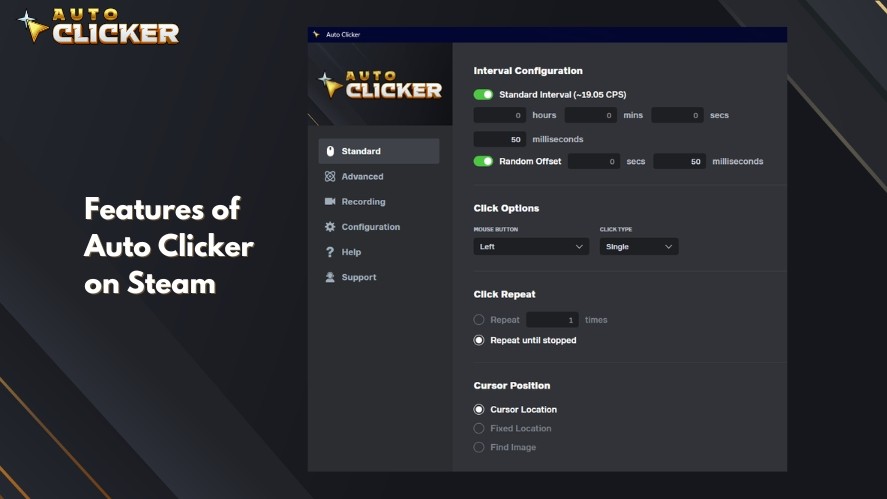
Auto Clicker on Steam packs a ton of features, including:
- ✅ Adjustable click intervals
Customize from milliseconds to minutes for precise automation. - ✅ Click hold/release options
Simulate drag-and-hold actions or hold clicks for specified durations. - ✅ Looping functions
Repeat actions infinitely or set a fixed number of cycles. - ✅ User-defined hotkeys
Assign intuitive key combos like CMD+SHIFT+1 to toggle automation without switching windows. - ✅ Clean interface optimized for usability
No bloated settings — just clear instructions, quick access, and responsive controls.
These features put it far ahead of clunky open-source alternatives or outdated apps that don’t play well with macOS security systems.
Regular Updates and Steam Integration
One of the biggest advantages of choosing a Steam Auto Clicker is the integration with the Steam ecosystem:
- ✔️ Automatic updates
- ✔️ One-click installs
- ✔️ Cloud support
- ✔️ Active developer feedback
- ✔️ Verified safety through Steam
For users concerned about whether Auto Clicker on Steam is safe, the answer is a resounding yes. Being on Steam gives it a layer of trust and transparency that other tools don’t offer.
What’s New in 2026 for Mac Auto Clickers
Auto clickers for Mac have improved a lot over the past year, and Auto Clicker on Steam has kept pace with those changes.
Better macOS support (Sonoma and Tahoe)
With macOS Sonoma and macOS 26 Tahoe now widely adopted, compatibility is more important than ever.
A modern Mac auto clicker needs to run smoothly on Apple Silicon machines while respecting Apple’s security and Accessibility rules.
Auto Clicker on Steam is updated to work with these newer macOS versions, so you don’t have to worry about constant breakage after system updates.
Native macOS support through Patch 2.0.7 and beyond
Since Auto Clicker on Steam gained official macOS support, Mac users no longer need to rely on fragile workarounds or Windows-only tools. You can install it directly from Steam, grant permissions once, and start automating clicks in both games and desktop apps.
More reviews, more trust
As of 2026, Auto Clicker on Steam has accumulated even more community feedback and positive reviews. That social proof helps separate it from random “free” auto clickers that may be outdated, unsupported, or unsafe.
Smarter use cases from the community
Mac users now use Auto Clicker not just for idle games, but also for:
- Repeating design actions in tools like Photoshop, Illustrator, and UI builders
- Accelerating manual QA tests and regression testing
- Speeding up repetitive web or form tasks in browsers
This broader usage has helped shape better defaults, clearer documentation, and more refined settings for Mac users in 2026.
Comparison: Auto Clicker on Steam vs Other Mac Auto Clickers
Open-source tools vs Steam app
| Feature | Auto Clicker on Steam | Open-Source Tools (e.g., AutoClicker Mac, iClicker) |
|---|---|---|
| macOS Compatibility | ✅ Full Support | ⚠️ May Require Terminal or Manual Setup |
| User Interface | ✅ Clean, Modern | ⚠️ Often Outdated or Complex |
| Security | ✅ Verified by Steam | ❌ No vetting, risk of malware |
| Auto Updates | ✅ Yes | ❌ Manual Only |
| Hotkey Support | ✅ Customizable | ✅ / ⚠️ Depends on Tool |
Why Auto Clicker on Steam is More Reliable
Steam’s ecosystem ensures ongoing support, clear community reviews, and a secure platform. Users asking if Auto Clicker on Steam is safe can confidently rely on Steam’s trusted infrastructure.
Unlike freeware that may come with hidden adware or performance issues, the Steam version is streamlined, focused, and secure.
Feature and Performance Comparison Table
| Feature | Steam Auto Clicker | AutoClicker Mac | iClickMac | Free Auto Mouse Click |
|---|---|---|---|---|
| macOS Sonoma Support | ✅ Yes | ⚠️ Partial | ❌ No | ⚠️ Unverified |
| Adjustable Click Speeds | ✅ Yes | ✅ Yes | ✅ Yes | ✅ Yes |
| Hold & Release Function | ✅ Yes | ❌ No | ❌ No | ⚠️ Partial |
| Hotkey Customization | ✅ Full | ⚠️ Limited | ✅ Yes | ✅ Yes |
| Steam Auto Updates | ✅ Yes | ❌ No | ❌ No | ❌ No |
| UI/UX Design | ✅ Modern | ⚠️ Outdated | ❌ Basic | ⚠️ Technical |
How to Install and Set Up Auto Clicker on Steam for Mac
Here’s a complete guide for Mac users wondering how to get auto clicker software through Steam.
Step-by-Step Installation Guide
- Open Steam Client
- Download Steam at steampowered.com
- Sign in or create a free account
- Search for Auto Clicker
- Look for “Auto Clicker” in the Steam store
- Confirm developer and reviews for safety
- Download and Install
- Click “Install” to initiate the auto clicker download
- Launch from your Steam Library
- Grant Accessibility Permissions
- Go to System Settings → Privacy & Security → Accessibility
- Add Auto Clicker to the allowed list
Initial Configuration
Once opened, configure:
- Click interval (default: 100ms)
- Click type: Left/Right
- Loop count: infinite or specific
- Set custom hotkeys for Start/Stop
To know more about configuration and settings, visit our knowledge base.
Tips for Customizing Click Automation
- Shorten delay times for high-speed gaming
- Use Click & Hold for drag-and-drop automations
- Combine with keyboard macros for complex tasks
- Save different profiles for work vs play
Use Cases from the Community
Gamers Who Use It for Idle Games
Community reviews often mention how the Steam Auto Clicker helps in:
- Auto Clicker for Cookie Clicker
- Auto Clicker for Clicker Heroes
Gamers appreciate:
“Set it up once, walk away, come back to 10x the rewards.”
“Works flawlessly with Steam games, never flagged.”
Professionals Using It to Automate Repetitive Tasks
Designers and engineers praise it for:
- Speeding up repetitive UI testing
- Form submissions
- Creative tool automation
“As a QA engineer, it cuts my regression test time in half.”
“I use it with Photoshop and Illustrator to repeat layer actions.”
Steam Reviews and Feedback Snippets
- ⭐ “One of the most helpful tools I’ve added to my Mac.”
- ⭐ “I was skeptical but can confirm: Auto Clicker on Steam is safe and legit.”
- ⭐ “Don’t waste time with sketchy open-source apps. This is worth every penny.”
Conclusion
If you’re on the hunt for the best auto clicker for Mac in 2026, Auto Clicker on Steam is still the clear winner. With powerful features, native macOS support, and Steam-level safety, it outclasses almost every competing Mac auto clicker this year.
Whether you’re automating mouse clicks in games or in professional apps, it’s time to stop asking how to get auto clicker tools and start using one that’s built for modern macOS and Apple Silicon.
Ready to boost your productivity or gaming experience on Mac? Download Auto Clicker on Steam today and see why it’s the top-rated automatic clicker for macOS in 2026.
Frequently Asked Questions (FAQs)
1. Is Auto Clicker on Steam safe for Mac?
Yes, Auto Clicker on Steam is safe. Since it’s distributed through the official Steam platform, it goes through a vetting process that ensures it’s free of malware or suspicious code. It does require Accessibility permissions to function (like all automation tools) but this is standard and safe as long as the app is from a trusted source like Steam.
2. How do I get an auto clicker on my Mac?
If you’re wondering how to get auto clicker software on a Mac, the easiest method is through Steam:
- Download and install the Steam client from steampowered.com
- Create an account or sign in
- Search for “Auto Clicker” in the store
- Click “Install”
- Launch and grant necessary permissions
This approach avoids dealing with sketchy downloads or unverified sources.
3. Does Auto Clicker on Steam work with Apple Silicon (M1/M2/M3)?
Yes. The best auto clicker for Mac in 2026 is fully optimized for both Intel and Apple Silicon chips. Auto Clicker on Steam runs smoothly on M1, M2, and M3 Macs (and newer models) without compatibility issues, delivering stable performance and low CPU usage for long sessions.
4. Can I use the auto clicker for games on Steam?
Absolutely. Many users utilize the Steam Auto Clicker specifically for gaming. It’s particularly popular for idle games, grinding XP, or repetitive resource farming. Since it operates at the system level, it works across all game types. However, please make sure your game’s terms of service allow automation.
5. How customizable is the Steam Auto Clicker for Mac?
Very customizable. You can:
- Set click intervals (from milliseconds to seconds)
- Choose left, right, or middle mouse clicks
- Configure click hold durations
- Loop clicks infinitely or by count
- Assign custom hotkeys
This makes it ideal for both basic and advanced automation tasks.
6. Do I need coding knowledge to use an auto clicker?
No coding required! One of the reasons Auto Clicker on Steam is considered the best auto clicker for Mac is its simple, user-friendly interface. Everything is done through a clean UI, with no need for scripting, terminal commands, or advanced configuration.
7. Can an auto clicker harm my Mac?
A reputable and safe auto clicker like the one from Steam won’t harm your Mac. Problems generally occur with third-party or pirated auto clickers, which may include malware or require bypassing macOS security. Always download from trusted platforms and avoid modifying system files.
8. Is using an auto clicker against the rules?
It depends on where and how you use it. For games, check the Terms of Service (ToS) — some titles strictly prohibit automation and may issue bans. For personal or productivity use, automation is usually acceptable and often encouraged to improve efficiency.
9. Can I uninstall the auto clicker if I no longer need it?
Yes. Since it’s installed via Steam, you can uninstall it just like any other game or app:
- Open Steam
- Go to Library → Right-click on Auto Clicker
- Click “Manage” → “Uninstall”
- Optionally remove its Accessibility permission under System Settings
10. What makes Auto Clicker on Steam better than free alternatives?
Here’s why it’s preferred over other autoclicker Mac options in 2026:
- Verified and auto clicker safe via Steam
- No manual updates or risky downloads from unknown sites
- Clean, modern interface instead of clunky old UIs
- Seamless compatibility with modern macOS versions
- Reliable developer support and active community feedback
If you’ve ever struggled with how to have auto clicker on Mac without breaking something or installing sketchy tools, this is the easiest and most trustworthy solution available in 2026.

What Is a Millisecond? Guide to Gaming, Automation & Speed

How to Use Auto Clicker to Save Time on Repetitive Tasks

Can Auto clickers Get You Banned on Roblox? Explained
About The Author
