
Clicking Auto Clicker for Gaming – Tips, Tricks, and Setup Guide
The clicking auto clicker is one of the most underrated tools in the gaming world. Yet, once you try it, you’ll wonder how you ever played without it. Whether you’re deep into idle clicker games like Cookie Clicker, grinding endlessly in RuneScape, or farming resources in a mobile RPG, there’s no denying the value of automation.
In today’s fast-paced gaming environment, efficiency matters. Players want to level up faster, collect more loot, and avoid repetitive stress. That’s where using an auto clicker for gaming becomes a game-changer.
This complete guide will show you exactly how to use a clicking auto clicker, how to set it up using Auto Clicker on Steam, and how to make the most of it across different game genres. By the end of this guide, you’ll be ready to build game-specific profiles, automate your favorite titles, and avoid the most common mistakes along the way.
⚠️ Disclaimer: Use Auto Clickers Responsibly
Before we dive deeper, let’s address the elephant in the room.
Some games do not allow auto clickers. This includes many competitive multiplayer titles like Apex Legends, Fortnite, or World of Warcraft Classic. Using a tool like mouse auto clicker tool in these environments can lead to serious consequences, including account suspensions or permanent bans.
However, single-player or offline games are a different story. For example, clicker games, idle clicker games, and even some offline RPGs are generally safe environments for automation. That said, always check the game’s Terms of Service. When in doubt, play it safe.
This guide is for educational purposes only. We do not promote breaking game rules, and all examples provided are meant to illustrate how automation can enhance the user experience where permitted.
What Is a Clicking Auto Clicker and Why Gamers Love It

Definition of Clicking Auto Clicker
A clicking auto clicker is a lightweight program designed to simulate repeated mouse clicks. It’s fully customizable and lets players set the speed, type of click, delay, and more. In many cases, it even allows for keyboard emulation or smart triggers.
This tool works well in both simple and complex games. For example, it’s ideal for games where you need to click endlessly to collect resources, such as Cookie Clicker. But it’s just as useful in games that involve routine actions, like fishing in RuneScape or crafting in Diablo IV.
What makes the clicking auto clicker so appealing is that it removes the need for repetitive strain. Instead of tapping your mouse 1,000 times in a row, you can automate the task and enjoy watching your character progress.
The Rise of Automation in Gaming
In recent years, the popularity of automation games and idle clicker games has exploded. Games like Melvor Idle, Clicker Heroes, and Adventure Capitalist have built entire genres around passive progression. These games are designed to run in the background while the player does something else. Naturally, this makes them perfect for automation.
Even beyond idle games, automation is becoming part of the broader gaming experience. Many gamers now use auto clicker apps for games like RuneScape and WoW Classic to perform repetitive tasks like fishing, combat training, or inventory management.
Why is this shift happening? Because time is valuable. Most players want to enjoy the core parts of a game, not grind for hours on simple actions. Auto clickers make that possible. In this way, the rise of game automation is helping players play smarter, not harder.
Is It Legal to Use an Auto Clicker in Games?
This is one of the most asked questions, and the answer depends entirely on the game.
If you’re playing a single-player game, using a clicking auto clicker is usually fine. There’s no competitive edge to gain, no other players to outsmart, and no TOS to violate. It’s a tool that makes the experience more efficient.
However, in multiplayer or online games, the rules change. Many competitive titles view automation as cheating. Games like Fortnite and Apex Legends have anti-cheat software designed to detect tools that provide an unfair advantage.
Still, some MMOs have grey areas. For instance, RuneScape may not allow botting, but basic automation like auto-clicking during idle skilling might be tolerated, especially in older versions or private servers.
Important: Always read the Terms of Service of the game before using an auto clicker. What’s allowed in one game could be bannable in another.
How to Install and Launch Auto Clicker on Steam
So, you’ve decided to try it out. Good news setting up an auto clicker is easier than most players think, especially when using Auto Clicker on Steam.
Here’s a simple step-by-step walkthrough to get started.
Step-by-Step Guide to Installing Auto Clicker on Steam

- Open the Steam Client.
- Head to the Store tab.
- In the search bar, type “Auto Clicker“.
- Find the tool called “Auto Clicker” and click on it.
- Click the Install button. This version is usually free.
- After installation, open your Library, then launch the app.
That’s it. No complex setup. No confusing installers. Just a few clicks, and you’re ready to automate.
System Requirements
The best part? Auto Clicker on Steam is incredibly lightweight.
- Works on Windows 10 and 11
- Needs less than 10MB of space
- Compatible with most mouse types
- No high-performance GPU or CPU required
Because it’s simple, you can run it alongside any modern game without performance issues.
First-Time Setup Tips
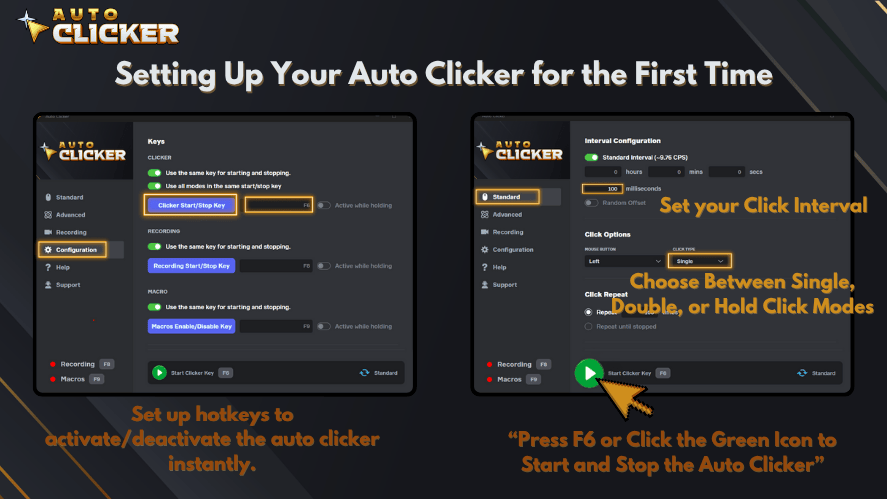
Once the tool is open, here’s what you should configure right away:
- Click Interval: How fast you want the clicks to happen. Start with 100ms for idle games.
- Click Button: Choose between left, right, or middle click.
- Repeat Type: Choose infinite loop or a set number of clicks.
- Hotkey: Assign a key to start or stop the auto clicker instantly.
- Random Delay: Optional, but great for mimicking human behavior.
Taking a few minutes to set this up properly can make all the difference in how smoothly it runs during gameplay.
Best Settings for Clicking Auto Clicker – Genre-by-Genre Breakdown
Not all games are created equal. What works for an idle clicker game won’t work well in an MMO or an FPS. That’s why creating game-specific profiles with optimized settings is key to getting the most out of your auto click mouse for gaming.
Let’s look at the best configurations based on game types.
🎮 Idle and Incremental Games (Cookie Clicker, Clicker Heroes)
These are the ideal candidates for automation. Players want to click as fast as possible without wearing out their fingers.
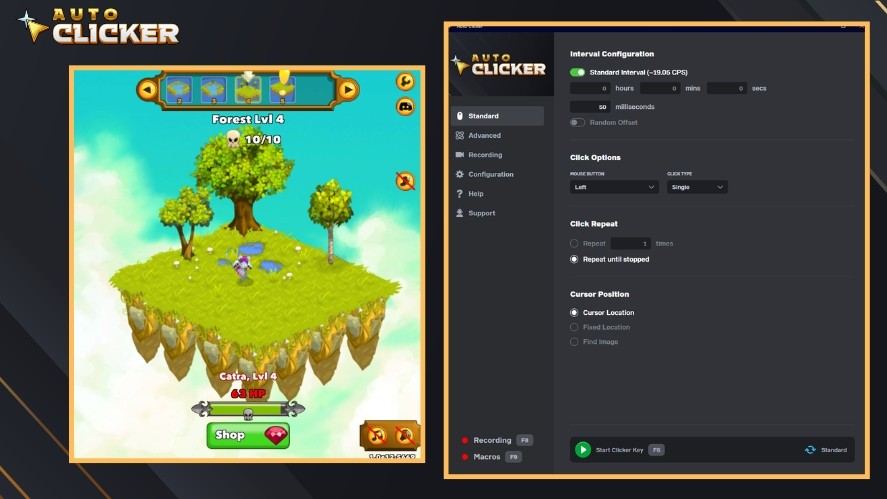
Suggested Settings:
- Click Interval: 50–100 milliseconds
- Click Type: Left click
- Repeat Mode: Infinite loop
- Hotkey: F6 or any unused key
Tips:
- Use a delayed start if the game loads slowly.
- Add random delay to avoid repetitive click patterns.
- Many of the best idle clicker games support background progression, so you can minimize the window and let it run.
Games in this category include:
These titles thrive on consistent clicking, making them a perfect fit for automation.
🔫 First-Person Shooters (Apex Legends, Fortnite)
Using auto clickers in FPS games is risky. However, in training mode, or for fun custom games, it can be helpful.
Suggested Settings:
- Click Interval: 20–30 milliseconds
- Click Type: Left click
- Toggle Mode: On via hotkey
- Repeat Type: Until stopped
Important Notes:
- Use for semi-auto weapons to simulate burst fire.
- Never use in competitive or online ranked matches.
- The auto clicker app for games should be disabled before going online to avoid detection.
In training or sandbox modes, this setup is a helpful way to test recoil patterns or weapon mechanics.
⚔️ MMORPGs and RPGs (RuneScape, WoW Classic)
Grinding is a big part of MMOs. From skilling in RuneScape to fishing in WoW, many actions require dozens of repeated clicks.
Suggested Settings:
- Click Interval: 500ms to 1 second
- Click Type: Right click
- Smart Pause: Enabled (if supported)
- Repeat Type: Either looped or fixed count
Extra Tips:
- Use location-based triggers if the tool supports them.
- Add pause sequences between sessions to simulate real play.
- Combine with in-game macros for more advanced routines.
When used carefully, these settings help automate safe in-game actions like crafting, fishing, or farming.
🕹️ Mobile Game Emulators (Bluestacks, LDPlayer)
For mobile gamers who play through emulators like Bluestacks or LDPlayer on PC, the clicking auto clicker is especially useful. Many mobile games require frequent taps, swipes, or repeated gestures that can be mimicked through mouse clicks.
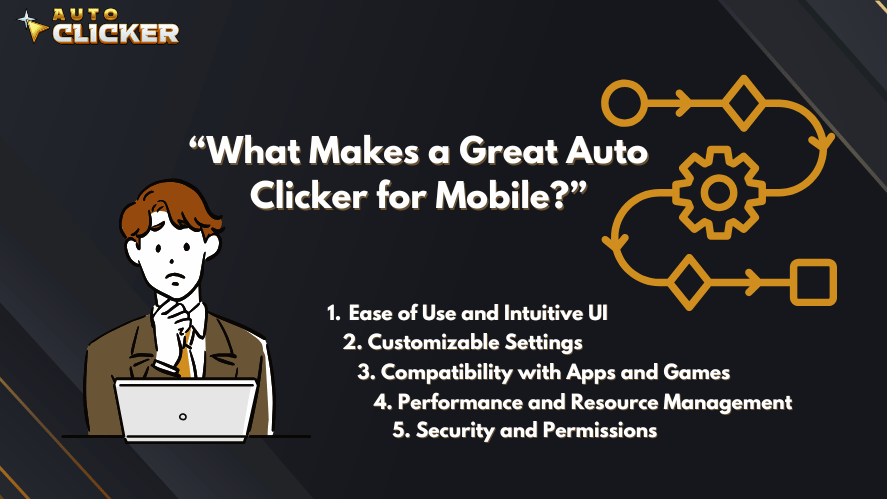
Whether you’re managing gacha pulls, crafting gear, or farming resources, the auto clicker can replicate touch-based commands.
Suggested Settings:
- Click Interval: 200–300 milliseconds
- Click Type: Left click
- Hotkey: Custom key (like F7 or F8)
- Repeat Type: Infinite or limited, depending on the task
Tips:
- Place the mouse over specific areas where tapping is required
- Use multiple instances of emulators if supported by the clicker
- Combine with emulator macros to simulate full actions like opening loot boxes or collecting rewards
Since many of these games include cooldown timers, you can use the auto clicker for games free setup to automate daily tasks without constantly watching the screen.
Games that work well with this setup include:
- AFK Arena
- RAID: Shadow Legends
- Genshin Impact (emulated)
- Mobile Legends
This method offers a stress-free way to grind in mobile titles on a PC setup.
Advanced Settings Walkthrough
Now that you’ve seen genre-specific settings, it’s time to explore the advanced features of a good mouse auto clicker tool. These features help you fine-tune your setup for specific needs.
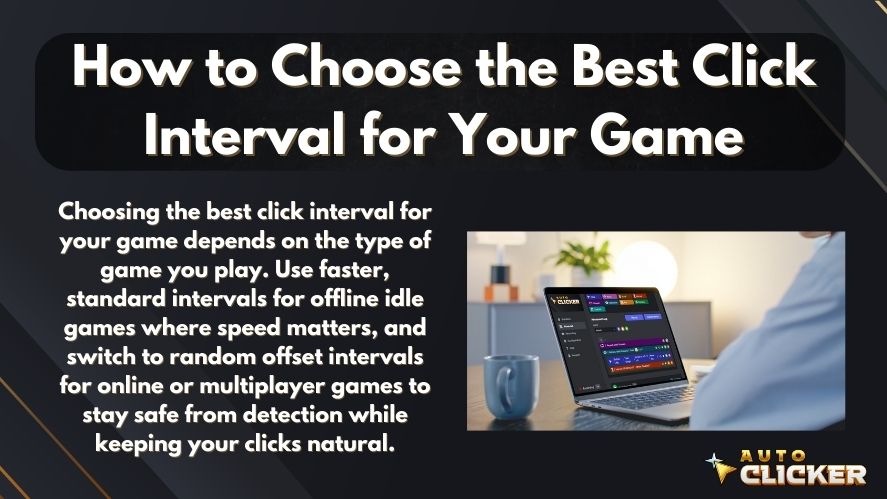
Click Interval – Speed vs. Stability
The click interval is one of the most important settings in any auto clicker.
- Faster intervals (25ms–75ms) offer quick reactions but may cause lag or get flagged in some games.
- Medium intervals (100ms–250ms) are best for idle games and general use.
- Slower intervals (500ms–1500ms) simulate casual player behavior and are safer in games with click detection.
Balancing your interval with the game’s pace will make automation feel smoother and more natural.
Click Type – Left, Right, Middle, or Keyboard Emulation
Most games use the left mouse button as the main action, but you might want to assign other click types for different actions.
- Right Click: Good for inventory, secondary menus, or MMO farming.
- Middle Click: Rare, but may be used in games with unique controls.
- Keyboard Emulation: This is especially useful when asking questions like how to use auto clicker for key presses. Some advanced auto clickers allow you to simulate keystrokes like “E” or “Spacebar”.
Wondering if you can make move mouse auto click a key? Yes, some tools support mapping actions like that. You can trigger both a cursor movement and a keypress at the same time.
Loop Options – Fixed Repeats vs Continuous
Understanding loop options helps you control how long the clicker operates.
- Fixed Repeats: Perfect for short tasks like crafting 10 items or doing 5 gacha pulls.
- Infinite Loop: Ideal for idle or background grinding when there’s no clear end.
- Time-Based Loops: Some auto clickers allow you to click for a set time instead of a click count.
For example, if you’re fishing in RuneScape, you might want 20 clicks every 1.5 seconds, then a break.
Hotkeys and Triggers
Assigning hotkeys makes using the auto clicker faster and safer. Here’s how to optimize them:
- Use F6–F9 for common start/stop triggers
- Avoid binding to in-game keys like WASD or ESC
- Some auto clickers allow secondary hotkeys for pausing or changing profiles
These simple keybinds will let you toggle your clicking auto clicker on or off mid-game without needing to alt-tab or use your mouse.
Custom Profiles for Different Games
One of the most useful features of Auto Clicker on Steam for gaming is the ability to create custom profiles. These save your specific settings so you can quickly switch between them based on the game you’re playing.
Sample Profiles:
Cookie Clicker Profile:
- Click Interval: 50-100ms
- Click Type: Left
- Repeat: Infinite
- Hotkey: F6
WoW Fishing Macro:
- Click Interval: 1500ms
- Click Type: Right
- Repeat: 20x
- Hotkey: F7
Apex Legends Auto-fire:
- Click Interval: 20ms
- Click Type: Left
- Hotkey: F8
- Notes: Only for use in training mode
By using profiles, you can go from one game to another without reconfiguring your settings every time.
Pro Tips for Safe and Smart Use
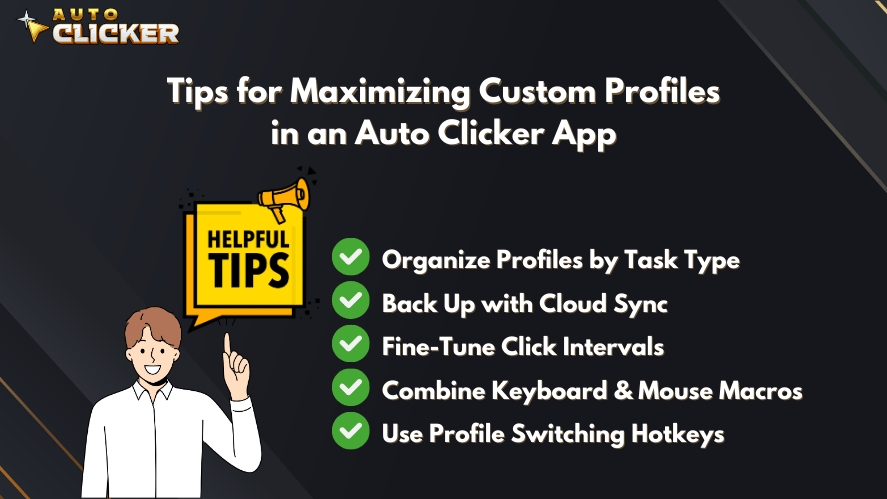
Although using an auto clicker for gaming can save time and effort, you’ll want to avoid common pitfalls. These best practices will help you stay safe and make the most out of your tool.
Add Random Delays
Adding a random delay between clicks makes your actions feel more human. Many detection systems flag perfectly timed clicks as signs of automation.
- Set a random delay between 10ms and 30ms
- Avoid patterns like 100ms exactly, as they are easy to spot
- Useful in automation games with detection systems
Use Pauses Strategically
Sometimes, too much clicking can backfire. Not only can it slow down your system, but it might also trigger spam protection in certain games.
- Set pauses every 5 to 10 minutes
- Use the pause hotkey when taking breaks
- Alternate between manual play and automated sessions
This strategy keeps your behavior under the radar while still benefiting from automation.
Avoid Online Competitive Use
Although many gamers search for how do you get auto clicker to gain a competitive edge, it’s best to never use it in ranked or online multiplayer games.
Doing so may violate terms of service and result in:
- Temporary bans
- Permanent account suspension
- Public reputation damage
Instead, use it responsibly in single-player, co-op, or non-ranked environments. Tools like this are meant to reduce grind, not give you an unfair advantage.
How Auto Clicker on Steam Stands Out
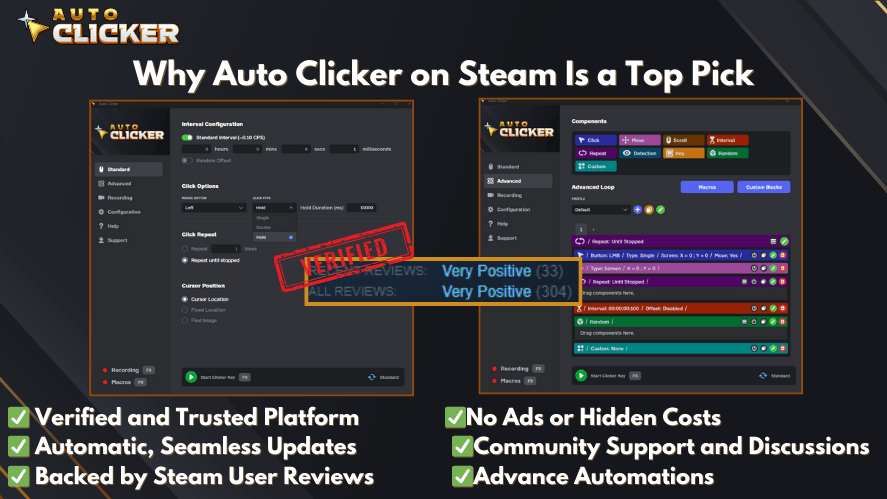
Let’s take a moment to compare Auto Clicker on Steam for gaming with generic third-party tools. If you’ve tried other clickers, you’ll quickly notice the difference.
| Feature | Auto Clicker on Steam | Other Auto Clickers |
|---|---|---|
| Easy Install | ✅ | ⚠️ Sometimes complex |
| Steam Verified | ✅ | ❌ |
| Free to Use | ✅ | ✅ |
| Custom Profiles | ✅ | ⚠️ Limited support |
| Regular Updates | ✅ | ❌ |
| Community Support | ✅ Steam Forums | ❌ |
| Friendly Interface | ✅ | ⚠️ May lack polish |
Trusted by the Steam Community
Thousands of users have downloaded and reviewed Auto Clicker on Steam, giving it high marks for performance, ease of use, and reliability. Steam forums are filled with active discussions, troubleshooting tips, and user-created game profiles.
To find reviews or updates, simply search for Auto Clicker in the Steam Community tab.
Troubleshooting and Support
Even though the software is simple, you might run into minor issues. Here’s how to fix the most common ones.
Clicker Not Working in Game?
Try the following steps:
- Run the app as administrator
- Switch the game to windowed or borderless mode
- Avoid full-screen exclusive mode, which may block input
Hotkey Conflicts
If your hotkeys are not responding, check:
- If the hotkey is also assigned in-game
- If the app is running with correct permissions
- Whether background apps are intercepting the keys
Rebinding to unused keys usually solves this problem.
Performance Lag?
Auto clickers are lightweight, but rapid clicking can still strain your system if other apps are running.
- Reduce the click frequency
- Lower the game’s resolution or quality
- Close other background programs
This helps the auto clicker run smoothly, especially during long sessions.
Bonus: Game-Specific Setting Templates
Here’s a quick reference table with ready-to-use profiles for popular games.
| Game Title | Click Interval | Repeat | Hotkey | Notes |
|---|---|---|---|---|
| Cookie Clicker | 100ms | Infinite | F6 | Great for background farming |
| WoW Fishing | 1500ms | 20x | F7 | Mimics bobber click |
| RuneScape | 1000ms | Infinite | F8 | Used for skill training |
| Diablo IV | 30ms | Toggle | F9 | Auto-fire mouse build |
| Genshin Impact | 200ms | Infinite | F10 | Emulated mobile play |
Frequently Asked Questions
It depends. While the app itself runs in the background, many games require the window to be active for clicks to register.
Not in competitive modes. Use only in offline or single-player games.
Press your assigned hotkey, or close the program from your taskbar.
Most tools only support mouse and keyboard inputs. Gamepad support is limited.
Conclusion
The clicking auto clicker is more than just a niche tool. It’s a flexible and powerful way to reduce grind, increase efficiency, and improve your gaming experience. Whether you’re automating tasks in fun clicker games or farming materials in a deep RPG, this tool saves time and keeps your gameplay smooth.
Let’s recap what we covered:
- How to install and use Auto Clicker on Steam
- The best settings for different game types
- Advanced customization and smart hotkey use
- Pro tips for safe, responsible automation
- Game-specific templates and troubleshooting
📢 Ready to Automate Your Grind?
🎮 Download Auto Clicker on Steam today and create your own custom profiles for your favorite games. 🔥 Save time, reduce stress, and enjoy your gaming sessions without all the clicking.

Speed Clicking Games Guide: Tips, Tools, and Automation Tricks
Best Click Interval Settings for Games: Key Tips for Gamers

Auto Clicker for Clicker Heroes: Can You Get Banned?
About The Author
