
Auto Clicker App for Clicker Games: Play Faster, Click Less
Clicker games are video games where players repeatedly click to earn currency and progress. Their addictive gameplay loop makes them ideal for players who enjoy incremental progression and a sense of continuous achievement.
However, the clicking action can be repetitive and tiresome, especially for clicking idle games that don’t have too many features or are poorly balanced.
That’s where the Auto Clicker on Steam becomes a game-changing solution.
This auto clicker app for clicker games enhances efficiency by automating clicks and repetitive in-game tasks, allowing you to focus on strategy, upgrades, and overall progression.
First, let’s learn more about clicker games.
What Are Clicker Games?
Clicker games are a subgenre of incremental games where players perform simple actions, such as clicking or tapping, to generate in-game currency.
These games introduce new features gradually as some sort of reset, so that the players always have things to do.
Some of the most popular click games are Cookie Clicker, Clicker Heroes, and Adventure Capitalist.
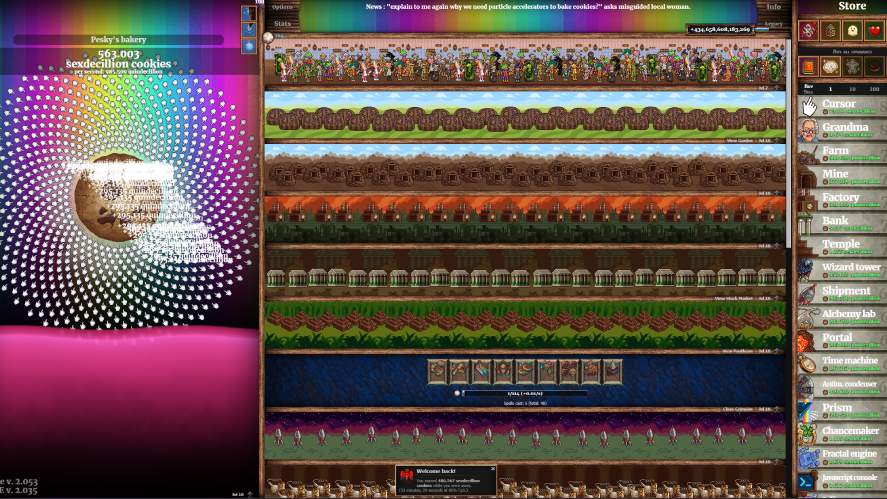
For example, in Clicker Heroes, you need to click to defeat monsters to earn gold. Then use that gold to hire heroes and purchase their upgrades.
The gameplay continues to loop as the more heroes you have, the higher damage you can deal. Therefore, the faster you can get gold to buy the heroes again.
Later on, the game provides features like ascension and transcendence, allowing players to experience the game from the beginning but with powerful buffs to outrun the previous runs.
Some idle games realize the problem with tiresome manual clicks and implement automation mechanics. In Clicker Heroes, you may find the auto zone advancing or in-game auto clickers features at a certain point.
However, not all idle clicker games have automation features, meaning you have to constantly click for the rest of the game to maximize progress.
Why Use an Auto Clicker App for Clicker Games?
Using an auto clicker app in clicker games eliminates repetitive clicking, saving you time and preventing fatigue from excessive manual clicking.
Unlike other third-party software like trainers or cheat codes, an auto clicker only helps you automate actions by simulating certain mouse actions.
For example, you can configure an auto clicker to click at five different locations, or even scroll the mouse wheel up and down for more advanced actions.
Auto clickers also help you achieve maximum CPS (click per second) to maximize in-game currency, damage, and resource generation.
The average CPS of a human is only around 4-7, while auto clickers can do more than that, bringing the CPS more than a thousand times per second.
With more automated mouse clicks per second, you have a high chance of speeding up game progression, unlocking more upgrades, and earning more achievements faster.
Overall, auto clickers not only help reduce the risk of hand strain from prolonged clicking sessions but also give you more time to strategize, optimize your upgrades, and enjoy the game’s progression without constant manual input.
How to Use Auto Clicker on Steam for Clicker Games
Here’s how to download and use Auto Clicker on Steam for popular clicker games.
Step 1: Download and Install
Auto Clicker is available on the Steam platform, so to download and install it, click the button below.
Next, scroll down a little bit and click the “Add to Cart” button.
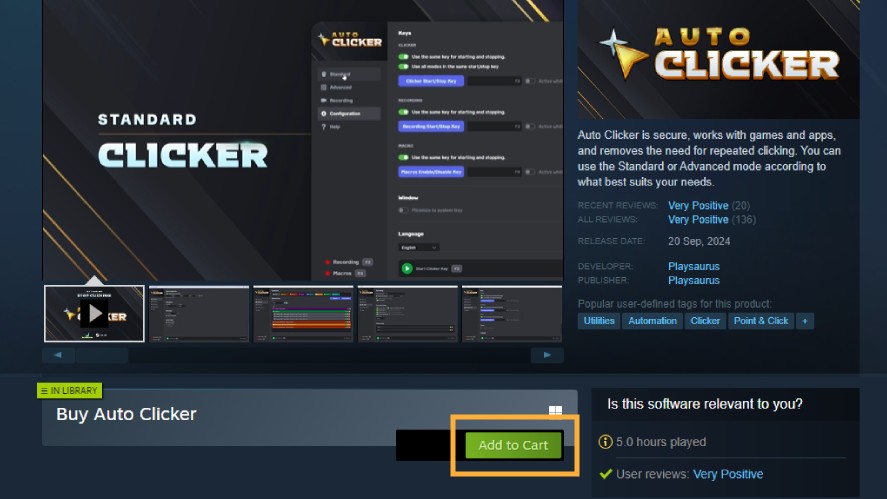
After that, go to your Steam cart and complete the purchase by filling in your payment methods. This process is the same as how you’d normally purchase a Steam game.
Once you have made the purchase, go to your Steam library and find the app. Then install and launch it by clicking on the big green button.
Step 2: Configure Click Settings
The first thing when you start the tool is to look inside the Standard tab.
Here, you can set the click interval, add random offsets, set click options, repeat, locations, and even image detection.
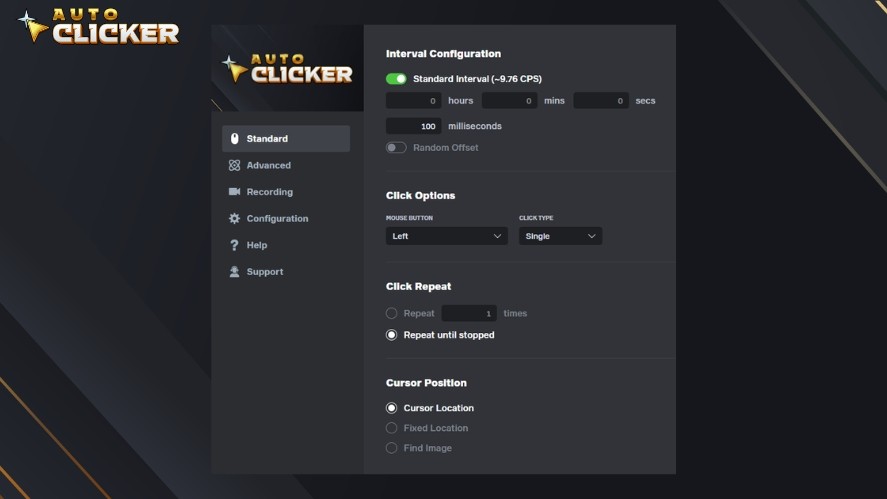
All of the available options are visible and can be configured with a single mouse button. So, try clicking around to understand all of them.
Here are some common scenarios where you want to set an automatic clicker in clicker games.
To Earn In-game Currency or Defeat Monsters
To earn in-game currency or defeat monsters, you want to set the click interval as low as possible. A common number for this setting is around 10-20 milliseconds.
Mouse button should be set as “left” and the click type should be “single”.
For click repeat, choose “Repeat until stopped”.
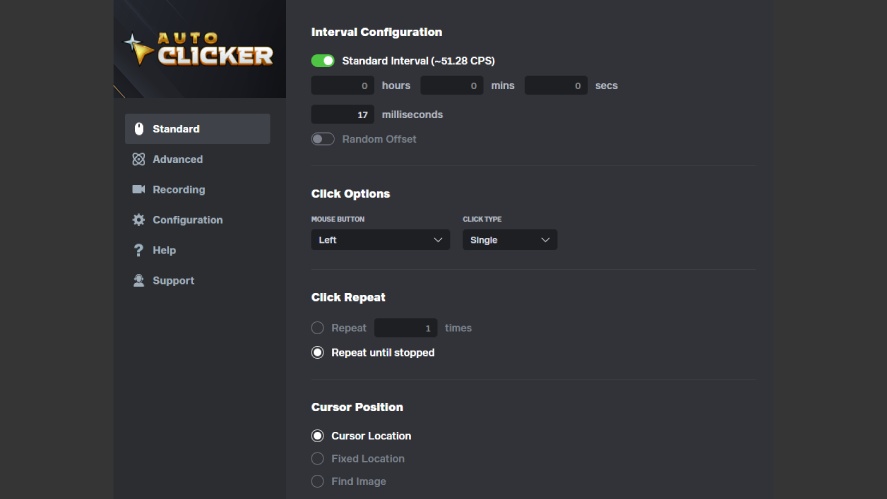
For cursor position, you can use either Cursor Location or Fixed Location. If you use Cursor Location, make sure to move your mouse to the correct location on the screen before activating the auto clicker.
Otherwise, click the “Add location” button and then click on the point you want the tool to click.
To Buy Upgrades, Heroes, and Powerups
Buying upgrades and heroes is a little bit trickier, but still easy to automate.
You should keep all other settings the same as in the previous scenario. However, you must manually configure every location using the Fixed Location option.
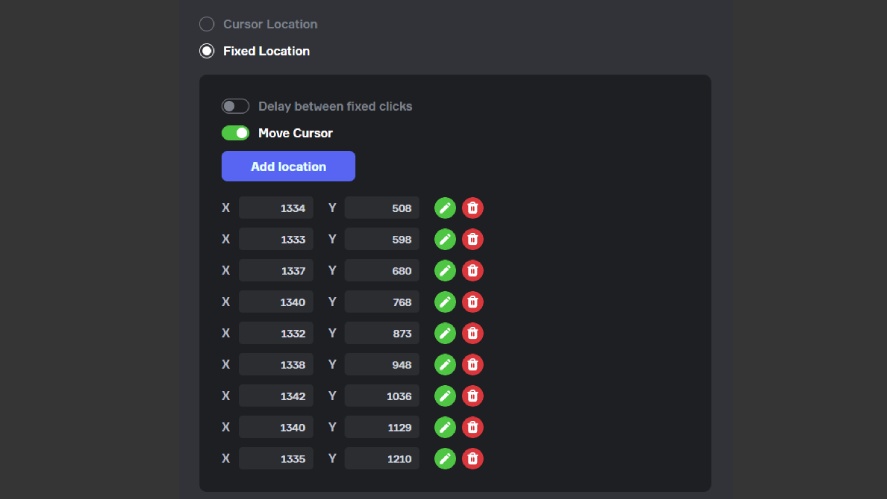
For example, to buy heroes in Clicker Heroes, you must manually pick each buy button’s location next to each hero.
Tip: To automate complex sequences that include more actions like mouse scrolling or detection, check out the Advanced tab.
Step 3: Activate and Automate
Once you have configured all the options in the Standard tab, simply press the F6 key by default to start the mouse click automation.
To stop the auto clicker, press the F6 key again.
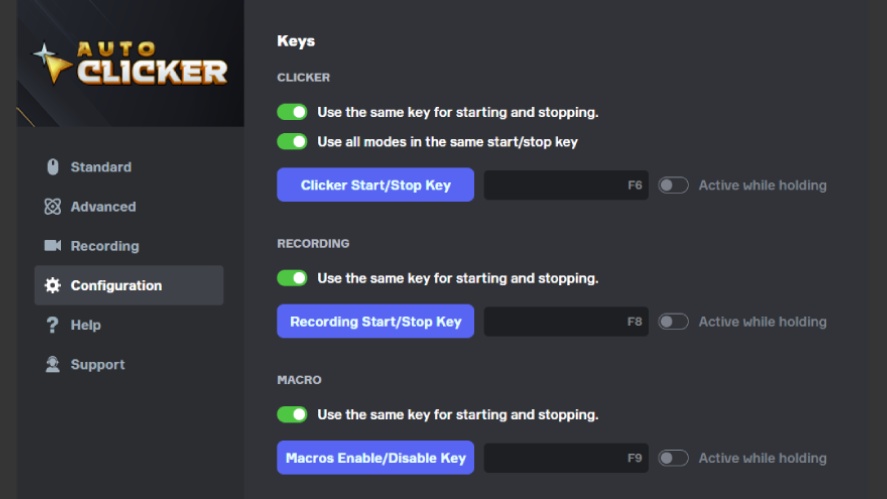
Remember that this hotkey can be changed in the Configuration tab to suit your needs. Moreover, you can also set individual hotkeys for starting/stopping the automation in this tab.
Before starting the auto clicker for games, remember to check the mode it’s tied to in the bottom right corner. If it displays “Standard”, then the configured settings in the Standard tab will be executed.
Step 4: Optimize Auto Clicker App for Clicker Games
All settings in the Standard tab should be enough for all of the typical tasks in idle clicking games. But to maximize efficiency, it’s recommended to check out the other tabs as well.
The Advanced tab is where you can bind a certain hotkey (Macros) to a series of complex actions, called Custom Blocks.
To create a Custom Block, click on the “Custom Blocks” button. Next, click “Create” and fill in the block name. After that, click the “Create” button once again.
To add actions to the newly created custom block, click the green pencil icon next to its name and click “Edit blocks”.
In this panel, you need to drag the supported actions in the Components area to the area below.
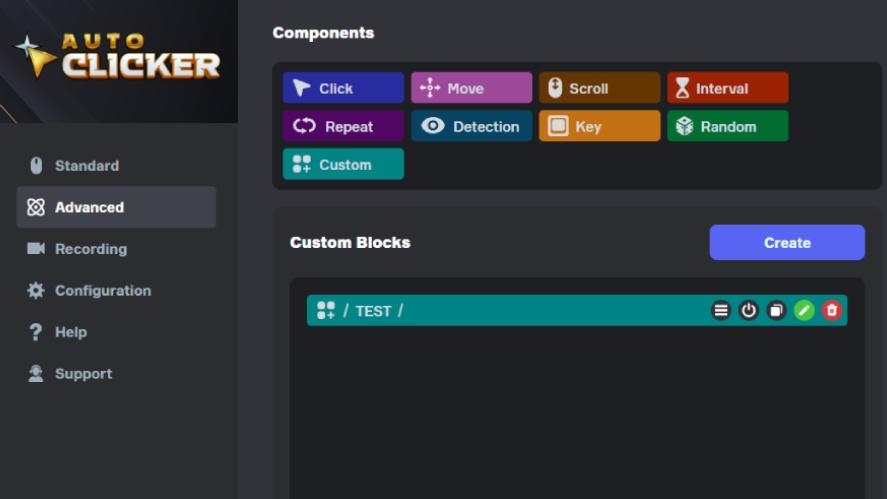
Once it’s done, click the “Close” button twice to go back to the Advanced tab.
From here, click on the “Macros” button and create a new Macro. Then edit it by clicking on the green pencil just like you edited the Custom Block previously.
Next, click on the “Key” button and press the hotkey you want to bind.
In the custom block drop down below, select the new Custom Block that you’ve created before.
Congratulations! Your new Macro and Custom Block are ready to work!
Top Clicker Games That Work Best with Auto Clicker
Auto Clicker on Steam should work smoothly with most existing clicker games. In this section, we’ll take a closer look at the five titles as follows:
- Cookie Clicker
- Clicker Heroes
- Realm Grinder
- Crusaders of the Lost Idols
- Adventure Capitalist
The first common thing we can see in the first four games is how the game section is divided into 2 primary areas:
- Background: Where you can constantly spam-click without worrying too much about the clicking locations to earn currency or fight monsters.
- Foreground: Where you need to click at the correction locations to make any impacts.
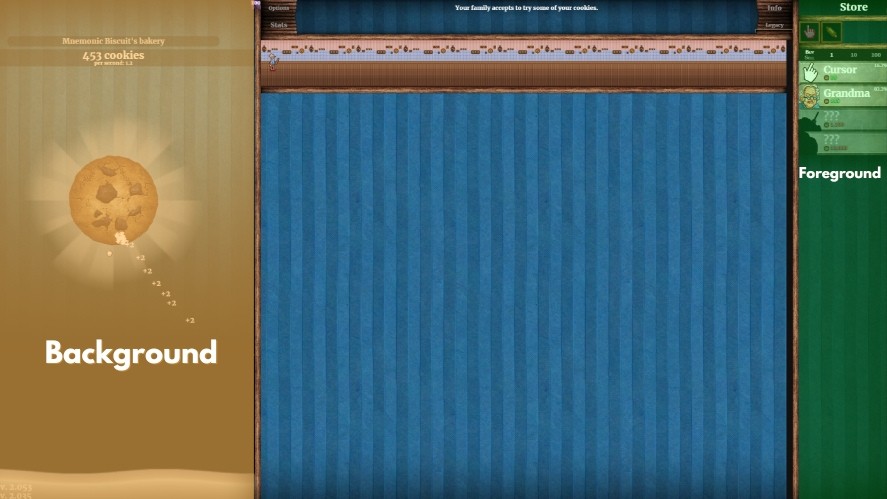
In Cookie Clicker, the background is the panel to the left where the cookie is. This whole area is clickable and will give you cookies on click.
On the other hand, the foreground is the panel to the right, where you need to click on the correct location to buy upgrades and new structures.
To set up an auto clicker for the background section, refer to our “To Earn In-game Currency or Defeat Monsters” section above.
For the foreground section, refer to “To Buy Upgrades, Heroes, and Powerups” section.
Games like Adventure Capitalist don’t actually have a background section, meaning you have to manually configure all the clicking points so that the auto clicker can buy the businesses.
Is Using an Auto Clicker App for Clicker Games Allowed?
Auto Clicker app for clicker games is still third-party software, meaning it is not developed or belongs to the original game. Therefore, you need to check the legality and auto clicker safety before using one.
As far as we know, most single-player clicker games allow automation tools. So, as long as it doesn’t affect anybody else, you’re good to use auto clickers.
However, for idle games that have competitive features like leaderboards or clans, the usage of auto clickers may be prohibited. This is understandable, and it creates fairness for all players.
To know if an idle game supports third-party apps, review its policies carefully or simply ask the developers.
Some games may have rules against automation, and using an auto clicker in such cases may lead to penalties. We are not responsible for any consequences resulting from the use of Auto Clicker or any third-party software.
Frequently Asked Questions
The best auto clicker app for clicker games depends on your device, but top options offer customizable tap intervals, multi-tap support, and an easy-to-use interface.
Some clicker games allow auto clickers, while others may restrict them. Always check the game’s terms of service to avoid penalties.
Yes, many auto clicker apps are designed for Android devices. iOS users may have more limitations due to system restrictions.
Most modern auto clicker apps do not require root access and can run using accessibility permissions instead.
Yes, free options like Automatic Tap, OP Auto Clicker, and ClickMate offer features like adjustable click speed and customizable tapping without requiring payment.
Conclusion
An auto clicker app for clicker games can significantly enhance the gaming experience by automating repetitive tasks, reducing hand strain, and allowing players to focus on strategy and progression.
With its ease of use and efficiency, Auto Clicker on Steam provides a seamless way to maximize rewards while minimizing effort.
If you’re looking to improve your auto clicker games experience, give Auto Clicker on Steam a try and enjoy a smoother, more optimized gameplay loop!
AutoClicker for Minecraft: Safe Setup and Responsible Use

Best Idle Clicker Games to Play Using Auto Clicker on Steam
Autoclicker for Minecraft: How to Use It for Efficient Farms
About The Author
