
Graphic Design Tools: How AutoClicker Enhances Your Workflow
Graphic designers spend a surprising amount of time on repetitive UI actions.
Clicking through deep menus, batch exporting assets, confirming the same dialog boxes, or repeatedly aligning elements can quietly drain focus and slow down an otherwise creative workflow.
These micro-tasks don’t require design thinking, but they add up fast during long projects.
That’s where Auto Clicker on Steam comes in.
While it’s not one of the best traditional graphic design tools, it works as a powerful companion to existing software by automating simple, repeatable mouse actions.
This shift reflects a broader trend across creative professions.
Designers, editors, and content creators are increasingly adopting workflow automation to work faster, reduce fatigue, and protect their mental energy.
In this article, you’ll learn how auto clicker software can support graphic design workflows, where it makes sense to use it, and why tools like Auto Clicker on Steam are gaining attention among modern designers.
Understanding Auto Clicker as One of Today’s Graphic Design Tools
At its core, an auto clicker simulates mouse clicks at user-defined intervals and specific screen positions.
You decide where to click, how often it clicks, and when it starts or stops. This makes it ideal for handling predictable UI actions that don’t change from task to task.

One common misconception is that auto clickers are only for gaming. In reality, their functionality is neutral.
They simply automate mouse input, which can be applied to many professional workflows, including graphic design.
When used with online graphic design tools like Photoshop, Illustrator, or Figma, an auto clicker can handle repetitive actions. Examples include confirmations, menu navigation, and batch tasks that normally require constant clicking.
For designers, the benefit is not just speed. It also includes consistency, less hand strain, and fewer mechanical actions.
Top Design Tasks You Can Automate with Auto Clicker
Many graphic design workflows include small, repeatable actions that add up over time. Below are the most common design tasks you can automate with an automatic clicker.
Batch Exporting and File Conversion in Graphic Design Tools
Exporting assets is one of the most common time sinks in design work.
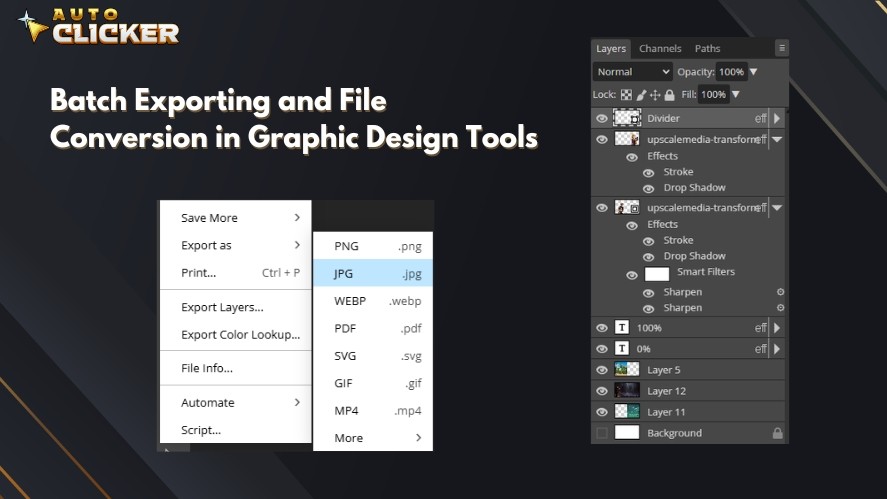
When you need to export multiple layers, artboards, or formats using the same settings, an auto clicker can repeat the exact export sequence for you.
This is especially useful when converting large sets of files or preparing assets for different platforms with identical export steps.
Repetitive Actions in UI-Heavy Tools
Design software like Photoshop, Illustrator, or Figma often relies on deep menus and panels.
Tasks such as aligning objects, duplicating elements, toggling layer effects, or confirming dialog boxes can require the same clicks over and over.
An auto clicker can handle these repetitive interactions, reducing hand strain and speeding up routine adjustments.
Accelerating Design Mockup Processes
For UX and UI designers, mockups often involve applying the same layout, component, or template across multiple screens.
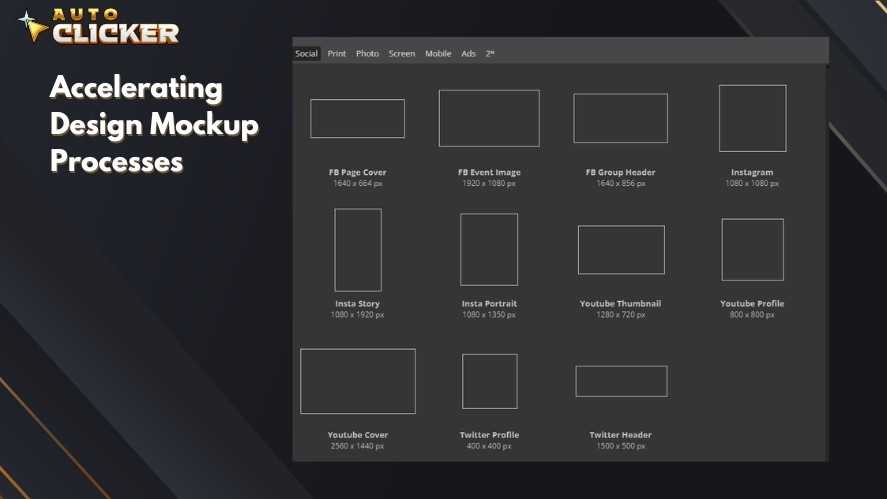
A workflow automation software can automate parts of this process by repeating consistent actions across artboards or pages.
This makes it easier to scale designs for large projects without slowing down due to repetitive setup work.
Creating Efficient Workflows with Graphic Design Tools Like Auto Clicker
Building an effective workflow with an auto clicker starts with understanding how its core settings work.
Designers can define:
- Click intervals
- Click positions
- Hotkeys to start or stop actions
This makes it easy to trigger automation only when needed and stop it instantly if something changes on screen.
Once configured, an auto clicker can be smoothly integrated into daily design habits.
Many designers use auto clickers during predictable parts of their workflow. These include asset setup, layout preparation, and repeated UI adjustments.
However, creative decisions are still handled manually.

Over time, this approach reduces fatigue. It also helps designers stay focused on quality instead of repetitive actions.
In practice, an auto clicker can generate pattern sequences automatically. It can also place placeholder elements or repeat the same action across multiple canvases.
Each automation may seem small on its own. Together, they can save a significant amount of time on large or long-term projects.
Safety and Precision in Design Automation
Precision matters in design work. An auto clicker helps by locking automated mouse clicks to fixed screen coordinates.
When set up correctly, each automated click lands in the exact spot needed. This is important for complex or layered interfaces.
To prevent misclicks, start by testing click positions at a slow speed. Increase the speed only after confirming accuracy.
Designers should pause automation when changing tools, zoom levels, or screen resolution. These changes can shift UI elements and reduce precision.
For high-resolution setups, keep the auto clicker PC running in a fixed window size. Use a consistent zoom level for best results.
With careful setup and controlled use, automation becomes safe and reliable. It helps designers work faster while keeping workflows accurate and predictable.
Why Auto Clicker on Steam Stands Out
Auto Clicker on Steam stands out as the best auto clicker software because it combines simplicity, reliability, and flexibility in a way that fits naturally into a designer’s workflow.
Instead of replacing design skills, it quietly handles repetitive interactions so you can stay focused on creative work.
Key features that make it especially appealing for graphic designers include:
- Simple, clean interface that’s easy to learn without technical setup
- Customizable click intervals and positions for precise control
- Built-in hotkeys to start or stop automation instantly
- Lightweight performance that runs smoothly alongside design software
- Wide compatibility on Windows, including high-resolution interfaces
- Steam-backed distribution, ensuring safe downloads and regular updates
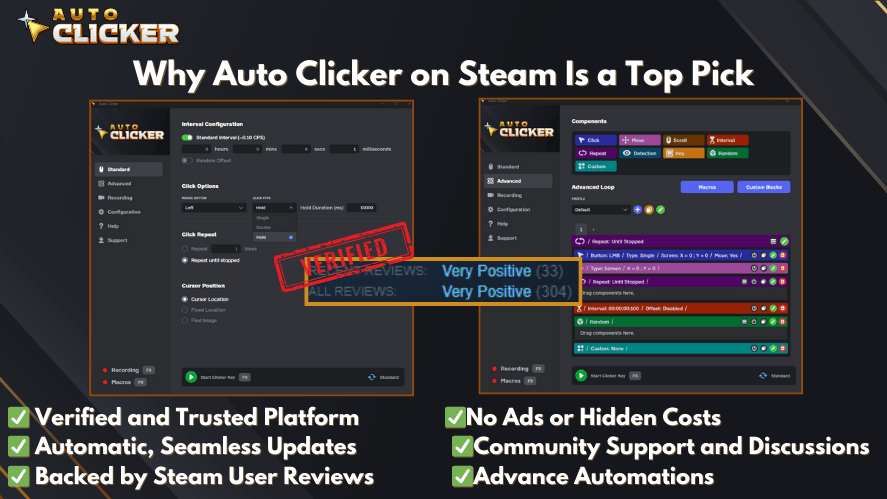
Compared to script-based or code-heavy automation tools, Auto Clicker on Steam offers a practical middle ground. It delivers useful automation power without adding complexity.
Frequently Asked Questions
Yes, auto clickers can work alongside graphic design tools like Photoshop, Illustrator, and Figma to speed up repetitive UI tasks and improve workflow efficiency.
Common tasks include batch exporting assets, repeating layout adjustments, applying consistent actions across multiple artboards, and handling frequent menu clicks.
Yes, when configured carefully with fixed click positions and tested at slower speeds, auto clickers can automate tasks accurately and safely.
Auto Clicker on Steam offers a simple interface, customizable click settings, built-in hotkeys, and safe Steam-based installation without the complexity of script-based tools.
No, an auto clicker supports your workflow by automating repetitive actions, but creative design work still depends on tools like Photoshop, Illustrator, and Figma.
Conclusion
An auto clicker can be a useful addition to a graphic designer’s toolkit. It works best as a support tool for repetitive and time-consuming tasks.
By automating simple clicks, designers can reduce strain and stay focused. This leaves more time and energy for creative work.
When used responsibly, Auto Clicker on Steam helps streamline workflows without adding complexity or changing existing processes.
Want to work faster and reduce repetitive actions with the best tools for graphic design? Download Auto Clicker on Steam and simplify your design workflow today!

Are Auto Clickers Allowed in Games?

Auto Click Image Detection Not Working? Here’s How to Fix It

Auto Clicker Software for Steam Games and Workflow Automation
About The Author
