
Best Auto Clicker Settings for Faster Game Progress
If you want faster progress in games, using the best auto clicker settings can make a big difference. Many players install an auto clicker, but not everyone knows how to configure it properly.
In this updated 2026 guide, you will learn how to adjust speed, intervals, and click types to match your game. As a result, you can improve efficiency while keeping your gameplay smooth and safe.
An automatic clicker is a tool that repeatedly clicks for you at set intervals. It’s especially useful in idle games, RPGs, and other games that require constant clicking. However, if your mouse click setting is too fast or too slow, it can hurt your progress or even trigger anti-cheat detection.
One of the easiest tools to use is Auto Clicker on Steam. It offers simple, customizable settings for different types of games. In this guide, we’ll explain how to adjust your settings for the best performance, avoid common mistakes, and set up your auto clicker correctly.
Why Auto Clicker Settings Matter in Gaming
Boosting Efficiency with the Right Configuration
With an automatic clicker, you can complete tasks much faster than clicking manually. Whether you’re farming materials in an RPG or collecting in-game currency in an idle game, automation makes everything more efficient.
Avoiding Issues Caused by Poor Clicker Settings
However, incorrect settings can cause problems, such as:
- Clicking too fast – Some games may flag your account if the click speed is unnatural.
- Clicking too slow – If the interval is too long, automation becomes less effective.
- Incorrect cursor positioning can result in missed actions or misclicks, especially in resource-heavy games.
Different Games Require Different Configurations
Not all games benefit from the same fastest auto clicker settings. The ideal setup for an idle game is very different from one used in a fast-paced action game. That’s why fine-tuning your mouse clicker settings is crucial for maximizing performance.
Why the Best Auto Clicker Settings Matter
Using default settings might work, but they are rarely optimized. On the other hand, the best auto clicker settings help you:
- Progress faster in idle and clicker games
- Reduce manual effort and fatigue
- Maintain consistent performance
- Avoid detection in games with limits
For example, in idle games like Clicker Heroes, faster clicking leads to higher damage output. However, setting the speed too high can sometimes cause issues. So balance is important.
Key Factors to Consider When Adjusting Clicker Settings
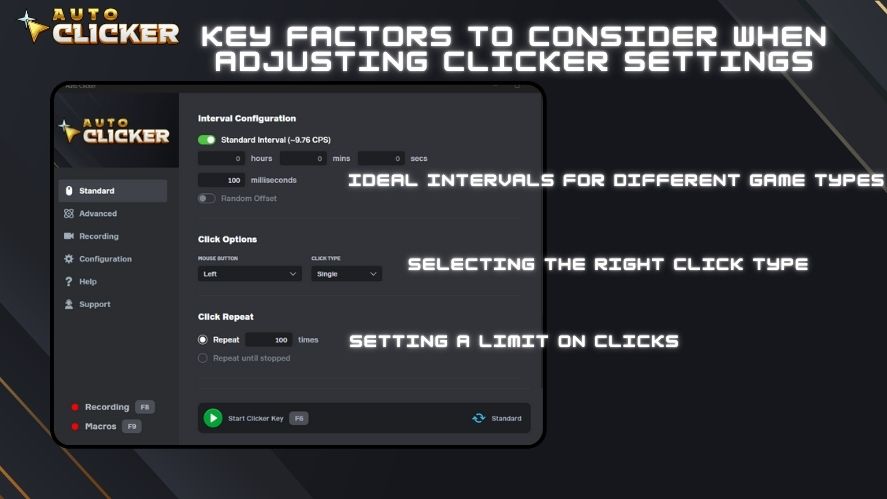
Understanding Click Intervals
The click interval refers to the time between each click. A shorter interval results in faster clicking, while a longer one slows it down.
Ideal Intervals for Different Game Types:
- Idle games – 5-10 milliseconds for continuous farming.
- RPGs & MMOs – 50-100 milliseconds for grinding without triggering detection.
- Strategy games – 200-500 milliseconds to balance efficiency and usability.
When deciding how fast to set auto clicker, it’s best to test different speeds and adjust based on in-game behavior.
Selecting the Right Click Type
Auto clickers can simulate different types of mouse clicks, including:
- Single click – Best for farming, crafting, and basic attacks.
- Double click – Useful for opening chests or selecting multiple items.
- Right-click – Often used for movement or menu interactions in strategy games.
Choosing the correct click type ensures that automation works smoothly without interfering with gameplay.
Adjusting Cursor Positioning
- Fixed cursor position – Ideal for games with static buttons or stationary resources.
- Dynamic cursor movement – Recommended for games that require repositioning between clicks.
Proper configuration of auto click setting ensures that every action is accurate and efficient.
Setting a Limit on Clicks
- Unlimited clicks – Works best for AFK resource farming.
- Fixed number of clicks – Useful when performing a specific task, such as crafting a set number of items.
Additionally, many auto clickers allow users to set timeout on click, which prevents excessive clicking and reduces the risk of being detected as a bot.
Best Auto Clicker Configurations for Different Game Genres
Optimizing Clicker Settings for Idle Games
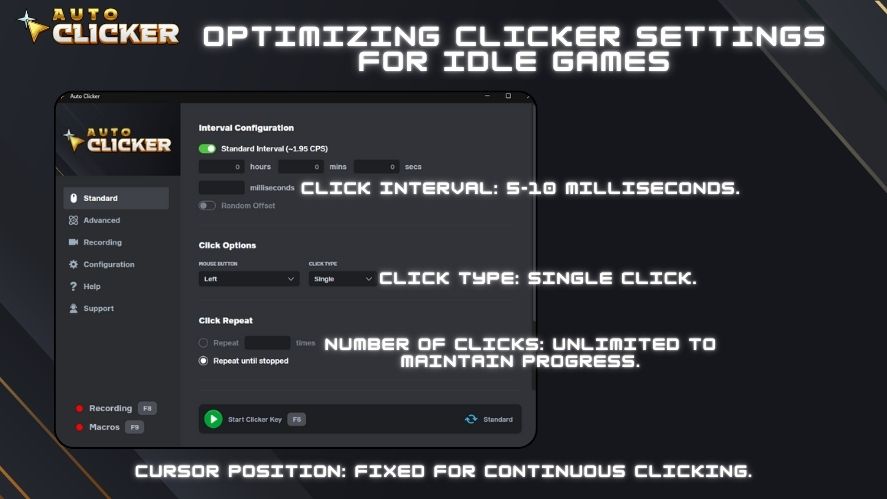
- Click Interval: 5-10 milliseconds.
- Click Type: Single click.
- Cursor Position: Fixed for continuous clicking.
- Number of Clicks: Unlimited to maintain progress.
Idle and Clicker Games
- Interval: 10–25 ms
- Mode: Repeat until stopped
- Position: Fixed
This setup helps maximize damage and resource gain.
Idle games rely heavily on automated mouse click settings to accumulate in-game rewards passively.
Recommended Settings for RPGs and MMOs
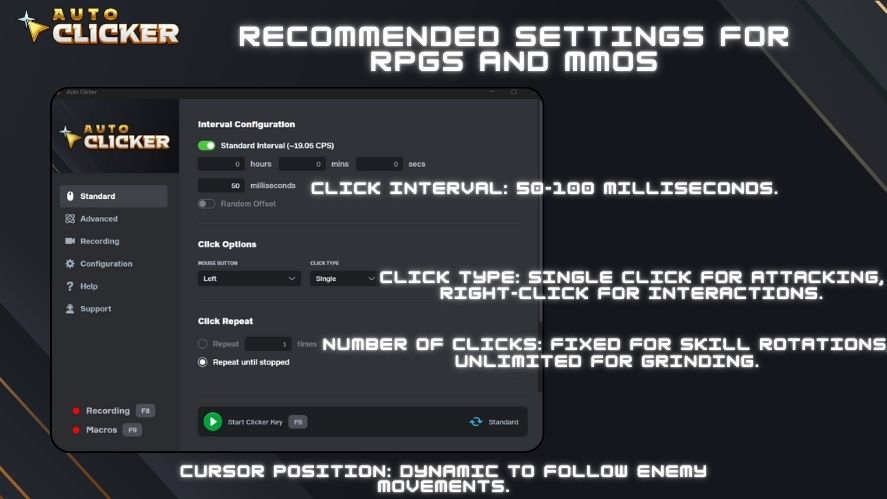
- Click Interval: 50-100 milliseconds.
- Click Type: Single click for attacking, right-click for interactions.
- Cursor Position: Dynamic to follow enemy movements.
- Number of Clicks: Fixed for skill rotations, unlimited for grinding.
If you’re wondering how to set up auto clicker for MMOs, focus on a balance between speed and detection safety.
Efficient Clicker Configurations for Strategy and Simulation Games
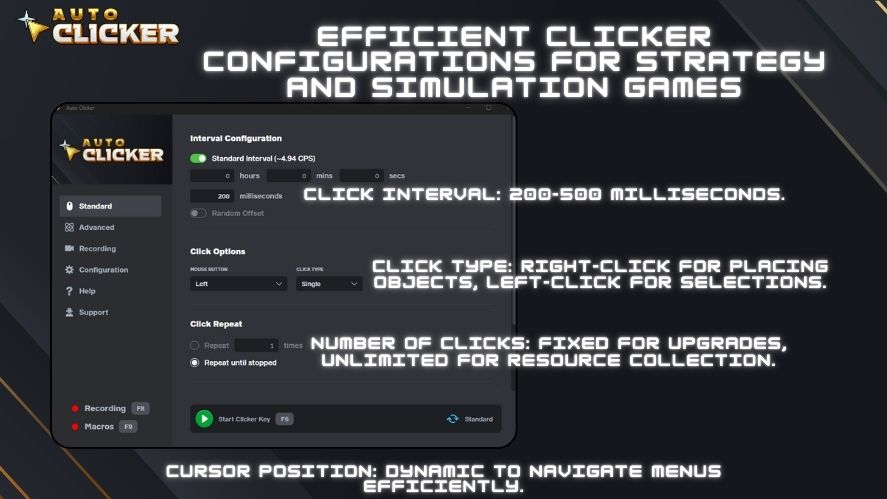
- Click Interval: 200-500 milliseconds.
- Click Type: Right-click for placing objects, left-click for selections.
- Cursor Position: Dynamic to navigate menus efficiently.
- Number of Clicks: Fixed for upgrades, unlimited for resource collection.
Proper mouse clicker configurations prevent unnecessary inputs while maximizing efficiency.
Fine-Tuning Clicker Settings for Action Games
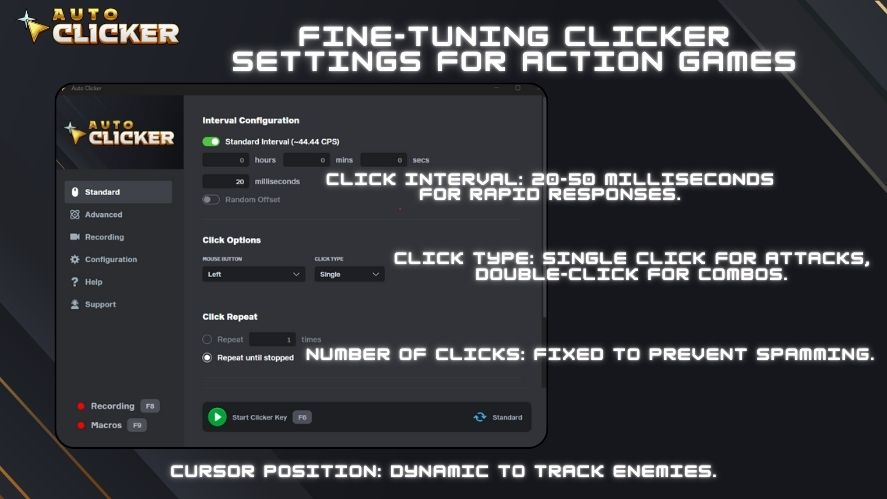
- Click Interval: 20-50 milliseconds for rapid responses.
- Click Type: Single click for attacks, double-click for combos.
- Cursor Position: Dynamic to track enemies.
- Number of Clicks: Fixed to prevent spamming.
Action games have anti-cheat protections, so set your mouse click setting carefully.
How to Customize Auto Clicker on Steam
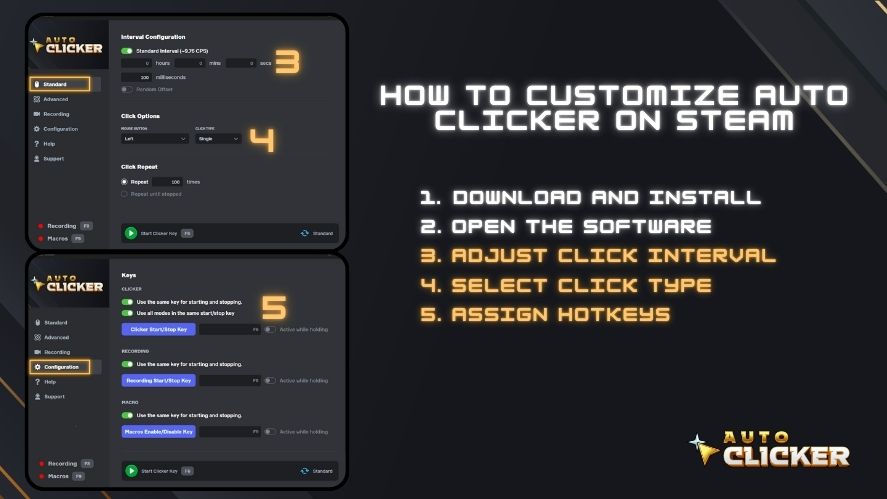
- Download and Install – If you’re not sure how to download an auto clicker, search for “Auto Clicker” on Steam and install it.
- Open the Software – Launch the program and go to the settings menu.
- Adjust Click Interval – Choose a speed that matches your game.
- Select Click Type – Pick between single, double, or right-click.
- Assign Hotkeys – Set up a start/stop key for easy control.
- Test and Refine – Experiment with different settings to optimize performance.
Compared to other tools, Auto Clicker on Steam is simple and flexible, making it a great choice for gamers.
Mistakes to Avoid When Using an Auto Clicker
Always test your setup for a few minutes. Then adjust based on performance.
Here are common mistakes:
- Clicking too fast – This may trigger anti-cheat detection.
- Skipping test runs – Always check your settings before using them in a real game.
- Using the wrong click type – Different games require different click settings.
Even with good tools, wrong settings can slow you down.
Advanced Tips for Better Auto Clicker Performance
- To get better results, follow these tips:
- Start with medium speed, then adjust
- Match settings with game mechanics
- Use reliable tools like Auto Clicker on Steam
- Avoid running too many programs at once
- Monitor CPU usage during long sessions
- Small changes can lead to big improvements over time.
Is It Safe to Use Auto Clicker Settings
Safety depends on how you use the tool.
For offline or single-player games, auto clickers are generally safe. However, in online games, some platforms may restrict automation.
To stay safe:
- Use moderate speed settings
- Avoid unnatural clicking patterns
- Check game rules before using
This helps reduce risks while still improving performance.
FAQ About Best Auto Clicker Settings
The best speed depends on the game. However, most players use 10 ms to 100 ms for optimal performance.
Yes, especially in online games. Therefore, it is better to use realistic speeds.
Use fast intervals, repeat mode, and fixed position for the best results.
Conclusion
Using the best auto clicker settings makes gaming easier and more fun. It helps you click automatically, so you don’t have to. Whether you play idle games, RPGs, or strategy games, the right settings help you play faster and better.
Trying different settings and using Auto Clicker on Steam can help you get the best results. It also keeps you safe from anti-cheat systems. Now that you know how to set it up, turn on your auto clicker and enjoy the game without extra effort!
Click Intervals: Customize Timing with Auto Clicker

Best Auto Clicker Settings to Maximize Efficiency

Is There a Mouse with a Built-in Auto Clicker?
About The Author
