
Excel Auto Clicker: How to Automate Repetitive Tasks
Many people who work with Excel sheets spend a lot of time doing the same actions again and again. These repetitive tasks may seem small, but they can quickly add up and slow down productivity.
An Excel auto clicker can help automate these repetitive actions.
Instead of manually clicking every button, an auto clicker can perform automated mouse clicks at specific times or locations.
This makes spreadsheet automation easier and allows users to complete routine tasks faster.
Tools like Auto Clicker on Steam provide flexible options to automate mouse clicks, making them useful not only for gaming but also for everyday productivity workflows.
To better understand how this works, let’s first look at what an Excel auto clicker is and how it can automate repetitive spreadsheet tasks.
What Is an Excel Auto Clicker
Let’s see what an auto clicker is, what is the best auto clicker for automation, how it works, and how it can help you with your Excel tasks.
Understanding Auto Clickers
An auto clicker is software that automatically performs mouse clicks at specific intervals at predetermined locations on the screen.
These tools simulate an automated mouse click, removing the need for constant manual interaction.
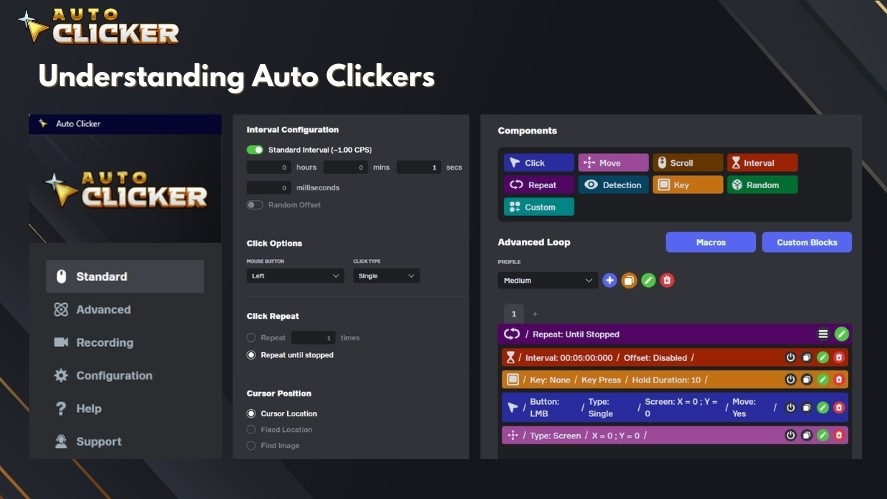
Auto clickers are widely known in gaming environments, where they are often used to automate rapid clicking actions.
However, they are increasingly being adopted as productivity tools in office environments as well.
In productivity workflows, autoclickers can help automate routine UI interactions in desktop applications like Excel, making repetitive processes more efficient.
How Auto Clickers Work with Excel
When used with Excel, an auto clicker can automate repetitive mouse actions that normally require manual input.
For example, users can automate tasks such as:
- Clicking refresh buttons for data updates
- Running calculation or macro buttons repeatedly
- Confirming prompts or dialog boxes
- Navigating between different Excel sheets
- Triggering export or reporting functions
By configuring the tool to automate mouse clicks at specific intervals or screen positions, users can create a simple automated spreadsheet workflow that reduces repetitive clicking.
Benefits of Using an Excel Auto Clicker
Using an Excel auto clicker can significantly improve productivity in repetitive spreadsheet tasks.
Key benefits include:
- Saving time on repetitive tasks by eliminating manual clicking
- Reducing human error during repetitive workflows
- Improving overall workflow efficiency in large spreadsheets
- Allowing multitasking while automated clicking handles routine steps
For professionals working with large spreadsheet automation workflows, an auto clicker can serve as a lightweight but effective automation tool that complements Excel’s built-in features.
Common Repetitive Tasks in Excel That Can Be Automated
Below are some common spreadsheet tasks where automated mouse click tools can be useful.
Repeatedly Clicking Menu Buttons
One of the most common repetitive tasks in Excel is clicking the same buttons multiple times.
These actions may be simple, but repeating them throughout the day can take a significant amount of time.
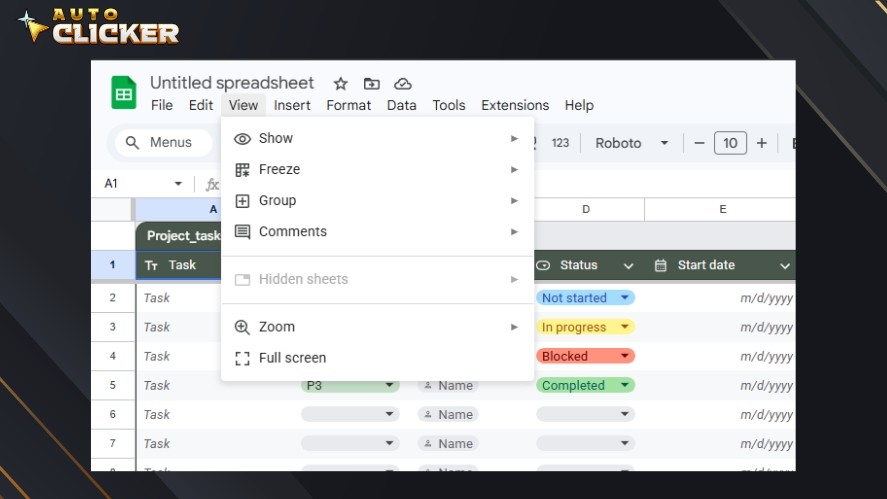
Examples include:
- Clicking Refresh Data to update reports
- Running macro buttons repeatedly
- Confirming pop-up prompts or dialog windows
Using an auto clicker to automate mouse clicks can help perform these actions automatically, allowing users to maintain a more efficient workflow.
Navigating Between Sheets
Large Excel workbooks often contain many sheets that require repeated navigation.
Manually switching between tabs can become tedious when updates need to be applied across multiple sections of a spreadsheet.
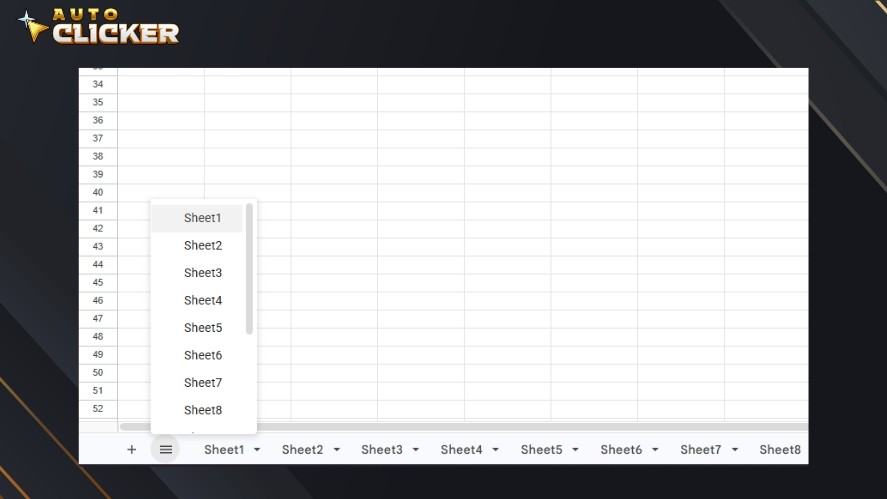
With an autoclicker, users can automate navigation tasks such as:
- Switching between different Excel sheets
- Opening specific tabs repeatedly
- Performing updates across multiple sheets in sequence
This type of spreadsheet automation helps reduce repetitive navigation work and keeps workflows running smoothly.
Data Entry and Validation Processes
Some Excel workflows involve repeated data entry or confirmation steps. These tasks may require users to click through form fields or validation prompts many times.
An automated spreadsheet workflow can assist with tasks such as:
- Clicking form fields or input boxes
- Confirming validation windows
- Approving repetitive input prompts
By using a mouse clicker to handle the clicking process, users can focus more on reviewing data instead of repeatedly interacting with the interface.
Exporting or Updating Reports
Many professionals use Excel to generate reports that need to be updated or exported regularly. These processes often involve clicking several buttons in the same order every time.
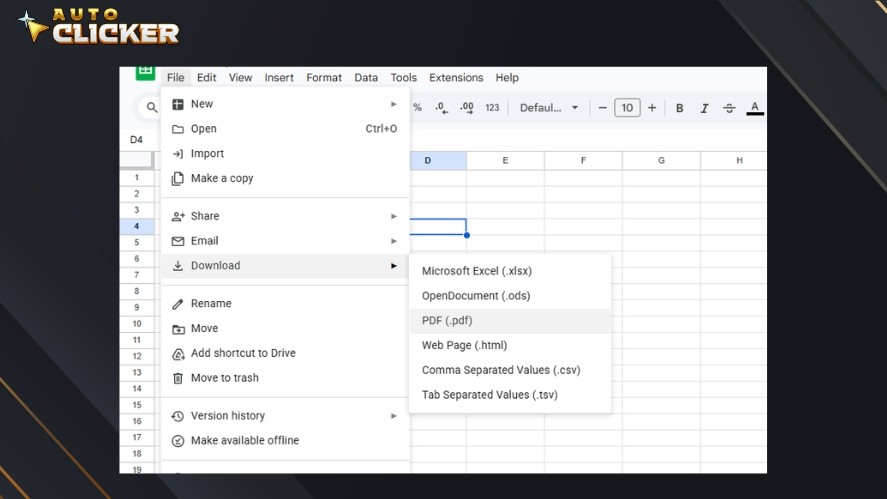
Common examples include:
- Clicking the export or save buttons
- Running scheduled data updates
- Automating repetitive reporting workflows
With a reliable auto clicker for free or autoclicker app, these steps can be automated so reports can be generated more efficiently with minimal manual interaction.
How to Use an Excel Auto Clicker for Productivity
Below is a simple step-by-step process to start using an auto clicker with Excel.
Step 1: Install an Auto Clicker Tool
The first step is to install a reliable autoclicker app that can automate mouse clicks.
For example, Auto Clicker on Steam is designed to provide flexible click automation for different workflows. It allows users to control clicking speed, click types, and automation patterns.
Typical features include:
- Adjustable click intervals
- Multiple click types
- Continuous clicking or repeat modes
Once installed, the tool can be configured to work with Excel or other productivity applications.
Read More: How to Download Auto Clicker on Steam: Step-by-Step Guide
Step 2: Configure Click Settings
After installing the tool, the next step is to configure how the autoclicker performs clicks.
Most auto clickers allow you to customize several important settings, such as:
- Click interval timing: how fast the automated mouse click happens
- Click type: single click, double click, or right-click
- Click button: left click, right click, or middle click
- Repeat count: whether the clicks run a fixed number of times or continue until stopped
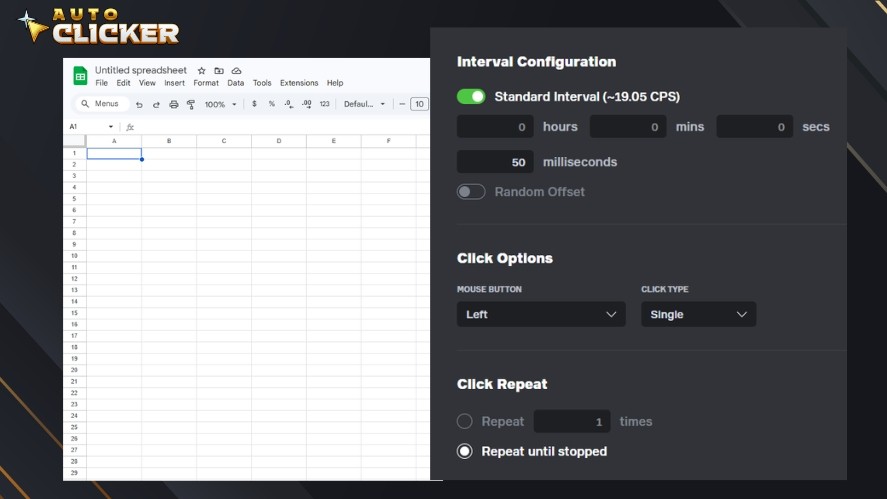
These settings help you control exactly how the automated mouse click behaves during your workflow.
Step 3: Select the Target Area in Excel
Next, choose where the auto clicker should perform its clicks inside Excel.
This usually involves:
- Positioning the cursor over a button, menu, or interactive element
- Selecting the exact location where the click should occur
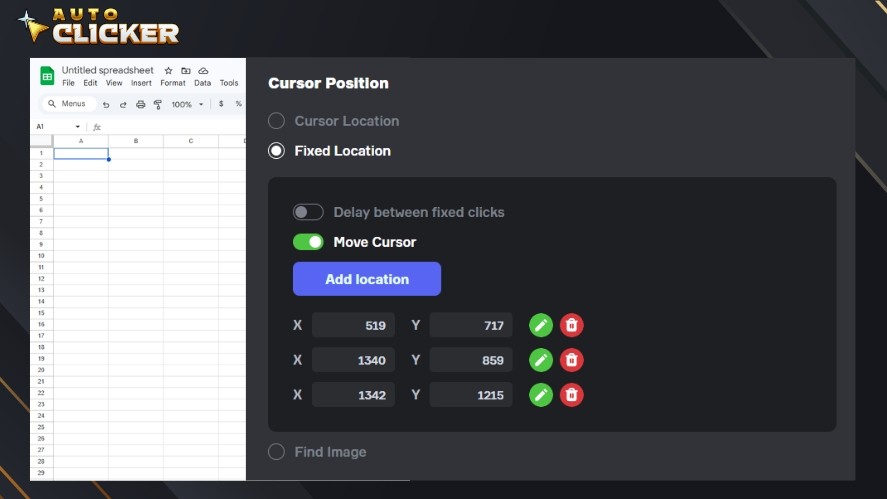
Some autoclickers also support coordinate-based clicking.
This feature allows users to automate precise locations on the screen for consistent automated spreadsheet workflows.
Step 4: Test the Automation Workflow
Before running a full automation routine, it is important to test the process.
Start with small tests to make sure the auto clicker interacts correctly with Excel. During testing, you may need to:
- Adjust click intervals
- Confirm that buttons respond correctly
- Ensure Excel has enough time to process each action
Testing helps prevent errors and ensures the automation runs smoothly.
Step 5: Optimize Your Automation Routine
Once everything works correctly, you can optimize the workflow to handle more complex tasks.
Some common improvements include:
- Combining the auto clicker and keyboard shortcuts with Excel macros
- Automating daily reporting tasks
- Scheduling repetitive clicking actions during routine updates
With the right setup, automated mouse clicks can become a useful productivity tool that helps improve overall workflow efficiency.
Practical Examples of Excel Auto Clicker Workflows
Below are a few practical examples of how an autoclicker can be used with Excel.
Automated Data Refresh Cycle
Many Excel reports require frequent updates. Instead of manually refreshing data and exporting reports each time, a mouse clicker can automate the process.
A typical workflow might look like this:
- Click the Refresh Data button
- Wait for the data update to complete
- Click the Export Report button
- Save the file to a selected location
By configuring an automated mouse click sequence with proper time intervals, users can repeat this process automatically for scheduled updates or regular reporting tasks.
Batch Processing Excel Reports
Some workflows involve working with many Excel files in sequence.
Opening each file and clicking through the same menus repeatedly can take a significant amount of time.
An auto clicker can help automate this routine by:
- Opening files one by one
- Clicking through repeated menu options
- Running export or processing steps
This allows autoclickers to assist with batch-style workflows where the same process must be repeated across multiple spreadsheets.
Automating Excel Dashboard Updates
Excel dashboards often rely on frequent data refreshes to stay accurate.
For users monitoring real-time or frequently updated information, manually refreshing dashboards can become tedious.
A free autoclicker can automate repeated refresh cycles by:
- Clicking the dashboard refresh button
- Waiting for data to load
- Triggering updates at set intervals
This approach creates a simple automated spreadsheet monitoring workflow that keeps dashboards up to date without requiring constant manual interaction.
Excel Auto Clicker vs Excel Macros
When automating tasks in Excel, two common solutions are Excel macros and an Excel auto clicker.
Both tools help reduce manual work, but they serve different purposes.
Macros work inside Excel and are best for handling data and logic. In contrast, an autoclicker focuses on automating user interface actions.
Understanding when to use each tool can help you build more efficient spreadsheet automation workflows.
When Macros Are Better
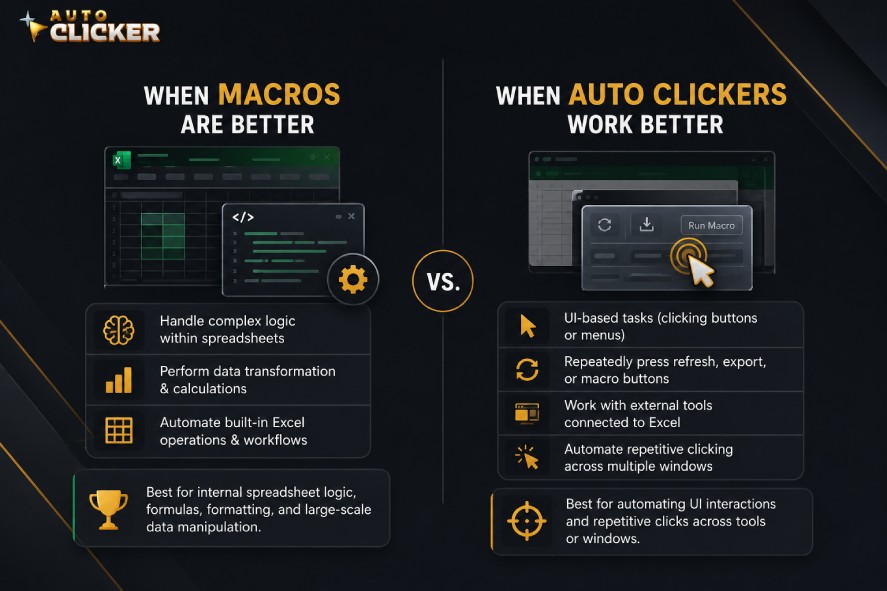
Excel macros are ideal for tasks that require internal spreadsheet logic or data processing.
They operate directly within Excel and can automate complex actions without needing manual clicks.
Macros are especially useful for:
- Handling complex logic within spreadsheets
- Performing data transformation and calculations
- Automating built-in Excel operations and workflows
Because macros run inside Excel, they are powerful for tasks related to formulas, formatting, and large-scale data manipulation.
When Auto Clickers Work Better
An auto clicker works differently from macros.
Instead of modifying spreadsheet data directly, it automates the user interface interactions required to perform certain actions.
An automated mouse click tool can be useful for:
- UI-based tasks that require clicking buttons or menus
- Repeatedly pressing refresh, export, or macro buttons
- Working with external tools connected to Excel
- Automating repetitive clicking actions across multiple windows
In these situations, a mouse clicker can simplify repetitive actions that would otherwise require manual interaction.
Using Both Together
In many cases, the most effective approach is to combine both tools.
For example, an Excel macro handles the data processing or calculations, while an auto clicker triggers the workflow by clicking buttons or starting tasks.
This combination allows users to build more flexible automated spreadsheet workflows, where internal data processing and external interface automation work together to improve productivity.
Tips for Using an Excel Auto Clicker Safely
Using an Excel auto clicker can greatly improve productivity, but it’s important to configure it carefully.
Below are some practical tips for safely using an autoclicker with Excel.
Use Reasonable Click Intervals
One of the most important settings in any auto clicker is the click interval.
If clicks happen too quickly, Excel may not have enough time to process each action. This can cause missed clicks, incorrect actions, or unexpected behavior.
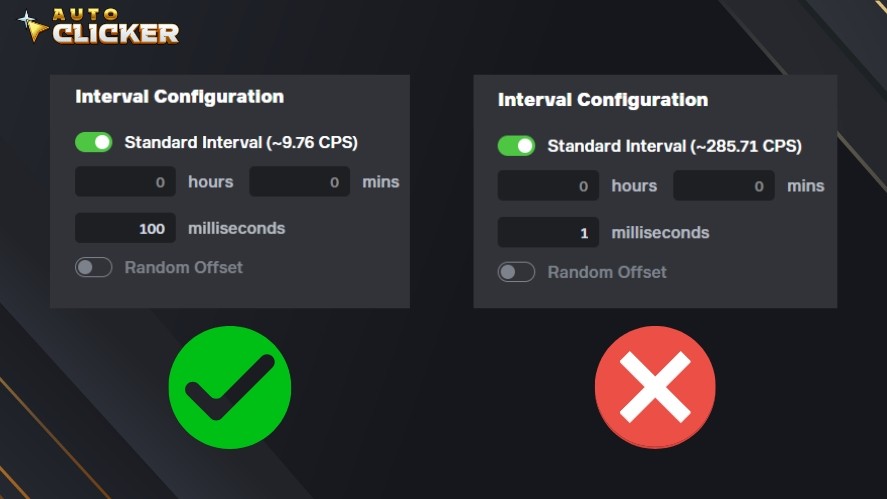
To avoid this issue, set a reasonable delay between each automated mouse click.
Also, allow extra time for actions like refreshing data or loading files. Then, adjust the interval until the workflow runs smoothly.
A slightly slower but stable automation routine is usually more reliable than extremely fast clicking.
Test Automation with Small Tasks
Before using an autoclicker app on large workflows, it is best to test the automation with smaller tasks.
For example, you can start by automating a single button click or a simple refresh action.
Testing small processes first helps confirm that the mouse clicker behaves correctly before applying the automation to larger spreadsheet automation tasks.
Keep Manual Override Options
Automation should always include a way to stop it quickly if something goes wrong.
Most autoclickers provide hotkeys that allow you to start, pause, or stop the automation instantly.
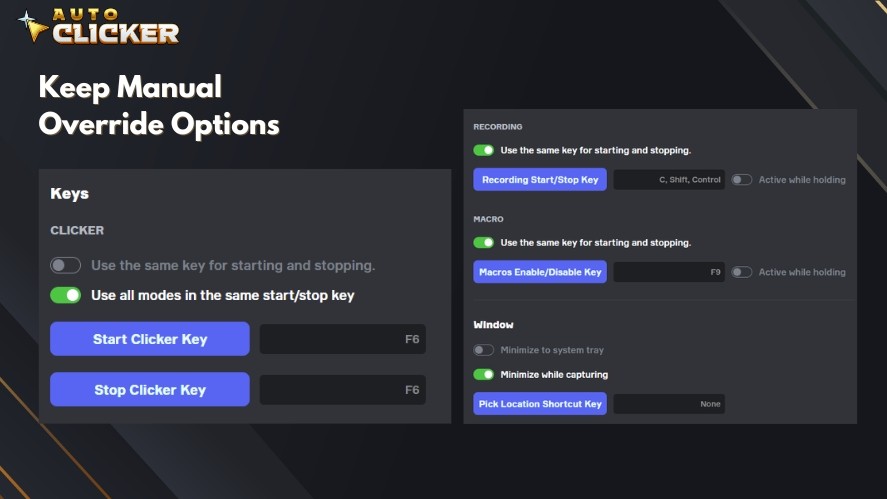
Using hotkeys helps you stop the auto clicker if the wrong button is clicked. It also pauses automation during unexpected prompts and helps you quickly regain manual control of Excel.
Monitor Long Automation Sessions
If your automation runs for a long time, it’s important to monitor the process occasionally.
Excel may sometimes encounter unexpected pop-up windows, loading delays, or system slowdowns. These situations can interrupt automated mouse clicks workflows.
To prevent issues, periodically check that the automation is still running correctly. Also, watch for prompts or confirmation windows and ensure Excel remains responsive during the process.
Why Auto Clicker on Steam Is Useful for Productivity Automation
For users looking to simplify repetitive tasks in Excel, Auto Clicker on Steam provides a flexible and reliable solution for automation.
Key features include:
- Flexible click configuration for different tasks and workflows
- Adjustable speed and click intervals to match Excel response times
- Hotkey controls to quickly start, pause, or stop automation
- Lightweight performance that works smoothly alongside Excel
- Suitable for both gaming and productivity workflows
- Steam-distributed software, offering a more secure and trusted autoclicler download environment

These features make it a practical auto clicker option for users who want to automate repetitive UI actions in spreadsheets and other desktop applications.
Frequently Asked Questions
An Excel auto clicker is a tool that automates mouse clicks inside Excel. It can repeatedly click buttons, menus, or prompts to help automate repetitive spreadsheet tasks and save time.
Not always. Excel macros are better for automating calculations, formatting, and internal spreadsheet logic. Auto clickers are better for UI-based tasks like clicking buttons or navigating menus. Many users combine both for the best results.
Yes, as long as you use a trusted tool and test your automation carefully. Use reasonable click intervals, keep a hotkey ready to stop the automation, and monitor long automation sessions to avoid unintended clicks.
Yes. Most modern auto clickers support Windows 11 and work well with Excel, especially tools that are regularly updated for compatibility.
Conclusion
Repetitive tasks in Excel can consume valuable time and reduce productivity.
Using an Excel auto clicker allows users to automate repetitive clicking tasks, streamline spreadsheet automation, and focus more on meaningful analysis and decision-making instead of routine manual actions.
Tools like Auto Clicker on Steam provide flexible automation options that complement Excel’s built-in features.
By combining automated mouse clicks with existing spreadsheet workflows, professionals can handle repetitive processes more efficiently and improve overall productivity.

Auto Clickers Ranked for Gamers and Productivity Users

How a Mouse Recorder Can Boost Your Productivity and Gameplay

Auto Key Presser: The Best Way to Automate Keyboard Inputs
About The Author
