
Hotkeys: How to Start and Stop Auto Clicker with Ease
Auto Clicker on Steam is a lightweight, easy-to-use tool designed to automate mouse clicks for gaming, grinding, or repetitive work tasks.
Instead of manually clicking hundreds or thousands of times, you can let the auto clicker handle it for you. But what really unlocks its full potential is the ability to control it instantly with hotkeys.
Hotkeys make automation faster, smoother, and far more convenient, especially when paired with a keyboard auto clicker setup.
Whether you’re playing an idle game, speed-farming in an RPG, or managing repetitive productivity tasks, having quick keyboard shortcuts to start and stop your auto clicker gives you complete control without breaking your workflow.
In this guide, you’ll learn how to assign, use, and optimize hotkeys with Auto Clicker on Steam so you can automate smarter and react faster in any situation.
What Are Hotkeys and Why They Matter in Auto Clickers
Hotkeys are the backbone of efficient automation, and they’re the quickest way to trigger start-stop automation without interrupting your game or task.
Definition of Hotkeys in the Context of Automation
In auto clickers, hotkeys are custom keyboard shortcuts that let you activate or stop automated mouse clicking instantly.
Instead of opening menus or toggling settings manually, one press of a key (like F6 or Ctrl + Alt + C) gives you direct control over the tool’s behavior.
This is especially useful in fast-paced or timing-sensitive situations where every second matters.
The Benefits of Using Hotkeys
- Instant start/stop of clicking: Hotkeys allow lightning-fast toggling, which is crucial when you need to quickly pause automation during gameplay or workflow changes.
- Better multitasking and responsiveness: You can run the speed auto clicker in the background while keeping full control over your main task.
- Game performance improvement: In many games, using gaming shortcuts helps maintain rhythm, avoid input delays, and react faster to in-game events, giving you smoother and more consistent automation.
How to Assign Hotkeys in Auto Clicker on Steam
Setting up hotkeys in Auto Clicker on Steam is quick and straightforward. Once you configure them properly, you’ll have instant control over your automation with a single key press.
Step-by-Step Instructions
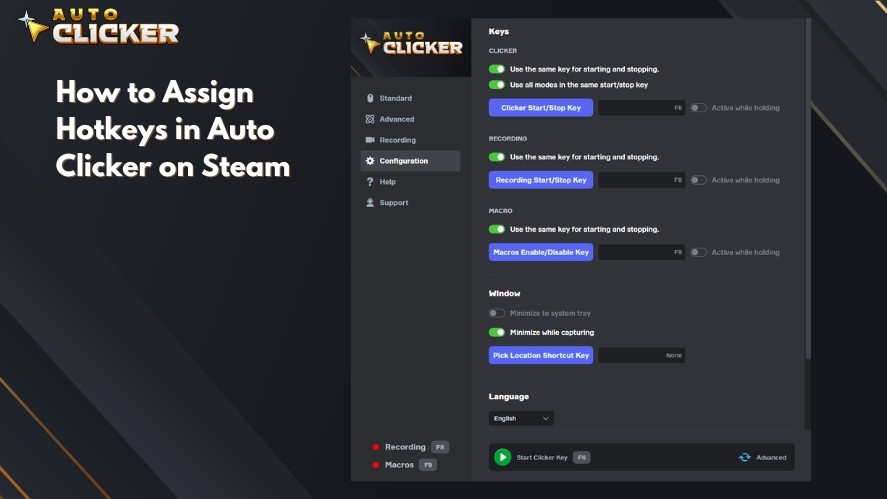
Here’s how to assign hotkeys inside Auto Clicker on Steam:
- Launch Auto Clicker from your Steam library.
- Navigate to the Configuration tab.
- Here, you can configure the following hotkeys:
- Clicker Start/Stop Key
- Recording Start/Stop Key
- Macros Enable/Disable Key
- Pick Location Shortcut Key
- Click on the option you want to configure and press the desired key (or a combination of keys)
- Test the hotkey.
How to Stop a Auto Clicker
Stopping your auto clicker is simple. By default, pressing the same hotkey you configured to start clicking will immediately stop the automation, making it easy to control with a single key.
If you prefer, Auto Clicker on Steam also lets you set separate hotkeys for starting and stopping, so you could have one key to start clicks and another to stop them.
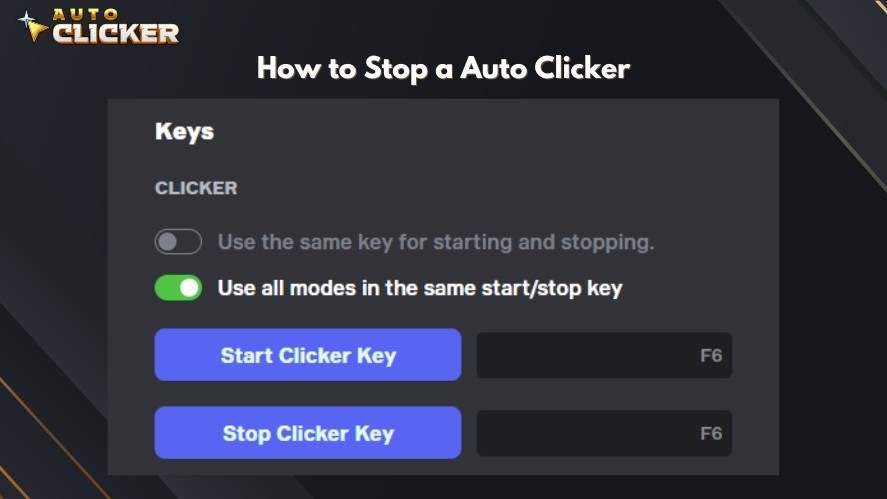
This flexibility ensures you can quickly stop auto clicker actions whenever needed, giving you full control over how to stop your mouse from auto clicking during gameplay or productivity tasks.
Best Practices When Choosing Windows Hotkeys
To avoid conflicts and ensure smooth automation, follow these tips when selecting your auto hotkeys:
- Avoid commonly used system shortcuts: Don’t use keys like Ctrl+C, Ctrl+V, Alt+Tab, or Windows key combos, as they can disrupt your workflow or override your game controls.
- Use function keys or unique combos: F5, F6, F7, F8, or combinations like Ctrl + Shift + [Key] are safer and less likely to interfere with in-game actions.
- Keep it close to your gaming hand position: If you’re using WASD movement, choose a key you can quickly reach without messing up your controls.
Tips for Using Hotkeys During Gaming or Work
Hotkeys shine the most when you’re in the middle of a game or working through repetitive tasks.
Use Case Examples
In idle and clicker games like Cookie Clicker, Clicker Heroes, or other incremental titles, hotkeys allow you to start and stop the auto clicker PC without ever breaking your momentum.
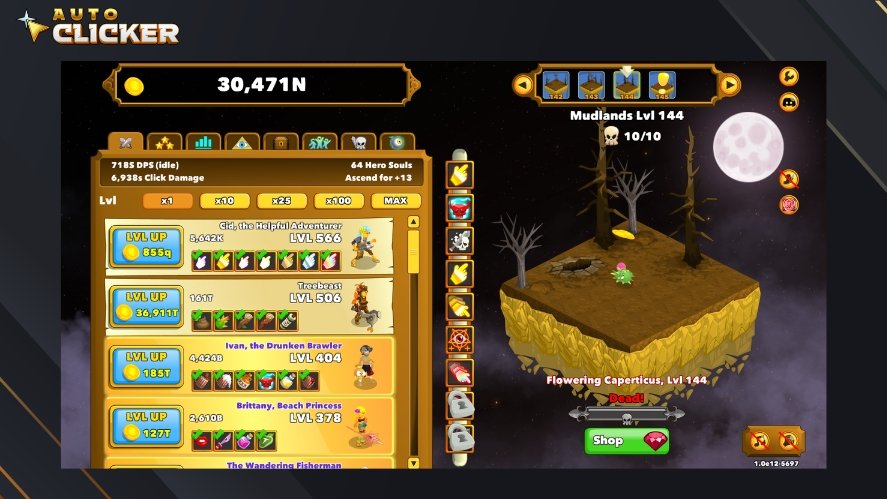
You can keep your hands on the keyboard, react faster, and avoid opening extra menus mid-run.
They’re equally useful for productivity.
Tasks that involve constant clicking, such as submitting forms, navigating spreadsheets, or performing repeated data-entry actions, become much easier when you can trigger automated clicks at the exact moment you need them.
Instead of slowing down to manage the tool, you stay focused on the task.
How Hotkeys Improve Efficiency
A well-chosen hotkey reduces distraction by keeping the interface out of the way.
You can pause automation instantly during active gameplay or resume it the moment you need a boost, without shifting your attention.
This also increases your reaction speed, especially in time-sensitive situations where a quick toggle can prevent mistakes or optimize performance.
Overall, hotkeys turn your free auto clicker for PC into a fast, responsive tool that adapts to whatever you’re doing.
Troubleshooting Hotkey Issues
Even with the best auto clicker like Auto Clicker on Steam, hotkey problems can happen. The good news is that most issues are easy to fix.
Common Problems and Fixes
Here are the most frequent issues users encounter and how to resolve them.
- Hotkey not registering at all: Try launching Auto Clicker as administrator. Some games or applications block global hotkeys unless the auto mouse clicker has elevated permissions.
- Conflicts with other software: Programs like game overlays, macro tools, Discord keybinds, or GPU utilities can steal certain key combinations. To fix this, change your hotkey to something less common, like F7 or a Ctrl/Alt/Shift combo.
- Game blocking background keybinds: Some fullscreen games restrict background input. To fix this, run the clicking auto clicker after launching the game, or use borderless-window mode if available.
Resetting or Changing Hotkeys in Auto Clicker
If your current hotkey isn’t working reliably:
- Open Auto Clicker on Steam.
- Go to the Configuration tab.
- Clear or reset the assigned hotkey.
- Choose a new key or key combination.
- Test your new hotkey again in your game or workflow.
Why Auto Clicker on Steam Stands Out
Auto Clicker on Steam isn’t just convenient; it’s built with hotkey performance in mind.
Many auto clickers PC require manual setups, confusing interfaces, or risky third-party downloads, but the Steam version simplifies everything while keeping it secure and reliable.
Its design makes auto key clicker hotkey use smooth, responsive, and consistent, no matter what game or task you’re running.
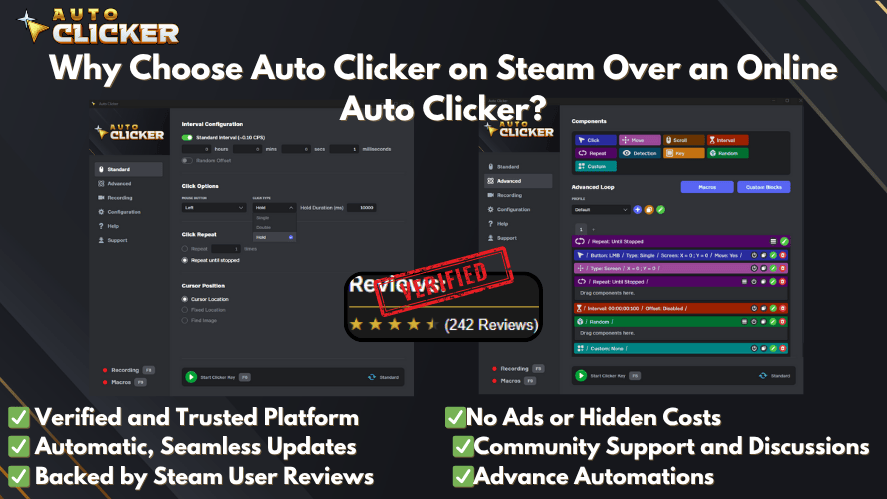
Unique Features That Support Hotkeys
- Fully customizable hotkeys: assign any key or combo for start/stop automation.
- Low CPU usage: runs efficiently in the background without affecting game performance.
- Steam integration: automatic updates, easy access to support, and verified downloads.
- Reliable and safe: avoids malware, unwanted software, or unsafe installers.
- User-friendly interface: minimal setup for beginners and advanced users alike.
Conclusion
Using hotkeys with Auto Clicker on Steam is one of the easiest ways to boost your efficiency.
With customizable shortcuts, low system usage, and reliable Steam support, Auto Clicker on Steam gives you a smooth and safe automation experience that adapts perfectly to your needs.
Feel free to experiment with different hotkey setups to find what’s most comfortable and efficient for your workflow.
And if you ever have questions, ideas, or need help, the Steam discussion page and auto clicker Reddit threads are always open for feedback and support from both the developer and the community.

Keyboard Auto Clicker: How to Set Up and Optimize for Gaming
How to Set Up Auto Clicker on Steam

AutoClicker Advanced Mode Explained: Tips and Features
About The Author
