
10 Productivity Hacks That Actually Save Time
If you’ve ever found yourself doing the same task over and over on your computer like clicking the same button or refreshing a page you’re not alone. These small, repetitive actions eat up your time and drain focus. That’s where productivity hacks come in. One tool more people are starting to use? Auto Clicker on Steam.
This post breaks down how Auto Clicker, a lightweight but powerful automation tool, can become a surprisingly helpful part of your workflow. Whether you’re a student, a professional, or just trying to save time on your PC, these productivity tips can make a real difference.
What Is Auto Clicker on Steam and Who It’s For

Auto Clicker on Steam is a small desktop app designed to automate mouse clicks. That’s it no bloated interface, no learning curve, just reliable clicking at intervals you set. Originally built with gamers in mind (for things like grinding or farming), it’s now used by developers, students, freelancers, and everyday users for far more.
Key features include:
- Click interval customization
- Hotkey support
- Randomized clicks (to mimic human behavior)
- Clean UI and simple setup
If you’ve ever thought, “Why am I clicking this 100 times a day?”, Auto Clicker is probably for you. It works on Windows, including Windows 11, and while it’s not officially available on macOS, there are auto clicker for Mac alternatives too.
Why Auto Clickers Are a Hidden Gem for Productivity

Most people think of productivity hacks in terms of planners or apps, but automation often gets ignored. Auto Clickers are one of the productivity life hacks that save time with barely any effort once set up.
When you try to automate a routine task like clicking through a login screen or selecting the same options every morning you realize how much mental space it frees up. These aren’t “massive” time-savers in one go, but over time, the gains stack up fast.
Real use-cases include:
- Repetitive data input in work software
- Testing websites or UIs
- Preventing timeouts in web-based tools
- Farming resources in idle games
- Triggering scripts or macros in creative software
It’s not just about saving time it’s about reducing friction.
Top 10 Productivity Hacks Using Auto Clicker
These tips aren’t theory they’re things real users do every day. Here’s how to actually get more done with a simple tool like Auto Clicker.
1. Automate Daily Repetitive Workflows
If you open the same apps or browser tabs every morning, you can automate those clicks. Just map your clicks with a timer, and let Auto Clicker handle the rest.
Example tasks:
- Opening Slack, Notion, or email
- Clicking “start” on time-tracking tools
- Launching dashboards or logins
2. Streamline Data Entry Tasks
Whether it’s spreadsheets, CRMs, or database forms, inputting similar info repeatedly is a slog. Auto Clicker lets you automate tabbing, clicking, and submitting in cycles.
Pair with Excel macros or simple scripts to level up your work productivity hacks.
3. Simplify Game Farming and Grinding
Auto Clicker isn’t just for work it’s also a popular auto clicker for Windows 11 gaming hack. If you’re farming gold, XP, or resources in idle games, set up a timed clicker and walk away.
Great for games with:
- Repetitive combat or farming
- Idle mechanics
- Crafting or building loops
4. Run Automated Testing Loops
If you’re a QA tester or developer, testing UI flows often involves repeating clicks. With an auto clicker for PC Windows 11, you can simulate user interactions for hours.
Combine with testing tools or macros for full test coverage.
5. Speed Up Software Simulations or Demos
Need to walk someone through a software UI or simulate a process on-screen? You can script clicks to auto-navigate, making it ideal for product demos or tutorials.
Also helpful for team training environments where you’re guiding multiple users.
6. Eliminate Idle Time on Web-Based Tools
Admin tools or platforms like Jira or CRM systems sometimes log you out. Use Auto Clicker to keep the session active especially useful during long calls or planning sessions.
Just click somewhere harmless every X minutes to stay logged in.
7. Automate Routine Email Cleanups
If you use a desktop mail client, clearing spam or selecting multiple messages can get tedious. Auto Clicker can automate bulk selections and repetitive filters, making inbox cleanups less painful.
Bonus tip: Set intervals for stretch breaks to improve ergonomics too!
8. Set Click Timers for Stretch Breaks
Not every productivity hack is about work. Set your auto clicker to simulate a “break reminder” by triggering a pop-up or app after 25–30 minutes.
Helpful if you follow Pomodoro or time-blocking techniques.
9. Use Auto Clicker with Macros
Want deeper automation? Combine Auto Clicker with macro tools like AutoHotkey. You can create workflows that run scripts + timed clicks ideal for devs, data work, or design.
This unlocks truly advanced team productivity tools and freelance productivity tools setups.
10. Customize for Any Repetitive Task
If it involves clicking on a screen, you can probably automate it. That’s the beauty Auto Clicker is endlessly flexible. You set the pace and the place.
Even creative pros use it to automate tedious design or audio editing steps.
How to Use Auto Clicker on Steam for Productivity
Getting started is easy, even for beginners.
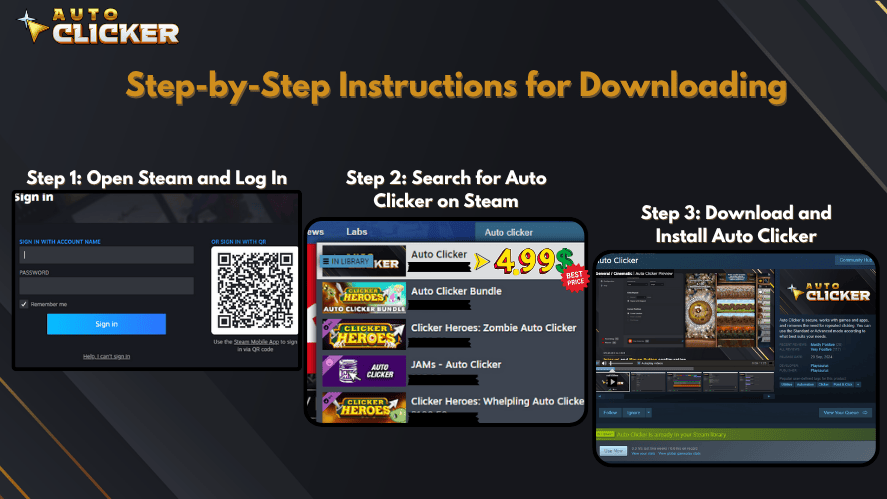
- Download Auto Clicker on Steam It’s lightweight and installs in seconds.
- Launch the app and set your click interval This controls how fast the clicks go. (Start with 100–500ms for typical tasks.)
- Choose your hotkey This is the keyboard key you’ll press to start/stop the clicks.
- Position your mouse where the clicks should go
- Test it before running a full cycle Always make sure it clicks where you want misfires can happen.
- Use profiles for different tasks Save your settings for easy reuse.
Settings That Matter (CPS, Interval, Hotkeys, Randomness, Profiles)
Some quick explanations on what the options do:
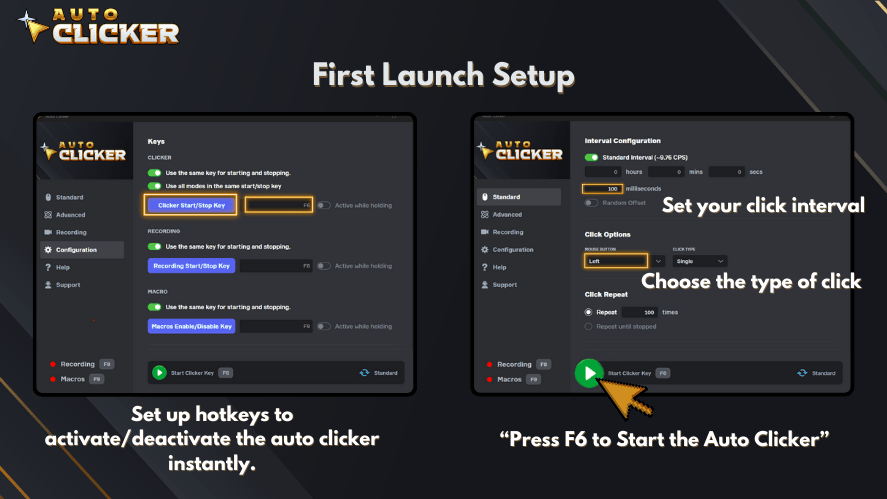
- Clicks per second (CPS): How fast the clicks happen
- Interval: Time between clicks set in milliseconds
- Hotkeys: Custom keys to start/stop clicking
- Randomization: Makes click timing slightly variable (avoids detection in some apps)
- Profiles: Save/load your favorite configurations
When you try to tweak settings for a specific task, having profiles and hotkeys makes switching easy.
Common Problems and Quick Fixes
Even simple tools have hiccups. Here are a few common issues:

- It’s not clicking where I want: Recheck mouse position and screen resolution.
- Clicks are too fast or too slow: Adjust your interval settings (start with 300ms and go from there).
- Hotkeys don’t work: Conflicts can happen avoid using system keys like Ctrl or Alt if issues arise.
- App isn’t launching: Run as administrator or reinstall via Steam.
If you’ve ever struggled to get automation running smoothly, these fixes usually solve it fast.
Safety, Fairness, and Rules (Games/Sites + Account Risk)
Let’s be honest some sites and games don’t like auto clickers. If you’re using one in an online game or browser-based tool, check the rules first.
Risky use-cases:
- Competitive multiplayer games
- Sites with anti-bot detection
- Anything that violates ToS
Safer uses:
- Offline tools
- Idle games
- Personal workflow automation
Using Auto Clicker for workplace productivity hacks? No issues there as long as you’re not breaking platform policies.
Alternatives and When to Choose Them
Auto Clicker on Steam is a solid option for most people but depending on your setup or needs, there are other reliable click automation tools out there. If you’ve ever needed different features, faster CPS, or a lighter install, these are worth checking out.
6 Alternatives to Your Ultimate Click Automation Tool
Here are six trusted alternatives, each with their own strengths:
- OP Auto Clicker (⭐ 4.3)
A clean, reliable auto clicker that lets you schedule and automate mouse clicks easily. Lightweight and works well on Windows. - GS Auto Clicker (⭐ 4.0)
Known for its simplicity, GS Auto Clicker is great for beginners who just want to get clicking quickly without a steep learning curve. - E Auto Clicker (⭐ 3.7)
Free and straightforward, E Auto Clicker handles all basic clicking needs and is easy to configure. - Auto-Clicker (⭐ 3.3)
Good for rapid, automated clicking in short bursts. Best suited for basic tasks that need speed over complexity. - Free Mouse Clicker (⭐ 3.9)
Offers good flexibility with click intervals and timing. It’s lightweight and doesn’t need much setup. - Fast Mouse Clicker (⭐ 3.6)
Designed for speed. If you need very high CPS (clicks per second), this is a solid pick.
When to choose one of these:
- You want something simpler or even more lightweight
- You need extremely fast clicking speeds (CPS)
- You’re looking for a tool that doesn’t require Steam or account logins
- You’re troubleshooting compatibility with certain apps
If Auto Clicker on Steam works for you, great—but it’s good to know what’s out there in case you want to try different speeds, interfaces, or settings.
FAQ
Yes, as long as you’re using it on trusted apps and not breaking terms of service.
Yes, Auto Clicker is fully compatible with Windows 11, including versions like auto clicker for PC Windows 11.
Absolutely. Many students use it for form submissions, app navigation, or even reminders. See also best productivity hacks for students.
Only if you use it in multiplayer or ToS-protected environments. Offline use is usually fine.
Some versions do check settings to toggle between left/right/middle click.
Not this version, but auto clicker for Mac alternatives exist.
Different tools for different jobs. Auto Clicker handles clicks, while AI productivity tools handle content, scheduling, etc.
Yes, you can create shared profiles for team setups useful with team productivity tools.
Conclusion
Auto Clicker might seem like a small tool, but in the right hands, it’s one of the most practical productivity hacks you can try. Whether you’re speeding through work tasks, clearing email, testing apps, or just saving your wrists, automation pays off.
Start simple: pick one task you repeat every day, and set up Auto Clicker to do it for you.
Give Auto Clicker on Steam a try one task, one timer, and you’re already saving time.

The Best Productivity Tool for Professionals in 2026

Auto Clicker Download for Beginners
Best Productivity Tools to Use in 2026
About The Author
