
How to Automate Repetitive Tasks on Your Computer
If you want to automate repetitive tasks on your computer, you are not alone. Many people waste time every day clicking the same buttons, opening the same apps, copying the same text, or filling out the same forms. At first, these tasks may feel small. However, they can quickly add up and take hours away from your week.
In 2026, automation tools are easier to use than ever. For example, gamers can use auto clickers for simple click automation, while office workers can use workflow tools to manage files, emails, and forms. In addition, beginners can start with simple macro recorders before moving to more advanced tools like AutoHotkey or Microsoft Power Automate.
In this guide, you’ll learn what repetitive computer tasks are, why they matter, and which tools can help you save time. Then, we’ll explain how to choose the right automation tool based on your skill level, computer, and daily routine.
What Are Repetitive Tasks on a Computer?

Repetitive tasks are computer actions you do again and again. These tasks may include clicking buttons, copying text, organizing files, opening apps, filling out forms, or sending similar messages. Although each task may only take a few seconds, the time adds up when you repeat it every day.
For example, copying data from one spreadsheet to another may seem simple. However, doing it many times can become tiring and slow. As a result, automation tools can help you finish the same work faster and with fewer mistakes.
Common Examples of Repetitive Computer Tasks
Here are common tasks that can often be automated:
- Copying and pasting data between documents
- Renaming or organizing files in bulk
- Clicking the same buttons in games or software
- Filling out forms with repeated information
- Opening the same apps every morning
- Sending similar emails or messages
- Saving attachments or moving files to folders
- Running the same reports or exports
Because these tasks are predictable, they are good candidates for automation. In many cases, you do not need advanced technical skills to get started.
Why Repetitive Tasks Matter
Repetitive tasks matter because they affect your time, focus, and accuracy. Even if one task feels small, repeating it many times can reduce productivity.
For example:
- Time loss: A few minutes per day can turn into hours per month.
- More mistakes: Repeated manual work can lead to missed steps or typos.
- Less focus: Small tasks can interrupt deeper work.
- More fatigue: Doing the same action again and again can feel draining.
Therefore, learning how to automate repetitive tasks can help you work faster, stay focused, and reduce unnecessary effort.
Best Software to Automate Repetitive Tasks on Your Computer
There are many tools that can help you automate repetitive tasks on your computer. However, the best choice depends on what you want to automate. For example, an auto clicker is best for repeated mouse clicks, while Power Automate is better for office workflows.
Below are some of the best tools to consider in 2026.
🔹 1. Auto Clicker on Steam – For Click Automation

Best for: Click automation, idle games, and simple repeated mouse actions
Platform: Windows
Type: Auto clicker
Auto Clicker on Steam is useful if you need to repeat mouse clicks without doing them manually. It is especially helpful for idle games, clicker games, and basic tasks that require repeated clicks.
For example, you can set the click speed, choose where the clicks happen, and use a hotkey to start or stop the tool. Because of this, it is a simple option for users who want quick click automation without building complex workflows.
Use cases:
- Repeated clicking in idle or clicker games
- Simple browser-based clicking tasks
- Testing buttons or menus
- Reducing manual clicking during basic computer tasks
How to use it:
- Download Auto Clicker from Steam or the official website.
- Set your click interval.
- Choose the click location.
- Set a start and stop hotkey.
- Test the tool on a simple task first.
This is a good starting point if you want to automate repetitive tasks without learning scripts.
🔹 2. AutoHotkey – For Custom Keyboard & Mouse Macros

Best for: Custom keyboard shortcuts and advanced automation
Platform: Windows
Type: Scripting tool
Cost: Free
AutoHotkey is a powerful tool for users who want more control. It allows you to create scripts that automate keyboard actions, mouse clicks, text expansion, and multi-step workflows.
However, it is better for users who are comfortable learning basic scripting. Once you understand how it works, it can save a lot of time.
Use cases:
- Creating custom keyboard shortcuts
- Automating repeated typing
- Running multi-step actions
- Renaming files
- Launching apps with hotkeys
How to use it:
- Install AutoHotkey.
- Create a simple script.
- Assign a hotkey.
- Run the script in the background.
- Test it before using it on important tasks.
AutoHotkey is a strong choice if you want to automate repetitive tasks beyond simple clicking.
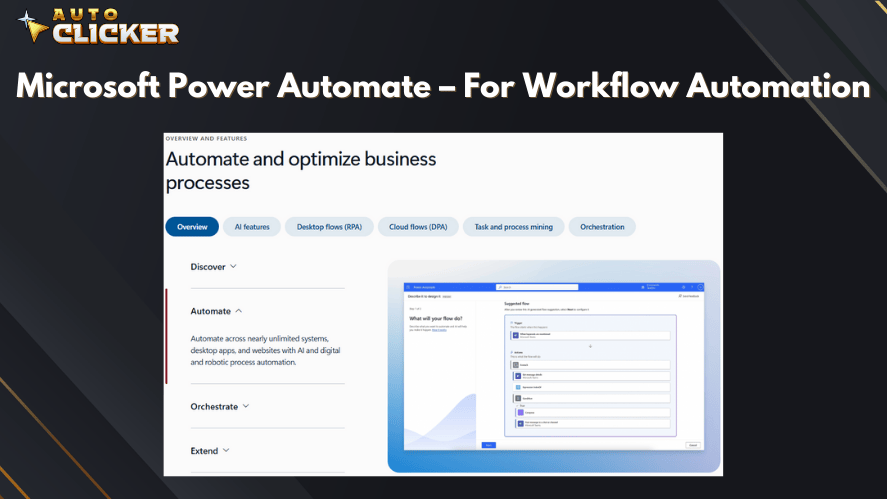
🔹 3. Microsoft Power Automate – For Workflow Automation
Best for: Office workflows and business tasks
Platform: Windows and web
Type: Workflow automation tool
Cost: Free tier available, Premium features for enterprise users
Microsoft Power Automate helps users automate tasks across Microsoft apps and other services. For example, it can save email attachments, move files, update spreadsheets, or send alerts when something changes.
In addition, it is useful for teams because it connects with Microsoft 365 tools like Outlook, Excel, OneDrive, SharePoint, and Teams.
Use cases:
- Saving email attachments automatically
- Moving files between folders
- Sending alerts when a file changes
- Updating Excel data
- Creating simple approval workflows
How to use it:
- Open Power Automate.
- Choose a template or create a new flow.
- Select a trigger.
- Add one or more actions.
- Save and test the flow.
Power Automate is best if your repetitive tasks happen inside office apps, emails, spreadsheets, or cloud storage.
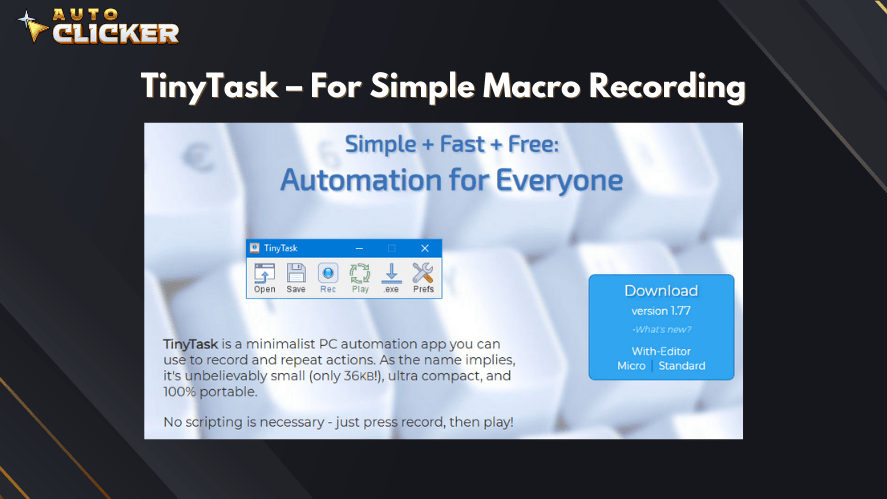
🔹 4. TinyTask – For Simple Macro Recording
Best for: Beginners who want simple macro recording
Platform: Windows
Type: Macro recorder
Cost: Free
TinyTask is a simple tool that records your mouse movements and keyboard actions. After recording, you can replay the same steps automatically.
Because it does not require coding, TinyTask is a beginner-friendly way to automate repetitive tasks. However, it works best for simple actions that do not change much.
Use cases:
- Opening the same apps or folders
- Repeating simple clicks
- Filling the same fields
- Dragging and dropping files
- Replaying a short routine
How to use it:
- Open TinyTask.
- Press record.
- Perform the task once.
- Stop recording.
- Replay the macro when needed.
TinyTask is useful if you want automation without scripts, menus, or complex setup.
If you are deciding between TinyTask and a dedicated click automation tool, our Auto Clicker vs TinyTask comparison explains the key differences in features, control, and automation style.
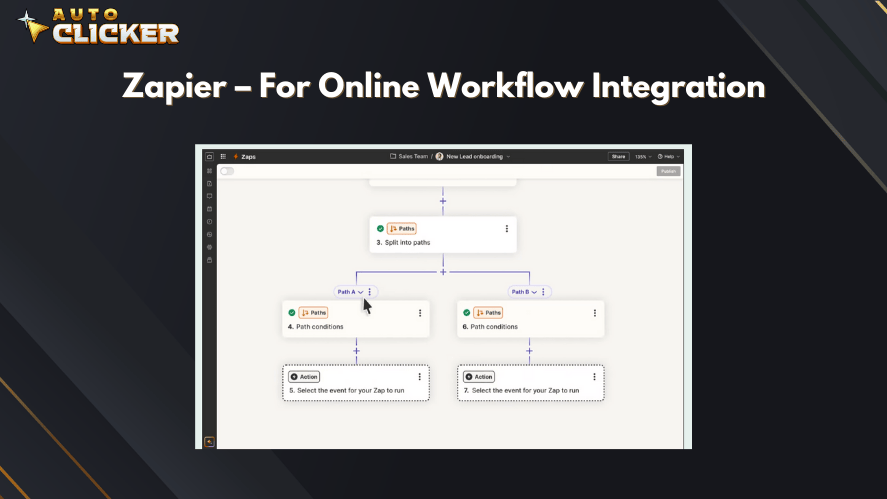
🔹 5. Zapier – For Online Workflow Integration
Best for: Automating tasks between web apps
Platform: Web-based
Type: Online workflow automation
Cost: Free tier + premium options
Zapier connects different web apps so they can work together automatically. For example, it can send form responses to a spreadsheet, create tasks from emails, or post updates across different platforms.
As a result, it is helpful for users who work with online tools every day.
Use cases:
- Sending form responses to Google Sheets
- Saving Gmail attachments to Google Drive
- Creating Trello or Asana tasks from emails
- Sharing new blog posts to social media
- Connecting apps without coding
How to use it:
- Create a Zapier account.
- Choose a trigger app.
- Choose an action app.
- Customize the workflow.
- Turn on the Zap.
Zapier is best for online tasks, especially when you need two or more apps to work together.
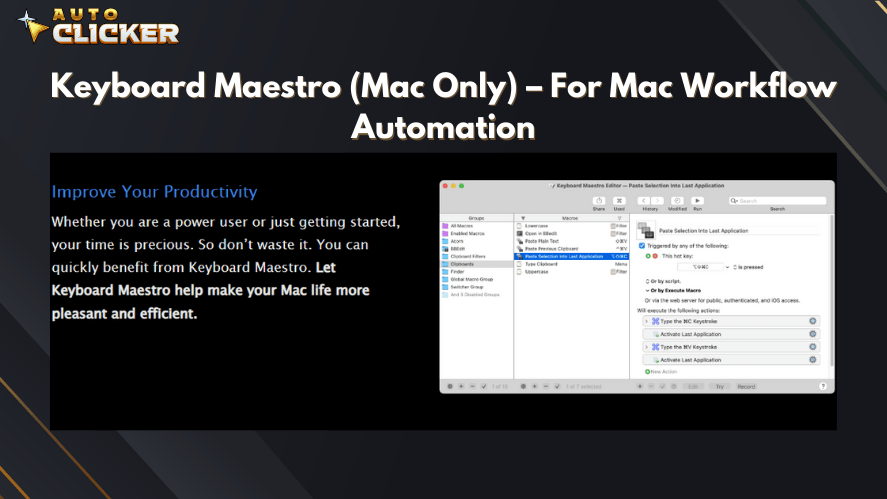
🔹 6. Keyboard Maestro (Mac Only) – For Mac Workflow Automation
Best for: Mac users who want powerful automation
Platform: macOS
Type: Mac automation tool
Cost: Paid
Keyboard Maestro is one of the best automation tools for Mac users. It can launch apps, move files, manage clipboard actions, control windows, and run multi-step workflows.
Although it is more advanced than a simple macro recorder, it has a visual interface that makes automation easier to build.
Use cases:
- Launching multiple apps with one shortcut
- Moving and renaming files
- Automating browser actions
- Managing clipboard text
- Creating custom Mac workflows
How to use it:
- Install Keyboard Maestro.
- Create a new macro.
- Choose a trigger.
- Add actions.
- Test the workflow.
For Mac users, Keyboard Maestro is a strong option for building reliable desktop automation.
Tool Comparison Table
| Tool | Best For | Skill Level | Platform |
|---|---|---|---|
| Auto Clicker on Steam | Click automation and idle games | Beginner | Windows |
| AutoHotkey | Keyboard and mouse scripts | Advanced | Windows |
| Microsoft Power Automate | Office workflows | Beginner to advanced | Windows and web |
| TinyTask | Simple macro recording | Beginner | Windows |
| Zapier | Web app automation | Beginner to intermediate | Web |
| Keyboard Maestro | Mac desktop automation | Intermediate | macOS |
How to Choose the Right Automation Tool

Choosing the right tool depends on your task, skill level, and computer. Before installing anything, think about what you want to automate first.
If you only need repeated mouse clicks, an auto clicker is the easiest option. However, if you need to connect emails, spreadsheets, and cloud folders, a workflow tool like Power Automate or Zapier may be better.
Factors to Consider
- Skill Level:
- Beginner? Try TinyTask or Auto Clicker.
- Power user? Dive into AutoHotkey or Power Automate.
- Type of Task:
- Need click automation? Go for an autoclicker.
- Need web app integration? Zapier is your friend.
- Platform:
- Windows: All tools listed except Keyboard Maestro
- Mac: Keyboard Maestro or browser-based tools like Zapier
Pro Tip
Start simple. For instance, begin with TinyTask or an automated clicker to build confidence. Then, once you’re comfortable, transition to more advanced tools like Power Automate or AutoHotkey. As a result, you’ll be able to scale your productivity significantly.
Benefits of Using Automation Tools
Automating repetitive tasks can improve how you work every day. Instead of spending time on small manual actions, you can let software handle them for you.
Key benefits include:
- Saving time: Automation reduces repeated manual work.
- Reducing errors: Tools can follow the same steps consistently.
- Improving focus: You can spend more time on important work.
- Lowering stress: Less busywork can reduce mental fatigue.
- Building better routines: Automated workflows make daily tasks easier to manage.
However, automation works best when you use it for tasks that are predictable and repeated often. If a task changes every time, it may still need human judgment.
Safety Tips Before Using Automation Tools
Automation tools are useful, but they should be used carefully. Some apps may come from unsafe download pages, while some games or platforms may not allow automation.
Before using any tool, follow these safety tips:
- Download tools only from official or trusted sources.
- Avoid installers that include extra programs.
- Check recent reviews when possible.
- Test automation on a small task first.
- Do not use automation to spam or cheat.
- Review game or platform rules before using an auto clicker.
- Keep backups before automating file changes.
In addition, always watch the tool during your first test. This helps you catch mistakes before they affect important files, accounts, or workflows.
FAQ: Automate Repetitive Tasks
To automate repetitive tasks means using software to complete repeated actions for you. These actions may include clicking, typing, moving files, filling forms, or connecting apps.
The easiest way is to start with a simple tool like an auto clicker or macro recorder. These tools do not require coding and are easier for beginners.
Yes, you can automate mouse clicks using an auto clicker. This is useful for idle games, repeated buttons, testing, and simple click-based tasks.
TinyTask and Auto Clicker on Steam are good beginner options. They are easier to set up than scripting tools.
Automation is safe when you use trusted tools and follow platform rules. However, avoid suspicious downloads and do not use automation for cheating, spam, or unsafe actions.
Conclusion
Learning how to automate repetitive tasks is one of the easiest ways to save time on your computer. Whether you are clicking the same button, organizing files, managing emails, or connecting web apps, there is a tool that can help.
For simple click automation, Auto Clicker on Steam is a good starting point. For basic macro recording, TinyTask is easy to try. Meanwhile, AutoHotkey, Microsoft Power Automate, Zapier, and Keyboard Maestro are better for users who need more advanced workflows.
Start with one small task first. Then, as you become more comfortable, build better routines and automate more of your daily work. As a result, you can spend less time on repetitive computer actions and more time on tasks that actually matter.

Auto Click Clicker Guide for Faster Gaming and Productivity

10 Productivity Hacks That Actually Save Time

Clicking Auto Clicker for Gaming – Tips, Tricks, and Setup Guide
About The Author
