
Auto Clicker for Cookie Clicker: A Complete Guide
An Auto Clicker for Cookie Clicker can make long clicking sessions easier by automating repeated mouse clicks while you focus on upgrades, buildings, golden cookies, and long-term strategy. Since Cookie Clicker is a single-player incremental game, many players use automation tools for convenience. However, it is still important to use an auto clicker responsibly, avoid unsafe downloads, and understand how automation may affect your personal gameplay experience.
Whether you play Cookie Clicker on browser or Steam, the right auto clicker settings can help reduce hand strain, save time, and make the early game feel less repetitive. In this guide, we’ll explain how an Auto Clicker for Cookie Clicker works, how to set it up, what settings to use, and what to consider before automating your clicks in 2026.
Editor’s Note: This guide has been updated for 2026 with safer auto clicker tips, better Cookie Clicker settings, and responsible automation advice.
What Is an Auto Clicker and How Does It Work?

If you’re unfamiliar with Auto Clickers, you might wonder what they are and how they function. Let’s take a closer look to break this down in detail.
Definition of an Auto Clicker
An Auto Clicker is a program designed to replicate mouse clicks automatically. Essentially, it saves you the trouble of having to click repeatedly by automating the process. Not only does this reduce effort, but it also allows players to progress faster in games where clicking is a core mechanic.
For instance, in Cookie Clicker, the Auto Clicker focuses on clicking the giant cookie and other in-game elements to help you gather more resources without wearing out your mouse or your fingers.
How Auto Clickers Function
Auto Clickers work by simulating mouse inputs in a customizable way. Users can define settings to tailor the tool to their specific needs. For example:
- Click speed: Adjust how many clicks the tool performs per second.
- Click interval: Define how much time should pass between consecutive clicks.
- Click location: Choose specific points on the screen where the Auto Clicker should operate.
Moreover, advanced Auto Clickers may offer features like hotkey activation, support for multiple click points, or random intervals to mimic natural clicking behavior.
Relevance to Incremental Games
Incremental games, also known as clicker games, revolve around repetitive actions to progress. Because of this, they are perfectly suited for automation tools like Auto Clickers. For example, in games like Cookie Clicker, Auto Clickers let players:
- Automate repetitive tasks effortlessly.
- Shift focus to strategic decisions, such as upgrades or resource management.
- Avoid the strain of long clicking sessions.
As a result, players can enjoy the game more while reducing the tedious effort involved in constant clicking.
Why Use an Auto Clicker for Cookie Clicker?

By now, you might be wondering why so many players turn to Auto Clickers when playing Cookie Clicker. The reasons are compelling.
Reducing Repetitive Strain
Firstly, one of the most obvious benefits is the physical relief an Auto Clicker provides. Long hours of clicking can lead to wrist discomfort or even repetitive strain injuries. However, with an Auto Clicker, the strain is completely eliminated, letting you enjoy the game without any physical burden.
Boosting Efficiency
In addition to reducing strain, Auto Clickers allow you to achieve much more in less time. For example, they can click at speeds far beyond human capability, allowing you to:
- Collect resources faster.
- Unlock upgrades sooner.
- Progress further in Cookie Clicker and other incremental games with minimal effort.
Enhancing the Gaming Experience
Moreover, Auto Clickers improve your overall gaming experience by allowing you to focus on the fun and strategic elements of the game. Instead of spending hours manually clicking, you can let the Auto Clicker handle the grind while you plan your next moves or enjoy other aspects of the game.
Is Using an Auto Clicker for Cookie Clicker Safe in 2026?
Using an Auto Clicker for Cookie Clicker is generally safer when you choose a trusted tool, download it from a reliable platform, and avoid suspicious files from unknown websites. Since auto clickers simulate mouse clicks, they do not need to access your personal data or game account. Because of this, you should be careful with any tool that asks for unnecessary permissions.
Cookie Clicker is a single-player game, so automation is mostly a personal choice. In fact, past Steam updates even improved compatibility with auto-clicking behavior, including fixes related to autoclicking performance. However, automation can still change how the game feels. If you enjoy earning progress manually, use slower click speeds or limit auto clicking to early-game grinding.
For the safest experience, follow these tips:
| Safety Tip | Why It Matters |
|---|---|
| Use trusted auto clicker tools | Helps avoid malware or unsafe downloads |
| Avoid extreme click speeds | Prevents lag, crashes, or unstable gameplay |
| Use hotkeys | Lets you stop automation quickly |
| Test settings slowly | Helps you find a smooth click interval |
| Keep gameplay personal | Avoid using automation where rules or competition apply |
Features of Auto Clicker on Steam
Auto Clickers available on Steam come packed with features that make them a great choice for games like Cookie Clicker. Let’s take a closer look at these features.
Customizable Click Speed and Intervals
Firstly, Steam Auto Clickers let you fine-tune click speed and intervals to suit your needs. Whether you need rapid clicks for maximum efficiency or slower clicks to avoid triggering anti-cheat mechanisms, these tools can accommodate your preferences.
Support for Multiple Click Points
In addition, many Auto Clickers support multiple click points, which means you can automate actions on multiple in-game buttons simultaneously. For example, you can click the big cookie while activating upgrades at the same time.
User-Friendly Interface
Another great feature is their ease of use. Most Auto Clickers on Steam come with simple, user-friendly interfaces that even beginners can navigate without difficulty.
Wide Compatibility
Furthermore, Steam Auto Clickers are compatible with a wide range of applications, making them versatile tools not just for Cookie Clicker but also for other clicking games and even non-gaming tasks.
Steam Integration
Lastly, the seamless integration with Steam is a huge advantage. You can download, install, and update your Auto Clicker directly from the Steam platform, ensuring convenience and reliability.
How to Use Auto Clicker for Cookie Clicker (Step-by-Step Guide)

Now that you know the benefits and features of Auto Clickers, let’s walk through the process of using one for Cookie Clicker.
Step 1 – Download and Install Auto Clicker on Steam
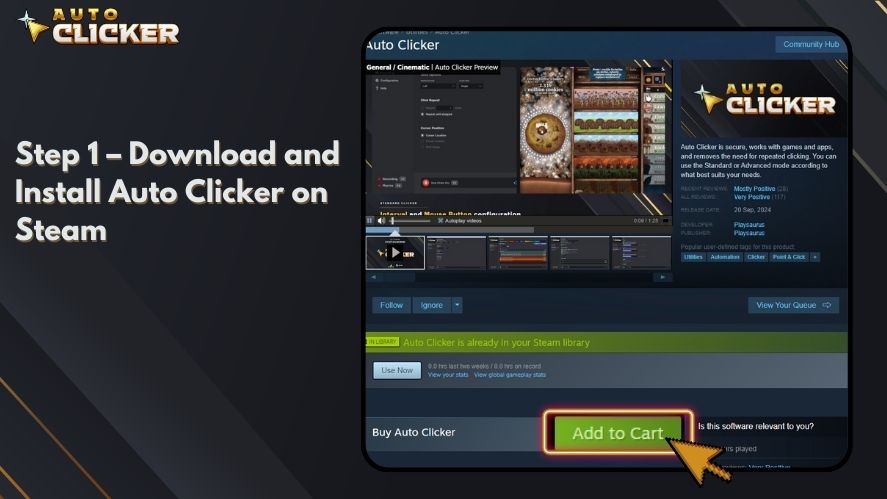
First, search for an Auto Clicker on Steam. Read user reviews to choose a reliable option, and click “Install” to add it to your library.
Step 2 – Launch Cookie Clicker

Next, open Cookie Clicker on your browser or Steam. Make sure the game is running and ready for automation.
Step 3 – Configure Auto Clicker Settings
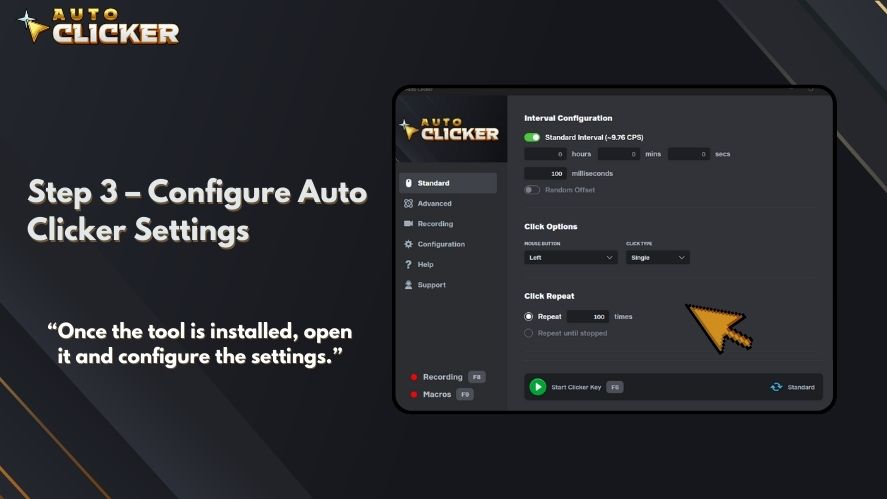
Once the tool is installed, open it and configure the settings. For example:
- Click speed: Set the number of clicks per second.
- Click location: Select the target area, such as the big cookie.
- Hotkeys: Assign shortcuts to start or stop the Auto Clicker quickly.
Step 4 – Activate the Auto Clicker
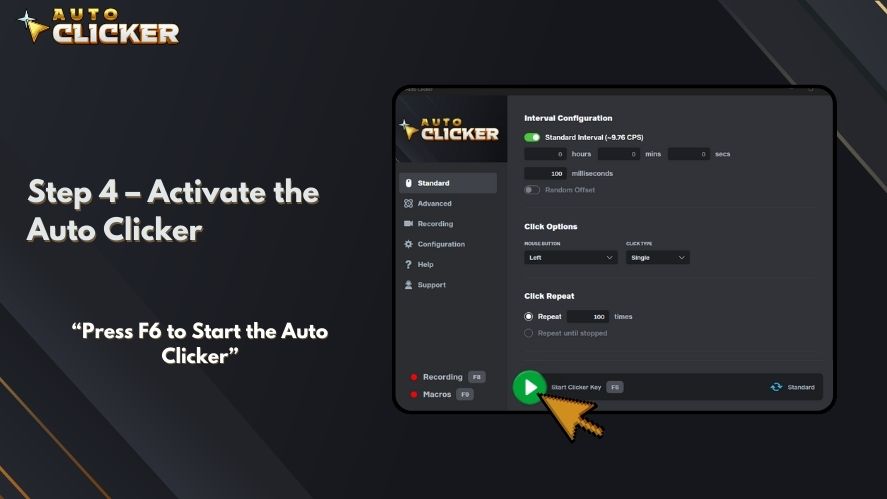
When your settings are ready, activate the Auto Clicker. As it starts clicking, you’ll notice your cookies piling up much faster than before!
Step 5 – Fine-Tune Settings
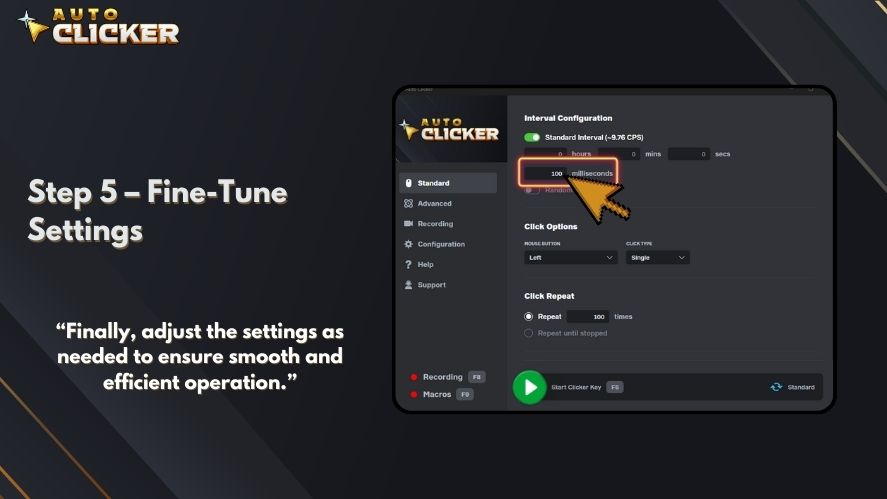
Finally, adjust the settings as needed to ensure smooth and efficient operation. For example, you can increase the click speed or add additional click points if necessary.
Best Auto Clicker Settings for Cookie Clicker
The best Auto Clicker for Cookie Clicker settings depend on your device, game version, and goal. However, most players do not need the fastest possible speed. A balanced setting usually works better because it keeps the game stable while still improving cookie production.
For beginners, start with a moderate click interval. Then, increase the speed only if the game remains smooth. Also, remember that Cookie Clicker becomes more strategy-focused over time. After the early game, upgrades, buildings, and golden cookie timing often matter more than raw clicking speed.
| Player Goal | Suggested Setting |
|---|---|
| Casual play | Slow to medium click speed |
| Early-game cookie farming | Medium click speed |
| Testing upgrades | Medium to fast click speed |
| Avoiding lag | Lower clicks per second |
| More natural clicking | Randomized intervals if available |
A good rule is simple: use the lowest setting that still gives you the result you want. This keeps gameplay smoother and reduces the chance of performance issues.
Best Practices for Using Auto Clicker in Incremental Games
Although Auto Clickers are incredibly useful, using them responsibly is important. Here are some best practices to follow:
Optimize Click Speed Settings
Firstly, avoid setting the click speed too high, as it can cause glitches or disrupt the game’s mechanics. Instead, experiment with different speeds to find the right balance.
Use Hotkeys for Seamless Control
Hotkeys make it easy to start or stop the Auto Clicker at any time. As a result, you can maintain better control during gameplay.
Experiment With Settings
Since every game is unique, take the time to test different configurations. This will help you optimize the tool for each game you play.
Play Fair
Lastly, always check the rules of the game before using automation tools. Some games may have policies against Auto Clickers, so use them responsibly to avoid penalties.
Frequently Asked Questions
The best auto clicker is one that is simple, safe, customizable, and easy to stop with a hotkey. For Cookie Clicker, look for adjustable click speed, click interval controls, and support for fixed click locations.
Usually, no. However, very fast click speeds may cause lag, missed clicks, or browser performance issues. If the game slows down, lower the clicks per second and restart the auto clicker.
Beginners can use one, but it is better to play manually first. This helps you understand upgrades, buildings, golden cookies, and prestige mechanics before automating the repetitive parts.
Yes, most PC auto clickers can work with the Steam version of Cookie Clicker as long as the tool can target the game window and click the correct screen area.
Conclusion
An Auto Clicker for Cookie Clicker is an essential tool for any fan of incremental games. Not only does it reduce repetitive strain, but it also boosts efficiency and makes the gameplay more enjoyable.
With customizable settings, user-friendly interfaces, and seamless compatibility, Auto Clickers especially those available on Steam are perfect for automating tasks in Cookie Clicker and other clicking games. So why not give it a try? Download an Auto Clicker today, and take your gaming experience to the next level!

Auto Clicker Workshop: Discover Ready-to-Use Click Patterns

Is an Auto Clicker for Freelancers Worth It?

Auto Clicker Software for Steam Games and Workflow Automation
About The Author
