
Mouse Keys vs Auto Clickers: Which One Should You Use?
Repeated mouse movements and clicks can become tiring during everyday computer use.
Fortunately, Windows offers a built-in feature called Mouse Keys to help users control the pointer with their keyboard.
Meanwhile, auto clickers offer a different solution by automating repetitive clicks instead of requiring users to click manually.
Understanding the difference between these tools can help you choose the right option for your needs.
This guide explains how Mouse Keys works, how to enable and use it, and when an auto clicker like Auto Clicker on Steam is a better choice for repetitive tasks.
What Are Mouse Keys and How Do They Work?
So, what is a mouse key?
Mouse Keys is a Windows accessibility feature that lets you control the mouse pointer using your keyboard.
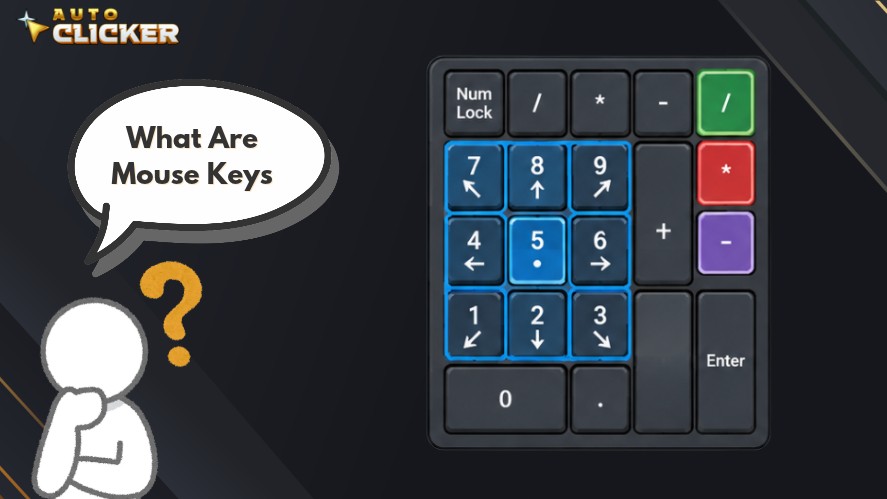
Instead of moving a physical mouse, you use keys on the numeric keypad to navigate the screen, select mouse buttons, and perform clicks.
It’s particularly useful for people who have difficulty operating a mouse or need an alternative input method.
Understanding the Feature
Mouse Keys translates keyboard input into mouse actions.
Once enabled, you can control the mouse using keyboard inputs to move the pointer, select items, open menus, and interact with applications without relying on a physical mouse.
Unlike dedicated auto clickers, Mouse Keys doesn’t automatically repeat clicks at set intervals.
You control each action through keyboard input, making it better suited to manual navigation and accessibility.
How They Control Mouse Movement and Clicks
Mouse Keys uses the numeric keypad to control pointer movement.
The number keys move the pointer in different directions, while other keys select mouse buttons and trigger clicks.
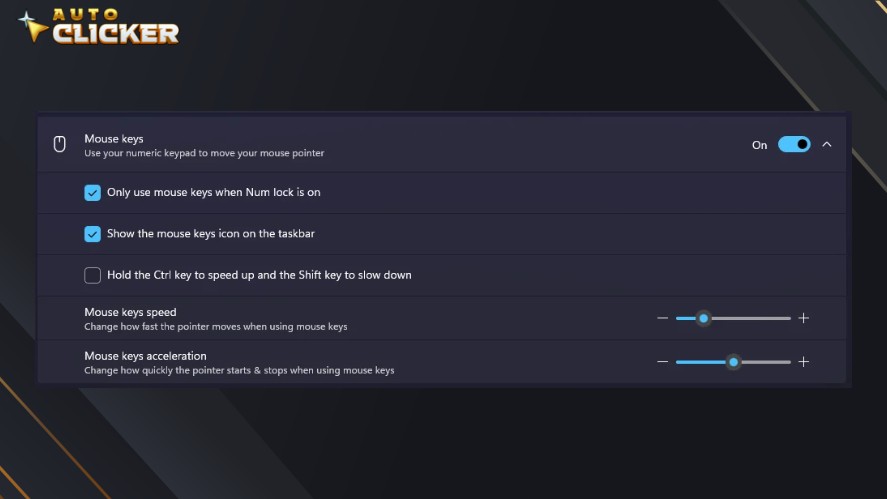
You can use these controls to:
- Move the pointer: Use the number keys to navigate horizontally, vertically, or diagonally.
- Left-click or right-click: Select the desired mouse button, then use the click command.
- Double-click: Trigger a double-click using the appropriate keypad command.
- Drag and drop: Hold a mouse button using the keyboard, move the pointer, and release the button at the desired location.
These controls let you perform many common mouse actions without switching between input devices.
Who Can Benefit?
Mouse Keys can help people with limited mobility or other accessibility needs.
Using keyboard as mouse navigation is also useful when a physical mouse stops working or becomes temporarily unavailable.
On top of that, keyboard-focused users may prefer Mouse Keys for certain desktop tasks, such as navigating menus or managing files.
However, it’s not designed to replace every mouse function.
If you need to automate repeated clicks rather than control the pointer manually, a dedicated Windows automatic clicker may be more suitable.
How to Enable Mouse Keys on Windows 10 and Windows 11
You can turn on Mouse Keys through Windows settings without installing extra software.
The steps vary slightly between Windows 10 and Windows 11, but both versions let you use the numeric keypad to control the pointer.
How to Turn On Mouse Keys in Windows 11
- Open Settings from the Start menu or press Windows + I.
- Select Accessibility → Mouse.
- Find Mouse keys and turn the switch on.
- Adjust the pointer speed and acceleration to make keyboard-based movement more comfortable.
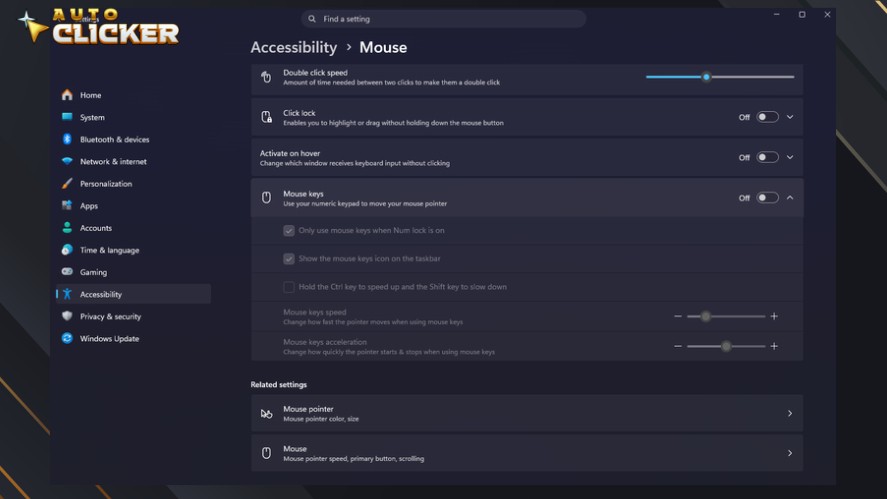
Once enabled, use the numeric keypad to move the pointer and perform mouse actions.
If the pointer doesn’t move, check that your keyboard has a numeric keypad and that its settings are configured correctly.
How to Enable Mouse Keys in Windows 10
- Open Settings using the Start menu or Windows + I.
- Select Ease of Access → Mouse.
- Turn on the option to use the numeric keypad to move the mouse around the screen.
- Adjust the available pointer speed and other settings to suit your needs.
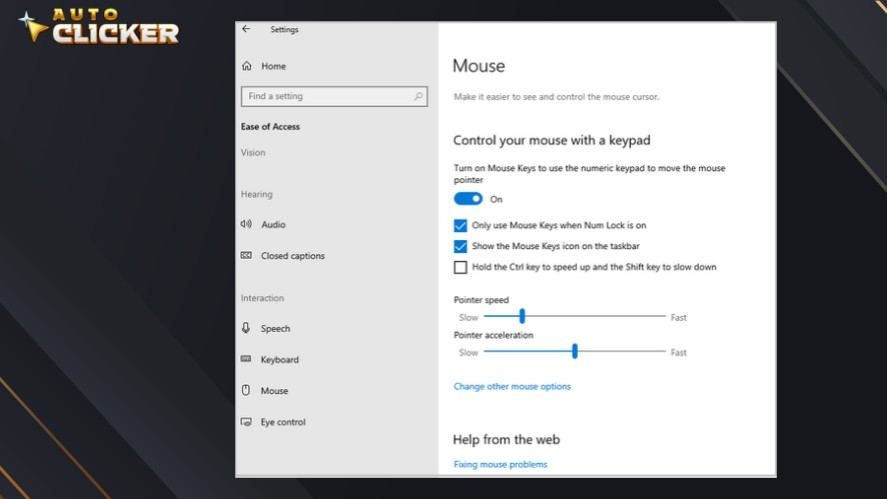
The wording may differ slightly depending on your Windows version and updates.
How to Use the Mouse Keys Keyboard Shortcut
Windows also supports the shortcut Left Alt + Left Shift + Num Lock to turn Mouse Keys on or off.
Depending on your settings, pressing this combination may open a confirmation prompt rather than switching the feature immediately.
If the shortcut doesn’t work, check your accessibility settings. You can still enable Mouse Keys directly through Settings.
How to Adjust Mouse Keys Speed and Settings
If the pointer moves too slowly or feels difficult to control, return to the Mouse Keys settings and adjust the available options.

Windows versions may offer slightly different controls.
- Pointer speed: Increase the maximum speed to move across the screen faster.
- Acceleration: Adjust how quickly the pointer reaches its top speed.
- Num Lock settings: Check whether Mouse Keys works when Num Lock is on or off.
- Accessibility preferences: Depending on your setup, you may be able to use Ctrl to speed up pointer movement and Shift to slow it down.
For the most accurate setup, use Microsoft’s official Mouse Keys guide. It covers both Windows 10 and Windows 11.
How to Use Mouse Keys for Clicking and Navigation
Once Mouse Keys is enabled, you can use the numeric keypad to move the pointer, select mouse buttons, and perform common actions.
Learning a few key commands makes it easier to navigate Windows and control computer without mouse.
Mouse Keys Keyboard Controls Explained
The numeric keypad handles pointer movement and clicking. Use this table as a quick reference to learn how to use mouse through keyboard.
| Key | Typical function |
|---|---|
| 8, 2, 4, 6 | Move pointer up, down, left, right |
| 7, 9, 1, 3 | Move pointer diagonally |
| 5 | Click selected mouse button |
| / | Select left mouse button |
| – | Select right mouse button |
| + | Double-click |
| 0 | Hold mouse button |
| . | Release mouse button |
These commands assume you’re using the standard Mouse Keys layout on the numeric keypad.
How to Left-Click, Right-Click, and Double-Click
To control the mouse with the keyboard, here are the shortcuts for mouse keys.
For mouse keys left click, press / to choose the left mouse button, move the pointer with the number keys, and press 5 to click.
To open a folder, position the pointer over it and press + for a double-click.
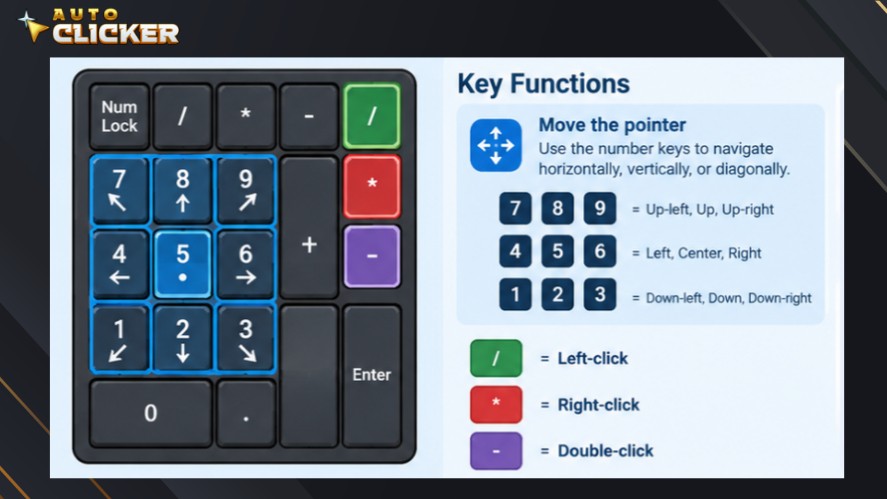
For mouse keys right click, select the right mouse button with -, then press 5 over the file or folder.
To drag an item, position the pointer, press 0 to hold the button, move the pointer, and press . to release it.
Can Mouse Keys Perform Automatic Repeated Clicks?
No, Mouse Keys is designed for keyboard-based computer mouse control, not timed click automation.
You generally need to press a key for each click, so it can’t repeatedly click at set intervals on its own.
If a task requires continuous or scheduled clicking, a dedicated auto clicker is a better fit. It can automate repeated clicks at configured intervals, reducing the need to trigger every click manually.
Mouse Keys vs Auto Clickers: Their Key Differences
Mouse Keys and auto clickers both help you control mouse actions, but they solve different problems.
Mouse Keys lets you operate the pointer with your keyboard, while an auto clicker automates repeated clicks.
The right choice depends on whether you need manual control or hands-free repetition.
What Is an Auto Clicker?
An auto clicker is software that automatically performs auto mouse clicks based on settings you choose.
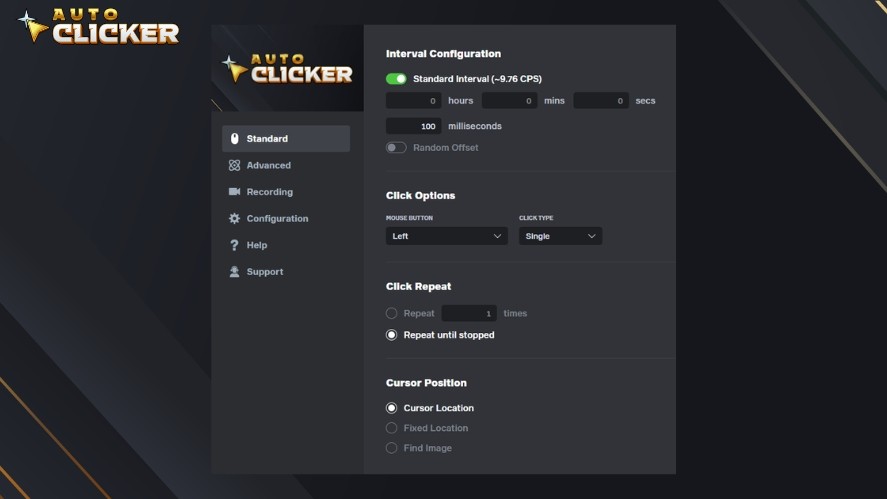
Depending on the tool, you can configure the mouse button, click interval, repetition count, and start or stop controls.
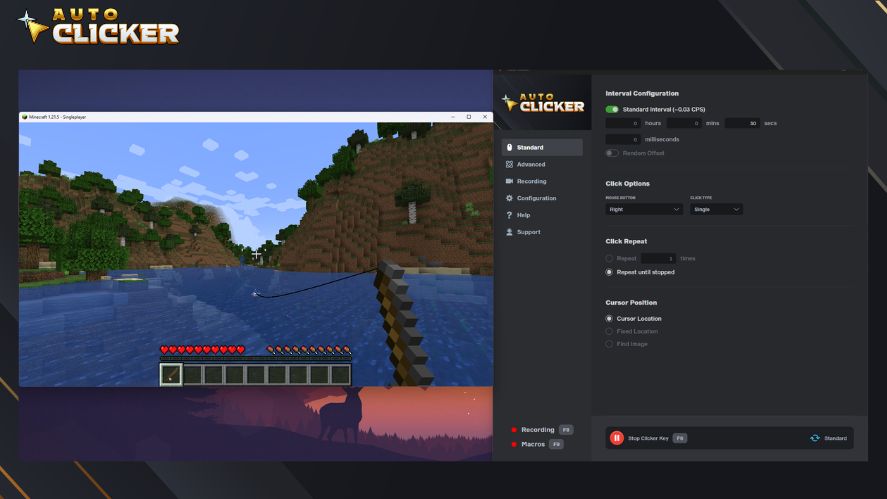
This makes auto clickers useful for tasks that involve repeated clicking, such as testing interface buttons or completing routine actions.
Unlike Mouse Keys, they can repeat clicks without requiring a separate keyboard command for every action.
Mouse Keys vs Auto Clicker Feature Comparison
| Feature | Mouse Keys | Auto clicker |
|---|---|---|
| Keyboard pointer control | Yes | Depends on tool |
| Built into Windows | Yes | Usually separate software |
| Click interval settings | No | Commonly available |
| Accessibility focus | Primary purpose | Varies |
| Gaming applications | Manual control | Depends on game rules |
When Should You Use Mouse Keys Instead of an Auto Clicker?
Choose Mouse Keys when you need to move the pointer and click using your keyboard.
It’s especially helpful for accessibility, occasional mouse actions, and navigating menus or files without a physical mouse.
Since it’s built into Windows, you can also use it without installing another application.
However, Mouse Keys still requires you to trigger individual actions. It isn’t designed to automate repetitive clicking.
When Is an Auto Clicker the Better Choice?
An auto clicker is more suitable when a task requires repeated clicks at consistent intervals.
You might use one to test buttons in a software interface, repeat routine desktop actions, or automate other permitted workflows.
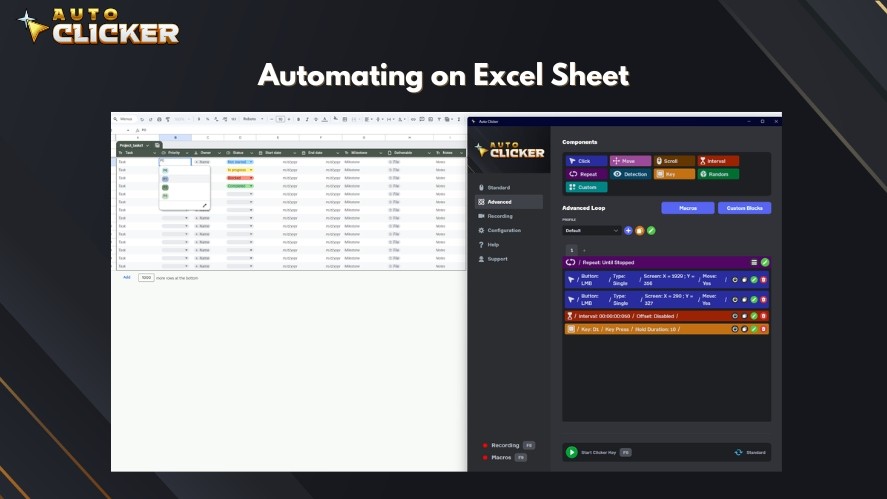
For example, Auto Clicker on Steam is an option to explore if you need dedicated click automation on your PC.
How Auto Clicker on Steam Can Complement Mouse Keys
Mouse Keys is useful for keyboard-based pointer control, but it doesn’t automate repeated clicks.
If your tasks involve clicking the same target over and over, Auto Clicker on Steam offers a dedicated option for click automation.
The two tools serve different purposes, so you can choose the one that fits each task.
Why Use Auto Clicker on Steam for Repetitive Tasks?
Repeated clicking can take time and become tedious. An auto clicker can handle these actions for you, reducing manual input and helping maintain consistent intervals between clicks.
Depending on the available settings, you can configure the clicking behavior to suit a particular task.
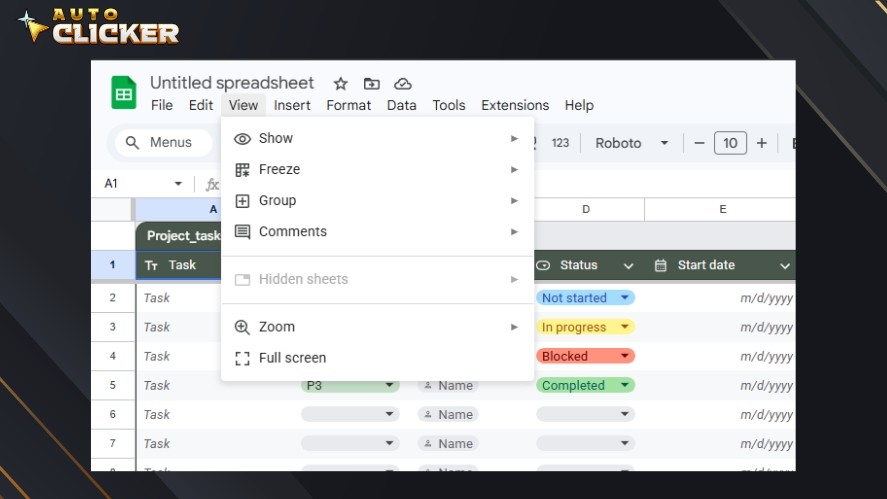
This can be useful for permitted desktop workflows, routine actions, and software testing where the same button needs to be clicked repeatedly.
You can explore Auto Clicker on Steam to find the product listing and check its supported features.
Mouse Keys and Auto Clickers for Different Workflows
Mouse Keys helps you move the pointer and trigger individual clicks through your keyboard. An auto clicker focuses on repeating clicks according to its configuration.
For example, you could use Mouse Keys to navigate the desktop, then use an auto clicker for a repetitive task if the software supports the required workflow.
However, don’t assume the two tools have built-in integration.
Choosing Click Automation Settings for Your Needs
Before starting an automated task, consider these settings where available:
- Click interval: Choose how much time passes between clicks.
- Mouse button: Select the required button, such as left-click or right-click.
- Start and stop controls: Make sure you can begin and stop automation easily.
- Predictable behavior: Test the settings on a safe target before running repeated clicks.
Use automation only where permitted, and stop it when the task is complete to avoid unintended actions.
Practical Uses of Mouse Keys and Auto Clickers
Mouse Keys and auto clickers can make different computer tasks easier.
Knowing where each tool fits can help you save time and avoid unnecessary manual input.
For Accessibility and Everyday Computing
Mouse Keys provides an alternative to using a physical mouse.
You can navigate menus, select interface elements, open folders, and manage files with the numeric keypad.
It’s especially helpful for people who have difficulty operating a mouse or need another way to control their computer.
For Productivity and Repetitive Work
Auto clickers can reduce manual effort when a permitted task requires repeated clicks.
For example, software testers can use click automation to repeat interface interactions during testing.
They may also help with routine desktop tasks that involve clicking the same target at regular intervals.
For Gaming
Mouse Keys can provide an alternative input method for navigating games or menus.
Auto clickers may also suit games that permit automated clicking, including some idle and incremental games.
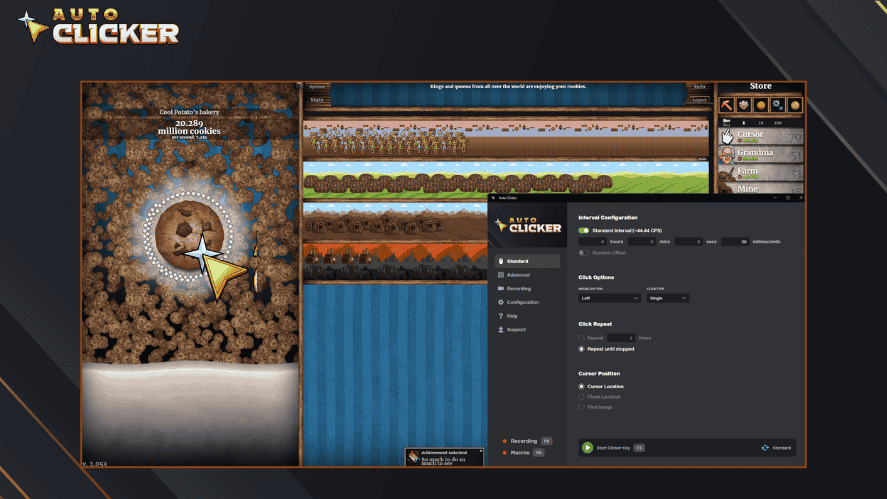
However, not every game allows automation.
Check the game’s rules before using an auto clicker, since automated inputs may violate its policies or trigger anti-cheat systems.
Using Automation Responsibly
Automation works best when you stay in control of its behavior.
Before starting, check the target and confirm that your click settings are correct. Use start and stop controls you can access easily, and stop the process as soon as the task is finished.
For testing, gaming, or everyday work, use Mouse Keys for manual pointer control and an auto click on PC when repeated clicks are allowed and genuinely useful.
Common Mouse Keys Problems and How to Fix Them
Mouse Keys may not work as expected if its settings, numeric keypad, or keyboard controls aren’t configured correctly.
Try these fixes before switching to another tool.
Mouse Keys Not Working on Windows
First, check that Mouse Keys is enabled under Settings → Accessibility → Mouse in Windows 11 or Settings → Ease of Access → Mouse in Windows 10.
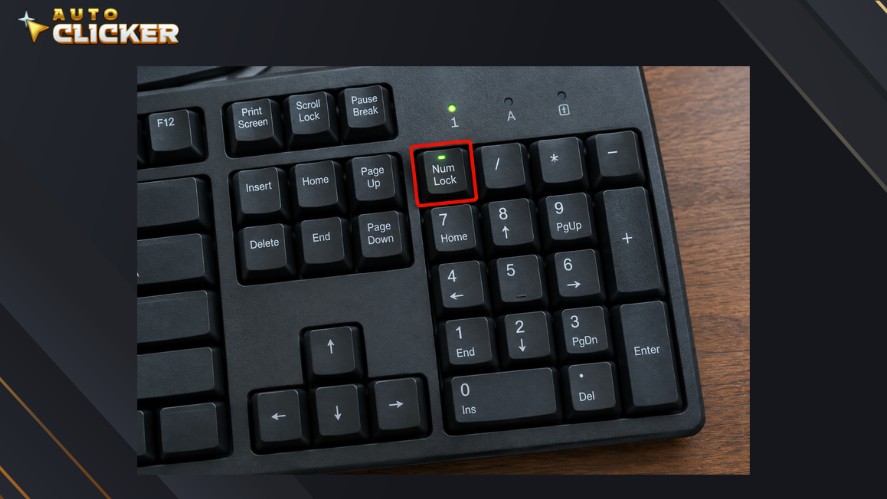
Confirm that your keyboard has a numeric keypad and check whether Num Lock needs to be on or off.
If the feature still doesn’t respond, restart the computer.
Mouse Keys Moving Too Slowly
Return to the Mouse Keys settings and increase the pointer speed or acceleration.
Test the movement after each adjustment until the pointer responds at a comfortable pace.
Mouse Keys Not Clicking Correctly
Check which mouse button is selected before pressing the click key.
Review the numeric keypad commands to ensure you’re using the correct key for clicking, double-clicking, or dragging.
If the keys behave unexpectedly, check whether keyboard remapping software is changing their functions.
When to Consider an Auto Clicker Instead
If Mouse Keys works but you need to repeat clicks at specific intervals, the issue isn’t pointer control.
Mouse Keys requires manual input for individual actions, whereas an autoclick PC can automate repeated clicks.
Choose a dedicated tool when timed clicking is the main requirement and the task permits automation.
Frequently Asked Questions About Mouse Keys
Mouse Keys is a Windows accessibility feature that lets you move the mouse pointer, select mouse buttons, and click using the numeric keypad. It helps users navigate their computers without relying entirely on a physical mouse.
No, Mouse Keys requires keyboard input for individual clicks and doesn’t include a built-in timed auto-clicking loop.
Open Settings → Accessibility → Mouse, then turn on Mouse keys. You can also adjust pointer speed and acceleration in the available settings.
Standard Windows Mouse Keys relies on numeric keypad input. If you use a compact laptop keyboard without a dedicated keypad, you may need to enable an embedded keypad, connect an external numeric keypad, or choose another accessibility tool.
No, Mouse Keys lets you control pointer movement and clicks manually through your keyboard. Auto clickers automate repeated mouse clicks according to settings such as click intervals and mouse button selection.
It depends on the game and platform. Some games permit auto clickers, while others restrict automated inputs or consider them cheating. Check the game’s rules before using one to avoid potential penalties.
Make Mouse Control Easier With Mouse Keys and Auto Clickers
Mouse Keys and auto clickers solve different mouse-control problems.
Mouse Keys is a built-in Windows accessibility feature that lets you navigate your computer and perform clicks with the numeric keypad.
Auto clickers, on the other hand, automate repeated clicks at configured intervals. They’re a better fit for repetitive tasks that would otherwise require constant manual input.
Choose the tool that matches your needs: use Mouse Keys Windows for manual mouse on keyboard control and the best auto clicker for repetitive clicking.
If you want to simplify routine mouse actions on your PC, explore Auto Clicker on Steam and check its available features to see whether it suits your workflow.

Schedule Mouse Clicks with Auto Clicker on Steam

Can Apps and Games Detect Auto Clickers?

Graphic Design Tools: How AutoClicker Enhances Your Workflow
About The Author
