
Automation Loops With Auto Clicker: A Step-by-Step Guide
Clicking the same button again and again gets old fast. The same goes for a task that needs a click, a short pause, and a key press each time. Automation loops can handle those repeated steps for you. With Auto Clicker on Steam, you can set how often an action runs, add pauses, and choose when it stops. You can also link several actions in one loop.
New to the app? Start with our Auto Clicker on Steam overview to learn the basic controls.
This guide shows you how to build a loop in Advanced Mode, test it, and fix common issues. We’ll also cover when a simple click setting or a recording makes more sense.
What Are Automation Loops?
An automation loops repeats one action or a set of actions. You choose the steps, the delay between them, and the rule that ends the loop.
For example, say you need to click a button five times in a test app. You could click it by hand. Or you could build this short loop:
- Click the button.
- Wait one second.
- Repeat until the loop has run five times.
- Stop.
That’s the basic idea. A longer loop might also press a key, scroll a page, or check for an image on the screen.
When Is a Loop Better Than Manual Clicking?
Loops work best when the target stays in place and the steps rarely change. They can help you test an app, move through a long list, or repeat an allowed action in a game.
However, a loop does not know what you want unless you set the right rules. If each step needs a new choice, manual input may be safer. For tasks that change while they run, you may need a visual check as part of the loop.
Choose the Right Auto Clicker Mode
Auto Clicker has three ways to handle repeat tasks. You don’t need Advanced Mode for every job.
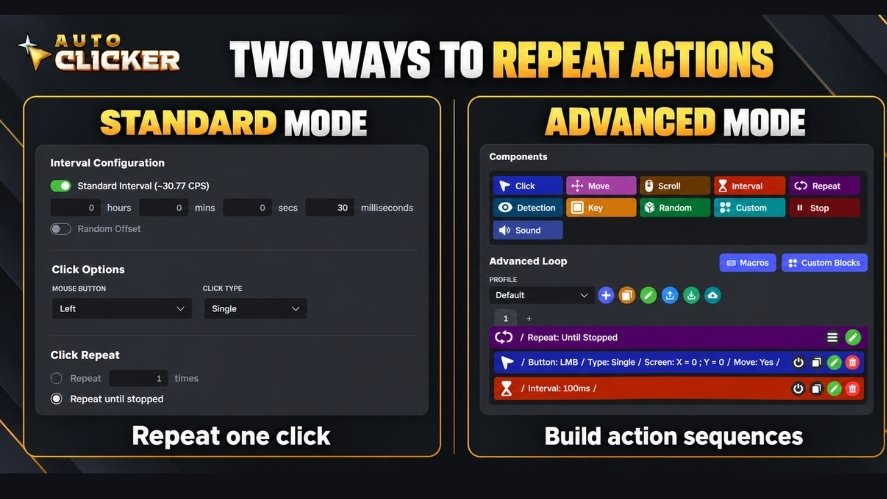
| Mode | What it does | Best use |
|---|---|---|
| Standard Mode | Repeats one click with set timing and a click target | Clicking the same spot several times |
| Advanced Mode | Links Click, Interval, Repeat, Scroll, Key, and other actions | Running a loop with several steps |
| Recording Mode | Records mouse and keyboard actions for replay | Repeating a task that’s easier to show than build |
Standard Mode lets you set a click interval, mouse button, target location, and repeat count. You can also let it run until you stop it. If that’s all you need, keep the setup simple.
For longer automation loops, use Advanced Mode. Its drag-and-drop editor lets you arrange actions in the right order. No coding is required.
Meanwhile, Recording Mode can capture your inputs and play them back. You can then edit the recording in Advanced Mode or turn it into a Custom Block.
The official AutoClicker documentation explains all three modes.
How to Create Automation Loops With Auto Clicker
Let’s build a safe test loop. Our goal is to click a harmless button five times, with a one-second pause after each click.
Use a test app or local demo page. Avoid buttons that buy items, delete files, or change account settings.
Step 1: Open Advanced Mode
Launch Auto Clicker from your Steam library. Then select Advanced Mode.
You’ll see the workspace where you can add action blocks. Look for Click, Interval, and Repeat. These three blocks are enough for our first test.
Step 2: Add a Click Block
Add a Click block and open its settings.
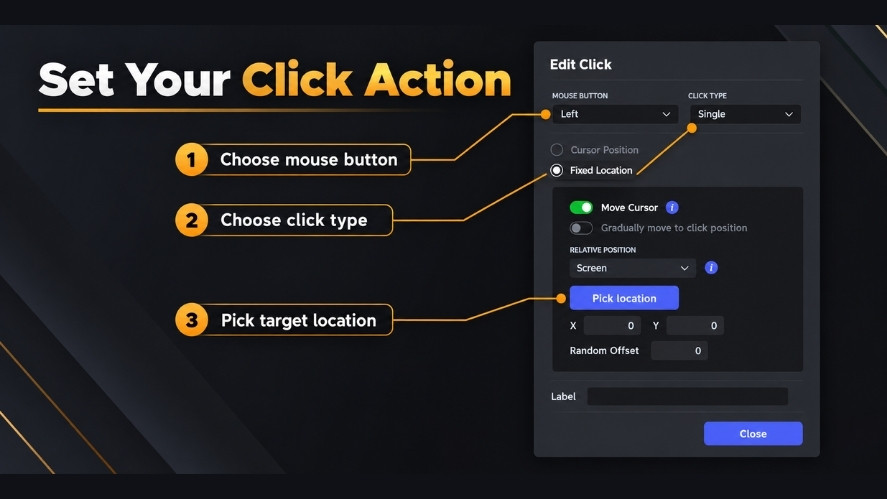
Choose a left-click, then select the target location. A fixed point may work well if the test window stays in one place. A cursor-based target works only when the pointer is where you expect it to be.
For now, pick one button that will not cause any harm if you click it more than once.
Step 3: Put the Click Inside a Repeat Block
Next, add a Repeat block. Place the Click block inside it.
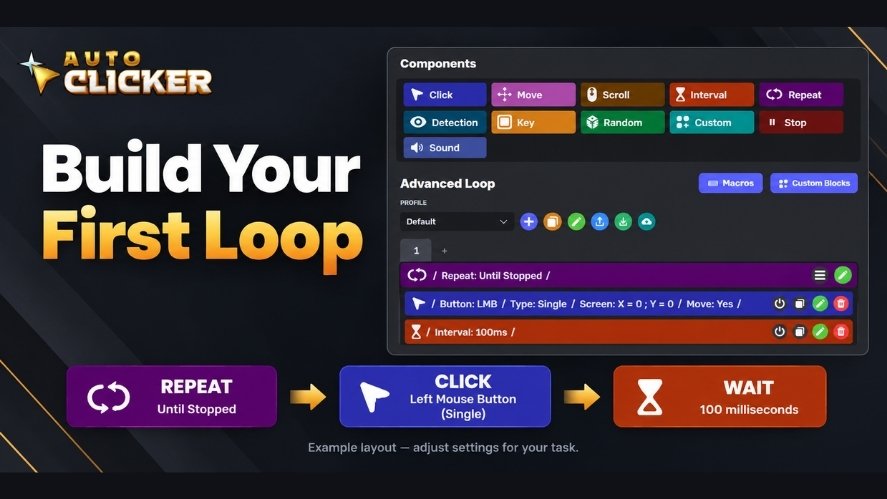
This part matters. If the Click block sits outside the Repeat block, it may run just once instead of running on each pass.
Set the repeat count to five. Starting small makes it easier to catch a mistake.
Step 4: Add a One-Second Interval
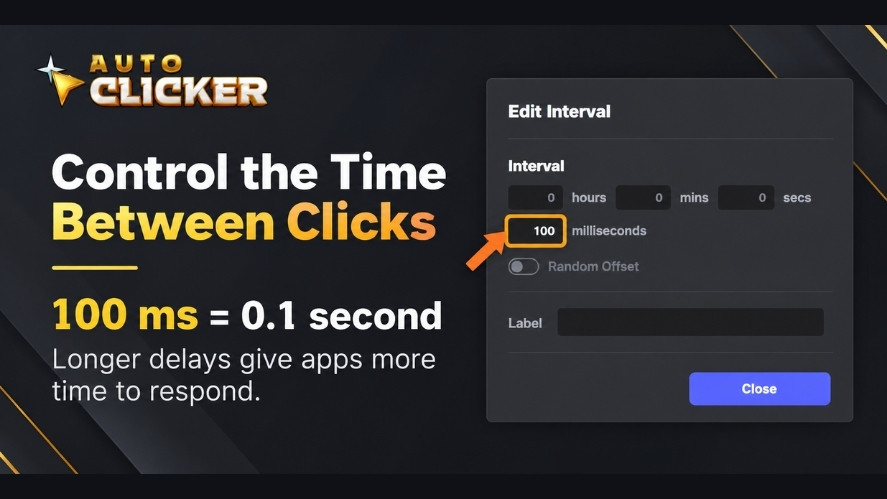
Place an Interval block after Click, inside the same Repeat block. Set the pause to one second.
The sequence should now read:
Repeat 5 times → Click → Wait 1 second
The delay gives the test app time to respond. It also makes each click easy to see. You can adjust the pause once the loop works.
Step 5: Check How the Loop Stops
A five-pass loop should end when it reaches the set count. Still, check the stop control before you start.
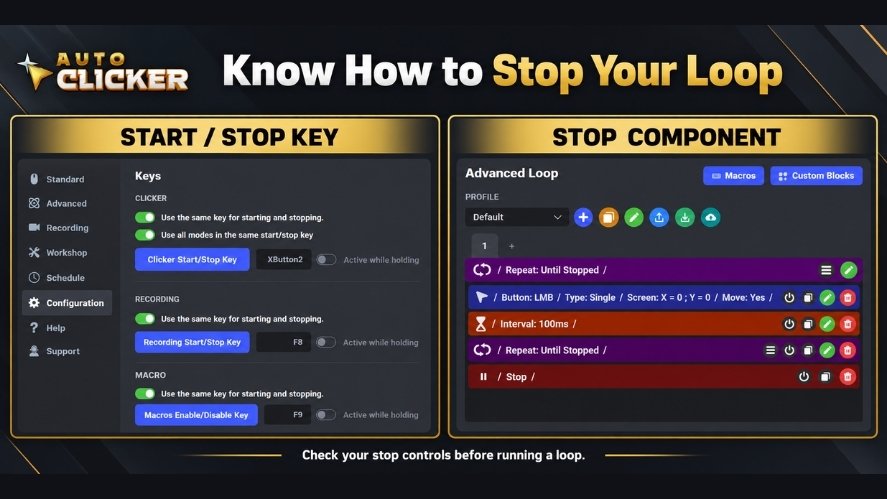
The official guide lists F6 as the default start and stop key for Auto Clicker. If you’ve changed your hotkeys, use the keys shown in your own settings.
Don’t test an endless loop until you know that the stop control works.
Step 6: Run a Short Test
Bring the target window to the front. Then start the loop.
Watch all five passes.
- Did each click hit the right spot?
- Did the app respond before the next click?
- Did the loop stop when expected?
If not, stop it and change one setting at a time. For example, if the app misses clicks, try a longer pause first.
Step 7: Save the Working Setup
Once the loop works, save the profile with a clear name, such as Five-Click Test.
You can also save a set of actions as a Custom Block for later use. This helps when you want to add the same steps to another workflow.
Auto Clicker also supports profile export and import, including linked custom blocks. That gives you a way to back up a setup before you change it.
Which Repeat Setting Should You Use?
There isn’t one best setting for every task. Pick the option that matches how the work should end.
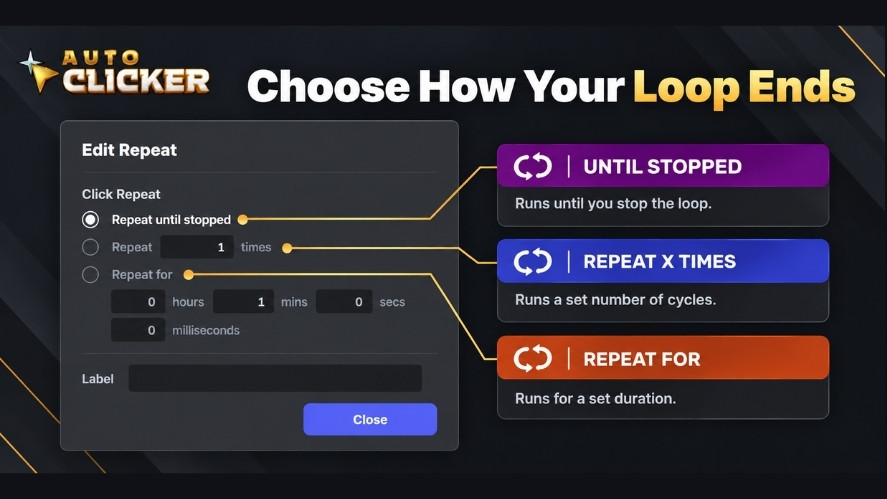
Repeat a Set Number of Times
Choose a fixed count when you know the exact number of cycles. For example, a test might need ten button presses.
This is a good choice for new users because you can check the result after a short run.
Repeat Until Stopped
Choose Until Stopped when the number of cycles is unknown. The loop keeps running until you use the stop control or another supported stop action ends it.
Use this mode with care. If the screen changes, the loop may keep clicking even when its target is gone.
Repeat for a Set Time
A time limit can be useful when you want to run a task for 30 seconds rather than count each pass.
Auto Clicker’s August 19, 2026 update added a Repeat for a duration option in Advanced Mode. The update also added a setting that can cancel blocks still running when that time ends.
Check that setting before a timed run. A time limit and a repeat count may not end a sequence in the same way.
Stop After a Screen Change
Sometimes you don’t know how many tries a task will need. For example, an OK button may appear after a file finishes loading.
In that case, you can use a Detection block to look for the button and a Stop action to end the task after a match and click. A retry limit or time limit can keep the search from running forever.
Our conditional automation guide walks through that setup in more detail.
Useful Automation Loop Examples
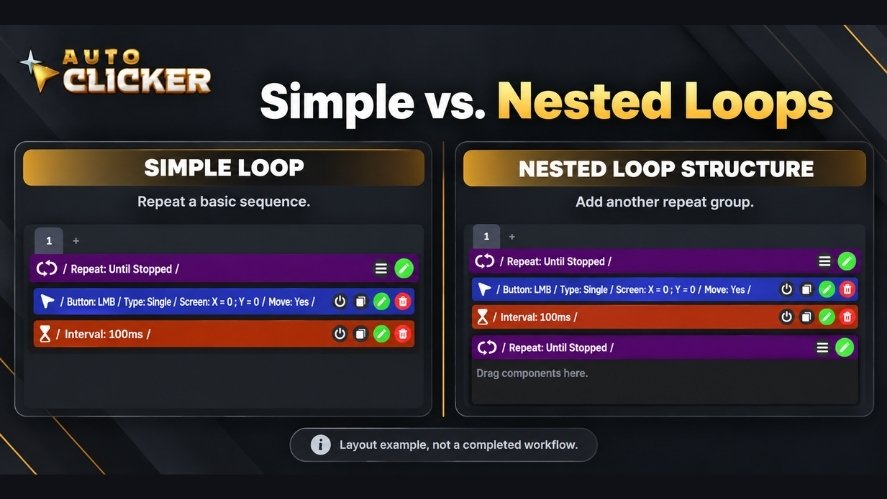
Once your first loop works, try a task that needs more than one click. Here are four ideas you can test in apps that allow automation loops.
1. Scroll, Pause, and Scroll Again
Say you’re reviewing a long demo page. You want to move down a little, read what appears, and then move again.
Build this sequence in Advanced Mode:
- Add a Scroll block with a small downward movement.
- Add an Interval block with a two-second pause.
- Place both inside Repeat.
- Run a few cycles and check the scroll distance.
Keep the mouse pointer over the part of the page you want to scroll. Also, note that wheel input may move the page in steps rather than in one smooth glide.
For more help, see our auto-scrolling guide.
2. Click a Control, Then Press a Key
A test form might need you to select a field, wait, and press Tab.
You can build a loop with Click → Interval → Key → Interval. Place those actions inside a Repeat block and try two cycles.
Before you run it, make sure the right window has focus. Otherwise, the key press could go to another app.
Also, check the screen after the first cycle. If the cursor ends in a new field, the next pass may need a different starting point.
3. Wait for a Button to Appear
Some tasks don’t take the same amount of time on every run. A fixed delay may be too short on a slow day and too long on a fast one.
For this kind of task, Advanced Mode can use Detection to check for an image or color. You can then click when the target appears and stop after the task is done.
Keep the search area small when you can. A clear image and a focused search area can make the match easier to test. Still, a new theme, screen scale, or button design may cause the search to fail.
4. Record a Short Routine and Replay It
If you already know the steps by hand, recording may save setup time.
Open Recording Mode and use the record hotkey shown in the app. The official documentation lists F8 as the default. Perform the short task, then stop and save the recording.
Next, replay it for a small number of cycles. Watch for extra mouse moves, clicks, or delays that don’t help. You can also edit the recording in Advanced Mode.
Read our mouse and keyboard recording guide for a full walkthrough.
How to Make Your Automation Loops More Reliable
A fast loop is not always a good loop. If a click happens before the app is ready, it may miss the button or hit the wrong thing.
These habits help you avoid that problem.
Give Each Step Enough Time
Start with a longer delay, then shorten it after a clean test. A one-second pause is a useful starting point for a simple demo, not a rule for every app.
Avoid an interval of zero when you’re learning. Very short delays can cause lag or missed clicks in some apps.
Check the Start of Each New Cycle
A loop may work once and fail on the second pass. That often happens when the first run changes the screen.
For example, clicking Next may move to a new page. If the next loop still clicks the old coordinates, the action may no longer make sense.
Check that each cycle starts with the screen in the right state. If it doesn’t, add a step that brings it back or use a suitable detection check.
Keep Click Locations Stable
Automation loops that use fixed coordinates depend on the window’s position. Moving the window or changing the screen scale can cause clicks to miss their target.
Before replay, check the window size and position. If the target moves often, look into image detection instead of fixed clicks.
Test One Part at a Time
For a longer loop, first test Click by itself. Then add Interval. After those two work, add Repeat and any other actions.
That way, you know which part caused a problem. Don’t change five settings at once and then guess which one helped.
Save a Good Version
Use clear profile names and keep a copy before you make large edits. If you use Custom Blocks, give each one a name that explains its job.
You can also explore advanced Auto Clicker settings once your basic loop works.
Common Loop Problems and Fixes
| Problem | What to check first |
|---|---|
| The loop won’t start | Make sure you’re in the right mode, the blocks are set up, and the start key is correct. |
| Clicks happen too fast | Increase the Interval value. |
| The loop ends early | Check the repeat count, time limit, and any Stop block. |
| Clicks hit the wrong spot | Check the cursor position, fixed coordinates, and window layout. |
| The next cycle fails | See whether the first cycle changed the screen or focus. |
| Detection misses the button | Capture a clear target image and review the search area. |
| The loop won’t stop | Check for Until Stopped, then use your configured stop control. |
If you can’t find the cause, strip the workflow down to one Click block. Get that working, then add the other actions one by one.
Safe Use: Know When Not to Automate
Auto Clicker can repeat actions, but it can’t judge every result for you. So, start with a harmless test and stay nearby while you check a new loop.
Don’t leave a new workflow running on payment screens, file deletion tools, account settings, or other tasks that could cause harm if an action repeats.
Game rules also differ. Some games allow certain forms of auto clicking, while others ban macros or automated inputs. A game being on Steam does not mean it allows Auto Clicker. Check its rules first.
Above all, keep a stop key within reach and set a clear end point for each task.
Frequently Asked Questions
Can Auto Clicker repeat more than one action?
Yes. In Advanced Mode, you can place several actions inside a Repeat block. For example, you can click, wait, press a key, and scroll before the next cycle starts. Test the order of the actions before you run a long loop.
Can I create a loop without coding?
Yes. Auto Clicker uses drag-and-drop blocks in Advanced Mode. You can make a basic loop with Click, Interval, and Repeat. Start with just those three parts, then add other actions if your task needs them.
How do I make Auto Clicker loop until I stop it?
Choose the Until Stopped repeat option. Before running it, check your stop shortcut. Auto Clicker’s documentation lists F6 as the default start and stop key, but your chosen settings may differ.
Can I loop a mouse and keyboard recording?
Yes. Recording Mode lets you replay saved inputs a set number of times or until stopped. Keep the target window in the same state for each pass. If the screen changes, test the recording again before you repeat it.
Can a loop stop when a button appears?
Yes, with a suitable Advanced Mode setup. A Detection block can check for a target image, and a Stop action can end the workflow after the needed step. Add a retry or time limit in case the button never appears.
Are auto clicker loops allowed in every Steam game?
No. The rules depend on the game. Some games restrict macros and automated inputs, even in simple tasks. Read the game’s terms before using a loop. If the rules are unclear, don’t assume that automation loops is allowed.
Conclusion
Automation loops are a simple way to repeat clicks and other steps without doing each one by hand. Start with a small loop: Click, wait, repeat, and stop. Then check the results before adding more actions.
For single clicks, Standard Mode may be enough. For clicks, keys, scrolling, and screen checks in one routine, Advanced Mode gives you more control. Recording Mode is another option when it’s easier to capture your steps first.
The best loop isn’t the fastest one. It’s the one that does the right job and stops when it should.
Ready to try it? Explore Auto Clicker on Steam and build your first short loop.

Auto Clicker App: How Customizable Profiles Enhance Automation

Auto Clicker Steam: The Ultimate Tool for Gamers and Productivity

How to Download Auto Clicker on Steam: Step-by-Step Guide
About The Author
