
Custom Cursor Lets You Customize Every Click
Custom Cursor gives you an easy way to make your Windows pointer look more personal. Instead of using the same plain arrow every day, you can choose a design that fits your style, game setup, or desktop theme.
This may seem like a small change. However, your cursor is always on the screen. You use it when you browse the web, open files, play games, work, and watch videos. Because of that, even a small visual upgrade can make your computer feel more fun.
Custom cursor tools can also make the pointer easier to see. For example, a bright or large cursor may stand out better on a busy screen. This can help during gaming, streaming, or long work sessions.
The app is linked with Playsaurus and is made for Windows users. It lets you replace standard Windows cursors with themed cursor packs. As a result, you can change more than the normal arrow. You can also change the text cursor, busy cursor, resize cursor, and other pointer types.
For many users, Custom Cursor on Steam is a simple way to improve desktop style without changing the whole system.
What Is Custom Cursor?
Custom Cursor is a Windows app that lets you change the look of your mouse pointer. Instead of using the basic Windows design, you can apply themed cursor packs.
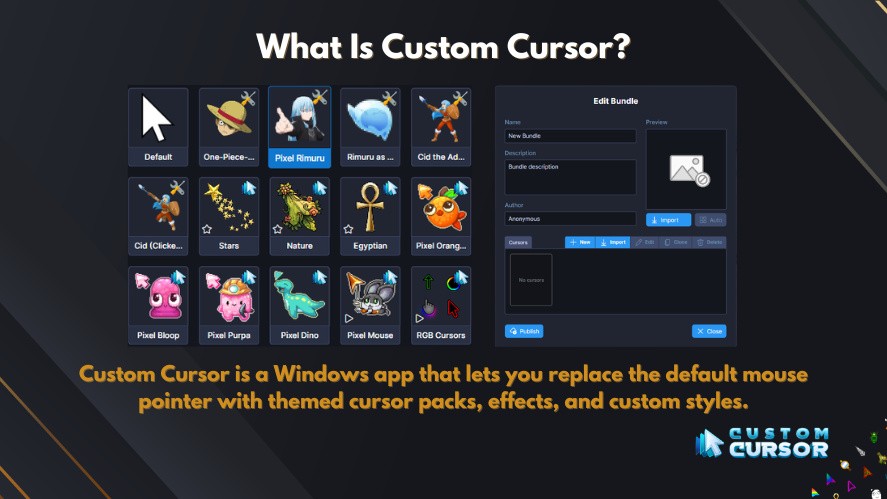
These packs may include several cursor types. For example, they may include a normal pointer, link pointer, loading cursor, text cursor, and resize cursor.
Because all parts match, the result looks more complete. In other words, the whole cursor set follows one theme.
The app is useful for people who enjoy:
- Desktop personalization
- Gaming setups
- Streaming
- Cute designs
- Retro themes
- Fantasy styles
- Bright neon colors
- Seasonal themes
- High-visibility pointers
Introduction to Custom Cursor
Most computers use the same basic pointer design. It works well, but it can feel dull after a while.
That is where cursor customization helps.
With a cursor app, you can choose a design that matches your interests. For example, you may want a soft pastel cursor for a calm desktop. On the other hand, you may want a glowing pointer for an RGB gaming setup.
You can also choose from many Windows cursor themes. Some are simple, while others are bold and animated.
As a result, you can make your computer feel more personal without making a major change.
Developed and published by Playsaurus
The app is connected with Playsaurus, a name many users know from clicker and idle games.
This link makes sense. After all, players of clicker games use the mouse pointer all the time. They click, upgrade, collect, and move through menus again and again.
Therefore, a themed pointer can make that type of game feel more fun.
Available on Steam for Windows
The app is described as being available on Steam for Windows.
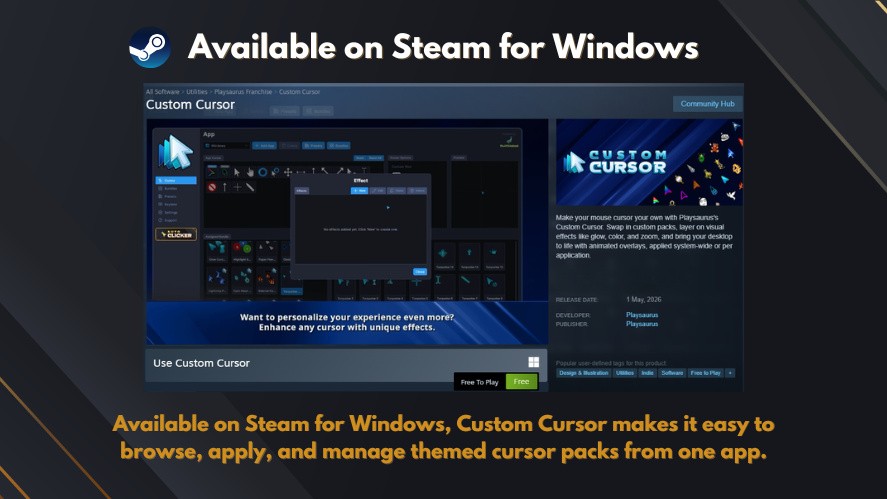
This can make setup easier for users who already use Steam. They can find the app, install it, and manage it from the same library they use for games.
However, users should still check the store page before installing. Features, prices, and system needs can change over time.
Also, the term custom-cursor can refer to many things online. It may refer to an app, a browser tool, or a cursor pack. Therefore, it is smart to check the developer and product name first.
Key Features of Custom Cursor
The main goal of Custom Cursor is simple. It lets you change the way your mouse pointer looks.
However, the app may offer more than one design. It can also help you manage several cursor packs, adjust their size, and use different themes for different apps.
Hundreds of Custom Cursor Bundles
One of the biggest benefits is choice.
You may find many styles, such as:
- Cute cursors
- Pixel art cursors
- Fantasy cursors
- Neon cursors
- Gaming themes
- Seasonal collections
Cute themes may include animals, food, hearts, stars, or cartoon-style designs.
Pixel themes often look like classic game graphics. Therefore, they work well with retro games and old-school desktop themes.
Fantasy themes may use swords, gems, spells, shields, or magical icons.
Neon themes often use bright colors and glowing lines. As a result, they can match RGB lights, dark wallpapers, and gaming desks.
Seasonal themes may include winter, Halloween, spring, or holiday designs.
Because there are many custom cursors, users can switch styles when they want a new look.
Customize Different Cursor Types
A complete custom mouse cursor pack should include more than the normal arrow.
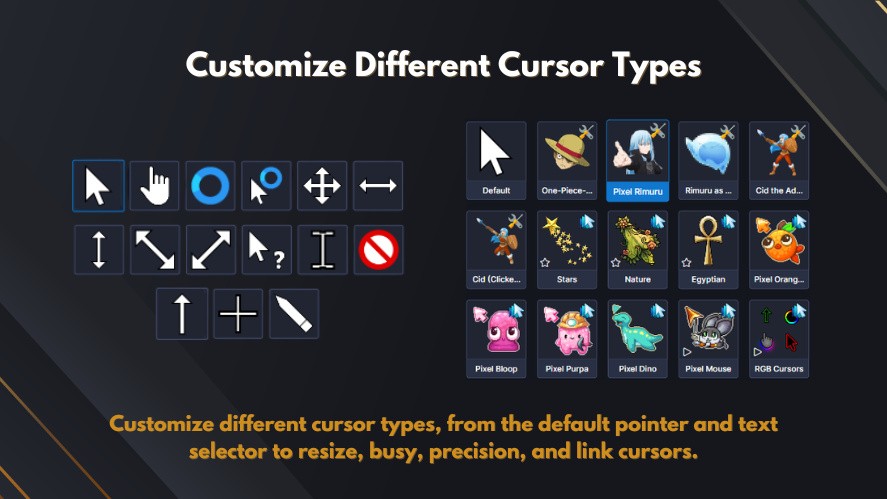
Windows uses several cursor types. Each one appears during a different task.
For example:
- The normal pointer helps you move around the screen.
- The busy cursor shows when something is loading.
- The text cursor appears when you type or select text.
- Resize cursors appear when you change a window size.
- The precision cursor is used for detailed selection.
- The link cursor appears over clickable items.
When every cursor type follows the same theme, the design feels more polished.
That is why many users search for custom mouse cursors instead of one single cursor file.
Cursor Effects and Appearance
The app may also let you adjust the look of the cursor.
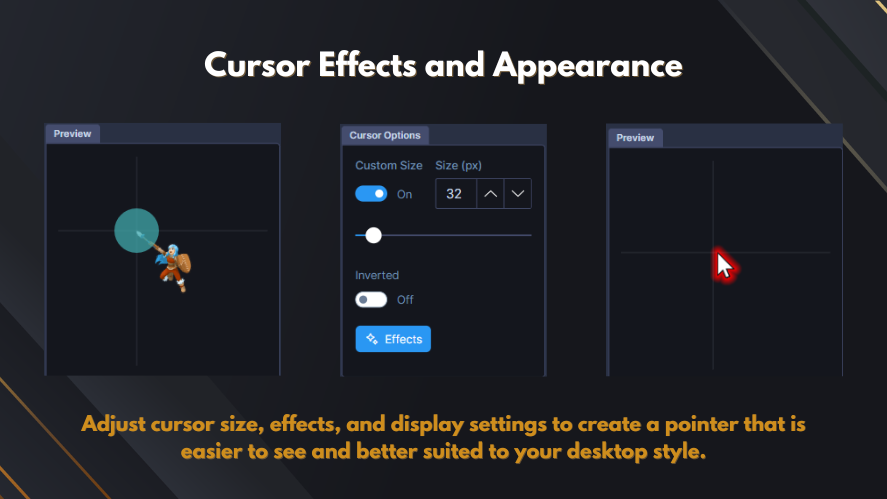
For example, you may be able to change:
- Cursor size
- Cursor effects
- Inverted mode
- Presets
- Saved bundles
Size settings are helpful on large screens. A small pointer can be hard to see on a high-resolution monitor. Therefore, a larger pointer may feel more comfortable.
Inverted mode may also improve visibility. It can help the pointer stand out on both dark and light backgrounds.
Presets can save time as well. For example, you may create one setup for work and another for gaming.
This is where a good cursor customizer becomes useful. It does more than change one file. It helps you manage your full cursor setup.
Easy App Assignment
Different apps have different backgrounds and colors.
For example, a dark cursor may work well in a bright office app. However, it may disappear inside a dark game.
Because of that, app assignment can be very helpful.
You may use:
- A simple cursor for work
- A bright cursor for games
- A large cursor for editing tools
- A clear cursor for streaming
- A pixel cursor for retro games
This makes it easier to use the right theme in the right place.
It also saves time. Instead of changing your cursor by hand each time, you can switch between bundles more quickly.
Why Cursor Customization Makes Computing More Enjoyable
Cursor changes may look small. Still, they can improve the way your desktop feels.
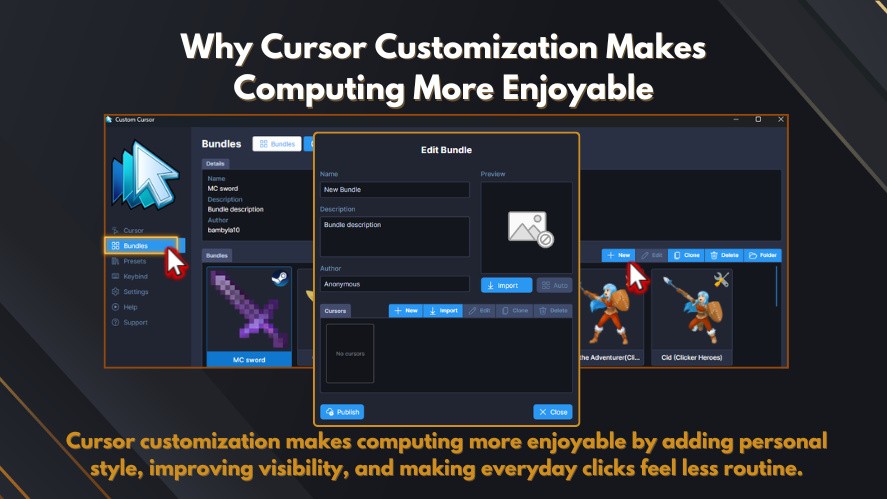
Your pointer follows you through almost every task. Therefore, changing it can affect your whole computer experience.
It Adds Personal Style
People already change wallpapers, colors, icons, and lights.
So, changing the cursor is a natural next step.
You may choose a cursor that matches:
- Your favorite colors
- Your gaming setup
- Your desktop wallpaper
- Your favorite game style
- A season or holiday
- Your streaming brand
This kind of desktop personalization can make your computer feel more like your own.
It Makes Repetitive Tasks Feel Less Dull
Many tasks use the same mouse actions again and again.
You may open folders, select files, click menus, or move between tabs. Over time, those actions can feel boring.
A themed cursor does not remove the work. However, it can make the screen feel less plain.
As a result, the experience may feel more enjoyable.
It Can Improve Cursor Visibility
The standard pointer can sometimes be hard to find.
This may happen on:
- Large screens
- Multi-monitor setups
- Bright websites
- Dark apps
- Busy wallpapers
- Fast games
- Detailed dashboards
A larger or brighter pointer can be easier to follow.
This may offer some accessibility benefits. For example, users who often lose track of the pointer may find a high-contrast design easier to see.
Still, a custom cursor is not a full accessibility tool. Even so, size and color changes can help in daily use.
It Improves Gaming Setups
Many gamers spend time matching their desk, lights, keyboard, wallpaper, and game theme.
A plain pointer can look out of place in that setup.
By contrast, a neon, fantasy, or pixel cursor can help the whole space feel more connected.
That is why custom themes work well with many gaming setups.
It Helps with Streaming
A clear cursor is useful during streams and videos.
Viewers need to see where the host is clicking. If the cursor is too small, they may lose track of it.
Therefore, streamers may choose a larger cursor with a bright outline.
This can make tutorials and game videos easier to follow.
Custom Cursor for Clicker Games
Custom Cursor is a good match for clicker games because the pointer is always active.
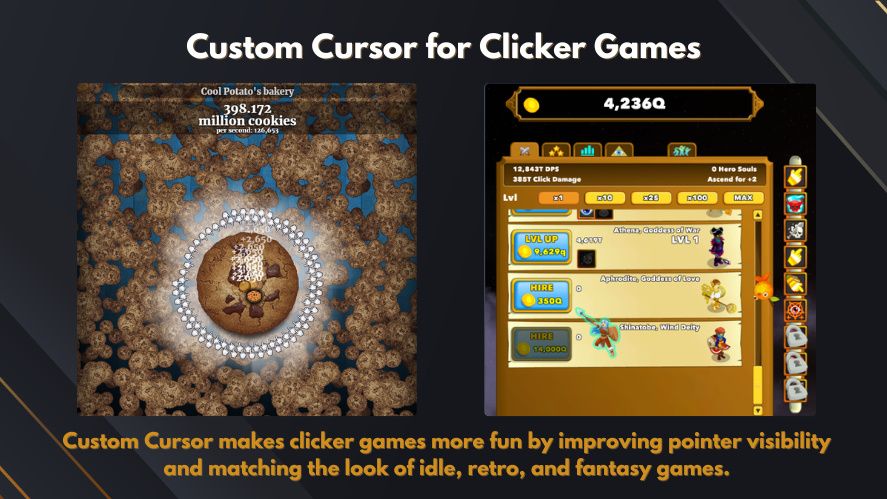
In these games, players often click the same area many times. They may also buy upgrades, collect rewards, and move between menus.
Popular examples include:
Some players may also connect games such as Capybara Go with idle play, although each game uses different controls.
Improve Cursor Visibility
Fast clicking can become harder when the pointer blends into the background.
For example, bright effects, moving objects, and busy menus may hide the cursor.
A large and colorful cursor can help you:
- Find the pointer faster
- Click the right area
- Avoid mistakes
- Move between upgrades
- Follow the pointer during a video
In this case, clear shape matters more than detail.
A simple cursor with a bright outline often works better than a complex design.
Match Your Favorite Game Theme
You can also choose a cursor that fits the game style.
For example:
- Pixel cursors fit retro games.
- Fantasy cursors fit magic or adventure games.
- Neon cursors fit future or cyber themes.
- Cute cursors fit casual games.
- Retro cursors fit classic-style games.
This does not change the game itself. However, it can make the setup feel more complete.
Make Long Clicking Sessions More Fun
Clicker and idle games can last for many hours.
Players may click, wait, upgrade, and return later.
Because of this, even a small visual change can make the game feel fresh again.
A themed pointer adds color and style. Therefore, it can make long sessions feel less repetitive.
Using Custom Cursor Together with Auto Clicker
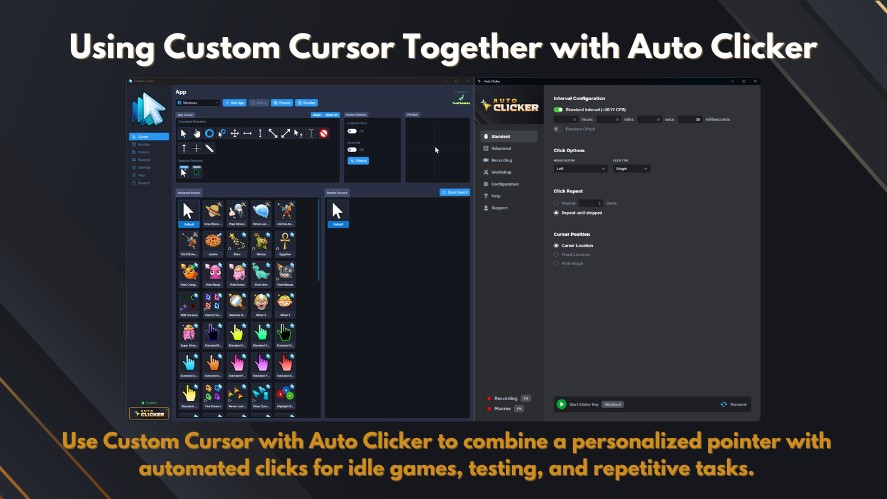
Custom Cursor and Auto Clicker do different jobs.
Custom Cursor changes how the pointer looks.
Auto Clicker changes how clicks happen.
Because of that, the two tools can work well together.
Better Visual Feedback
An autoclicker repeats mouse clicks.
Meanwhile, a cursor theme changes the pointer’s look.
When used together, a bright cursor can help you see where automated clicks are happening.
This can be useful for:
- Repetitive tests
- Software demos
- Idle games
- Simple workflows
- Local app testing
However, the cursor app does not perform the clicks. It only changes the visual style.
Great Combination for Idle Games
Auto Clicker tools are often used in idle or incremental games.
For example, they may help with:
- Resource farming
- Repeated menu clicks
- Testing game buttons
- Simple local game tasks
A clear cursor makes the click area easier to see.
However, users should always check the game rules first. Some games allow automation, while others do not.
Using autoclick tools in a restricted game may lead to account limits or bans.
Productivity Uses
Click tools are not only for games.
They may also help with:
- Repetitive office tasks
- UI testing
- Software demonstrations
- Local app testing
- Repeated button checks
In these cases, Custom Cursor improves the visual side.
Auto Clicker handles the repeated actions.
Therefore, one tool focuses on appearance, while the other focuses on speed and automation.
Download Auto Clicker Tools Safely
Users should be careful when they search for autoclicker download pages.
Some download sites use fake buttons or bundled installers.
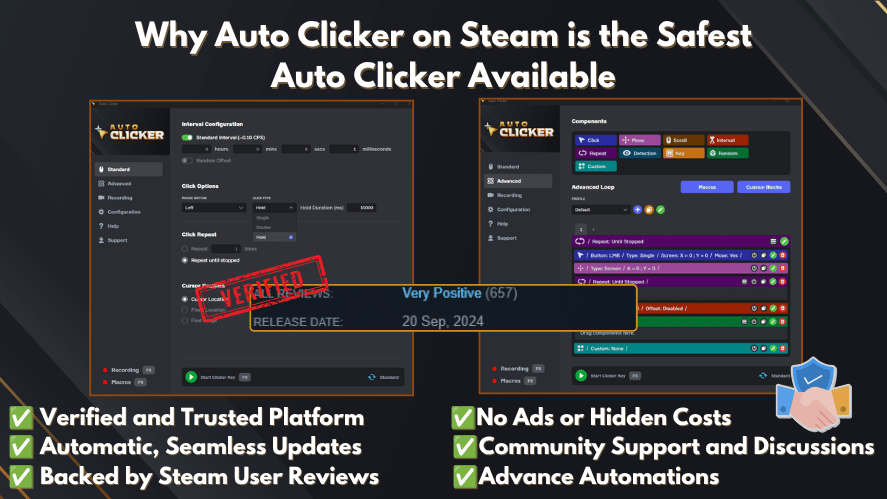
For that reason, it is better to use a trusted store or a verified developer page.
Before you download auto clicker software, check:
- The developer name
- User reviews
- File type
- App permissions
- Security scan results
- Removal options
The same care applies when you search for Auto Clicker on Steam.
Always confirm that you have found the correct product before installing it.
Why These Two Apps Complement Each Other
Custom Cursor and Auto Clicker solve different problems.
Custom CursorAuto ClickerChanges cursor designRepeats mouse clicksOffers themed packsUses click intervalsImproves pointer visibilitySaves time on repeated actionsSupports desktop styleSupports automationHelps with streamingHelps with testingAdds personalityReduces manual clicking
Together, they can create a smoother desktop setup.
For example, the cursor app can make the pointer large and bright. At the same time, the click tool can repeat actions in a set place.
This can be useful for idle games, testing, and simple workflows.
Still, users should use automation with care.
The safest uses are usually local testing, personal tasks, demos, and games that clearly allow it.
Tips for Choosing the Right Cursor Theme
The best cursor is not always the most detailed one.
Instead, it should be easy to see and easy to use.
Choose High Visibility
Look for:
- Bright colors
- Clear edges
- Large pointers
- Strong outlines
- Simple shapes
A cursor should stand out on both bright and dark screens.
For that reason, two-color cursors often work well.
Also, test the cursor in different apps before keeping it.
Use a Minimalist Work Setup
For work, simple designs may be better.
You may choose:
- White cursors
- Black cursors
- Gray cursors
- Clean shapes
- Soft outlines
These styles look neat and cause less distraction.
They are also useful during screen sharing or office meetings.
Build a Gaming Setup
Gaming themes can be more bold.
Popular styles include:
- Animated cursors
- Pixel cursors
- Fantasy designs
- RGB effects
- Neon arrows
- Retro icons
However, the cursor should still be easy to follow.
A highly detailed pointer may look good in a preview. Yet, it may be hard to use during fast play.
Improve Streaming and Content Creation
Streamers should choose a cursor that viewers can see.
A good streaming cursor should have:
- A clear shape
- A visible outline
- A clear click point
- A medium or large size
- Strong contrast
A unique cursor can also support channel branding.
Still, it should not distract from the video.
Getting Started with Custom Cursor
Many users search for how to get custom cursor because they want a quick setup guide.
The process is simple.
Watch the Custom Cursor App Tutorial
This video shows how to use Custom Cursor on Steam after opening the app. It covers the main controls, cursor bundles, theme selection, and basic settings. Watch the tutorial below, then follow the remaining steps to set up your preferred cursor style.
Official tutorial: This video was created by the Custom Cursor team and shows how to use the app on Steam.
Custom Cursor Tutorial – How to Use the App on Steam
Step 1: Install Custom Cursor from Steam
Open Steam on your Windows computer.
Then, search for the app by name.
Check the developer and product details before installing it.
Also, review the current system needs and price.
Step 2: Browse Cursor Bundles
Open the app and explore the available themes.
Start with a simple pack.
A clear design is often better for your first setup.
Step 3: Apply a Theme
Choose a bundle and apply it.
If possible, use a full set. This keeps all cursor types in the same style.
Step 4: Adjust the Settings
Change the cursor size, effect, or display mode.
Then, test the cursor in several apps.
Make sure it is easy to see on both light and dark screens.
Step 5: Save Your Favorite Presets
You may want one preset for work and another for games.
For example:
- Work
- Gaming
- Streaming
- High visibility
- Seasonal
- Minimal
This makes switching much easier.
Step 6: Add Auto Clicker if Needed
You may also use Auto Clicker for click-heavy games or repeated tasks.
However, check the rules first.
Use it only where automation is allowed.
How to Custom Mouse Cursor Settings Safely
Users who search how to custom mouse cursor often want an easy and safe method.
A dedicated app may be the simplest choice.
However, you should still test every theme before using it long term.
Check the following:
- Is the pointer easy to see?
- Is the click point clear?
- Does the text cursor still work well?
- Are resize arrows easy to understand?
- Does the pointer cover small buttons?
- Can you restore the default cursor?
A cursor may look stylish but still be hard to use.
For example, a sword-shaped pointer may hide the exact click point.
Therefore, function should come before style.
Finding a Safe Custom Cursor Download
A custom cursor download should come from a trusted source.
Free packs are common. However, some download sites may include unsafe files or misleading ads.
Before downloading, ask:
- Is the developer clear?
- Is the website trusted?
- Does the file type match the product?
- Are there user reviews?
- Does the installer ask for too much access?
- Can the cursor be removed easily?
Users often search for free custom cursors because they want more design choices.
That is fine. Still, free does not always mean safe.
Scan files before opening them.
Also, avoid unknown installers when a simple cursor file should be enough.
Custom Cursor and Responsible Auto Clicker Use
Auto Clicker tools can be useful. Still, they need careful use.
Before using an autoclicker, make sure:
- The app allows automation
- The game rules permit it
- The click point is correct
- A stop key is set
- Sensitive apps are closed
- The tool comes from a trusted source
Do not use automated clicks to cheat, bypass rules, or gain an unfair edge.
Also, do not use them on websites or services where repeated actions may break the rules.
Custom Cursor is safer because it only changes the visual look.
However, Auto Clicker controls input. Therefore, it needs more care.
Frequently Asked Questions
It changes the look of your Windows pointer.
It may also let you use themed bundles, adjust size, manage presets, and switch between cursor styles.
No.
It can also be used for work, streaming, desktop themes, and better pointer visibility.
Yes.
A large or bright cursor may be easier to see on a busy screen.
Not always.
A dedicated app can make the process easier.
Manual setup may take more time because you may need to change each cursor type one by one.
You may find them on trusted creator sites, cursor libraries, and app stores.
However, always check the file source first.
No.
It changes the pointer design.
Auto Clicker handles click automation.
No.
One app changes how the cursor looks.
The other repeats mouse clicks.
No.
Some games allow it, while others ban it.
Always check the game rules first.
Usually, no.
It changes the visual pointer, not the mouse sensor.
However, a poor design may make the click point feel less clear.
You can usually restore the normal Windows cursor in mouse settings.
The app may also include a default preset.
Final Thoughts
Custom Cursor is a simple way to improve the look of Windows.
It can make your pointer more colorful, easier to see, and more personal.
It also works well with gaming setups, desktop themes, and streaming layouts.
For clicker and idle games, a bright pointer may improve visibility during long play sessions.
In addition, users may pair it with Auto Clicker for permitted tasks.
The two tools have different jobs. Custom Cursor changes the look. Auto Clicker handles repeated input.
Together, they can make some games, tests, and workflows feel smoother.
Still, the best cursor is not always the most detailed one.
Choose a design that is clear, easy to see, and comfortable to use.
That way, every click can look better without making your computer harder to control.

Auto Clicker Gaming: How to Instantly Improve Your Gaming Experience

How to Auto Farm in Games Using Auto Clicker on Steam

Best Click Interval Settings for Games: Key Tips for Gamers
About The Author
