
Auto Clicker Android Is Now Available on Google Play
Auto Clicker Android is now available on Google Play, giving Android users an official Playsaurus option for automating repeated taps and swipes.
The Android release brings the basic idea behind desktop click automation to phones and tablets. However, instead of controlling a mouse, the Android version works with touchscreen actions.
There are now two Playsaurus options on Google Play: Auto Clicker Enhanced and Auto Clicker Premium. Enhanced is the free option for common tap and swipe automation. Premium, meanwhile, adds more advanced automation tools. Both are designed for Android 10 or newer, and neither requires root access.
If you want to get started right away, use the official Auto Clicker download page or the Playsaurus listings on Google Play. This lets you check the latest requirements, features, and updates before installing.
This guide explains what the Android version can do, how Enhanced and Premium differ, how to install the app, and how to use an auto clicker responsibly.
What Is Auto Clicker Android?
An auto clicker for Android is an app that repeats taps or swipes for you.
Instead of touching the same part of the screen again and again, you set the action once and let the app repeat it.
For example, a simple setup may tap one button every few seconds. Another setup may repeat a swipe or run several actions in order. As a result, an Android auto clicker can reduce the manual work needed for repetitive mobile tasks.
However, the Android version works differently from a desktop auto clicker.
On a PC, auto-clicking software usually controls mouse clicks. On Android, the app works with touchscreen actions such as taps and swipes.
In addition, Playsaurus uses Android’s Accessibility Service to carry out these actions. The app can also use a floating control over other apps so you can start or stop automation while another app is open.
Because these permissions are important, always review each Android prompt before enabling it.
If you are new to automation tools, our guide What Is an Auto Clicker? Everything You Need to Know provides a broader introduction to how auto clickers work and where they are commonly used.
What Can the Android Auto Clicker Do?
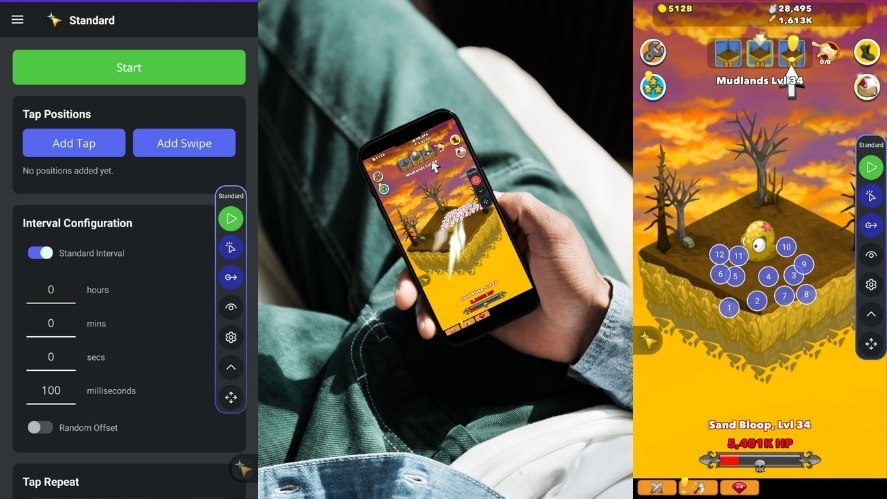
The exact feature set can change as Auto Clicker receives updates. However, the current Android release supports the main controls users expect from a mobile auto clicker.
Automate Taps and Swipes
First, you can place tap points on the screen and let the app repeat them.
You can also create swipe actions when a task needs movement instead of a simple tap. Current Playsaurus information lists both tap and swipe automation among the Android features.
For example, you may want to repeat a button press, collect an item, or perform the same swipe several times.
Instead of repeating each action by hand, Auto Clicker can handle the repetitive input.
Control the Time Between Actions
You can also customize click intervals to control how much time passes between automated actions.
Therefore, you do not need to run every task at the fastest possible speed.
A slower interval may work better when an app needs time to load, animate, or respond. On the other hand, a shorter interval may suit a simple task that responds immediately.
Current Android information also lists adjustable action intervals and timing controls.
Choose Fixed or Continuous Repeats
Some tasks only need a set number of actions.
Others need to continue until you stop them.
For that reason, Auto Clicker supports fixed or continuous repetition. This gives you more control over how long the automation runs.
For example, you could repeat an action 50 times instead of leaving the automation running without an end point.
Adjust Delays and Timing
In addition, timing can matter just as much as tap location.
Current Auto Clicker information includes delay controls and random timing options for supported Android automation.
As a result, you can create a setup that better matches the pace of the app you are using.
In many cases, a steady and reliable setup works better than the highest possible tap rate.
Use Floating Controls
The Android release can also show controls over another app.
Therefore, you can start or stop your setup without constantly switching screens.
This is especially useful while testing new automation.
For example, if the target screen changes, you can stop the sequence before it keeps tapping the wrong place.
Auto Clicker Enhanced vs Auto Clicker Premium
Playsaurus currently offers two Android options.
Also, both appear under the official Playsaurus developer page on Google Play.
However, they are intended for different levels of automation.
| Feature | Auto Clicker Enhanced | Auto Clicker Premium |
|---|---|---|
| Price model | Free option | Paid option |
| Android 10+ | Yes | Yes |
| Root required | No | No |
| Tap automation | Yes | Yes |
| Swipe automation | Yes | Yes |
| Adjustable timing | Yes | Yes |
| Fixed or continuous repeats | Yes | Yes |
| Floating controls | Yes | Yes |
| Advanced automation | More limited | Expanded |
| Recording and advanced routines | Check current listing | Available |
| Screen-aware automation | Check current listing | Available |
| Advanced workflow tools | Check current listing | Available |
For most new users, Auto Clicker Enhanced is the easier place to begin because it covers common tap and swipe tasks without an upfront purchase.
However, users who need more advanced routines should review Auto Clicker Premium.
Premium’s current listing describes additional features such as recording and more advanced screen-aware automation.
Because features can change through updates, always review the latest Google Play listing before choosing between the two versions.
That approach is more accurate than relying on an old feature list from a blog article.
Why Use an Auto Clicker for Android?
The main reason is simple: repeated tapping can become boring and time-consuming.
A single tap takes almost no effort. However, repeating the same action hundreds of times keeps your attention on a task that may not require much thought.
An automatic clicker for Android can handle that repeated input instead.
Save Effort on Repetitive Tasks
Suppose you need to press the same button every few seconds.
Doing it ten times may not matter. However, doing it for a long session can become tiring.
In that case, a mobile auto clicker can reduce repeated manual input.
You still decide what should happen, where it should happen, and when the automation should stop.
Therefore, the goal is not to remove your control. Instead, the goal is to remove unnecessary repetition.
For more practical examples, see how an auto clicker can save time on repetitive tasks across gaming, productivity, testing, and everyday workflows.
Make App Testing Easier
In addition, developers and testers may use repeated taps to check how an app responds.
For example, a tester may want to see what happens after a button is pressed hundreds of times.
Instead of tapping the same control by hand, automation can repeat the input more consistently.
As a result, the tester can spend more time watching what the app does instead of repeating the same action.
Support Simple Mobile Workflows
Some mobile tasks also contain the same touch action many times.
Therefore, a phone auto clicker may help when the steps are predictable and do not require a new decision each time.
However, simple tap automation is not suitable for every task.
If the screen changes often or the next action depends on what appears, you may need a more careful setup.
Can You Use an Auto Clicker for Android Games?
Yes. An auto clicker for Android games can technically automate repeated taps in many tap-heavy games.
Idle games, clicker games, and incremental games are common examples because repeated tapping is often part of their design.
For example, a game may ask you to:
- Generate resources
- Collect rewards
- Repeat attacks
- Activate the same button
- Perform repeated upgrades
- Complete other tap-heavy actions
However, whether you should use automation depends on the rules of each game.
Some games allow macros or repeated input. Other games may limit or ban automation, especially in competitive or multiplayer modes.
If you are concerned about game rules or automated input, our guide explains whether an auto clicker can be detected and why each game’s policies still matter.
Therefore, check the game’s terms, support pages, or community rules before using an auto clicker.
Also, do not assume that another player’s experience proves automation is allowed.
Rules can change. In addition, different servers, competitions, or game modes may have different policies.
A simple rule works well here: use automation only where it is permitted.
How to Download Auto Clicker on Android
Therefore, for the Android release covered in this guide, the best starting point is Google Play.
You currently have two Playsaurus options.
Option 1: Install Auto Clicker Enhanced
Auto Clicker Enhanced is the free Android version from Playsaurus.
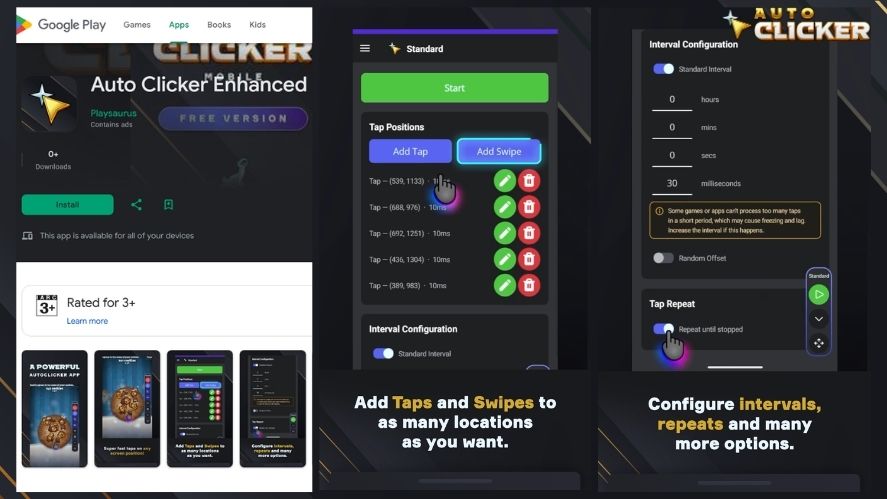
Get Auto Clicker Enhanced on Google Play
To install it:
- Open the Auto Clicker Enhanced listing on Google Play.
- Confirm that the developer is Playsaurus.
- Check that your device meets the current Android requirement.
- Tap Install.
- Wait for the installation to finish.
- Open Auto Clicker.
- Follow the setup instructions shown by Android and the app.
The official Auto Clicker website currently lists Android 10 or newer as the requirement and says root access is not needed.
Option 2: Install Auto Clicker Premium
Auto Clicker Premium is the paid Android version with additional automation tools.
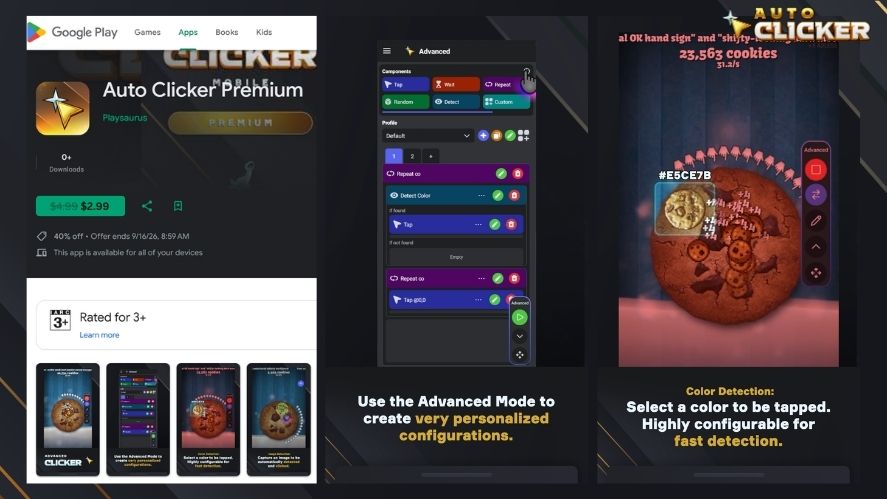
Get Auto Clicker Premium on Google Play
To install it:
- Open the Auto Clicker Premium listing on Google Play.
- Confirm that the developer is Playsaurus.
- Review the current price in your region.
- Check the latest feature list.
- Complete the purchase through Google Play.
- Install and open the app.
- Follow the Android setup process.
Because pricing can vary by country or promotion, check Google Play instead of relying on a price shown in an older article.
You can also use the official Auto Clicker Download page to find the correct Android version.
For more help with installation, see our Auto Clicker Download for Beginners guide.
How to Set Up Auto Clicker Android
After installation, start with a simple test.
This makes it easier to learn the controls before building a longer automation.
1. Open Auto Clicker and Review the Setup
First, read the instructions shown inside Auto Clicker.
Android may ask you to enable access needed for tap and swipe automation.
However, do not approve a permission only because a prompt appears.
Instead, read what the permission allows and make sure it matches the feature you want to use.
2. Enable the Required Android Access
Auto Clicker uses Android’s Accessibility Service to perform taps and swipes.
It also uses the ability to display floating controls over other apps.
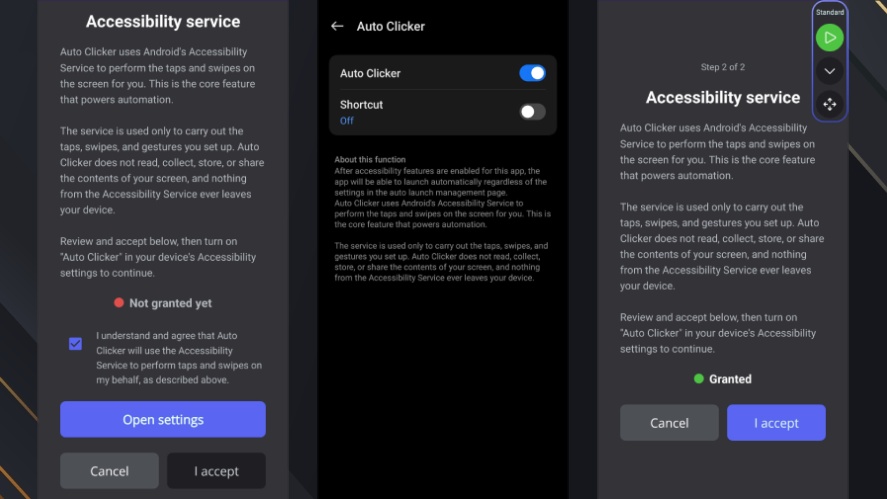
Therefore, the app may direct you to Android settings during setup.
Only enable access for the official Playsaurus app you installed.
3. Create a Simple Tap
Next, choose one basic action.
For example, place one tap point on a safe test screen.
Use a moderate interval at first. Then run the setup for a few seconds and watch where each tap lands.
This lets you confirm that the tap point and timing work as expected.
4. Learn How to Stop the Automation
Before you run a longer sequence, make sure you know how to stop it.
This matters because a pop-up, notification, or screen change may move the target.
If that happens, repeated taps could hit something you did not intend to press.
Therefore, learning the stop control should be one of your first steps.
5. Adjust One Setting at a Time
Once the basic test works, change one setting at a time.
For example, you might adjust:
- Tap position
- Swipe path
- Time between actions
- Repeat count
- Delay
- Other supported controls
By changing one setting at a time, you can quickly identify what caused a problem.
Best Settings for an Android Auto Clicker
However, there is no single setting that works for every app.
The right setup depends on how quickly the target app responds and whether the screen changes after each action.
Start With a Moderate Interval
For example, very fast tapping is not always better.
If an app needs time to load or update, rapid input may cause missed taps or unexpected behavior.
Therefore, begin with a slower interval.
Then reduce the delay only if the app continues to respond correctly.
Check the Tap Position
However, a fixed tap point only works while the target stays in the same location.
Menus, pop-ups, notifications, and other screen elements can move or cover buttons.
For that reason, watch the screen during your first tests.
If the target changes, stop the automation and update the setup.
Use a Repeat Limit When Possible
If a task only needs 20, 50, or 100 actions, consider setting a limit instead of letting the automation run forever.
This gives the task a clear end point.
It also reduces the chance that the app continues tapping after the task is complete.
Avoid Maximum Speed Unless You Need It
Many people search for an automatic clicker because they want faster tapping.
However, reliability is usually more useful than raw speed.
A stable setup that completes the task correctly is better than a faster setup that misses actions or causes unexpected behavior.
Therefore, increase the speed only when it improves the task.
Is Auto Clicker Android Safe to Use?
Safety depends on where you download the app, which permissions you enable, and how you use the automation.
Therefore, use the official Playsaurus listing on Google Play rather than an unknown APK mirror.
Our guide to auto clicker safety also explains common warning signs, download risks, and issues to consider before using automation in games or apps.
Keep Google Play Protect enabled because it checks apps for potentially harmful behavior when they are installed and continues scanning the device afterward.
However, an app store should not replace your own review of permissions and app information.
Auto Clicker also uses Android’s Accessibility Service for automation.
Google permits certain automation uses of the AccessibilityService API, but automation apps must follow Google’s applicable disclosure, consent, and usage requirements. Apps that use the API for automation must follow disclosure and consent requirements.
Therefore, follow these basic safety habits:
- Download from an official Playsaurus source.
- Confirm the developer name before installing.
- Read every Android permission prompt.
- Keep Google Play Protect enabled.
- Test new automation for a short time first.
- Make sure you know how to stop it.
- Avoid random modified or cracked APK files.
- Check game or app rules before using automation.
For more information, see our guide on Where to Download Trusted Auto Clicker Apps Safely.
Does Auto Clicker Work on Samsung Phones?
For example, users often search for an auto clicker for Samsung.
However, the phone brand alone does not decide whether an app will work.
The current Playsaurus Android release requires Android 10 or newer.
Therefore, many compatible Samsung phones and tablets may be able to install it.
The same applies to other Android manufacturers.
However, Google Play can also apply device-specific compatibility checks.
For that reason, open the listing from the exact phone or tablet you plan to use.
Google Play will show whether the current app version is available for that device.
If the install option is unavailable, check your Android version and the current requirements shown on the listing.
Android Auto Clicker vs Desktop Auto Clicker
Likewise, the goal is similar on both platforms: automate repeated input.
However, the controls are different.
For example, a desktop auto clicker usually works with:
- A mouse pointer
- Mouse buttons
- Screen coordinates
- Keyboard shortcuts
- Desktop windows
In contrast, an Android auto clicker works with:
- Touchscreen taps
- Swipes
- Mobile permissions
- Floating controls
- Android app interfaces
Because of that difference, do not assume every desktop feature is also available on Android.
Likewise, Android features may use a different setup than their Windows or macOS versions.
If you use both platforms, choose the version that matches the device where the repetitive task happens.
How to Choose the Right Auto Clicker for Android
If you are comparing several Android auto clicker apps, focus on your actual needs instead of choosing only by download count or a “best” label.
Consider the following factors:
- Official source: Can you confirm who publishes the app?
- Android support: Does it work with your current Android version?
- Tap controls: Can it handle the actions you need?
- Swipe support: Does your task require swipe automation?
- Timing: Can you set a useful interval and repeat count?
- Stop controls: Can you quickly pause or stop the routine?
- Permissions: Do you understand why each permission is needed?
- Updates: Is the app maintained through an official store?
- Advanced features: Do you need recording or screen-aware automation?
- Rules: Does the game or app you want to automate allow it?
Therefore, Playsaurus users can begin with Enhanced if they only need common mobile automation.
Premium is worth reviewing when more advanced features are required.
Frequently Asked Questions About Auto Clicker Android
Is Auto Clicker available on Android now?
Yes.
Playsaurus currently lists Auto Clicker Enhanced and Auto Clicker Premium on Google Play.
The official Auto Clicker website lists Android 10 or newer and says root access is not required.
Is Auto Clicker Enhanced free?
Yes.
Auto Clicker Enhanced is the free Android option from Playsaurus.
However, always check Google Play for the latest store information because features and other details can change.
What is Auto Clicker Premium?
Auto Clicker Premium is the paid Android version.
It includes common tap and swipe automation along with additional advanced automation tools.
Current information includes features such as recording and screen-aware automation.
Do I need to root my Android phone?
No.
The current Playsaurus Android versions do not require root access.
Instead, Auto Clicker uses Android’s Accessibility Service to perform supported taps and swipes.
What Android version do I need?
The official Auto Clicker download page currently lists Android 10 or newer.
However, always check Google Play for device-specific compatibility.
Can I use Auto Clicker on a Samsung phone?
Potentially, yes.
If the Samsung device runs a supported Android version and Google Play marks it as compatible, you may be able to install the app.
Therefore, check the listing from the exact device you want to use.
Can I use an auto clicker for Android games?
Technically, an auto clicker can repeat taps in many mobile games.
However, each game sets its own rules.
Therefore, check the game’s terms, support pages, or automation policy before using it.
Does Auto Clicker only work for fast tapping?
No.
Speed is only one part of automation.
In many situations, slower and more predictable timing gives better results.
Should I download an Auto Clicker APK from another website?
For the Playsaurus Android release, there is usually no need to use an unknown APK website because official Google Play options are available.
Using the official source also makes it easier to confirm the developer and receive updates.
What is the difference between an auto clicker and an auto tapper?
On Android, both terms usually describe the same basic idea: software that repeats touchscreen input.
“Tap” is technically more accurate for a touchscreen.
However, “auto clicker” remains the more common name for this type of automation tool.
Auto Clicker Android Is Ready to Download
The Android release gives Auto Clicker users a direct way to automate repeated taps and swipes on a phone or tablet.
More importantly, Android users now have two official Playsaurus options.
Auto Clicker Enhanced gives users a free starting point for common tap and swipe automation.
Meanwhile, Auto Clicker Premium adds more advanced tools for users who need them.
Before you begin, check that your device meets the current Android requirements.
Then install Auto Clicker from an official source, review the requested permissions, and test your first setup at a moderate speed.
After that, you can adjust the timing, repeat count, tap points, swipes, and other supported settings to fit your task.

Fun Things to Do with Auto Clicker: Try These Creative Experiments

Graphic Design Tools: How AutoClicker Enhances Your Workflow

Mouse Keys vs Auto Clickers: Which One Should You Use?
About The Author
