
Auto Click Clicker Guide for Faster Gaming and Productivity
An auto click clicker is a tool that automatically performs mouse clicks. It helps users complete repetitive tasks without constant manual input.
Whether you’re playing games, testing software, or working through repetitive office tasks, automating clicks can save both time and effort.
As gaming and productivity workflows have become more demanding, automated clicking tools have grown in popularity.
Gamers use them to reduce repetitive grinding in idle and incremental games, while professionals rely on them for tasks such as data entry, software testing, and repetitive UI interactions.
In this guide, you’ll learn how an auto click clicker works, the features to look for, its most common use cases, and how to choose the right settings for faster gaming and more efficient productivity.
What Is an Auto Click Clicker
An auto click clicker is designed to make repetitive clicking easier. Let’s look at its core function and the key settings that control how it works.
Definition and Core Function
The primary purpose of an automatic clicker is to perform automated mouse clicks based on settings chosen by the user.
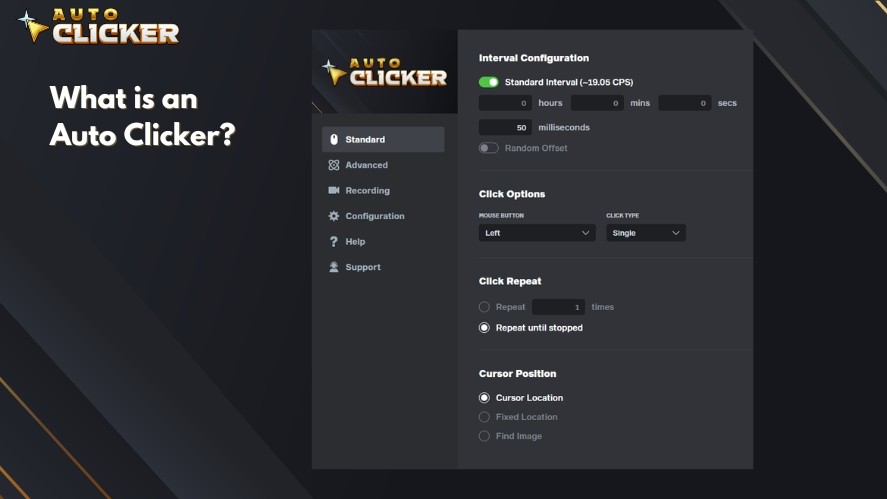
Instead of manually clicking hundreds or even thousands of times, the software generates those clicks for you.
This helps reduce repetitive manual work while improving consistency during long gaming sessions, repetitive office tasks, or software testing.
How an Auto Click Clicker Works
Most auto clicker software works by allowing users to customize several key settings before starting automation.
Common options include:
- Click intervals to control how fast or how often clicks occur.
- Mouse button selection, including left, right, or middle clicks.
- Click locations, allowing clicks to occur at the current cursor position or at fixed screen coordinates.
- Start and stop hotkeys for quickly enabling or disabling automation without interrupting your workflow.
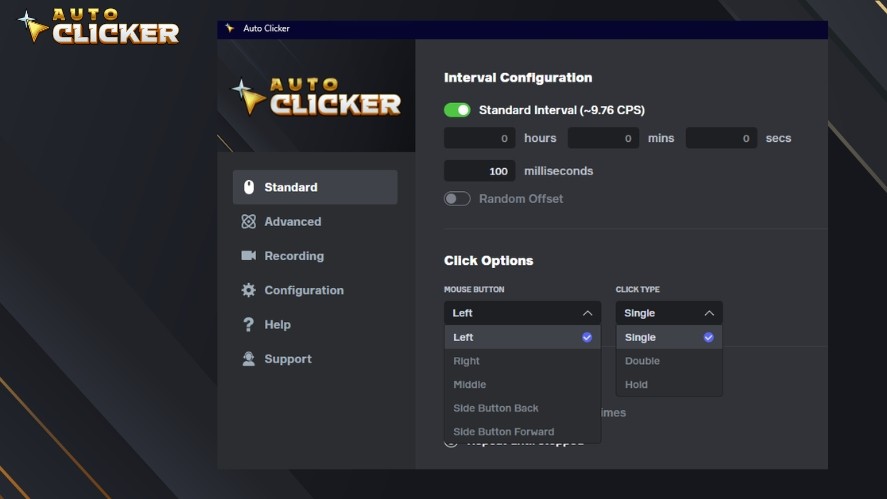
These settings make an autoclicker flexible enough to handle everything from simple desktop tasks to repetitive gaming actions, while giving users full control over how the automation behaves.
Benefits of Using an Auto Click Clicker
Here are some of the biggest advantages of using an auto click clicker.
Save Time on Repetitive Tasks
Many computer tasks involve clicking the same buttons over and over again. Instead of repeating these actions manually, an automatic clicker can handle them automatically.
This is especially useful for:
- Data entry, where the same buttons or fields must be selected repeatedly.
- Software testing, which often requires repeated UI interactions.
- Repetitive desktop work, such as navigating menus, confirming dialogs, or processing large batches of files.
By automating these clicks, you can complete routine tasks faster and focus on work that requires more attention.
Improve Gaming Efficiency
One of the most popular uses for an autoclicker is gaming. It helps players automate repetitive actions without constantly clicking the mouse.
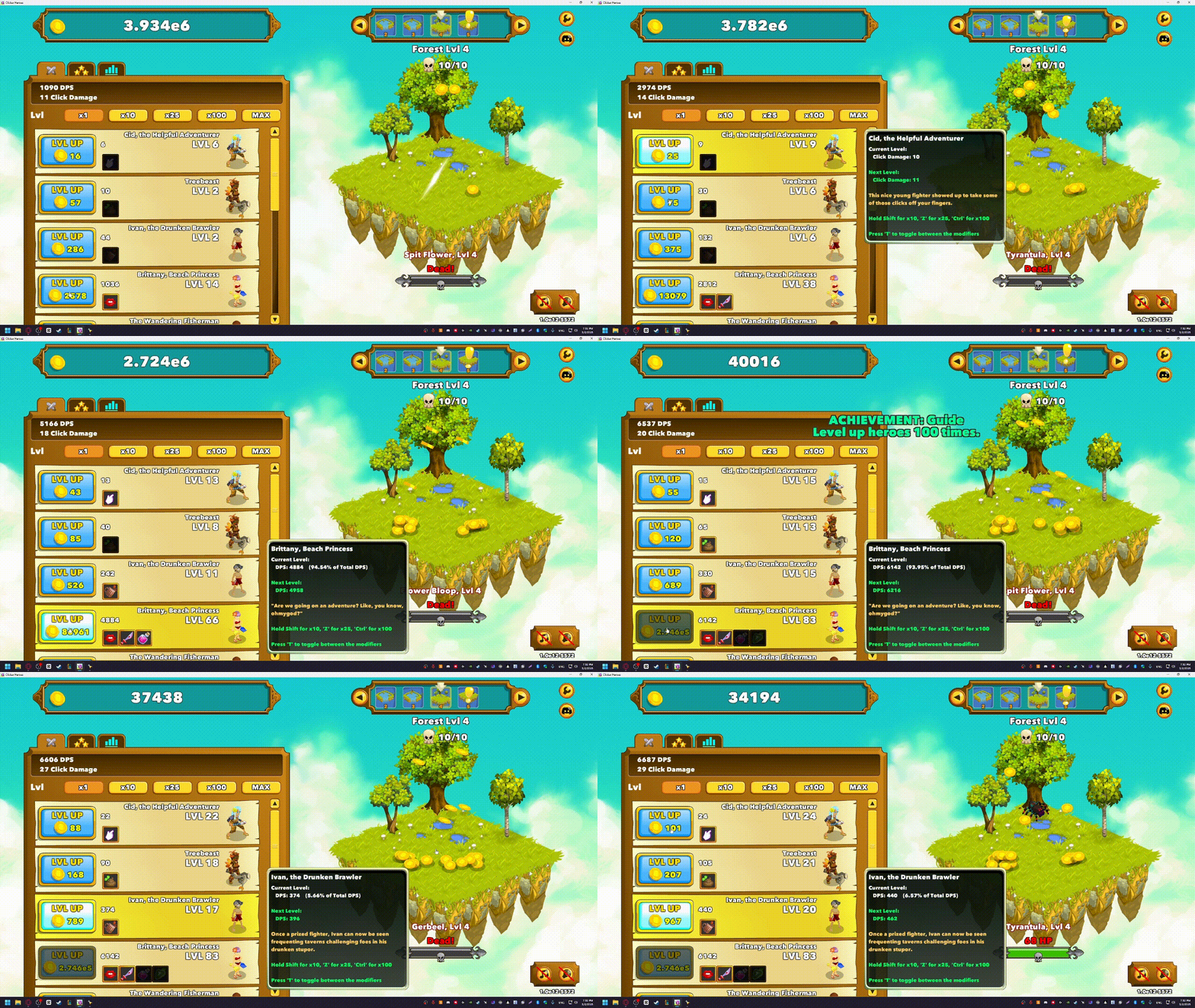
Common use cases include:
- Idle and clicker games, where continuous clicking speeds up progression.
- Incremental games, which often reward repeated clicks for earning resources.
- Grinding tasks, where players perform the same actions for long periods.
- Resource collection, allowing repetitive interactions to be completed more consistently.
Instead of wearing out your mouse or your fingers, an auto click mouse tool keeps the process running smoothly while you focus on other aspects of the game.
Reduce Hand Fatigue
Repetitive clicking for long periods can put unnecessary strain on your hands and wrists. Over time, this can become uncomfortable, especially if your work or favorite games require thousands of mouse clicks.
An auto click clicker helps by handling those repetitive clicks for you.
By reducing the amount of manual clicking, an automatic clicker makes long gaming sessions and repetitive desktop work more comfortable while also helping maintain consistent performance.
Key Features to Look for in an Auto Click Clicker
Not all auto clickers offer the same features. Choosing the right tool depends on how you plan to use it, whether for gaming, productivity, or software testing.
Here are some of the most important features to consider.
Adjustable Click Speed

A good auto click clicker should let you adjust the auto click speed to match different tasks.
Fast click rates work well for many idle games, while slower intervals are better suited for productivity workflows or applications that require more time to respond.
Hotkey Support

Hotkeys make it easy to start, stop, or pause automation without opening the application’s settings.
This gives you quick control over the automatic clicker, especially when switching between manual and automated input.
Fixed and Dynamic Click Positions
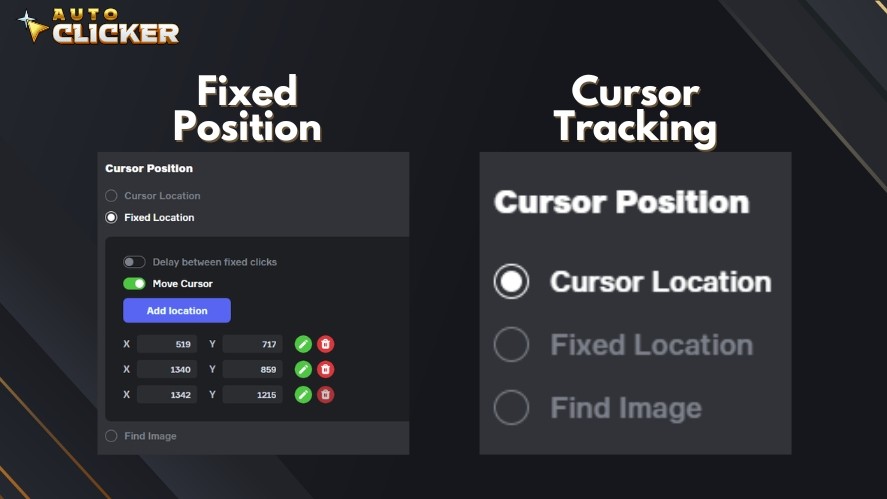
Some tasks require clicking the same location repeatedly, while others need clicks to follow your mouse cursor.
A quality auto click software should support both fixed positions and dynamic cursor-based clicking, giving you greater flexibility for different use cases.
Left and Right Click Automation
The best mouse clicker tools allow you to automate both left and right mouse clicks.
This makes them useful for a wider range of games, desktop applications, and workflow automation tasks.
Click Repeat Options
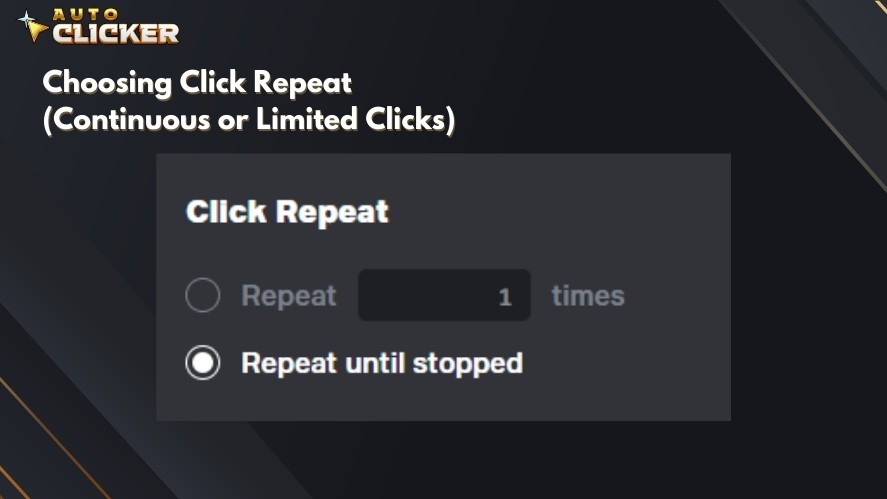
Different situations require different repetition modes. So, look for software that supports a fixed number of clicks as well as continuous clicking until you stop it.
These options make it easier to customize automation for short tasks or long-running sessions.
User-Friendly Interface
A clean interface can make a big difference, especially for beginners.
Easy-to-understand controls and organized settings help you configure automation quickly without spending time learning complicated menus.
Why Auto Clicker on Steam Stands Out
Auto Clicker on Steam combines an intuitive interface with powerful customization, making it a practical solution for both gaming and productivity.
Key features include:
- Quick setup through Steam with easy installation and automatic updates.
- Customizable click speed and intervals to match different games and applications.
- Fixed or dynamic click positions for automating clicks at the cursor or specific screen coordinates.
- Separate start and stop hotkeys for greater control over your automation.
- Multiple automation profiles so you can save different settings for gaming, productivity, or testing.
- Randomized click delays to create more natural click patterns when needed.
- Clean, beginner-friendly interface that’s easy to navigate while still offering advanced customization.
- Reliable performance for extended automation sessions without complicated setup.
- Regular improvements and updates through the Steam platform.
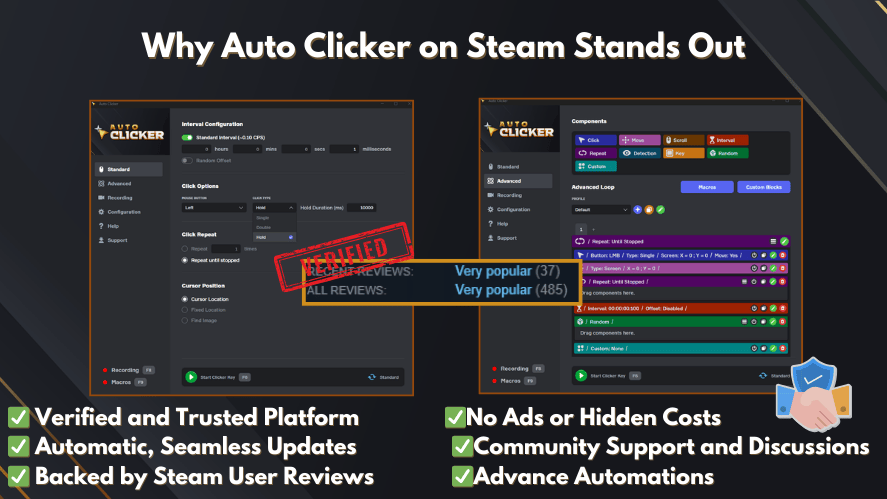
With its combination of flexibility, ease of use, and ongoing development, Auto Clicker on Steam is a well-rounded choice for users looking for reliable click automation across both gaming and everyday computer tasks.
Best Ways to Use an Auto Click Clicker
An auto click clicker can be used in many different scenarios beyond simple repetitive clicking. Here are some of the most common applications.
Automate Long Idle Gaming Sessions
Idle and incremental games often require thousands of repeated clicks to earn currency or unlock upgrades.
Rather than clicking continuously, you can configure an auto clicker with an appropriate click interval and let it handle the repetitive input.
This keeps your progression steady while reducing unnecessary manual effort.
Speed Up Repetitive Desktop Tasks
Many everyday computer tasks involve clicking the same buttons repeatedly, such as confirming dialog boxes, navigating menus, or processing forms.
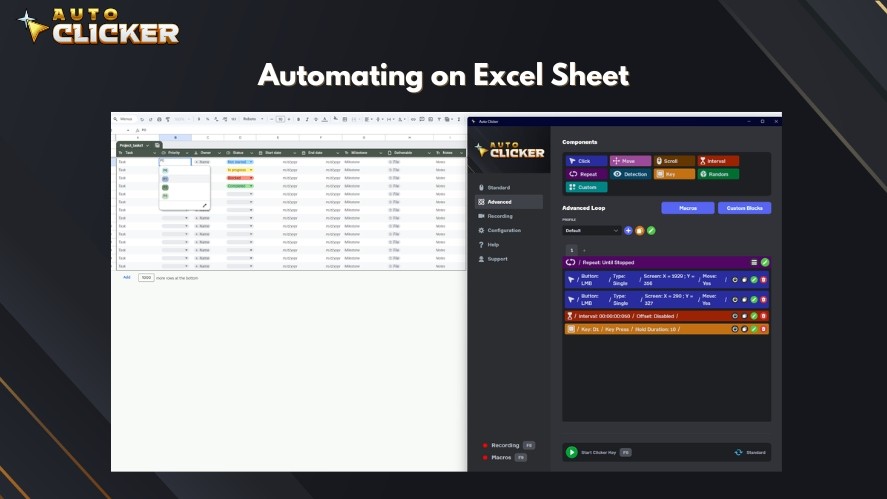
An automatic clicker can automate these routine actions, making repetitive workflows faster and more consistent.
Simplify Software Testing
Software testing frequently requires the same interface elements to be clicked over and over.
Instead of repeating those actions manually, testers can use click automation to interact with buttons, menus, and windows consistently while verifying application behavior.
Build Task-Specific Automation Profiles
Different tasks often require different click settings.
For example, an idle game may need rapid continuous clicks, while a productivity workflow may work better with slower intervals and fixed click positions.
If your software supports multiple profiles, you can save these configurations and switch between them whenever needed instead of reconfiguring your settings each time.
Tips for Using an Auto Click Clicker Responsibly
Using an auto click clicker responsibly helps you get the most out of the software while avoiding unnecessary problems.
Following the simple practices below can improve your experience and help ensure your automation stays appropriate for the task.
Check Game Rules
Before using an auto clicker in any game, take a few minutes to review the game’s rules or terms of service.
Some games allow click automation in single-player or idle modes, while others prohibit any form of automated input.
So, understanding the rules beforehand can help you avoid unexpected penalties.
Avoid Competitive Advantages
Auto clickers are best suited for repetitive tasks, idle games, and productivity workflows.
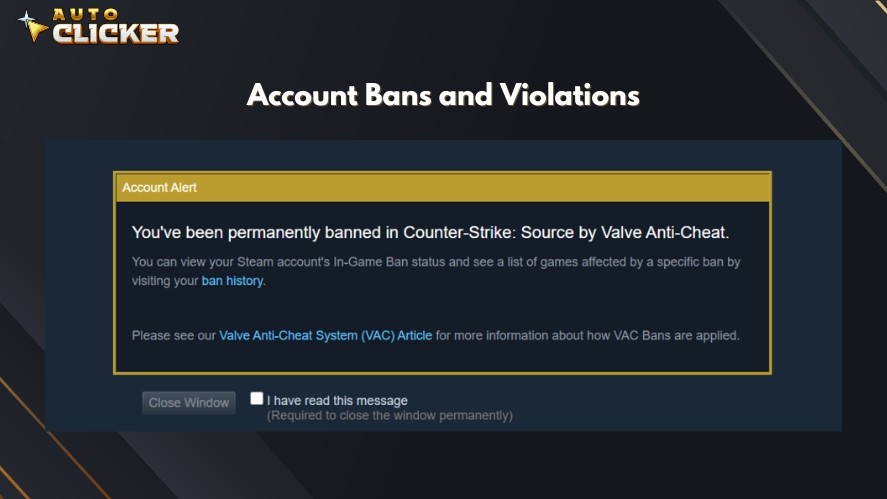
Using them in competitive multiplayer games or ranked modes may violate game policies and create an unfair advantage over other players.
When in doubt, keep automation to offline or permitted environments.
Use Reasonable Click Speeds
Faster isn’t always better.
Setting extremely high click rates can cause missed inputs, unstable behavior, or trigger anti-cheat systems in games that monitor unusual activity.
Choose a click speed that matches the application you’re using and adjust it as needed for smooth, reliable performance.
Keep Software Updated
Using the latest version after an auto click software helps ensure better compatibility, improved stability, and access to new features.
If you use Auto Clicker on Steam, updates are delivered through Steam. This makes it easy to keep the application current without downloading new installers manually.
Frequently Asked Questions
Yes, an auto click clicker is generally safe when downloaded from a trusted source and used responsibly. For games, always follow the developer’s rules and terms of service, as some titles restrict or prohibit automation.
Yes, most auto clicker software lets you adjust click intervals to control how fast or how often clicks occur. Many tools also allow you to configure mouse buttons, click positions, repeat modes, and hotkeys to suit different tasks.
Yes, an auto clicker can work with many Steam games. However, compatibility doesn’t mean automation is permitted. Always check the game’s policies before using an auto clicker.
Absolutely. Most modern automatic clickers like Auto Clicker on Steam are designed with simple interfaces and straightforward settings.
An autoclicker can also automate repetitive desktop tasks such as data entry, software testing, UI interactions, and other routine workflows. Its flexibility makes it useful for both gaming and everyday productivity.
Conclusion
An auto click clicker is a simple yet powerful tool for reducing repetitive mouse clicks in both games and everyday computer tasks.
For users looking for a reliable and flexible solution, Auto Clicker on Steam combines an easy-to-use interface with advanced customization features that work well for gaming, productivity, and software testing.
If you’re ready to simplify repetitive clicking and improve your workflow, visit the official Auto Clicker on Steam page to learn more about its features and see if it’s the right tool for your needs.
If you enjoy customizing your desktop experience, you can also explore Custom Cursor on Steam by Playsaurus, which lets you personalize your mouse cursor with a wide range of creative designs.

Auto Clickers for Chrome Everything You Need to Know

Top 5 Signs an Auto Clicker Might Be Malware

How to Download Auto Clicker on Steam: Step-by-Step Guide
About The Author
