
Fast Clicker Test: How Fast Can You Really Click
A fast clicker test measures how fast you can click your mouse in a short period of time. It is a simple way to check your reaction speed and control.
Clicking speed matters in many areas.
In gaming, faster clicks can improve performance in FPS, RTS, and idle games. For productivity, it helps with repetitive tasks.
In automation, tools can handle repeated mouse click actions more efficiently than manual input.
This is where tools like Auto Clicker on Steam come in.
They help automate repetitive clicking, reduce effort, and improve consistency. Whether you are testing your skills or optimizing workflows, a clicking speed test is a good place to start.
In this guide, you will learn how click speed tests work, what a good CPS score looks like, and how to improve your performance using both manual techniques and automation tools.
What Is a Fast Clicker Test
A fast clicker test, also known as a clicker speed tester, measures how many times you can click within a set time.
The result is usually shown as clicks per second (CPS).
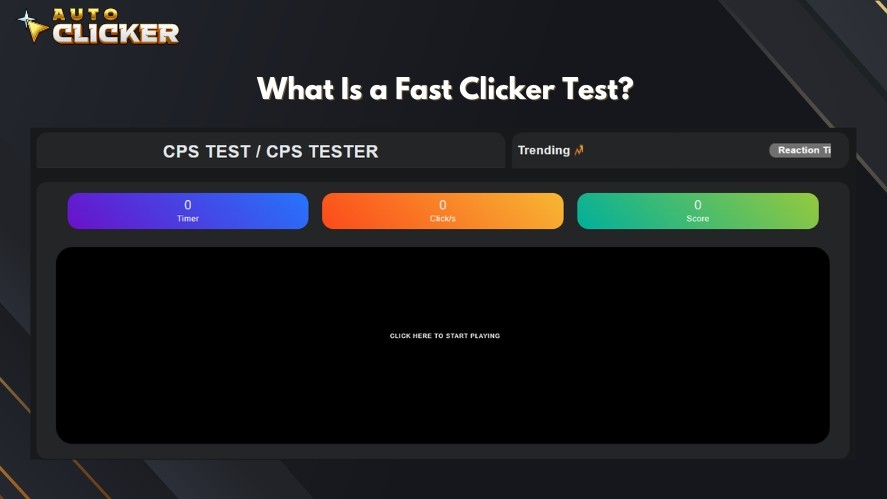
CPS is calculated by counting the total number of clicks and dividing it by the time duration. For example, 50 clicks in 10 seconds equals 5 CPS.
There are several common types of tests:
- 1-second click test for quick reaction speed
- 5-second click test for balanced performance
- 10-second endurance test for consistency over time
These tests are often used in clicking speed games and online tools to compare results and track improvement.
Why CPS Matters in Gaming and Productivity
Your click per second rate can have a real impact on performance.
In gaming, higher CPS can give you an advantage. It helps in fast-paced situations like FPS aiming, RTS commands, or idle games that rely on rapid clicking.
In productivity, a higher click counter per second means you can complete repetitive tasks faster. This is useful for workflows that involve frequent clicking.
It also helps reduce physical strain. Instead of constant manual clicking, using smarter techniques or tools can make tasks easier and more efficient.
How to Take a Fast Clicker Test Online
Here’s how to take a click speed test or autoclicker test online.
First, choose a test platform. There are many clicker speed tester tools available online.
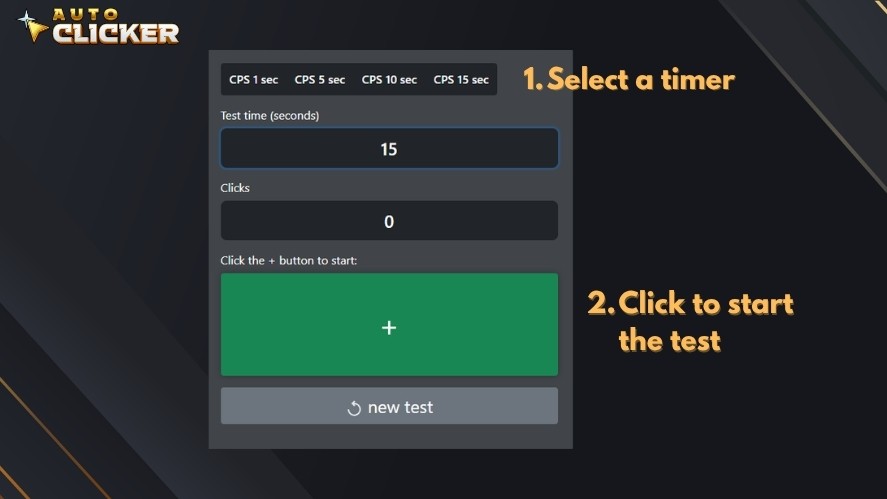
Next, select your click time and start the test. Then, begin clicking as fast as you can. Most platforms will count each mouse click automatically.
After the timer ends, check your result. Your score will be shown as click per second (CPS), along with your total clicks.
Best Fast Clicker Test Tools You Can Try
There are many clicker speed tester platforms available online. While they all measure clicks per second, they differ in features and experience.
Here are some common options you can explore:
- https://cpstest.org/
- https://clickspeedtest.com/
- https://www.rapidtables.com/tools/click-test.html
- https://clickspeedtester.com/
- https://cpstest.net/
When comparing tools, look for:
- Timer Options: Multiple test durations for different skill levels
- Accuracy: Reliable counting of each mouse click
- UI/UX: Clean interface that makes testing easy and distraction-free
Choosing the right platform helps you get more accurate results and a better overall experience.
Common Mistakes During Click Speed Tests
Many users make small mistakes that affect their clicking speed test results.
One common issue is inconsistent rhythm.
Clicking too fast at the start and slowing down later can lower your overall average clicks per second. A steady pace usually gives better results.
Another factor is the device you use.
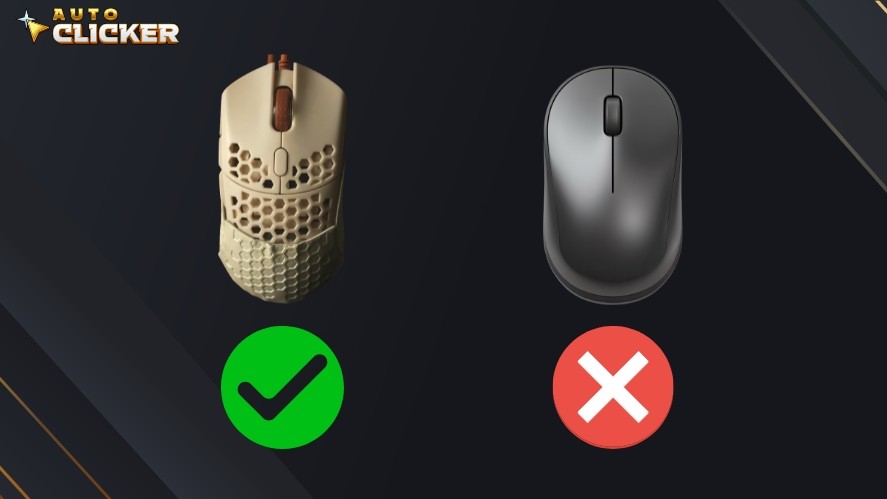
A mouse is generally more accurate for a mouse click speed test, while trackpads can limit speed and control.
Fatigue also plays a role.
Your clicking speed can drop quickly if your hand gets tired. So, taking short breaks between tests can help maintain better performance.
What Is a Good Score in a Fast Clicker Test
A good score in a click speed test depends on your experience and technique.
Most results are measured in clicks per second (CPS), which makes it easy to compare performance.
Here are the average results:
- Beginner (3-5 CPS): This is a typical starting range for new users taking a clicking speed test.
- Intermediate (6-8 CPS): With practice, most users can reach this level of average clicks per second.
- Advanced (9-12 CPS): Faster and more consistent clicking, often using specific techniques.
- Pro gamers (12+ CPS): Highly optimized clicking speed, often seen in competitive play or advanced speed clicking games.
Keep in mind that these ranges are not fixed. Your clicks per second can improve over time with practice and better technique.
Read More: Clicks Per Second World Record: What’s the Fastest CPS Ever Achieved?
Factors That Affect Clicking Speed
Several factors can influence your mouse click speed test results.
First, hardware plays an important role.
A good mouse with proper DPI settings can improve accuracy and responsiveness, helping you achieve higher clicks per second.
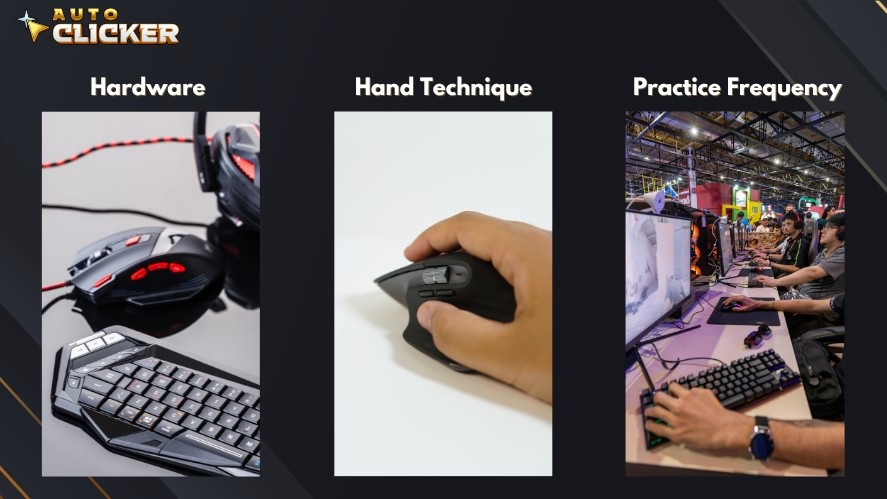
Hand technique also matters.
Different methods, like jitter clicking or butterfly clicking, can significantly increase your click test speed when used correctly.
Finally, practice frequency makes a difference.
Regular practice helps build muscle memory. It leads to more consistent and higher average clicks per second over time.
How to Improve Your Fast Clicker Test Score
Improving your click speed test results takes a mix of technique, comfort, and consistency.
One common method is jitter clicking, where you tense your hand slightly to create rapid vibrations that produce faster clicks.
This technique can boost your click per second, but it may take time to control.
Another popular method is butterfly clicking.
This involves alternating between two fingers on the mouse button, allowing for faster and more consistent clicking during a clicking speed test or auto click speed test.
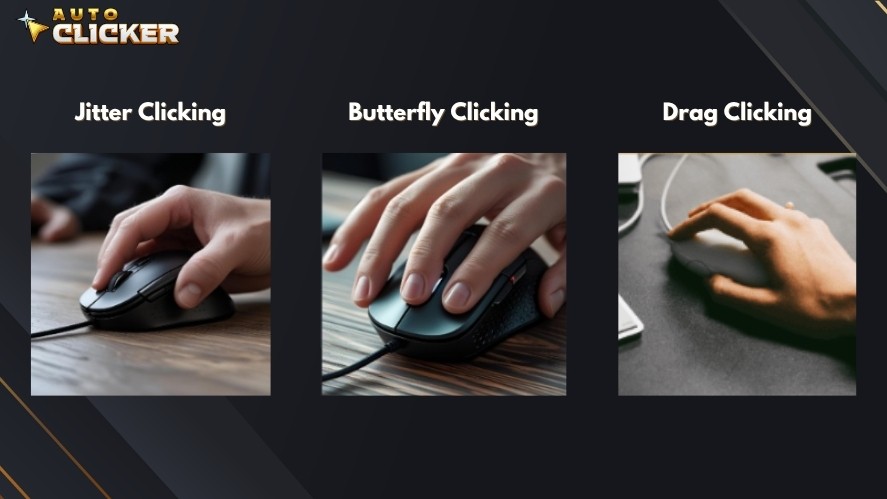
Drag clicking is a more advanced technique where you drag your finger across the mouse button to generate multiple clicks quickly.
While it can produce very high CPS, it depends heavily on mouse hardware and may not work on all devices.
Along with techniques, ergonomics also matters.
Keeping a comfortable hand position, using a proper grip, and taking breaks can help maintain performance and prevent fatigue during repeated mouse click actions.
Tools That Help Increase Clicking Speed
In addition to manual practice, some users turn to click automation tools to handle repetitive clicking tasks more efficiently.
An automatic clicker or auto clicker can simulate rapid automated click actions with consistent timing.
This is especially useful for tasks that require continuous clicking, such as idle games or repetitive workflows.
When used safely, these speed autoclicker tools offer several benefits:
- Reduce physical strain from constant clicking
- Maintain a stable and consistent auto clicker speed
- Improve efficiency in repetitive tasks
However, it is important to use automation responsibly.
Not all games or applications allow auto clickers, so always check the rules before using them.
Using Auto Clicker on Steam to Boost Performance
If you want a more consistent and effortless way to handle rapid clicking, Auto Clicker on Steam is a practical solution for auto clicker download and use.
Key features include:
- Customizable click intervals to control your exact auto click speed
- Hotkey support for quick start and stop during use
- Background clicking so automation runs without interrupting other tasks
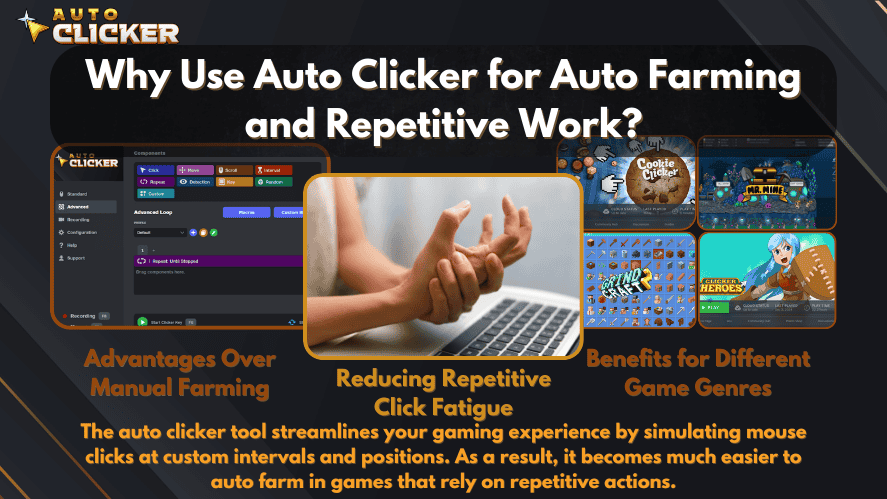
This makes it useful across different scenarios, including idle games, grinding tasks, and repetitive workflows.
Is Using an Auto Clicker Fair and Safe
Using an auto clicker can be safe, but it depends on how and where you use it.
In general, automation is allowed in single-player, idle, or offline environments where there is no competitive advantage.
However, in multiplayer or competitive games, using an automatic clicker may be restricted or considered unfair.
To use it responsibly:
- Always check the game’s rules or terms of service
- Avoid using automation in ranked or PvP environments
- Use realistic, human-like click intervals
When used correctly, an auto clicker for games can improve efficiency without causing issues.
Fast Clicker Test vs Auto Clickers: What’s the Difference
A click speed test and an auto clicker serve different purposes, even though both involve rapid clicking.
A fast clicker test focuses on manual skill. It measures how fast you can physically click.
This is useful for improving reaction time and performance in clicking speed games.
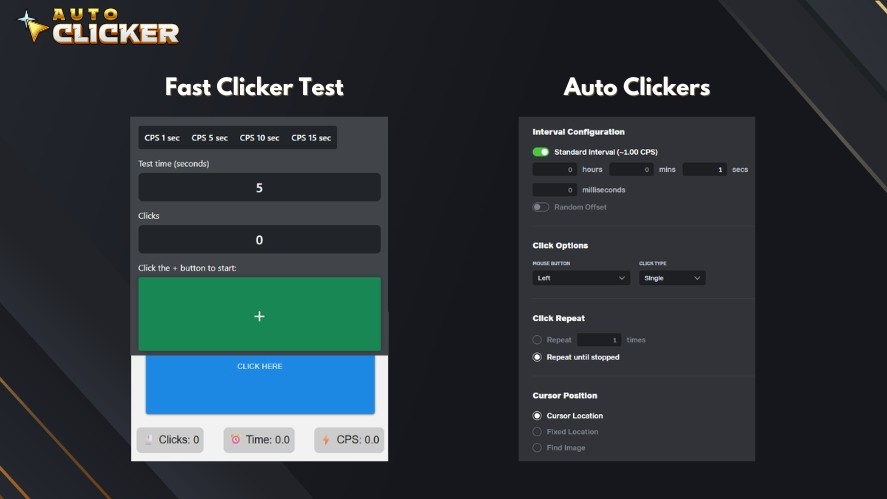
An auto clicker, on the other hand, is about automation.
It generates automated mouse click actions at a consistent rate, removing the need for manual input.
Each has its place.
So, use a click test speed tool when you want to measure and improve your real clicking ability. And use an automatic clicker for an autoclick speed test or when you need to handle repetitive tasks efficiently.
You can also combine both.
For example, you might train your clicking speed with a clicking speed test, then use an auto clicker for tasks that require long, repetitive input.
This gives you both skill improvement and efficiency.
Conclusion
A fast clicker test is a simple but effective way to measure and improve your clicking performance.
Whether you are aiming to increase your clicks per second for gaming or productivity, regular testing can help track your progress.
At the same time, tools like auto clickers offer a practical way to handle repetitive tasks without constant manual effort.
The key is knowing when to rely on skill and when to use automation.
If you want to improve efficiency while reducing strain, consider trying Auto Clicker on Steam as part of your workflow.

How to Fix Mouse Movements in Auto Clicker

Best Auto Clicker Settings for Faster Game Progress
How to Automate Repetitive Tasks on Your Computer
About The Author
