
How to Use Macro Keys in Auto Clicker on Steam
Macro keys are a simple way to automate repeated actions on your PC. Instead of clicking or pressing keys over and over, you can assign a single key to do the work for you.
They are widely used in gaming, repetitive tasks, and productivity workflows. From grinding in games to handling routine office actions, macro keys help save time and reduce effort.
Tools like Auto Clicker on Steam make this process even easier.
They allow you to create and manage key macro setups with flexible settings and precise control. You can quickly enable or disable macros, giving you full control over when automation runs.
In this guide, you will learn how to setup a macro and optimize macro keys in Auto Clicker on Steam for better performance and efficiency.
What Are Macro Keys and Why Do They Matter
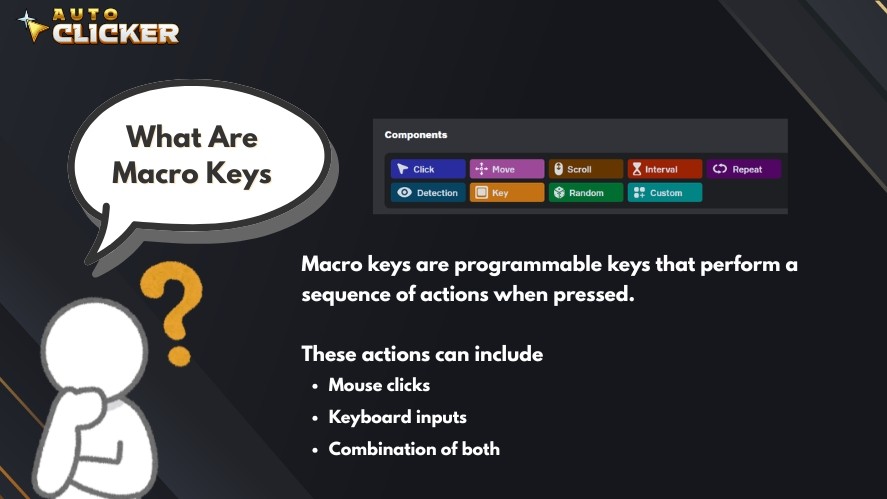
Macro keys are programmable keys that perform a sequence of actions when pressed. These actions can include mouse clicks, keyboard inputs, or a combination of both.
The main difference between manual input and a click macro is consistency.
Manual clicking depends on speed and accuracy, while macro automation performs actions the same way every time.
Keyboard macros bring several key benefits:
- Time-saving automation for repetitive tasks
- Reduced physical strain from constant clicking or typing
- Increased efficiency in both games and daily workflows
Many users ask, will a mouse macro help with repetitive tasks, and the answer is yes in most cases.
With tools that support keyboard strokes macros and mouse click macro setups, users can create powerful automation shortcuts using simple programmable keys.
Macro Keys in Auto Clicker on Steam
Auto Clicker on Steam includes built-in support for macro keys, making it easy to automate both simple and complex actions.
It is also a simple way for users wondering how to get macro on PC without complex setups.
Key features include:
- Custom key binding to assign macros to any key or shortcut
- Loop and repeat options for continuous or fixed execution
- Adjustable delays to control timing between actions
- Multi-action sequences that combine clicks, keystrokes, and movement
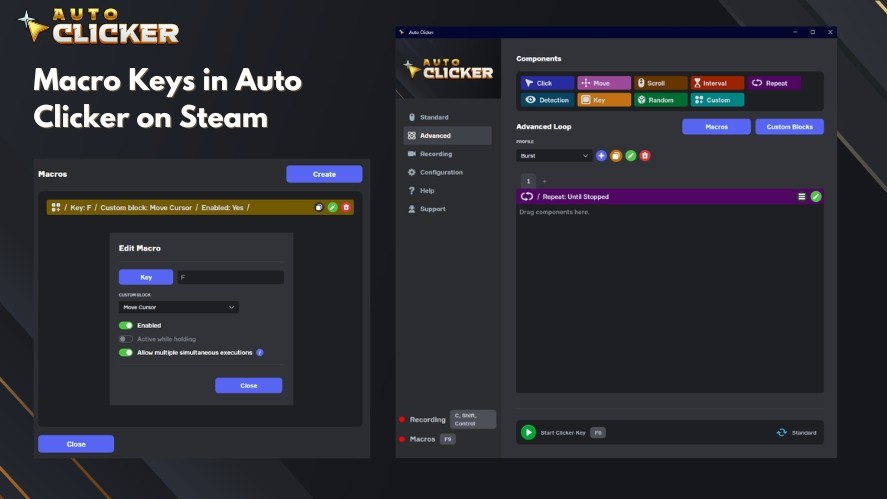
What makes Auto Clicker on Steam stand out from other click automation tools is its balance between simplicity and control.
You can create a basic click macro in seconds, or build more advanced macro automation sequences without needing complex scripts.
This makes it a strong option for users who want reliable automatic mouse clicker functionality with flexible macro support in one place.
Read More: Best Auto Clicker for Mac in 2026 (Updated & Ranked)
How to Use Macro Keys in Auto Clicker on Steam
This section shows how to enable and disable macro keys in Auto Clicker on Steam so you can control your automation easily.
How to Enable Macro Keys in Auto Clicker on Steam
Start by launching Auto Clicker on Steam. Once the app is open, go to the Advanced tab and click on the Macro button.
Next, click the Create button to create a new empty macro.
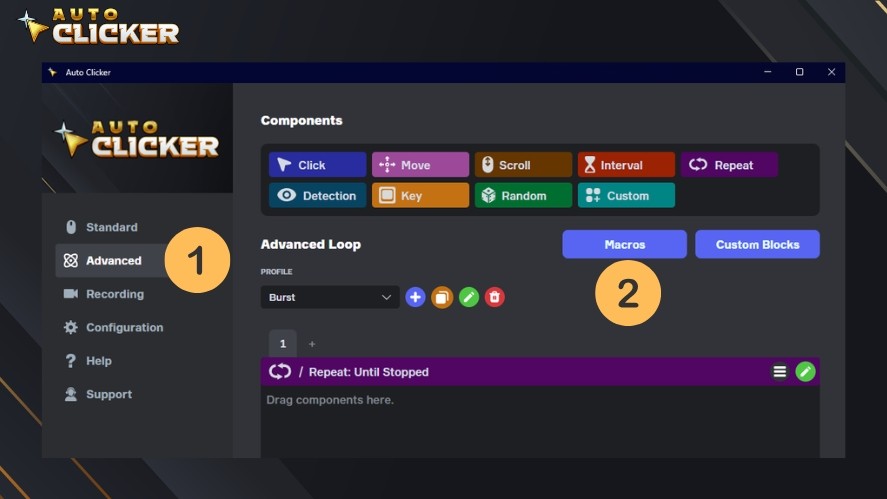
Then, click on the green pencil to edit that macro. Click on the Key button and press the hotkey you want for the macro.
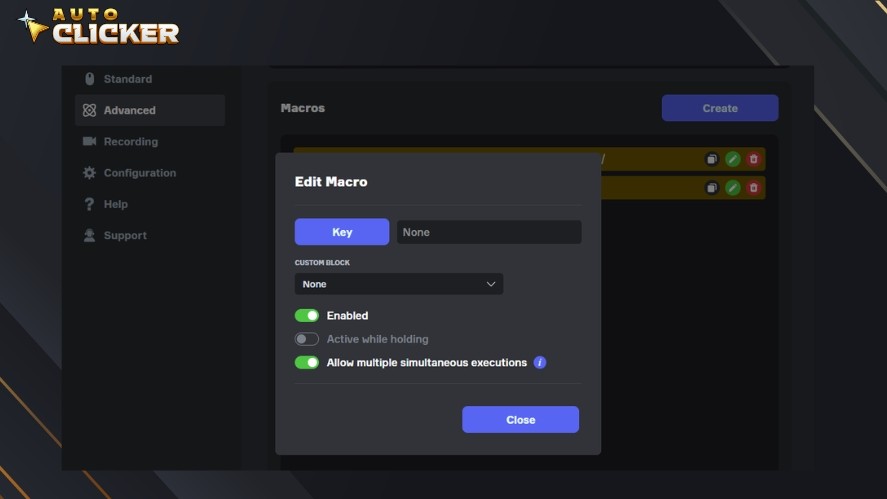
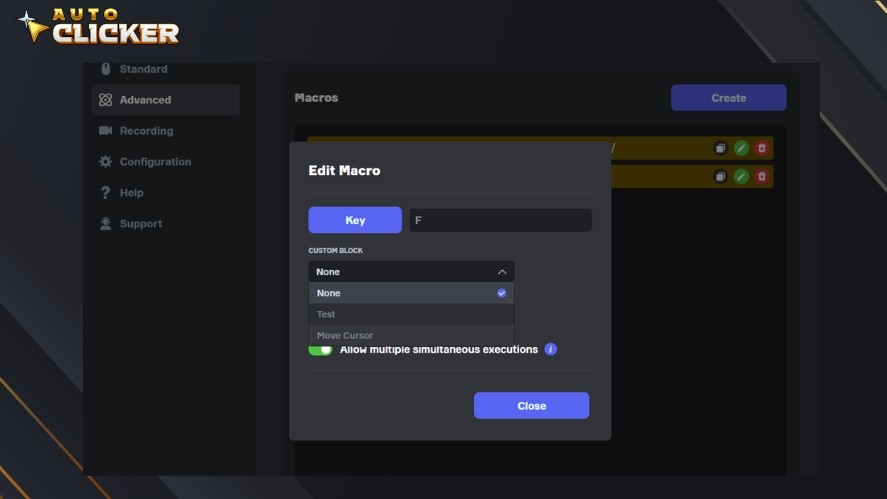
The Custom Block drop down shows all of your action sequences you can toggle with the configured hotkey above. If this is your first time, it’s probably empty.
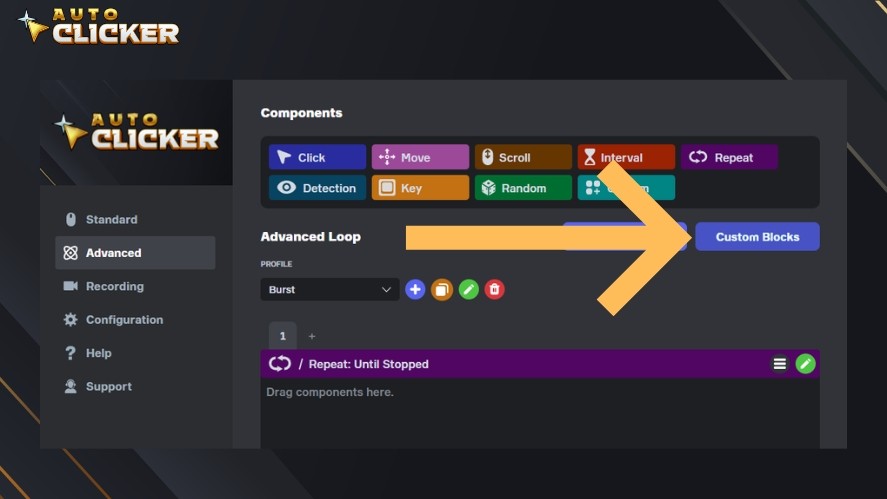
Go back to the Advanced tab. This time, click on the Custom Blocks button.
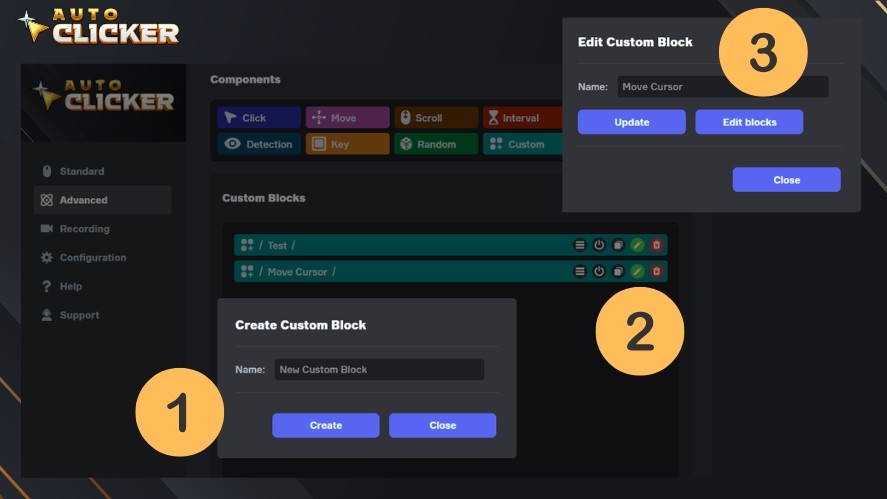
Click the Create button and enter a name to create a new Custom Block. Then, click on the green pencil icon and select Edit Blocks to edit it.
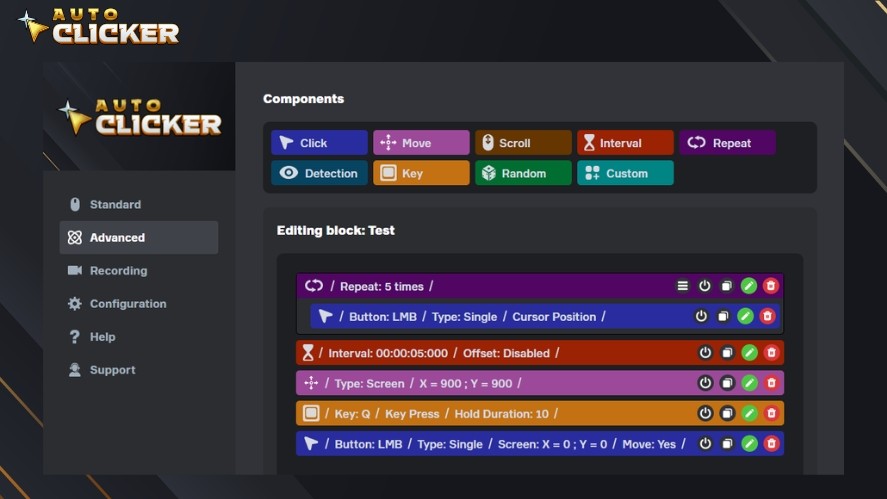
From here, drag the Components above to the panel below to set your sequence of actions.
For example, let’s say you want the macro to click 5 times, then wait for 5 seconds, move to another location on the screen, press the A key, and finally left click that position.
After that, go back to the Macros tab and edit your Macro. In the Custom Block drop down, select your newly created Custom Block.
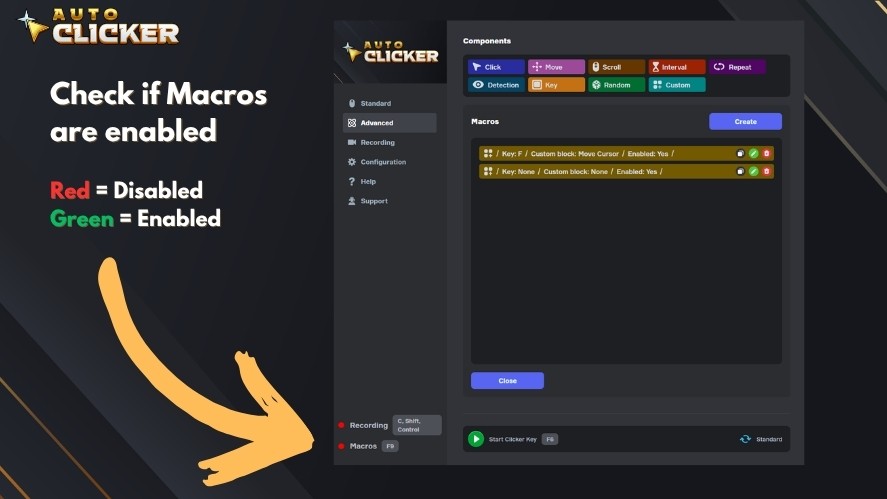
Now your Macro is fully functional. By default, you have to enable Macro by pressing the F9 key. This hotkey can be configured in the Configuration tab.
Tips for beginners: If you are new to macro automation, start with simple setups. This helps you understand how timing and triggers work.
Lastly, always test your macro. Run it in a safe environment to make sure it behaves as expected.
How to Disable Macro Keys in Auto Clicker on Steam
Disabling a macro is just as important as enabling it. To do so, simply press the F9 key again.
To avoid unintended automation, disable it when switching tasks or games.
A good practice is to turn off your autoclicker for left and right click when you no longer need it, and keep your setup simple and easy to manage.
Best Practices for Using Macro Keys Efficiently
Using macro keys effectively is not just about setting them up. It is also about using them in a smart and controlled way.
First, avoid overusing macros in competitive games.
Many games have rules about macro automation, and using a mouse click macro in the wrong environment can lead to penalties. So, always stay within allowed use cases.
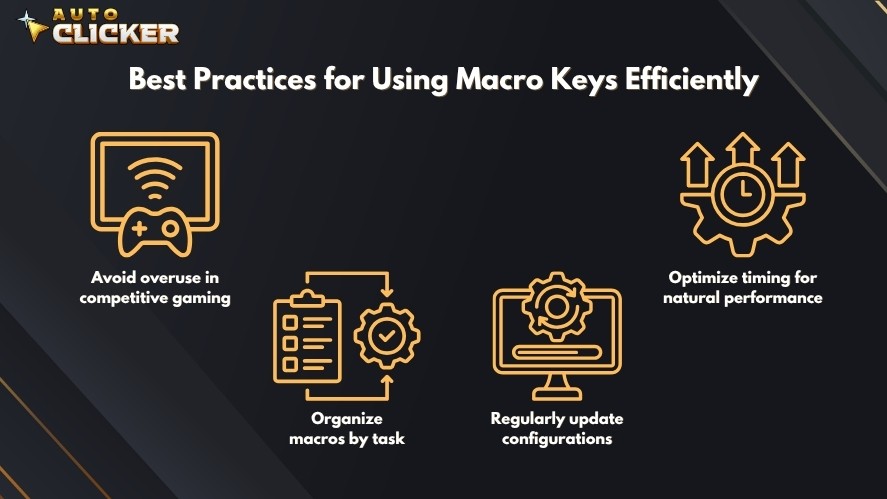
Next, focus on timing for natural performance.
Well-optimized delays make your automatic mouse clicker feel more natural and stable. On the other hand, extremely fast or poorly timed inputs can break workflows or trigger detection systems.
It also helps to organize your macros by task.
Keep separate key macro setups for different uses, such as gaming, productivity, or testing. This makes it easier to manage and switch between them.
Finally, update your configurations regularly.
As your needs change, adjust your keyboard macros and timing settings to keep everything running smoothly.
Common Issues and Troubleshooting
Even simple macro keys can run into issues. Most problems are easy to fix with a few quick checks.
One common issue is macros not responding. This usually happens when the key binding is incorrect or not properly saved.
Another issue is conflicts with other software.
Some apps, overlays, or tools may interfere with your click macro or block input from your autoclicker mouse setup.
Incorrect timing is also a frequent problem. If delays are too fast or too slow, your automated mouse click may not work as expected.
Here are some simple fixes:
- Rebind your keys to ensure the macro keys are correctly assigned
- Restart the app to clear temporary issues
- Check Steam and system permissions to make sure the tool can run properly
By troubleshooting step by step, you can quickly fix most problems and keep your macro automation running reliably.
Use Cases of Macro Keys in Auto Clicker on Steam
Macro keys in Auto Clicker on Steam can be used in many real-world situations. Below are some common use cases.
Gaming
In games, macro keys are often used to reduce repetitive input and improve consistency.
For idle games, a click macro can handle constant actions like resource collection or upgrades. This allows players to progress without manually clicking for long periods.
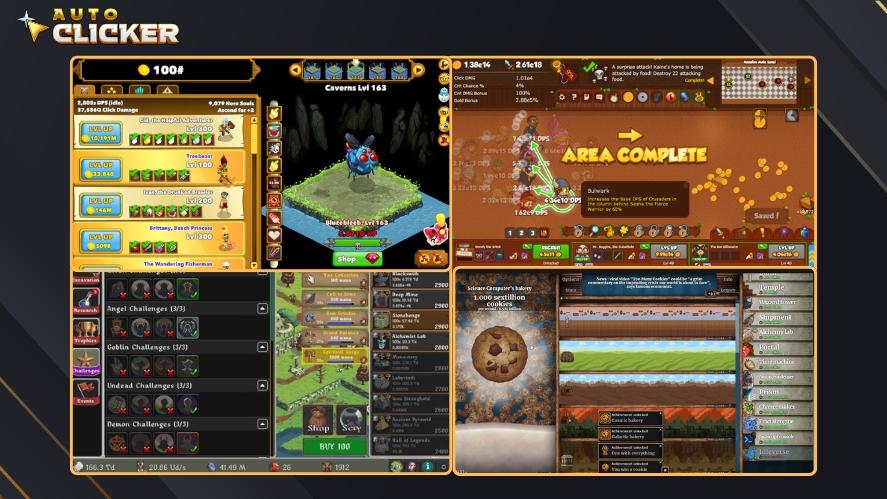
For grinding tasks, a mouse click macro or auto mouse click setup can repeat actions such as attacking, gathering, or interacting with objects.
This helps maintain steady performance during long sessions.
Productivity
Outside of gaming, macro automation is useful for handling routine work.
In data entry tasks, keyboard macros can automate repeated inputs, saving time and reducing typing errors.
For repetitive workflows, a key macro can combine clicks and keystrokes into one action. This makes it easier to navigate menus, submit forms, or process tasks quickly.
Creative Automation
Macro keys are also helpful in testing and creative workflows.
For script testing, auto clicker macro free can simulate repeated user actions. This helps check how systems respond to continuous input.
In UI interactions, a mouse movement macro combined with mouse click actions can automate navigation and testing.
This is useful for developers or anyone working with interface-based tasks.
Why Choose Auto Clicker on Steam for Macro Keys
A good tool for macro keys should be simple to use but powerful enough to handle different tasks.
Auto Clicker on Steam offers both, making it a strong choice for beginners and advanced users. The tool offers:
- User-friendly interface for quick setup and control
- High customization for key macro and click macro configurations
- Seamless Steam integration for easy access and updates
- Reliable performance compared to many other click automation tools
- Continuous updates and community support
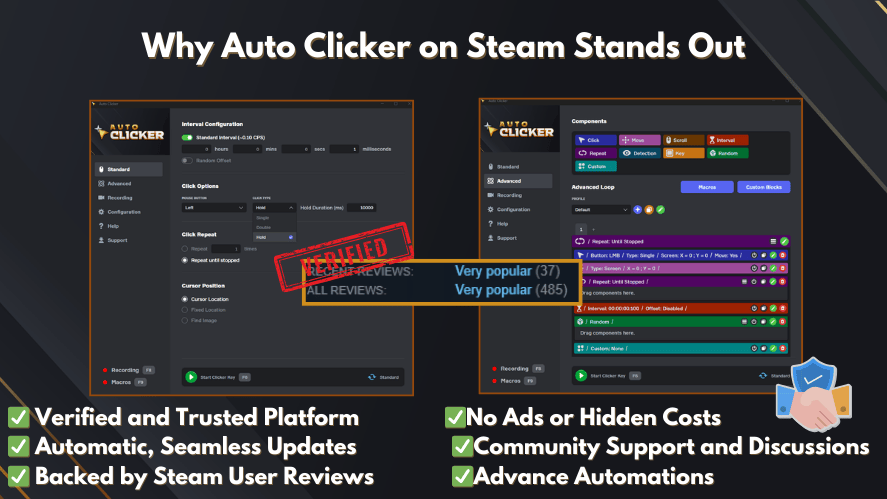
With these features, Auto Clicker on Steam provides a stable and flexible way to manage macro automation without complexity.
Conclusion
Macro keys are a powerful way to automate repetitive actions and improve efficiency. They help save time, reduce effort, and ensure consistent performance.
With tools like Auto Clicker on Steam, setting up and controlling macros is simple. You can easily enable or disable them, adjust timing, and customize actions based on your needs.
The best approach is to start simple, test your setups, and gradually improve your workflow.
By understanding how to macro and experimenting with different configurations, you can get the most out of macro keys and make your tasks faster and more efficient.

AutoClicker Advanced Mode Explained: Tips and Features

How to Turn Off Auto Clicker on Steam

Keyboard Auto Clicker: How to Set Up and Optimize for Gaming
About The Author
