
Advanced Auto Clicker Settings You’re Not Using But Should
Most people who use auto clickers never go beyond basic repeat clicking. They download an automatic clicker, set it to click as fast as possible, and let it run.
While this works for simple tasks, it barely scratches the surface of what modern tools can actually do.
Advanced auto clicker settings unlock a completely different level of automation.
Instead of mindless repetition, you can automate mouse clicks with precise timing, control cursor behavior, create multi-step click sequences, and optimize click patterns for specific goals.
Tools like Auto Clicker on Steam make these advanced settings accessible without scripting knowledge.
Whether you’re optimizing idle game progression, automating grinding tasks, or reducing strain during repetitive work, learning how to set up auto clicker settings properly can dramatically improve both efficiency and performance.
In this guide, you’ll discover advanced features, fastest auto clicker settings, and practical strategies most users never take advantage of.
Why Advanced Auto Clicker Settings Matter
Advanced auto clicker settings turn a basic automatic clicker into a precision automation system.
The Difference Between Basic and Advanced Automation
Basic automation simply repeats clicks at a fixed speed.
Most users install a tool, press start, and let it perform a continuous automated mouse click without further customization.
While functional, this approach lacks flexibility and efficiency.

On the other hand, advanced automation introduces intelligent control over how, when, and where clicks happen.
Instead of clicking blindly, users can automate mouse clicks based on timing strategies, cursor positioning, and repeat conditions.
For example:
- In idle or incremental games, advanced settings can optimize resource collection.
- In productivity workflows, users can automate form submissions or testing sequences.
- In simulation or grinding games, precise click intervals improve consistency and performance.
This level of control transforms good auto clickers from simple tools into powerful optimization systems.
Precision, Efficiency, and Performance Gains
Using advanced settings provides measurable improvements in both comfort and results.
First, it reduces physical strain.
Instead of constant manual clicking, the mouse clicker handles repetitive actions automatically. It prevents fatigue and long-term discomfort.
Second, precision improves dramatically.
Millisecond-level interval control ensures clicks happen exactly when needed. It avoids wasted actions and improves consistency.
This is especially important in games where timing directly affects progression speed.
Finally, performance optimization becomes possible.
Proper auto click setting configuration ensures clicks align with in-game mechanics, cooldowns, and resource cycles.
This leads to faster progression, smoother automation, and more efficient overall results.
Click Interval Customization for Maximum Control
Click interval customization is one of the most important features in the best auto clicker software. It determines exactly how fast and how efficiently your automated mouse click actions occur.
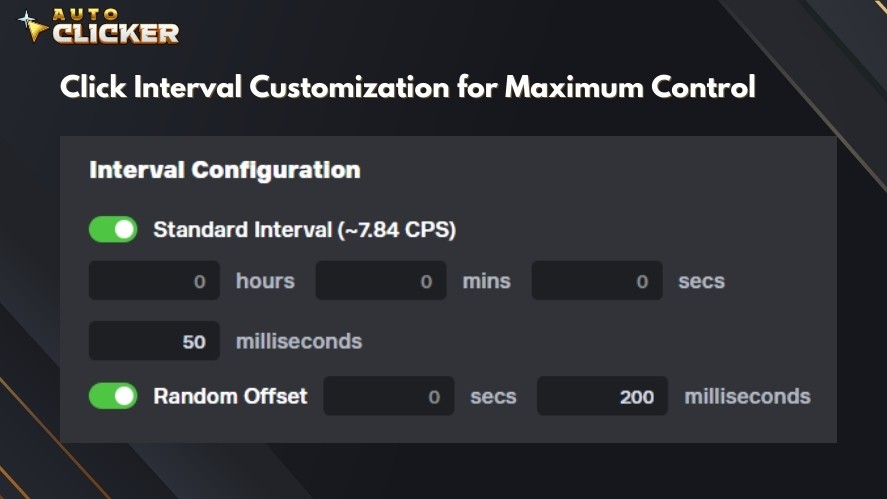
Understanding how fast to set auto clicker intervals allows you to match click speed with in-game mechanics, application responsiveness, and hardware performance.
The goal is not always maximum speed, but optimal timing.
Millisecond-Level Timing Adjustments
Millisecond precision allows auto clickers to perform clicks at exact intervals. It’s critical for games and tasks that rely on timing windows or cooldown systems.
If clicks are too fast, they may register inefficiently or overwhelm the game or application.
Many games have built-in input limits, meaning excessively fast clicks provide no benefit and may even reduce performance.
So, proper timing ensures each click registers cleanly and contributes to progression.
Precise interval control also prevents unnecessary CPU usage.
Setting a realistic delay can maintain excellent performance while improving system stability during long sessions.
Fixed vs Dynamic Intervals
Fixed intervals repeat clicks at a constant speed. This approach works best when consistency is required.
Fixed intervals are ideal for:
- Idle games with no penalties for repetitive clicking
- Resource generation systems without cooldown variation
- Long AFK farming sessions that benefit from stable automation
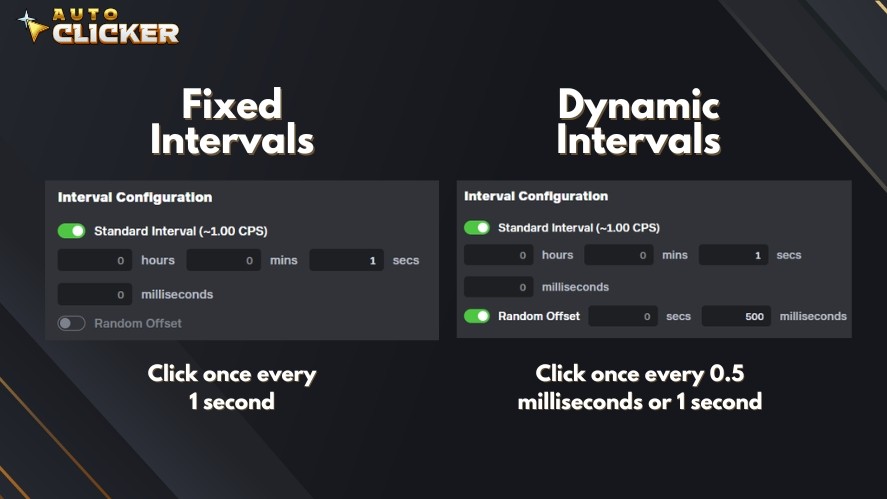
Dynamic intervals, on the other hand, introduce slight variation between clicks. This approach improves efficiency in systems that respond better to natural timing patterns.
Dynamic intervals work best for:
- Games with input caps or timing-based mechanics
- Complex simulations with multiple UI interactions
- Automation tasks that involve menu navigation or timed actions
Choosing between fixed and dynamic timing allows users to create more efficient and realistic automation behavior.
Recommended Advanced Auto Clicker Settings for Gaming
Different game genres benefit from different interval strategies. So, to improve results, optimize your auto click settings based on the game type.
For idle and incremental games, settings between 5 and 20 milliseconds usually provide optimal performance.
Meanwhile, MMOs often include cooldowns, server response delays, and input limitations.
So, intervals between 50 and 150 milliseconds provide reliable automation while ensuring each click registers properly.
For simulation and management games, use settings between 100 and 300 milliseconds.
These games often involve UI interactions, menu navigation, and system processing time, making slower and more controlled intervals more effective.
Advanced Cursor Position and Multi-Click Sequences
Cursor positioning is a powerful feature that allows auto clickers to interact with on-screen elements.
Instead of clicking wherever your cursor is, this lets you control exactly where each click occurs.
Fixed Position vs Cursor Tracking
Fixed position clicking locks the automatic clicker to a specific coordinate on your screen. Every click happens in the exact same location, regardless of where your cursor moves afterward.
This is ideal for:
- Idle games with fixed resource buttons
- Repeated UI interactions in the same location
- Browser tasks like refreshing, confirming, or claiming rewards
Fixed positioning ensures perfect consistency and eliminates the need to manually reposition your cursor.
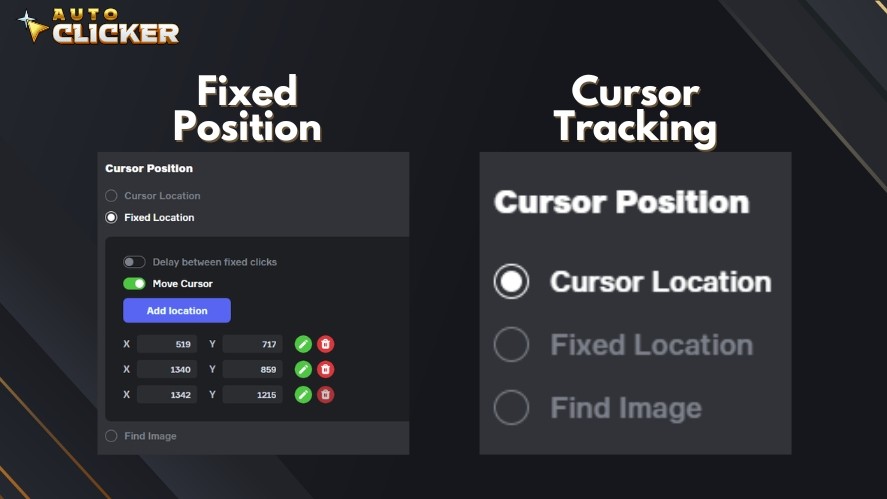
Cursor tracking, on the other hand, clicks wherever your mouse currently is. This allows more flexibility and works better for tasks that require manual cursor movement between automated actions.
Cursor tracking is useful for:
- UI-heavy applications with changing layouts
- Tasks that require occasional manual adjustments
- Hybrid automation where you combine manual and automated input
This flexibility makes cursor tracking one of the most practical advanced auto click settings for users who want both automation and control.
Multi-Point Click Automation
Multi-point automation allows your mouse clicker to click multiple locations in sequence. This is extremely useful for automating complex tasks.
For gaming, multi-point automation can handle farming routes by clicking multiple resource nodes, activating abilities, or navigating menus automatically.
For productivity, it simplifies repetitive workflows such as:
- Navigating menus in software tools
- Confirming dialog boxes
- Performing step-by-step UI actions
- Automating browser-based repetitive tasks
By configuring multiple click points with proper timing intervals, users can fully automate complex sequences that would otherwise require constant manual input.
This transforms a basic auto clicker download into a powerful automation tool capable of handling advanced workflows.
Repeat Mode Optimization Strategies
Repeat mode determines how long and how often your auto clicker runs.
While many users leave this setting on the default option, optimizing repeat behavior allows you to automate tasks more intelligently.
Repeat Until Stopped vs Repeat X Times
The Repeat Until Stopped mode runs continuously until you manually stop it. This is the most commonly used option because it allows uninterrupted automation for long sessions.
This mode works best for:
- Idle games where resources generate continuously
- Long farming sessions
- Tasks without a fixed endpoint
- AFK progression where constant clicking is required
For example, in idle or incremental games, continuous clicking ensures you never miss opportunities to generate resources.
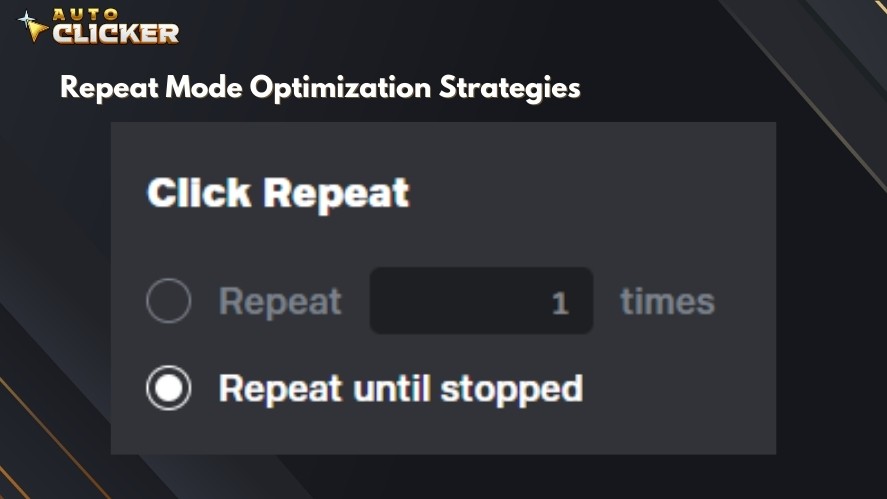
Repeat X Times, on the other hand, allows you to define an exact number of clicks. This creates controlled automation that stops automatically once the task is complete.
This advance mode is ideal for:
- Limited resource spending
- Menu navigation sequences
- Timed upgrades or actions
- Testing and optimizing auto clicker settings
Using a fixed repeat count prevents overspending resources or triggering unwanted actions. It’s especially useful in strategy-heavy games or productivity workflows.
Scheduled and Timed Automation
Timed automation allows you to control when and how long your automatic clicker runs. This is extremely useful for AFK farming.
Timed automation also improves resource management by preventing excessive clicking.
For example, you can set a timeout on click sequences to allow cooldowns, regeneration, or system updates before the next automated cycle begins.
This level of control transforms basic automation into intelligent automation. Instead of simply repeating clicks endlessly, your mouse clicker operates with purpose, efficiency, and precision.
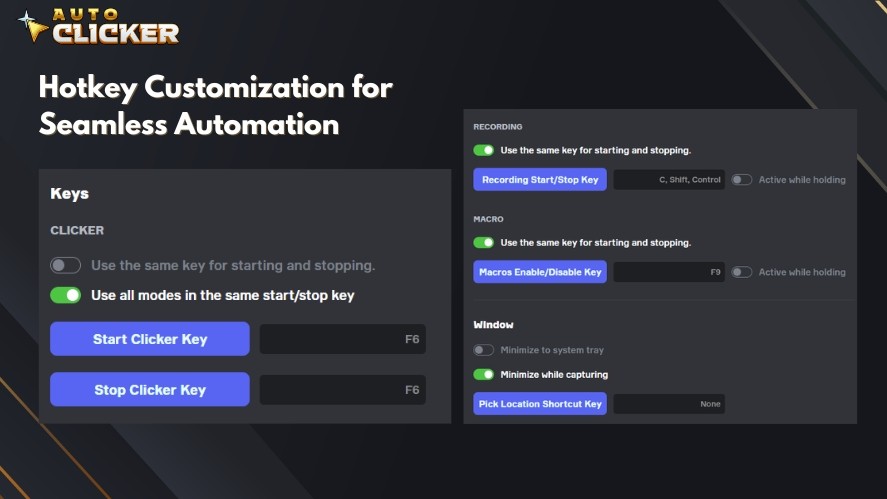
Hotkey Customization for Seamless Automation
Hotkeys transform auto clickers from passive tools into fully responsive automation systems.
Instant Start and Stop Control
Instant hotkey control allows you to start or stop your automatic clicker immediately without interrupting your current activity. This is especially important in games where timing directly affects efficiency.
For example, in idle or grinding games, you may only need automated mouse click actions during specific moments.
A hotkey lets you activate the fastest auto clicker settings exactly when needed.
Hotkeys also integrate naturally into productivity workflows.
If you’re performing repetitive tasks, you can toggle automation instantly without breaking your rhythm. This reduces friction and keeps your workflow smooth and efficient.
Over time, this level of control reduces mental load.
Advanced Shortcut Configurations
Advanced auto clicker software allows you to assign custom hotkeys tailored to your setup.
This becomes especially valuable when multitasking. For example, you can:
- Assign one hotkey to start automation
- Assign another to stop it
- Use separate keys for different automation profiles
- Quickly switch between different auto clicker settings
This flexibility allows you to automate mouse clicks across multiple tasks without confusion or delay.
Streamers and productivity users benefit even more from advanced shortcut configurations.
Streamers can manage automation while focusing on gameplay or audience interaction, while productivity users can automate repetitive browser or software tasks without interrupting their workflow.
Combining Advanced Auto Clicker Settings for Peak Efficiency
Individual features are powerful on their own, but the real advantage comes from combining advanced auto clicker settings into a complete automation strategy.
Gaming Optimization Scenario
Idle and incremental games benefit the most from layered automation. For example, in an idle resource farming scenario, you might configure:
- A click interval that matches resource spawn timing
- Repeat mode set to run continuously while farming
- Fixed cursor position on the primary resource button
- A hotkey to pause automation when switching menus
This prevents unnecessary clicks while ensuring maximum resource generation.
Over long sessions, this approach improves farming consistency. It also reduces manual effort and allows uninterrupted progression.
Productivity Automation Scenario
Advanced auto clicker settings also provide major efficiency gains in productivity workflows.
For example, in a browser-based workflow, you can configure:
- Multi-point click sequences to move between interface elements
- Fixed intervals to maintain consistent timing
- Repeat counts to complete specific task batches
- Hotkeys to start and stop automation instantly
This setup allows repetitive processes to run automatically while you focus on higher-value tasks.
When combined properly, mouse click settings transform simple click automation into a reliable efficiency system. It improves both in-game progression and real-world productivity.
Common Mistakes When Configuring Advanced Auto Clicker Settings
Even though advanced auto clicker settings provide powerful automation, improper configuration can reduce efficiency or cause unexpected problems.
One of the most frequent mistakes is setting click intervals too fast.
While extremely low millisecond values may seem optimal, many games and applications cannot register inputs that quickly.
This creates wasted clicks, inconsistent results, or even reduced performance. Instead, intervals should match the actual response speed of the game or software.
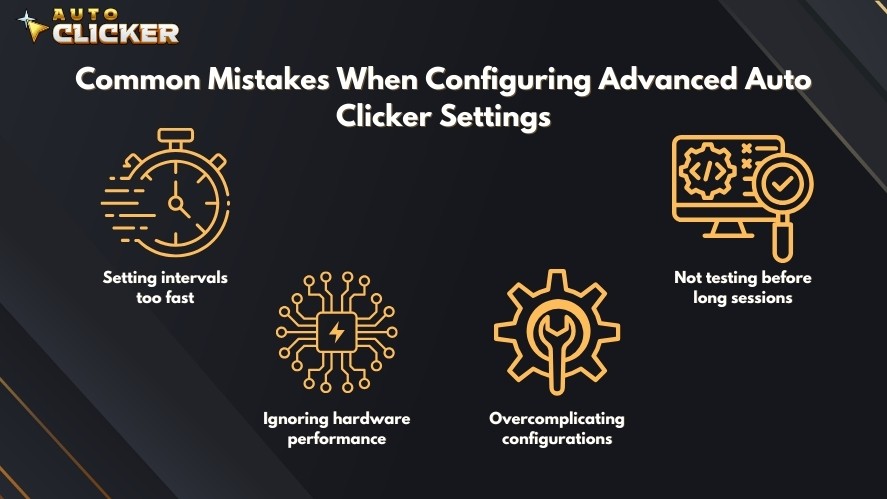
Another common issue is ignoring hardware performance.
CPU load, background applications, and system responsiveness all affect automation reliability. If your system is under heavy load, clicks may delay or skip entirely.
So, choose realistic intervals and avoid excessive multi-point sequences to maintain stable performance.
Overcomplicating configurations is also a major problem, especially for users trying to automate everything at once.
In most cases, simple, focused automation performs better and is easier to manage.
Finally, many users fail to test their configurations before running long sessions.
Running short test cycles helps identify timing issues, incorrect cursor positions, or inefficient intervals.
This prevents wasted time and ensures your advanced auto clicker settings work exactly as intended before committing to extended automation.
Why Auto Clicker on Steam Excels in Advanced Customization
Auto Clicker on Steam stands out because it delivers powerful automation tools in a simple, accessible format.
The tool gives users precise control without requiring technical knowledge. Key features include:
- Clean and intuitive interface for easy configuration
- Seamless Steam integration for quick installation and updates
- Lightweight performance with minimal CPU and memory usage
- Custom hotkeys for instant start, stop, and workflow switching
- No scripting or programming knowledge required
- Flexible for both gamers and productivity users
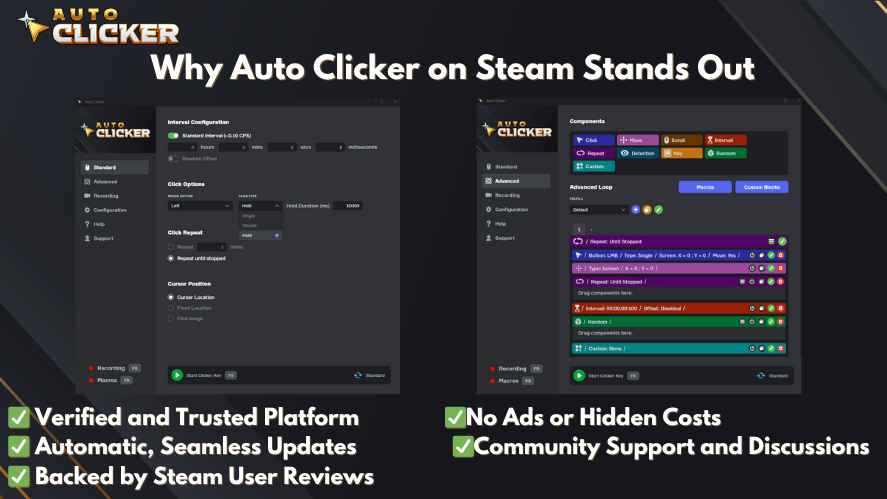
These features make Auto Clicker on Steam a reliable and efficient solution for anyone looking to move beyond basic automation and achieve full control over repetitive tasks.
Read More: How to Download an Auto Clicker on Steam: Step-by-Step Guide
Stop Using Basic Settings and Unlock Full Automation Power
Basic click repetition only scratches the surface of what automation can achieve. By exploring advanced auto clicker settings, users gain far greater efficiency, accuracy, and control.
Experimenting with different configurations helps you discover what works best for your specific needs. Even small adjustments can significantly improve resource farming, reduce manual effort, and streamline repetitive tasks.
Auto Clicker on Steam provides the tools to move beyond simple automation and unlock its full potential.
With the right setup and the best auto clickers, you can transform repetitive actions into fully optimized systems that save time, improve performance, and enhance both gaming and productivity.

Schedule Mouse Clicks with Auto Clicker on Steam

Safe Auto Clicker: Avoid Malware with Steam’s Trusted Option

Auto Clicker App: How Customizable Profiles Enhance Automation
About The Author
