
Auto Clicker App: How Customizable Profiles Enhance Automation
An auto clicker app can make repetitive tasks easier by automating mouse clicks, keyboard inputs, and simple workflows. However, in 2026, users expect more than basic clicking. They want tools that can save settings, switch between tasks quickly, and support different use cases without starting from zero every time.
That is where customizable profiles become useful.
Instead of changing your click speed, hotkeys, and repeat settings again and again, you can create saved profiles for gaming, work, testing, browsing, or data entry. As a result, your auto clicker app becomes easier to use, faster to manage, and more flexible for daily automation.
In this guide, we will explain how customizable profiles work, why they matter, how to set them up, and what features to look for when choosing an auto clicker app.
What Are Customizable Profiles in an Auto Clicker App?
Customizable profiles are saved automation settings inside an auto clicker app. These profiles allow users to store different click patterns, delays, hotkeys, and task-specific preferences.
For example, you can create one profile for gaming and another profile for work. Then, instead of changing every setting manually, you can switch between saved profiles in just a few seconds.
Key Features of Customizable Profiles:
- Saved settings for click interval, delay, and sequence preferences
- Hotkey bindings for quick activation
- Task-specific customization (gaming, data entry, browsing, etc.)
- Cloud sync and cross-device accessibility
Because of this, customizable profiles are helpful for users who perform different repetitive tasks throughout the day. They also make automation more organized, especially when one setting does not work well for every task.
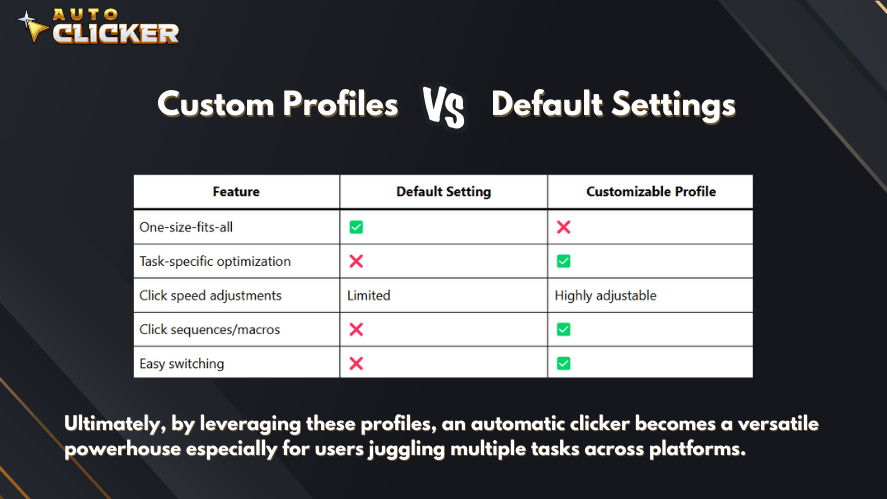
Custom Profiles vs. Default Settings
Why Customizable Profiles Matter in 2026
Automation tools are becoming more common for gaming, productivity, testing, and online workflows. However, users now need more control. A basic auto clicker may be enough for simple clicking, but it can become frustrating if you need to adjust the settings every time.
Customizable profiles solve this problem.
For example, a gamer may need fast clicks for an idle game. On the other hand, a remote worker may need slower clicks for form-filling or browser-based tasks. Although both users are using an auto clicker app, their settings should not be the same.
In 2026, this flexibility matters because people use automation across different devices, apps, and workflows. Therefore, profile-based automation helps users save time while reducing mistakes.
Custom Profiles vs. Default Settings
Default settings are useful for beginners because they allow users to start quickly. However, they are limited. In most cases, default settings are not designed for specific tasks.
Custom profiles, on the other hand, give users more control.
| Feature | Default Settings | Customizable Profiles |
|---|---|---|
| Setup speed | Quick to start | Quick after saving |
| Flexibility | Limited | High |
| Best for | Simple clicking | Gaming, work, testing, and repeated workflows |
| Task switching | Manual changes needed | Switch profiles quickly |
| Error reduction | Basic | Better because settings are saved |
| User control | Low to medium | High |
Overall, default settings are fine for simple use. However, customizable profiles are better when you use an auto clicker app regularly.
Benefits of Customizable Profiles in an Auto Clicker App
1. Time-Saving for Repetitive Tasks
First and foremost, a customizable auto clicker app allows you to automate various workflows without needing to reconfigure your settings every time. This is a game-changer for users who frequently switch between:
- Gaming sessions
- Data entry jobs
- Repetitive web tasks
- Testing applications
💡 Real-World Example:
Let’s say a user creates:
- A Gaming Profile: Fast clicks every 100ms for idle games
- A Work Profile: Slower, deliberate clicks with tab-switching for filling online forms
This setup not only saves time but also improves focus and overall productivity.
2. Optimized Performance for Different Applications
Furthermore, whether you’re using an auto clicker for Mac or on Windows, customizable profiles allow you to fine-tune automation for specific software environments and goals.
🕹 Gaming
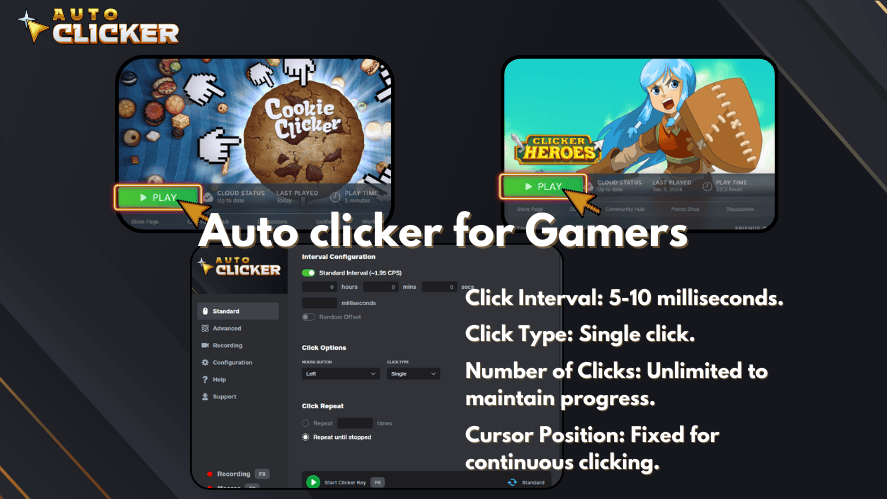
- Idle games: Fast, continuous clicks
- FPS reload: Precisely timed delays
- MMO farming: Scheduled macro auto clicker cycles
💼 Productivity
- Form-filling automation
- Spreadsheet or database entry using auto key clicker
- Web UI testing with mixed inputs
In short, this level of customization transforms a simple clicking tool into a high-performance automation suite.
3. User-Friendly and Adaptive Automation
In addition, customizable profiles bring more flexibility and ease of use to your automation tasks. Whether you’re a beginner or an experienced user, this feature makes automation more adaptable.
Custom Settings You Can Control:
- Click intervals (from milliseconds to seconds)
- Start delays and end times
- Repetition counts
- Multi-location sequences
- Combined keyboard inputs with automatic key clicker
Example Scenario:
Consider a gamer using different clicking speeds for two titles:
- Game A needs fast clicks every 50ms
- Game B benefits from slower click macro inputs every 300ms
Instead of re-entering settings, the user simply switches profiles. Clearly, this adds both comfort and efficiency.
How to Set Up Custom Profiles in an Auto Clicker App
Step 1: Choosing the Right Auto Clicker App
To get started, choosing the right auto clicker app is crucial. Not all apps are created equal some support only basic functions, while others include advanced features such as macros, profiles, and cloud sync.
🔍 Features to Look For:
- Profile saving and loading
- Adjustable click speed and intervals
- Hotkey assignment and customization
- Profile switching with one click
- Safe installation always opt for safe autoclickers with positive user reviews
⚠ Is an auto clicker safe?
Yes as long as you download from verified sources like Steam, GitHub, or official app stores. Moreover, reputable apps are scanned for malware and offer regular updates, which makes your auto clicker safe for daily use.
Step 2: Creating and Saving a Custom Profile
Once you’ve selected your tool, it’s time to create your profiles.
🎮 Gaming Profile Setup Example:
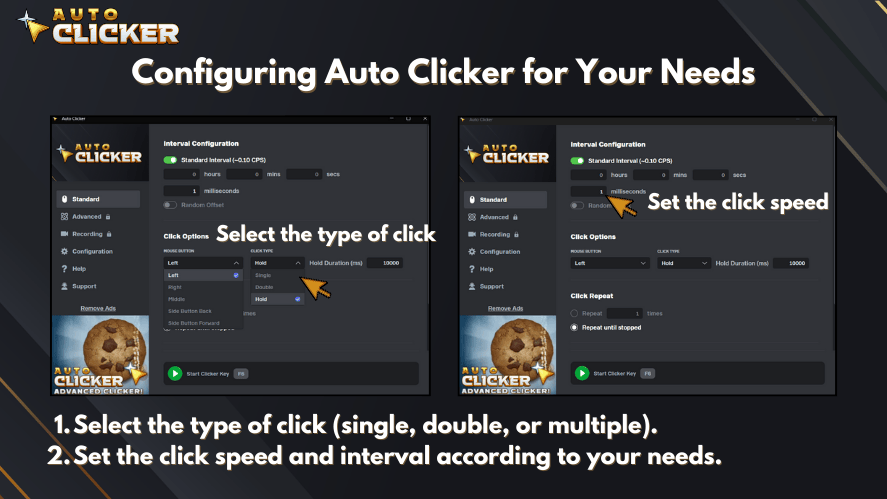
- Open your auto clicker app
- Select “New Profile”
- Configure:
- Interval: 100ms
- Click type: Left click
- Repeat: Continuous
- Hotkey: F6
- Name your profile:
IdleClick_Gaming - Save it
💻 Productivity Profile Setup Example:
- Choose “New Profile” again
- Configure:
- Click delay: 500ms
- Include keystrokes using auto key clicker
- Hotkey: F8
- Name it:
FormFill_Work - Save and test
Best Practices:
- Use clear naming conventions
- Group profiles by function (e.g., work, gaming, testing)
- Use apps that support cloud backups especially if you’re using an auto clicker for Mac and need cross-device access
Step 3: Switching Between Profiles Efficiently
Now that your profiles are ready, switching between them should be just as seamless.
Look for apps that support:
- Hotkeys for each profile
- Simple profile toggle buttons
- On-screen overlays or drop-downs
Real-World Use Case:
Imagine you’re in the middle of an idle game and suddenly get an email for work:
- Press F6 to stop the gaming macro auto clicker
- Press F8 to load your office click macro profile
- Continue working all in under 3 seconds
Thus, customizable profiles ensure you remain efficient without interruption.
Best Auto Clicker Apps with Customizable Profiles
Below is a comparison of top apps that support customizable profiles and advanced automation features.
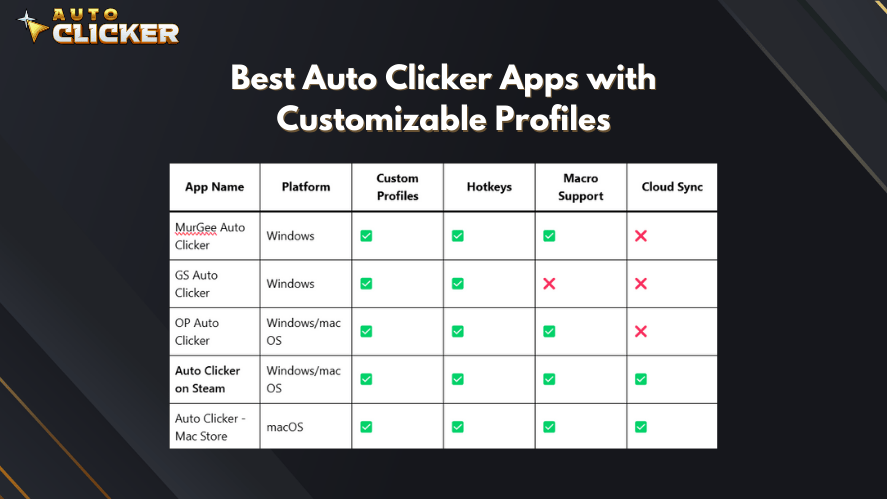
Windows/Mac OS
Windows
Mac OS
Why Choose Auto Clicker on Steam?
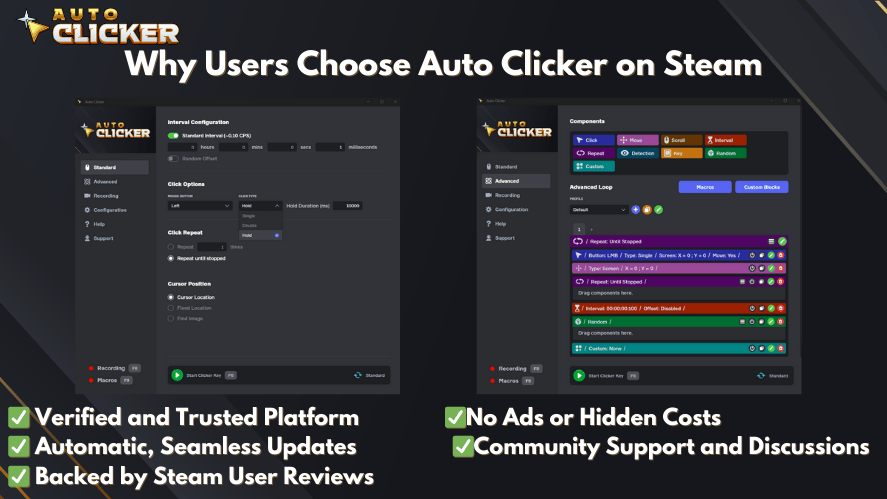
- Verified publisher ensures a safe autoclicker experience
- Regular updates and community support
- Works equally well for auto click on PC and macOS
- Full support for macros, profiles, and cloud syncing
If you want flexibility, power, and ease of use, this app delivers on all fronts.
Tips for Maximizing Custom Profiles in an Auto Clicker App
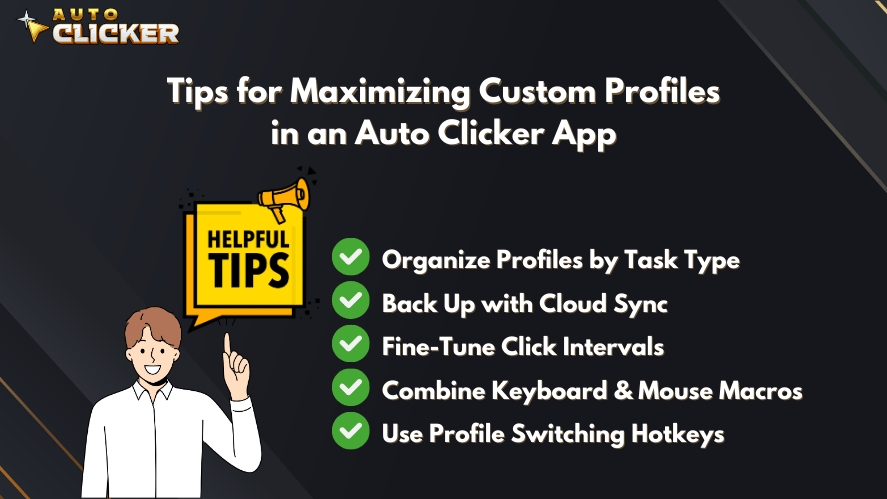
To help you get the most out of your tool, consider the following expert tips:
- Organize Profiles by Task Type
Keep your autoclick pc or Mac interface tidy by categorizing profiles (e.g., gaming, work, testing). - Back Up with Cloud Sync
In case of device failure or transfer, cloud sync ensures that your profiles are safe and accessible. - Fine-Tune Click Intervals
Every task is different. Experiment with various intervals to find what works best particularly when using auto macro setups. - Combine Keyboard & Mouse Macros
Use the full capability of your automatic key clicker by mixing it with mouse automation. - Use Profile Switching Hotkeys
Assign intuitive shortcuts so that you’re always one keystroke away from the right setup.
By following these tips, you’ll turn your auto clicker app into a fully optimized automation tool that enhances your productivity and performance.
Common Mistakes to Avoid
Using One Profile for Every Task
One profile cannot fit every situation. Therefore, it is better to create separate profiles for gaming, work, and testing.
Setting the Click Speed Too Fast
Fast clicks can cause errors, missed actions, or unwanted behavior. Start slow, then adjust based on the task.
Forgetting the Stop Hotkey
Always set and remember your stop hotkey. This gives you control if the automation runs longer than expected.
Downloading From Unsafe Sources
Only download an auto clicker app from trusted sources. This helps protect your device from unsafe files.
Ignoring App or Game Rules
Some apps and games may not allow automation. Because of this, review the rules before using an auto clicker.
FAQ: Auto Clicker App Customizable Profiles
An auto clicker app is a tool that automates mouse clicks or keyboard inputs. It is often used for repetitive tasks, gaming, productivity, and testing.
Auto clicker profiles are saved settings inside an auto clicker app. They can store click speed, hotkeys, repeat counts, delays, and other automation preferences.
Customizable profiles are useful because they save time and reduce setup mistakes. Instead of changing settings manually, users can switch between saved profiles for different tasks.
Yes, you can use an auto clicker app for some games. However, you should always check the rules of the game first because some games do not allow automation tools.
An auto clicker app can be safe if you download it from a trusted source. Avoid unknown websites, suspicious installers, and tools with poor user reviews.
Beginners should start with a simple profile using a moderate click interval, a clear stop hotkey, and a limited repeat count. After testing, they can adjust the settings based on their task.
Conclusion
An auto clicker app becomes much more useful when it includes customizable profiles. Instead of changing your settings every time, you can save profiles for gaming, productivity, testing, and everyday workflows.
As a result, you save time, reduce mistakes, and make automation easier to manage. In 2026, this kind of flexibility is important because users want tools that fit their tasks, not just basic clickers with limited controls.
If you often repeat the same actions, custom profiles can help you work faster and stay more organized. Start with simple settings, test each profile carefully, and adjust your setup as your workflow grows.
Ready to improve your automation setup? Try Auto Clicker on Steam and create custom profiles that match the way you work, play, and automate.
🎯 Ready to upgrade your automation game?
👉 Download Auto Clicker on Steam today and start creating custom profiles that fit your workflow perfectly and safely.

Auto Clicker Software for Steam Games and Workflow Automation

How to Use Auto Clicker for Software Testing and GUI QA Tasks

Mouse Clicker: What It Is, How It Works, and Why You Might Need One
About The Author
