
How to Use Auto Clicker for Efficient Game Testing
Game testing plays a critical role in ensuring the quality and reliability of video games before they reach players. However, many of the tasks involved in this process are repetitive. Whether it’s clicking through the same menus over and over, verifying button responses, or simulating idle states, testers spend countless hours on actions that could be simplified. Fortunately, automation tools like Auto Clicker, available on Steam, offer a practical solution.
In this guide, we’ll walk through how to set up and use Auto Clicker on Steam to improve efficiency during game testing. You’ll learn about real workflows, tips to customize actions, and how this lightweight clicking tool can help both game testers and developers save time while improving quality.
Why Automation Matters in Game Testing

In game testing, testers are often required to perform the same tasks repeatedly. These include:
- Clicking through menus to ensure they respond correctly
- Navigating user interfaces to check layout and alignment
- Repeatedly testing game features to detect bugs or performance issues
While these actions may seem simple, they can become time-consuming and prone to human error. Clicking a button a thousand times to ensure it responds every time is not only tedious but also mentally exhausting. These repetitive tasks can affect the accuracy of test results and reduce overall productivity.
By using a clicking tool like Auto Clicker on Steam, you can automate these tasks. This means fewer manual errors, faster testing, and more energy for spotting critical bugs and design flaws.
Common Automation Tools (And Their Limitations)
There are several automation tools available for workflow automation and testing, such as:
- Selenium: Mostly used for web applications. It’s powerful but requires coding skills.
- Manual Macros: Can automate mouse and keyboard tasks but are not always reliable or user-friendly.
- Scripting Tools: Effective, yet complex for users without programming knowledge.
These tools may be overkill for simple click-based tests in games. That’s where Auto Clicker shines. It offers a lighter and easier way to simulate mouse clicks, making it perfect for quick automation needs in video game testing scenarios. Unlike other options, Auto Clicker doesn’t require any coding and has a gentle learning curve, making it ideal for both beginner and experienced QA testers.
Getting Started with Auto Clicker on Steam
Quick Setup Guide
To begin using Auto Clicker for game testing, follow these steps:
- Download Auto Clicker on Steam: Search for “Auto Clicker” in the Steam store. Click on the listing and proceed with the installation process. You’ll need a Steam account to download the software.
- Launch the Software: Once installed, open the application. You’ll see a clean and simple interface, usually with buttons to configure click settings and choose hotkeys.
- Assign Hotkeys: Choose the keys you’ll use to start and stop the auto clicking. It’s best to pick something you won’t accidentally press during regular gameplay.
- Set Click Intervals: You can set the delay between clicks in milliseconds or seconds. For example, setting it to 100 milliseconds simulates ten clicks per second.
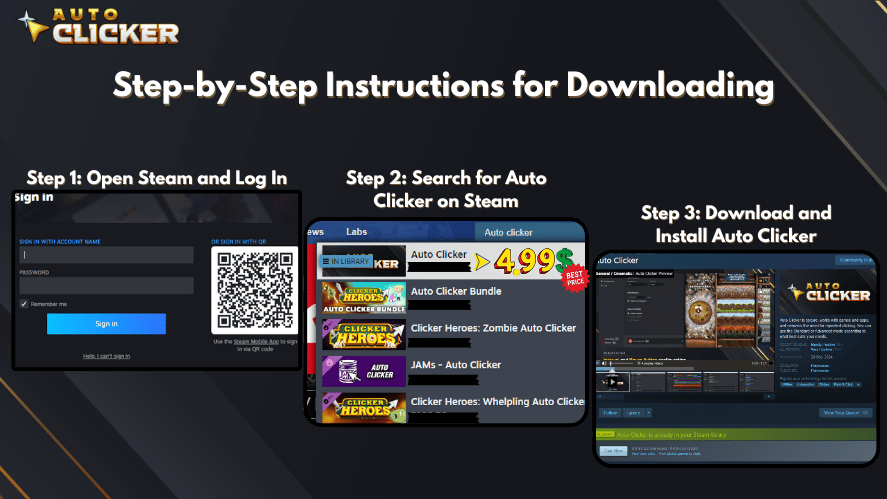
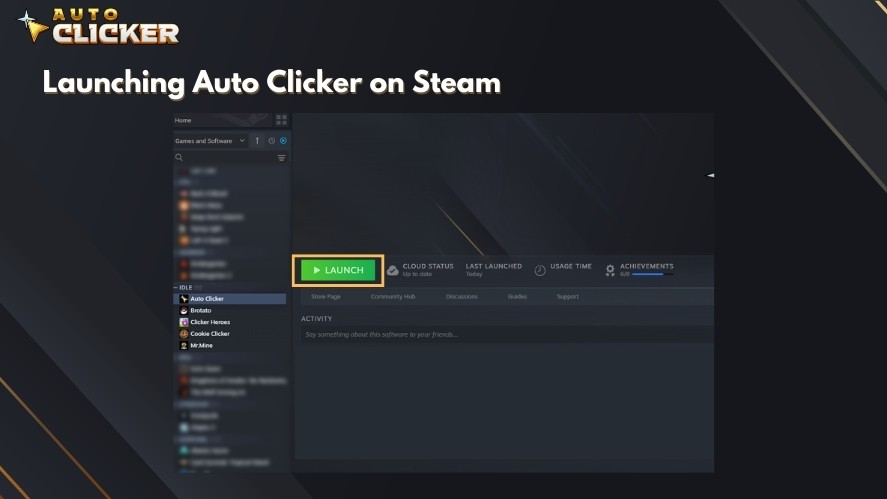
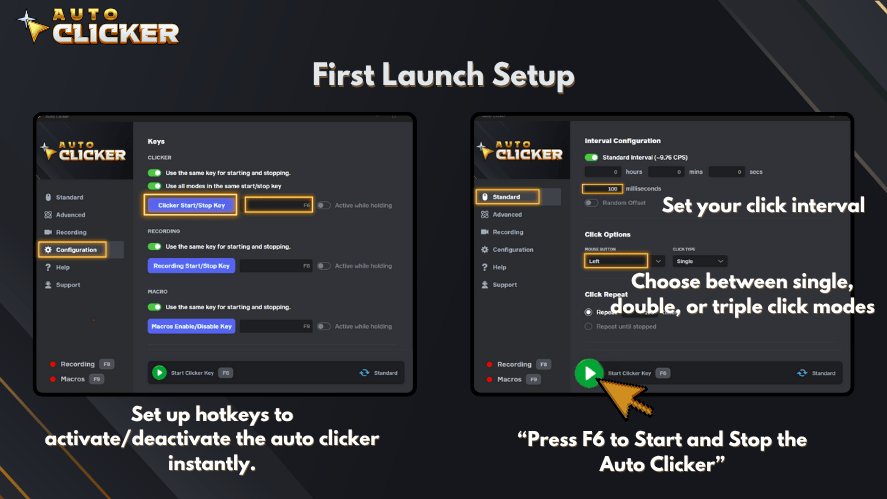
This basic setup will allow you to begin automating tasks almost immediately.
Customizing for Test Cases
To get more value from Auto Clicker, you should customize it for your specific test cases:
- Single Click: Use this for testing button functionality. Set it to click every few seconds and check whether your game responds consistently.
- Double Click: Some games require double-clicking to select or open items. Configure Auto Clicker to test this behavior.
- Looped Clicks: Perfect for repeated tasks like clicking a resource generator in an idle game. You can set the tool to click a certain number of times or run until you stop it.
- Delays for Realism: Add randomized or fixed delays between clicks to mimic real player behavior. This is helpful when trying to simulate natural interaction for user interface testing.
This level of customization allows mouse click automation to blend seamlessly into various game tester workflows, making repetitive testing smarter and smoother.
Auto Clicker Workflows That Help in Game Testing
UI Consistency Checks
One of the biggest challenges in game testing is ensuring that user interfaces behave consistently across various game states and screen sizes. Auto Clicker helps by allowing you to:
- Test the same button hundreds of times to see if it eventually fails
- Automate clicking through menu options to check for visual glitches
- Detect any inconsistency in button responses or hover states
By repeating these actions using an automatic clicker, you increase coverage while reducing the time spent on each cycle.
Idle & AFK Behavior Simulation
Many games now include idle mechanics where players earn rewards over time or while away from the keyboard. Testing these features manually is incredibly time-consuming. Auto Clicker helps simulate this effortlessly:
- Automate low-frequency clicks to simulate passive gameplay
- Leave the tool running to observe what happens when the game runs for hours
- Test whether the game properly rewards AFK players and resets properly
This is especially helpful in mobile games, clicker games, and other genres where AFK behavior matters.
Stress Testing Game Interfaces
Stress testing involves checking how the game performs under extreme conditions. Auto Clicker allows you to do this by:
- Clicking continuously to identify UI freeze points
- Flooding a game interface with inputs to test response time
- Spotting memory leaks caused by repeated actions
This kind of automated mouse click testing reveals issues that might only show up after extensive gameplay.
Automating In-Game Actions for Regression Testing
As games evolve, new features can sometimes break old ones. That’s why regression testing is crucial. Using Auto Clicker, you can:
- Save patterns of clicks and use them in each build to check for changes
- Automate inventory management, combat, or mini-games
- Compare performance across versions
This saves valuable time and ensures consistent test coverage.
Advantages of Using Auto Clicker for Game Testing

There are many benefits to using Auto Clicker, especially for game testers who want simple tools without deep technical knowledge.
- Low Learning Curve: You don’t need to learn code. The tool is ready to go out of the box.
- Saves Time: Spend less time on repetitive tasks and more on actual testing.
- Great for Solo Developers: If you’re a developer wearing multiple hats, this tool can help test without hiring extra help.
- Versatile Across Game Types: From strategy games to idle simulators, Auto Clicker fits many test scenarios.
- Compatible with Most Systems: As a workflow automation software available through Steam, it runs well on PCs with minimal requirements.
The tool is especially valuable in environments where teams are small, and time is short.
Best Practices for Auto Clicker Use in Game Testing
To make the most of Auto Clicker during game testing, you should follow a few simple practices. These tips help ensure that your tests are accurate, efficient, and maintain a high level of quality.
Combine Automation with Manual Testing
Automation is great for repetitive tasks, but it should not replace human testers. Certain bugs or visual glitches can only be spotted with a human eye. So, while Auto Clicker handles the boring parts, testers should still:
- Review gameplay manually
- Check for design inconsistencies
- Explore game mechanics that require real judgment
This balance helps you get the best of both worlds.
Keep Logs of Automation Runs
It’s easy to forget what you tested, especially after a few hours of using an automatic clicker. That’s why logging your automation sessions is important. Use a simple spreadsheet or text file to record:
- What part of the game you tested
- What click patterns you used
- Any issues that appeared during or after the test
These logs make bug reporting easier and help others on your team understand what has been covered.
Test Across Different Screen Setups
Some games behave differently depending on screen resolution or window size. If you’re using Auto Clicker to test UI elements, always run the game:
- In full screen and windowed mode
- At different resolutions (720p, 1080p, 4K)
- On various display settings like HDR or ultrawide
This ensures your automation results hold up in different environments.
Avoid Over-Automation
It may be tempting to run Auto Clicker all day and let it handle everything. But doing so can hide critical bugs or introduce blind spots. Use automation where it adds the most value, such as:
- Repeating tedious actions
- Long idle periods
- Click-heavy interface checks
For exploratory testing or gameplay analysis, a real game tester is still the best tool.
Why Choose Auto Clicker on Steam for Your QA Workflow
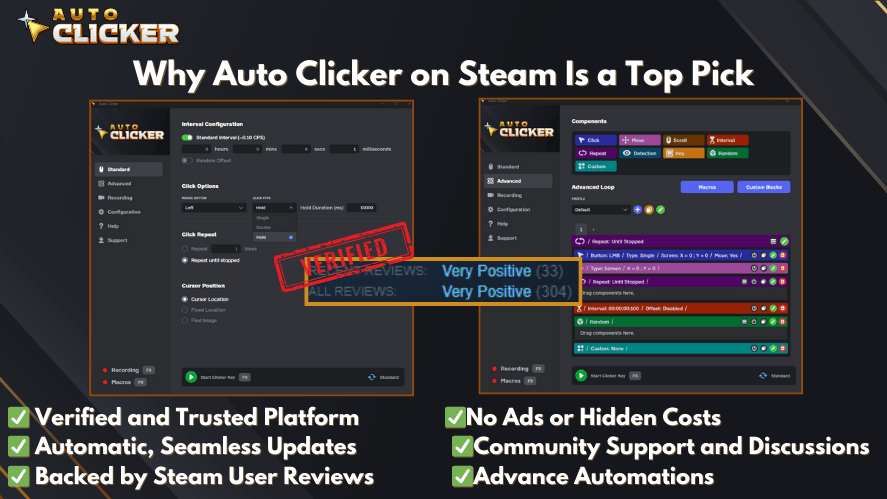
With many options out there, why should testers use the version of Auto Clicker available on Steam? Here are some good reasons to make it your go-to clicking tool for game testing workflows.
Easy to Access and Install
You can find Auto Clicker on Steam with just a few clicks. For developers already using Steam for distributing or testing games, this is very convenient. It installs like any other game or software and is kept up to date automatically.
No need to figure out how to download an auto clicker from third-party sites. Just go to the Steam Store, search “Auto Clicker,” and hit install.
Lightweight and Fast
This auto clicker PC software is not heavy on resources. It runs smoothly in the background without slowing down your system. For testers running other tools at the same time, this makes a big difference.
You don’t need a powerful computer to use it. Even on modest setups, it will perform well, which is ideal for large QA labs or home testers with older machines.
Active Community and Feedback Loop
Since it’s available through Steam, users can leave reviews, suggest features, or report bugs. Developers often use this feedback to improve the tool. This helps Auto Clicker stay reliable and useful over time.
If you’re used to open-source tools that rarely get updates, you’ll appreciate the more active development cycle here.
Steam Cloud Integration
In some cases, Auto Clicker supports Steam Cloud. This means your settings and presets can be saved and synced across devices. Whether you’re testing from home or at the office, your automation tools stay consistent.
This is particularly useful for teams working across multiple machines.
Comparing Auto Clicker with Other Options
Let’s look briefly at how Auto Clicker stacks up against other workflow automation software.
| Feature | Auto Clicker (Steam) | Manual Macros | Selenium or Scripted Tools |
|---|---|---|---|
| Easy Setup | ✅ Yes | ⚠️ Sometimes | ❌ Complex |
| No Coding Needed | ✅ Yes | ✅ Yes | ❌ No |
| Lightweight | ✅ Yes | ✅ Yes | ⚠️ Depends |
| Ideal for Game Testing | ✅ Yes | ⚠️ Limited | ❌ Designed for web |
| Active Support / Updates | ✅ Yes | ❌ Rarely | ⚠️ Varies |
| Community Feedback via Steam | ✅ Yes | ❌ No | ❌ No |
For testers who need speed, simplicity, and solid results without diving into code, Auto Clicker is a strong option.
Final Thoughts on Using Auto Clicker for Efficient Game Testing
Testing games is a long process. But by introducing tools like Auto Clicker into your workflow, you can cut down on time spent on repetitive tasks. From UI testing to stress simulations and AFK behavior, automation plays a valuable role in modern game testing.
Whether you’re applying for game tester jobs, working as a video game tester, or simply improving your personal project, the right tools make a big difference.
Auto Clicker is one of the best auto clicker software options available, especially for those who want a reliable, flexible, and easy-to-use mouse click automation tool.
Conclusion
Let’s quickly recap the key takeaways from this complete guide:
- Game testing often involves tedious tasks that are ideal for automation
- Auto Clicker, especially the Steam version, makes automation simple and effective
- You can simulate AFK actions, UI testing, stress tests, and regression tests without needing to code
- Following best practices helps avoid over-reliance and ensures accurate results
- The Steam version of Auto Clicker provides easy setup, active updates, and even Steam Cloud support
If you’re tired of clicking through the same menus over and over, now is the time to try Auto Clicker.
Download Auto Clicker on Steam and enhance your game testing workflow today. Whether you’re an indie dev or a professional QA, this tool can save time and increase your testing accuracy.

Best Productivity Tools to Use in 2026

How to Auto Farm in Games Using Auto Clicker on Steam

How to Automate Repetitive Tasks on Your Computer
About The Author
