
Why Won’t My AutoClicker Work on Games or Apps
It is frustrating when your auto clicker suddenly stops working.
You may ask, “why won’t my autoclicker work?” or even “why won’t my autoclicker work on Roblox?”
You’re not alone because this problem is common. Many users experience auto clicker not working issues across different games and apps.
The issue does not always mean your clicking tool is broken.
Many click automation tools behave differently depending on the game or app you are using, your operating system, and security or anti-cheat settings. For Steam users, our Auto Clicker for Steam guide explains how platform rules and game-specific restrictions can affect auto clicker use.
Gaming automation software often interacts with system permissions and input controls. Because of this, one auto click may work in one game but fail in another.
In this guide, we will explain the most common reasons your autoclicker may not work. We will also show practical solutions and auto clicker fix steps you can try right away.
Common Reasons Why Won’t My AutoClicker Work
There are several reasons why an automatic clicker may stop functioning.
Below are the most common causes.
1. The App Is Not Running as Administrator
Many games block simulated input by default.
If your auto clicker Windows tool is not running with proper permissions, it may fail to send automated mouse clicks.
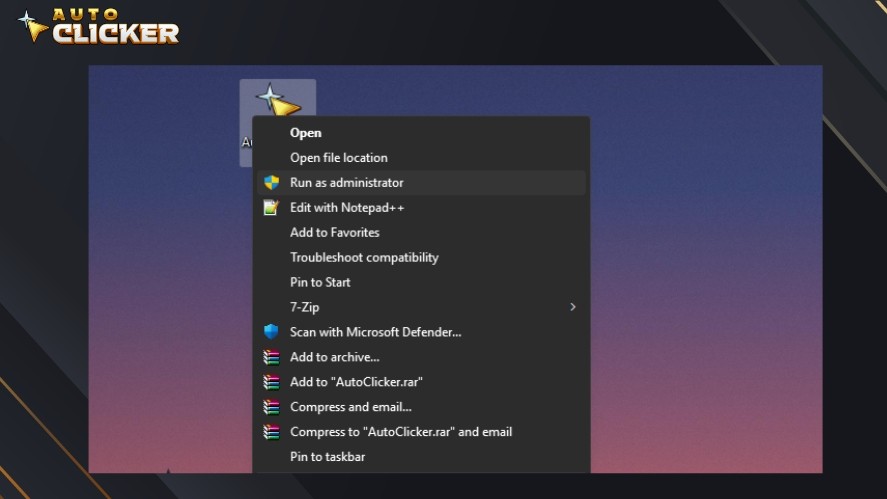
On Windows, try this simple fix:
- Right-click the auto clicker
- Select Run as Administrator
Some applications require elevated permissions to detect and process simulated mouse click input correctly. And this simple step often fixes the issue.
2. Anti-Cheat or Game Security Is Blocking It
Modern games use anti-cheat systems, and these systems can detect automated clicking behavior.
This is especially common in competitive multiplayer games. Meanwhile, Idle games and single-player clicker games are usually more compatible.
Behavior also varies depending on the auto clickers you use. Some tools use basic software input, while others use more advanced simulation methods.
If a game blocks automation, there may be no workaround. So, always respect the game’s rules.
3. Incorrect Click Settings or Keybinds
Sometimes the problem is a simple configuration. Check these settings:
- Wrong hotkey assigned
- Click delay set too high
- Right click selected instead of left click
- Single-click mode instead of continuous mode
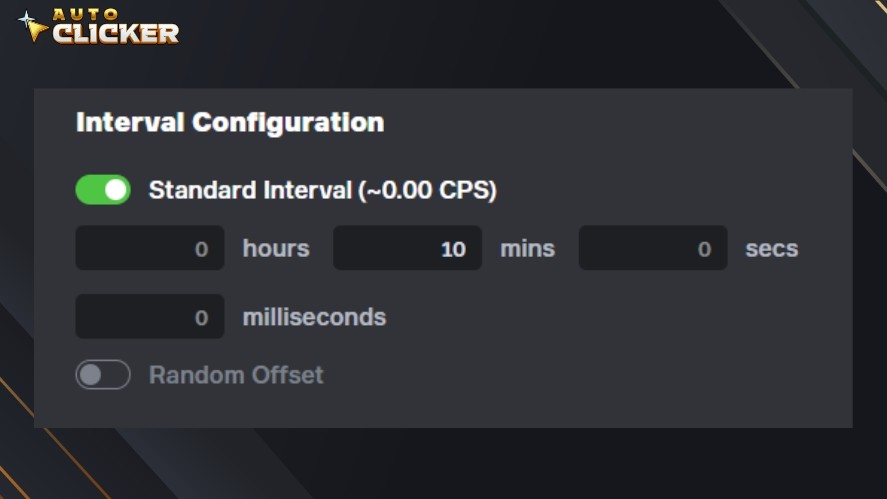
If your automatic clicker appears inactive, it may be misconfigured.
Test your auto click on the desktop first. If it works there but not in the game, the issue may be game-related.
4. Background App Conflicts
Other programs can interfere with your autoclicker. Common conflicts include:
- Other automation software running at the same time
- Game overlays blocking input
- Screen recorders interfering with mouse input
- Antivirus software falsely flagging the tool
Try closing background programs and temporarily disabling overlays. If your antivirus blocks the tool, add it to the exception list if you trust the source.
5. Operating System Restrictions
Your operating system may limit simulated input.
On Windows:
- Security settings may block automation
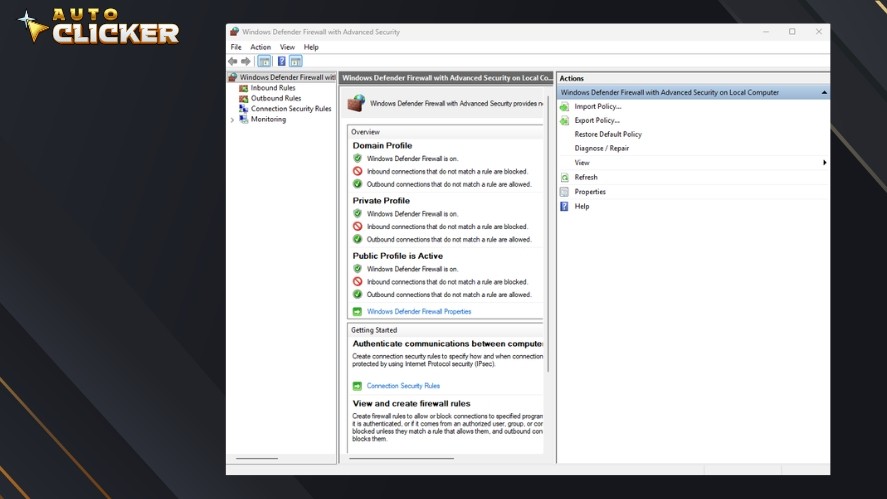
- Firewall rules may restrict behavior
- Outdated drivers can affect input detection
On macOS:
- Accessibility permissions must be enabled
- Input monitoring must be allowed
If your smart auto clicker doesn’t have these permissions, it will not function correctly.
So, always ensure your system is updated and permissions are properly configured before looking for advanced fixes.
How to Fix an Auto Clicker That Is Not Working
If you’re still wondering why won’t my autoclicker work, don’t worry. Most issues can be solved with a few structured troubleshooting steps.
Follow these in order for the best results.
Step 1: Restart the App and Your System
It sounds simple, but it works surprisingly often.
Restarting your autoclicker resets temporary glitches, clears stuck background processes, and fixes minor software conflicts.
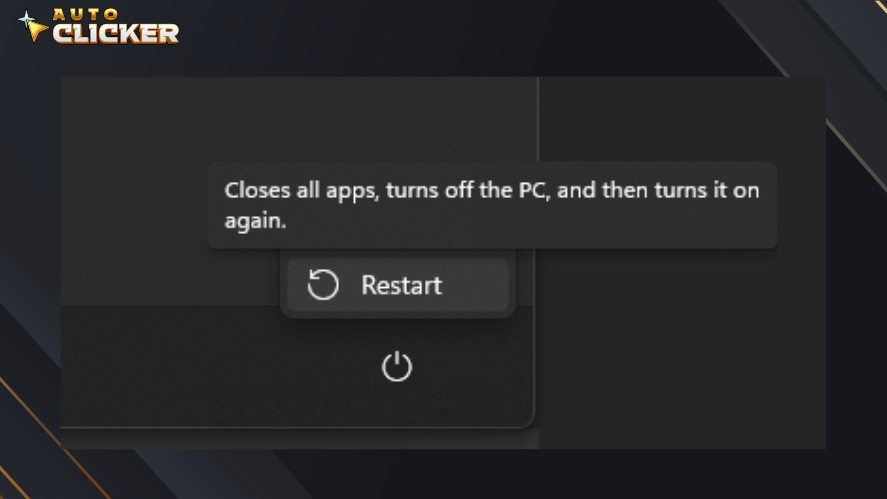
Then restart your computer. This clears system-level conflicts that may be preventing automated mouse clicks from functioning properly.
If your auto clicker not working issue was caused by a temporary bug, this step may fix it instantly.
Step 2: Reconfigure Click Settings
Incorrect configuration is one of the most common causes of failure, especially when users are trying to figure out how to fix double clicking mouse behavior.
Check the following:
- Click interval (is it set too high?)
- Mouse button selection (left vs right click)
- Single-click vs continuous mode
- Hotkey assignment
If the issue involves incorrect cursor positioning or unexpected movement, see our Mouse Movement troubleshooting guide for additional fixes.
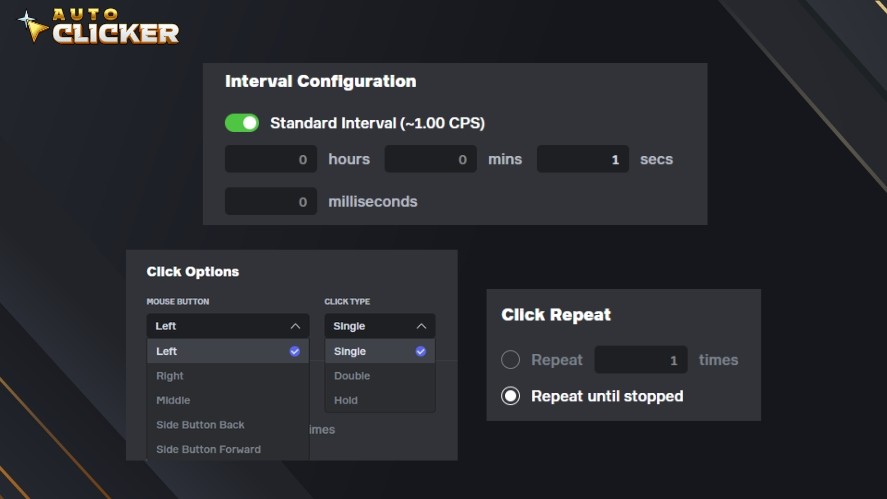
If the delay is set to something like 10 seconds, it may appear that your auto click isn’t working.
Before testing inside a game, try it on your desktop:
- Open a blank document
- Activate the clicking tool
- See if it registers clicks
If it works on the desktop but not in your game, the issue is likely related to game restrictions rather than the automatic clicker itself.
Step 3: Grant Required Permissions
Many click automation tools require system-level permissions.
On Windows:
- Right-click the app
- Select Run as Administrator
Also, check firewall settings and antivirus quarantine lists, because some security software may block gaming automation software by default.
On macOS:
- Open System Settings
- Enable Accessibility permissions
- Enable Input Monitoring
Without these permissions, automated mouse clicks will not function properly.
Step 4: Check Compatibility with the Target Application
Not all applications allow automation.
Some games completely block auto clickers through anti-cheat systems. Moreover, browser games may behave differently from desktop or Steam games.
Before using automation on Steam, read our Auto Clicker for Steam guide to understand platform rules, game-specific restrictions, and responsible use.
Keep in mind that platform-level protections may limit automation behavior.
So, always review the application’s documentation and policies before assuming your autoclicker is broken.
Step 5: Update or Reinstall the Auto Clicker
Operating system updates can sometimes break older automation tools.
If you recently updated Windows or macOS and your auto clicker Windows tool stopped working, compatibility may be the cause.
In this case, try:
- Updating to the latest version
- Performing a clean uninstall
- Reinstalling from the official source
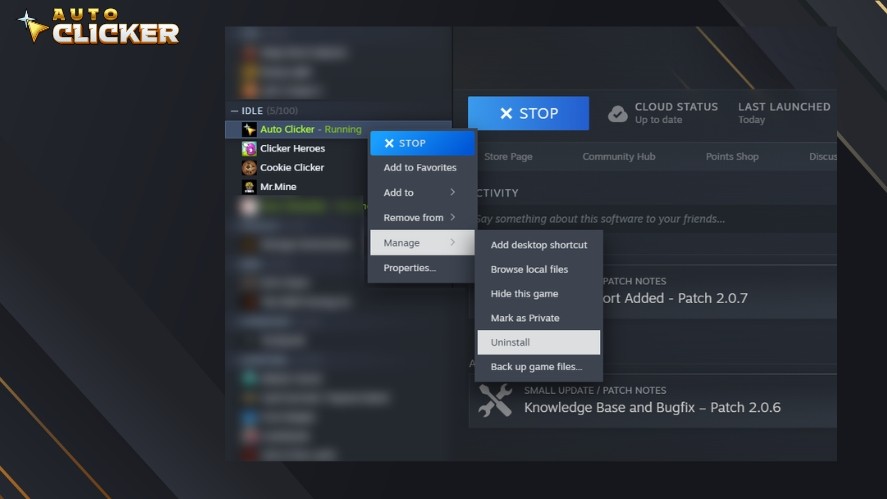
Corrupted files, outdated drivers, or incomplete installations are common causes of auto clicker fix situations. And a clean reinstall often restores full functionality.
Why the Problem Depends on the Auto Clicker You Use
Not all auto clickers work the same way.
If you are experiencing an auto clicker not working issue, the root cause may depend entirely on the specific software you are using.
Different Input Simulation Methods
Auto clickers use different techniques to simulate a mouse click. For example:
- Software-based Mouse Events: These simulate clicks at the application level. They are easier to build, but games are more likely to block them.
- Hardware-level Simulation: These mimic real mouse input more closely and may bypass basic restrictions.
- Driver-assisted Input Methods: Some advanced tools integrate deeper with the operating system.
Because of these differences, one automatic clicker might work perfectly in a game while another fails completely.
Free vs. Official Tools
Free or unofficial tools downloaded from random websites may have:
- Limited compatibility
- Outdated input methods
- No updates after OS changes
- Higher chances to alert antivirus software
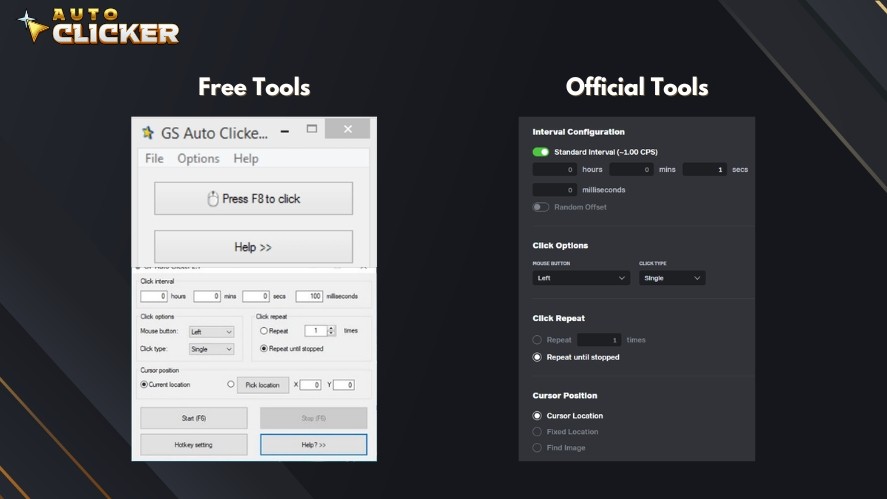
On the other hand, tools distributed through trusted platforms often follow stricter standards.
For example, Steam-approved tools may behave differently from third-party downloads because they are packaged, maintained, and updated within a controlled ecosystem.
This can impact stability, security, and compatibility with Steam-based games.
If you are searching for an auto clicker fix, the real solution might not be adjusting settings, but it could be switching to a more reliable clicking tool.
When to Consider Switching to a More Reliable Auto Clicker
If you have restarted your system, reconfigured settings, granted all permissions, checked compatibility, updated or reinstalled, and your auto click still doesn’t work, the issue may not be your setup.
It may be:
- Poor software optimization
- Lack of developer updates
- Compatibility issues with modern Windows security
- Problems integrating with Steam or newer games
Poor software optimization can also affect stability and responsiveness. For users running NVIDIA hardware, our app optimization guide for RTX and GTX systems covers additional performance settings and troubleshooting tips.
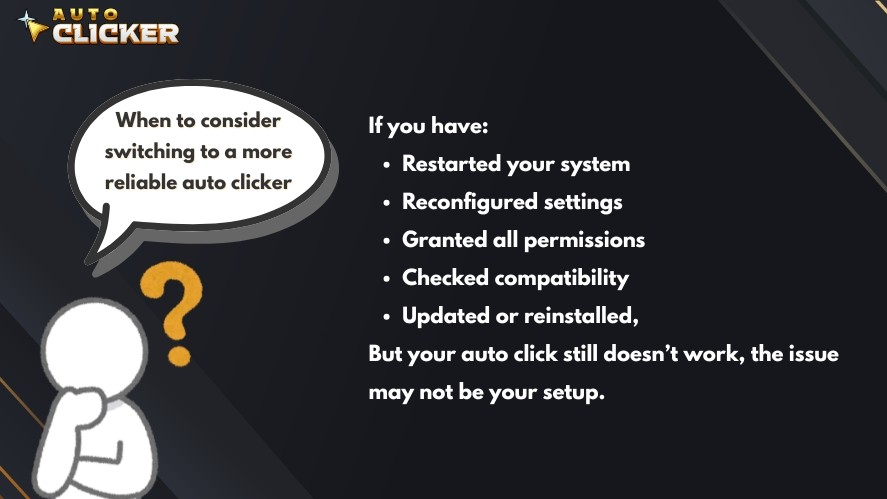
Some auto clickers simply aren’t built for today’s gaming environments or operating system protections. In these cases, upgrading to a more reliable, actively maintained automatic clicker can save time and frustration.
Instead of constantly troubleshooting, you can use a tool designed for modern gaming automation software environments.
Why Auto Clicker on Steam Is a Reliable Solution
Auto Clicker on Steam is designed to provide consistent performance within modern PC environments, especially for users who rely on gaming automation software and structured workflows.
Here’s why it stands out.
Designed for Steam Environment
Auto Clicker on Steam is built specifically for compatibility within the Steam ecosystem.
It is optimized for Steam-based games and designed with modern Windows security standards in mind. On top of that, the tool minimizes conflicts with overlays and background processes.
Because it is developed for this environment, it reduces many of the common issues seen with third-party auto clicker download tools.
Customizable Click Intervals
Precision matters when it comes to automated mouse clicks.
Auto Clicker on Steam offers:
- Adjustable CPS (clicks per second)
- Fully customizable click intervals
- Flexible hotkey configuration
- Continuous mode and toggle mode options
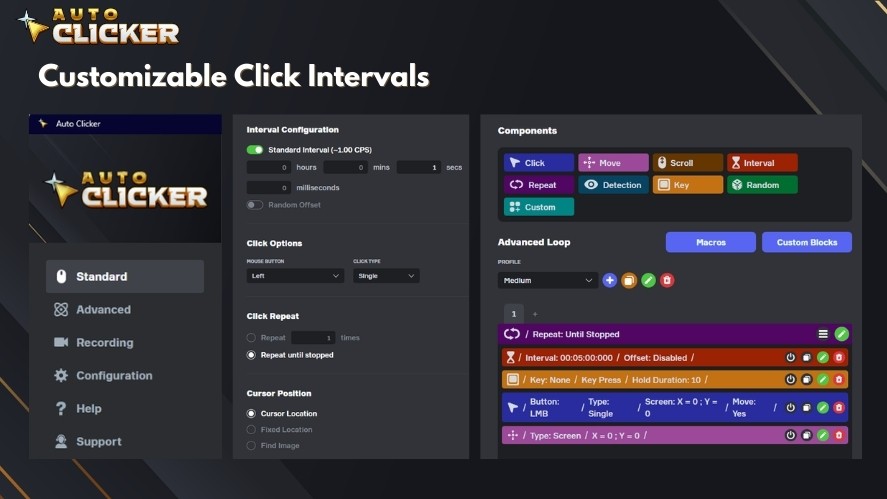
Whether you need slow, timed automation or rapid click automation for clicker games, the settings are easy to control and fine-tune.
User-Friendly Interface
Many auto clickers overwhelm users with complicated menus.
Auto Clicker on Steam eliminates this auto clicker accessibility problem and focuses on simplicity. It has an easy initial setup, a clear configuration layout, quick access to core features, and minimal system resource usage.
You don’t need advanced technical knowledge to configure your first auto click task.
Ongoing Updates and Support
One of the biggest problems with many automatic clicker tools is a lack of maintenance.
But not for this case, because Auto Clicker on Steam is actively maintained and updated to match OS changes.
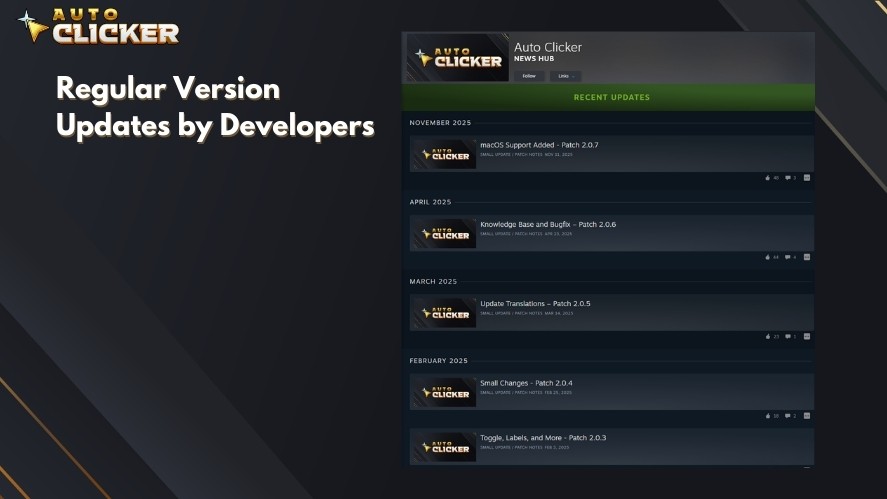
The tool improves based on community feedback and has reliable, long-term performance.
Instead of relying on outdated third-party downloads, users benefit from a stable and transparent update cycle.
Need More Help? Here Is Where to Find Complete Guides
If your autoclicker is still not working after trying the fixes above, don’t worry, as deeper configuration guidance can make a big difference.
Our official Auto Clicker on Steam blog provides detailed resources designed to help both beginners and advanced users.
Inside the blog, you’ll find:
- Knowledge base posts
- Detailed configuration guides
- Gaming optimization tips
- Clicking techniques
- And many more!
Visit our Auto Clicker on Steam blog for step-by-step solutions and advanced customization tips.
Frequently Asked Questions
Games and apps may block simulated clicks due to anti-cheat systems, security settings, or permission restrictions, even if your auto clicker works elsewhere.
Try restarting the app, checking your click settings, running it as administrator, granting system permissions, or reinstalling the latest version.
This usually means the game is blocking automation through anti-cheat protections or has stricter input detection than standard desktop applications.
Yes, antivirus software, overlays, screen recorders, or other automation tools can interfere with click simulation and should be checked.
Conclusion
Now you know the answer to the question why won’t my autoclicker work in my game.
Auto clicker not working problems are rarely random. They depend on the app, operating system, and the specific clicking tool being used.
By troubleshooting step-by-step, you can identify the exact cause and download auto clicker based on your needs.
If you want a more stable, optimized solution built for modern Windows environments and Steam compatibility, Auto Clicker on Steam provides a reliable alternative.

How to Download Auto Clicker on Steam: Step-by-Step Guide

Best Click Interval Settings for Games: Key Tips for Gamers

How to Use Auto Clicker for Software Testing and GUI QA Tasks
About The Author
