
How to Repeat Actions With Auto Clicker on Steam
Clicking the same button over and over can turn a quick task into a chore. Maybe you need to test a button 20 times. Or you want to repeat a simple action in a game that allows it. You can repeat actions with Auto Clicker on Steam without pressing the mouse button each time.
The app from Playsaurus lets you set the click speed, choose where to click, and decide when the clicks should stop. It can also repeat a set of steps or replay actions you record.
This guide shows you which mode to use, how to set up your first repeat task, and what to check if it goes wrong.
How Does Auto Clicker Repeat Actions?
Auto Clicker on Steam sends the mouse or keyboard input you set up. You choose the action and tell the app how often to run it.
There are three ways to do this:
| Mode | What it repeats | Best for |
|---|---|---|
| Standard Mode | A click at a set speed | Pressing one button many times |
| Advanced Mode | A series of clicks, waits, key presses, or other actions | Tasks with several steps |
| Recording Mode | Mouse and keyboard actions you record | Replaying a task you already know how to do |
If you only need to click one spot, start with Standard Mode. You can move to the other modes when your task needs more than one action.
One thing to keep in mind: a set of repeat clicks does not know whether your task is done. If a new window opens or a button moves, the clicks may miss their target. That is why short tests and a working stop key matter.
How to Repeat Actions With Auto Clicker in Standard Mode
Let’s use a simple example: you want to click a test button 10 times, with a one-second gap between clicks. This is a good first task because you can count the results.
Step 1: Open Auto Clicker and select Standard Mode
Open your Steam Library and launch Auto Clicker by Playsaurus. If you do not have it yet, use the official Steam listing to find the right app.
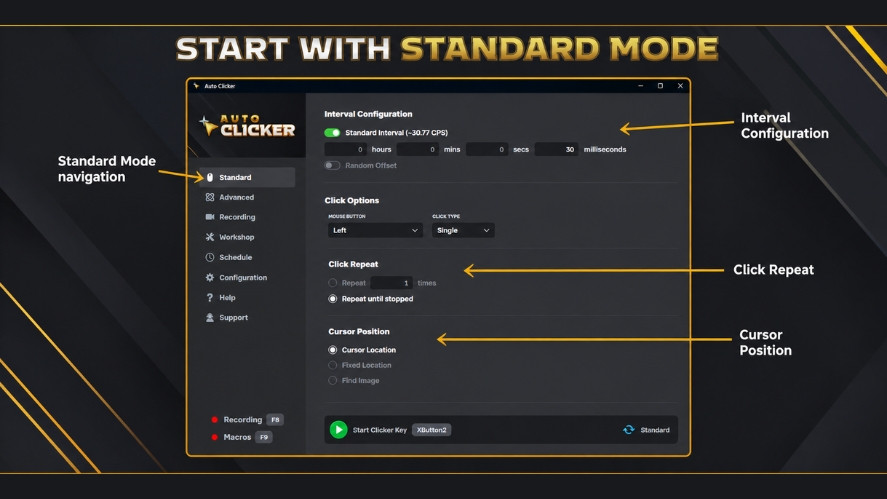
Select Standard Mode. You should see the controls for the click interval, click options, repeat count, and cursor position.
If you are new to the app, our Auto Clicker setup guide covers the main screen in more detail.
Step 2: Choose the click type
Find Click Options and select the mouse button you want to use. For a normal test button, choose Left and Single.
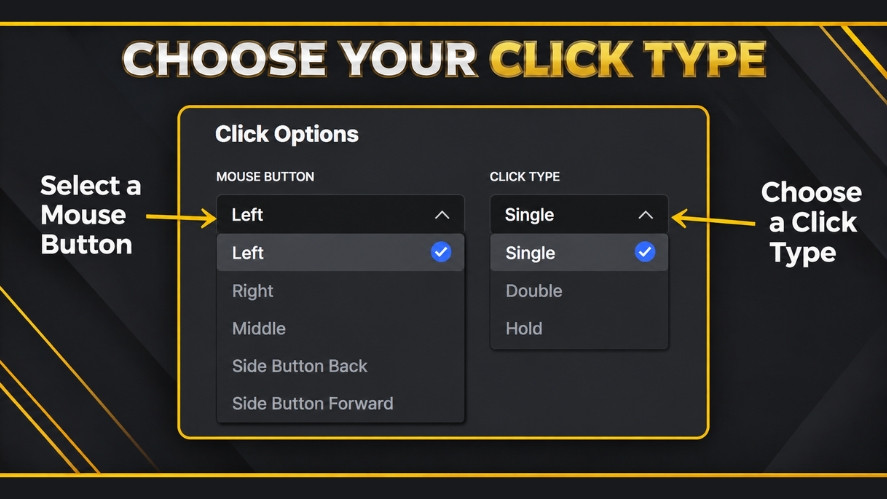
The app also offers other mouse buttons and click types, such as double-click and hold. Use those only when the task calls for them. For example, a right-click may open a menu instead of pressing a button.
Step 3: Set the click interval
The Interval Configuration setting controls the time between clicks. For your first test, set it to 1 second (or 1,000 milliseconds).
Here is a quick guide to click speed:
| Interval | Approximate rate |
|---|---|
| 2 seconds | 1 click every 2 seconds |
| 1 second | 1 click per second |
| 500 milliseconds | 2 clicks per second |
| 250 milliseconds | 4 clicks per second |
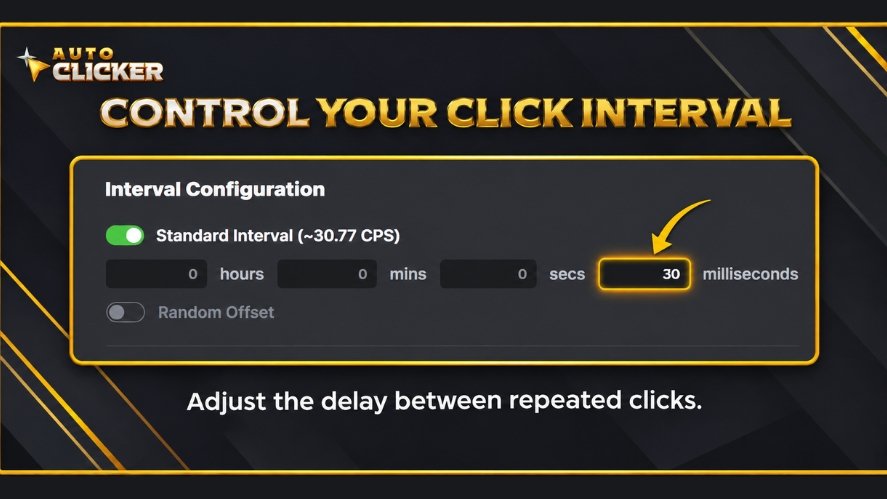
These rates are estimates. The app or game may take longer to respond to each click.
Start slow. You can lower the interval once you know the clicks land in the right place. Very short delays can cause missed inputs or make some apps freeze.
Step 4: Choose where the clicks go
Under Cursor Position, choose how the app finds its target:
- Cursor Location: Click where your pointer sits when each action runs. Moving the mouse can change the target.
- Fixed Location: Pick a spot on the screen. This works best when the button stays put.
- Find Image: Look for a matching image before clicking. This may help when a button can move or appear later.
For the 10-click test, choose Fixed Location and pick a harmless button in a test app. Keep that window in the same place while the clicks run.
If you need help with screen coordinates, see our click position guide.
Step 5: Set the repeat count
Find Click Repeat and select the option to repeat a set number of times. Enter 10.
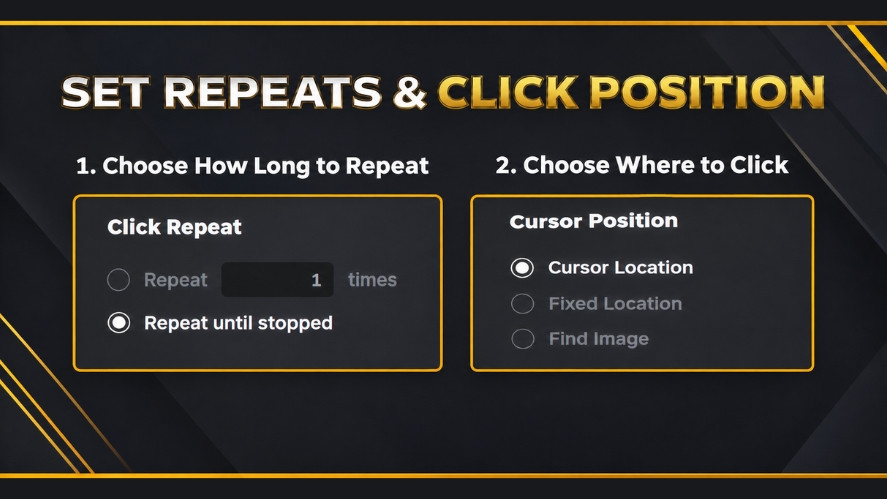
You can also choose Repeat until stopped. That option keeps sending clicks until you stop the app. A fixed count is safer for a first test because it has a clear end.
Step 6: Start, watch, and stop
Place the test window where you want it and press F6 to start. F6 is the default start/stop key in Auto Clicker. Press it again if you need to end the run early.
Watch the first few clicks.
- Did they hit the button?
- Did the app respond?
- Did the count stop at 10?
If anything looks wrong, press F6 and fix the setting before you try again. You can change the start/stop key in the Configuration tab, so check that tab if F6 does not work as expected.
Repeat Several Actions With Advanced Mode
Standard Mode works well for one click. But what if the task needs a click, a pause, and then another action? That is where Advanced Mode helps.
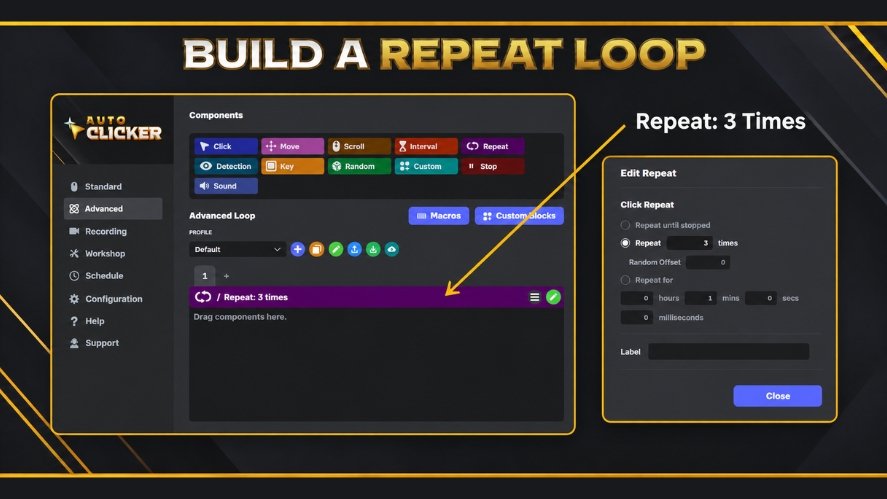
It uses blocks that you place in order. A Click block sends a click, an Interval block adds a wait, and a Repeat block runs the steps inside it more than once.
For example, you could set up this short routine in a test app:
- Switch to Advanced Mode.
- Add a Repeat block and set it to run 3 times.
- Place a Click block inside it, aimed at your test button.
- Add an Interval block after the click, still inside Repeat. Set the wait to 2 seconds.
- Run the routine and check the result after each click.
The order matters. If the Click block is outside Repeat, it will not run on every pass. If the wait is outside Repeat, it will not pause between each click.
Advanced Mode can also use key presses, scrolling, and screen detection. Newer versions let you repeat for a set time, as well as for a set count or until stopped. Those options are useful, but there is no need to add them to a simple task.
For a longer walkthrough, see our guide to automation loops with Auto Clicker.
Record and Replay Mouse or Keyboard Actions
Sometimes it is easier to show the app what to do than to build each step. Recording Mode can capture mouse clicks, pointer moves, key presses, and the time between them.
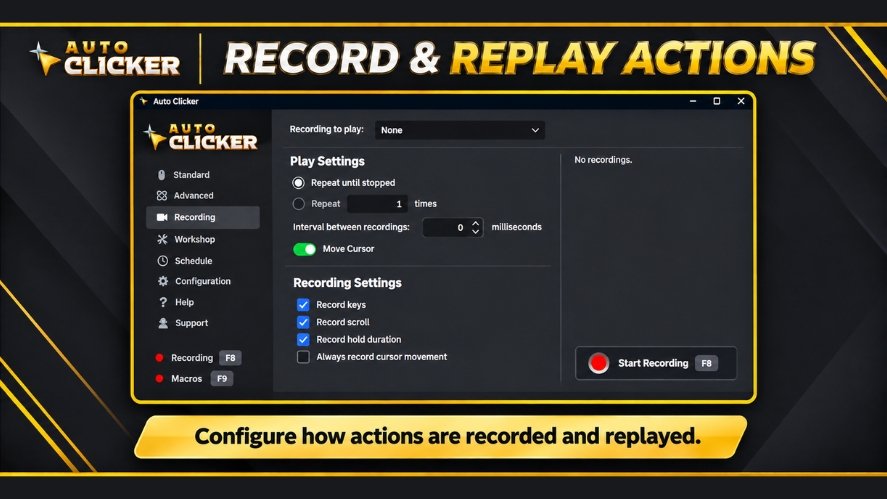
Here is the basic process from the official AutoClicker documentation:
- Open Recording Mode.
- Press F8 to start recording.
- Do a short task in a safe test window.
- Press F8 again to stop.
- Save the recording and give it a name.
- Choose a small replay count and test it.
You can replay the recording a set number of times or until you stop it. You can also move it into Advanced Mode to edit the steps or turn it into a reusable Custom Block.
Recordings do have limits. If you move a window or change its layout, the saved mouse actions may hit the wrong spot. Review your recording and keep the test short before you run it again.
Where Repeating Actions Can Help
In games that allow automation: Some games have menus or actions that call for the same click many times. Check the game’s rules before you set up a repeat task. Online games may have stricter rules than offline ones.
In everyday apps: Repeating one safe button press can be handy for a simple demo or a task with a steady screen. But if the next step depends on what appears, stop and check the result rather than clicking without a plan.
In software tests: A repeat count makes it easy to check a button. If a test counter should go up by 10, run 10 clicks and compare the result. If the count is wrong, try a longer interval. For tests that need to check on-screen results at each step, use a tool built for testing instead.
The key is to pick work that has a clear target and a clear stopping point.
Which Repeat Setting Should You Use?
There is no single best setting for every job. Think about what should end the task.
| Your goal | A good starting choice | Why |
|---|---|---|
| Click a button 10 times | Standard Mode, repeat 10 times | Easy to count and test |
| Keep clicking a stable target | Standard Mode, until stopped | Runs until you end it |
| Repeat a click and a pause | Advanced Mode, Repeat block | Keeps both steps in one loop |
| Repeat a task for 30 seconds | Advanced Mode, timed Repeat | Stops after a set duration |
| Replay mouse moves and key presses | Recording Mode | Saves the order and timing |
The timed Repeat option in Advanced Mode was added in an August 2026 update. If you cannot see it, check whether your app is up to date.
For most new users, a small repeat count and a one-second interval are a good place to begin. These are test settings, not a speed that will suit every app.
Common Problems and Simple Fixes
Even a short repeat task can go wrong. Often, the fix is one setting you missed.
| Problem | What to check |
|---|---|
| Nothing happens | Make sure the run started. Check the target window, F6 shortcut, and interval. |
| Clicks are too fast | Raise the interval. Try 1 second before going faster. |
| Clicks miss the button | Check Cursor Location or Fixed Location. Pick the spot again if the window moved. |
| The run stops early | Check the repeat count and stop key. |
| The second loop fails | See whether the first loop changed the screen or moved the target. |
| A game ignores clicks | Check game rules and app support. Some games block automated input. |
If you still cannot find the cause, test one left-click at a one-second interval in a harmless app. Once that works, add your other settings back one at a time.
Do not try to get around a game’s anti-cheat system. A tool being sold on Steam does not mean every Steam game allows its use.
Tips for Safe, Reliable Repeating
A repeat task is only useful if it does what you expect. A few habits can prevent most mistakes.
- Test with a small count. Five or 10 clicks can tell you a lot before a long run.
- Keep the target still. A fixed point may fail if you move or resize the window.
- Leave time for the app to respond. Faster clicks are not always better.
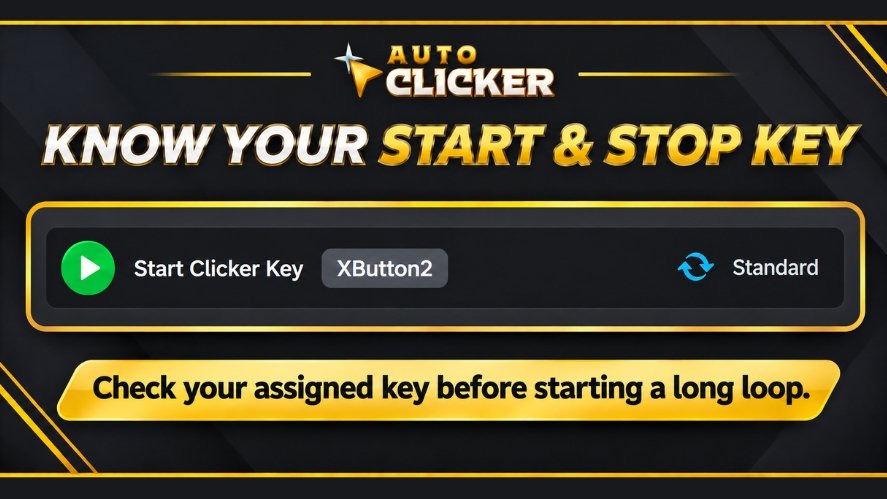
- Know your stop key. Test F6, or your custom shortcut, before you run a long task.
- Watch tasks with real effects. Do not leave repeat clicks alone on purchase screens, account pages, or tools that delete files.
- Check the rules first. Some games and online services do not allow automated input. Follow their own terms as well as Steam’s Subscriber Agreement.
If your task depends on a button appearing at the right time, a plain repeat loop may not be enough. You may need a screen check instead. Our conditional automation guide explains that approach.
Frequently Asked Questions
Can Auto Clicker on Steam repeat clicks forever?
Yes. In Standard Mode, you can choose Repeat until stopped. Make sure you know how to end the run before you use it.
What is the default key to start and stop clicking?
The default key is F6. You can change it in the Configuration tab. The official guide lists F8 as the key to start and stop a recording.
Can I repeat right-clicks or double-clicks?
Yes. Repeat actions with Auto Clicker offers mouse button and click type settings. Choose the action your target app needs, then test it with a small repeat count.
Can Auto Clicker repeat a full set of actions?
Yes. Use Advanced Mode to build a set of actions, or Recording Mode to capture and replay a task. Standard Mode is the simpler choice for repeated clicks.
Will Auto Clicker work in every Steam game?
No. Some games block automated input or ban it in their rules. Check the rules for the game before you use an auto clicker.
How do I stop a repeat loop that clicks the wrong place?
Press F6 if you use the default start/stop key. Then check the click location and run a short test before you start again.
Conclusion
To repeat actions with Auto Clicker on Steam, start with the simplest tool for the job. Use Standard Mode for one click, Advanced Mode for a set of steps, or Recording Mode to replay actions you have saved.
Choose a clear target, set a steady pace, and begin with a small number of repeats. Once the task works, you can adjust the settings with more confidence.
Ready to try it? Open Auto Clicker on Steam, set up a short test, and make sure you can stop it before you start a longer run.

Auto Click Image Detection Not Working? Here’s How to Fix It

How to Use Color Detection in Auto Clicker on Steam

How to Auto Farm in Games Using Auto Clicker on Steam
About The Author
