
Auto Scrolling With Auto Clicker on Steam: A Simple Guide
Long pages and large lists can mean a lot of mouse-wheel movement. Auto scrolling handles that repeated input for you, so you can focus on the content on screen.
If you have read our guide to Auto Clicker on Steam, you may know it can do more than repeat clicks. Playsaurus’s app includes a Scroll Action in Advanced Mode. You can pair it with delays and loops to build a scrolling routine.
This guide explains how to set up that routine, choose a useful pace, and fix common problems. It also covers when adding clicks makes sense and when manual scrolling works better.
What Is Auto Scrolling and How Does It Work?
Auto scrolling moves through a page or list without you sending every scroll input by hand. A tool sends the inputs instead.
With manual scrolling, you turn the mouse wheel or swipe a touchpad. With an auto scroller, you set up a pattern that repeats those movements.
For example, a simple routine can scroll down, wait two seconds, and then repeat. The pause gives you time to read before the next movement.
However, repeated wheel inputs do not always create a smooth glide. The page may move in small steps. The result depends on the app, the scroll amount, and your settings.
Auto Scrolling vs. Auto Clicking
An auto clicker repeats mouse clicks. Scroll automation sends wheel inputs. These are different actions, even when one tool supports both.
For instance, clicking the middle mouse button is not the same as sending a wheel movement. Some apps use a middle click to enter their own scrolling mode, while others give it a different function.
In Auto Clicker, use the dedicated Scroll Action for a wheel-based routine. This keeps the setup clear and easier to test.
How to Set Up Auto Scrolling With Auto Clicker on Steam
Use Advanced Mode for this task. The official Steam listing confirms support for Scroll, Interval, and Repeat actions. The AutoClicker documentation explains its block-based editor.
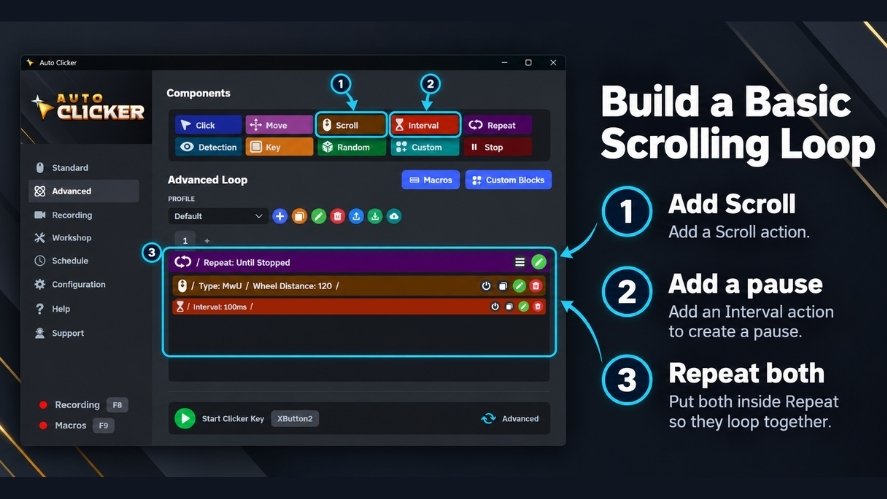
The steps below describe how to build a basic routine. Exact field names may vary by version.
- Launch Auto Clicker. Open Steam, find the app in your Library, and launch it.
- Switch to Advanced Mode. This is where you build routines from action blocks.
- Add a Scroll block. Open its settings and choose the direction and amount available in your version. Start with a small downward movement.
- Add an Interval block after it. This creates a pause before the next scroll input. Try two seconds for your first test.
- Use a Repeat block to loop the scroll and pause together. Choose a short, fixed run where the repeat settings allow it. Five repeats are enough for an initial test.
- Check the start and stop controls. The documentation lists Start/F6 for testing. Confirm the active shortcut in your app and test that it stops the routine.
- Open the target page. Bring its window to the front and place the pointer over the area you want to scroll.
- Run the short test. Watch the direction, distance, and pause. Stop the routine, then adjust one setting at a time.
The key is to repeat both the scroll action and its delay. If the pause sits outside the loop, it may not slow each scroll as you expect.
Choosing the Right Auto Scrolling Interval
The interval controls the pause between actions. A shorter pause usually moves through content faster. A longer one leaves more time to read.
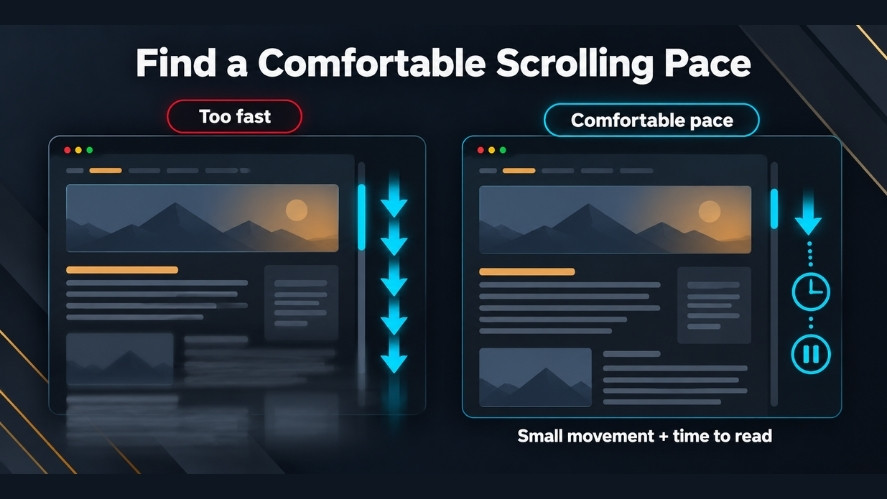
Scroll amount matters too. A large movement every two seconds can still feel fast, even with a long pause.
Try these starting points, then adjust them to suit your page:
| Task | Suggested starting pause | What to check |
|---|---|---|
| Reading a long article | 2–4 seconds | Can you finish the visible text before it moves? |
| Scanning a short list | 1–2 seconds | Can you spot the item you need? |
| Testing a scroll-and-click routine | 2–3 seconds after scrolling | Has the page settled before the click? |
These are suggested test values, not app presets or guaranteed best settings. Start with a small scroll amount in each case.
For example, if the page jumps too far, reduce the amount first. If the distance feels right but the next movement comes too soon, increase the pause.
Setting Up Repeated Scrolling Actions
A short run helps you check the routine without losing your place. Once it works, you can increase the repeat count.
Continuous scrolling can suit a long page, but it needs a working stop control. It also needs your attention when the page loads new content or changes its layout.
Do not assume the loop will stop at the bottom of a page. A basic repeat routine keeps sending inputs until it reaches its repeat limit or you stop it.
To scroll back up, change the direction available in the Scroll block and test again. Check the result on screen rather than guessing what a numeric value means.
Advanced Auto Scrolling Settings to Customize
After the basic routine works, adjust it to fit the task. Useful changes include a longer pause, fewer repeats, or several small scroll actions before a break.
For example, you could move through three short sections, then pause to review them. This may feel better than one large jump.
You can also save a working sequence as a Custom Block for reuse. Give it a clear name, such as “Slow article reading,” so you can find it later.
Keep the routine simple at first. Add another action only when it serves a clear purpose.
Combining Auto Scrolling With Click Automation
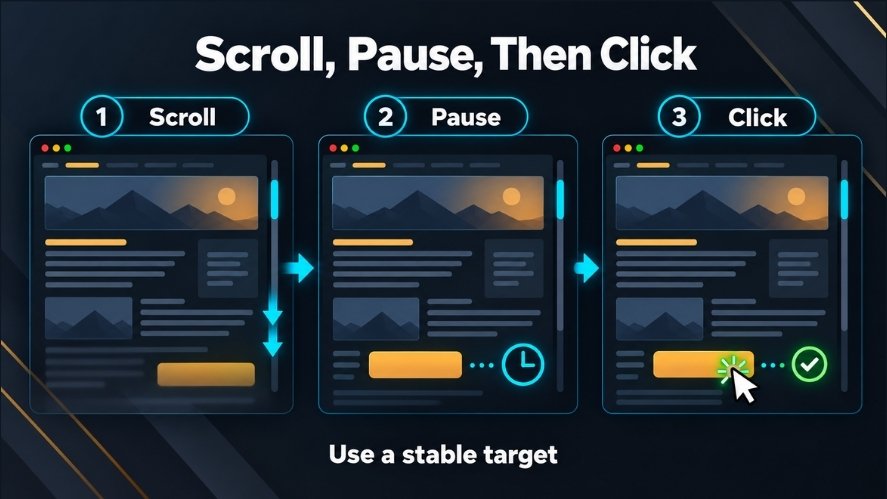
A scroll-and-click routine can help with a stable interface. For example, a test page might have a button that appears in the same place after a small scroll.
The pattern could be:
- Scroll a short distance.
- Pause while the page settles.
- Click the test button.
- Wait for the page to respond.
- Continue with the next scroll.
However, a fixed-position click does not know whether the right button is there. Ads, popups, or layout changes can put a different control under the pointer.
Use this pattern only where the target stays predictable. If it moves, stop and revise the routine. Adding a longer delay helps with loading time, but it cannot fix the wrong click position.
Advanced Mode also offers a Detection Action for image-based logic. That can support a more complex routine, though it needs separate testing and should not be treated as a guaranteed match.
Practical Uses for Auto Scrolling
Scrolling automation works best when you repeat a simple movement and can watch the result.
Reading Long Webpages or Documents
A slow pace can reduce wheel movement while you read. Pause when you reach a chart, a dense paragraph, or a section you want to study.
Not every document viewer handles wheel inputs the same way. Therefore, test the routine in the viewer you plan to use.
Browsing Long Lists and Feeds
A steady scroll can help you scan a catalog, history list, or log. Keep the pace slow enough to spot items as they appear.
On a feed that loads more content, allow time for that content to arrive. Otherwise, the routine may reach the current bottom and keep sending inputs while you wait.
If you know the item name, a search box may be faster than scrolling through the whole list.
Testing Apps and Game Interfaces
You can use repeated wheel inputs to check how your own test interface responds. This may help you notice odd jumps or loading delays.
For games and online services, check their automation rules first. Steam distribution does not mean a tool is allowed in every game. Use it only where the rules permit it.
How Auto Scrolling Can Improve Productivity
The main benefit is less repeated input. You still read, review, or inspect the page, but the routine handles the wheel movements.
It can also keep the input pattern steady. For example, a tester can repeat the same scroll-and-pause sequence while watching for changes.
Still, the same inputs may produce different results. New content, slow loading, or a changed layout can affect how far the page moves.
Reusable routines save setup time on recurring tasks. However, test them again after an app update or a major layout change. A routine that worked last week may need a small adjustment today.
Common Auto Scrolling Problems and How to Fix Them
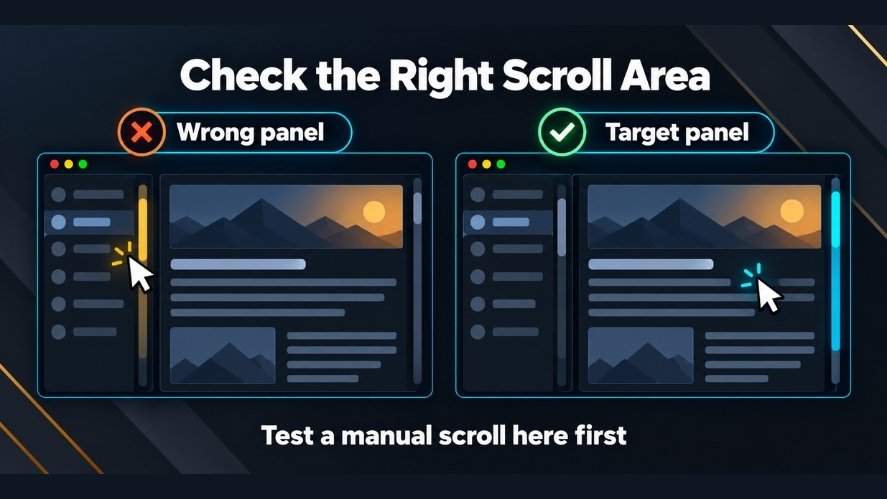
Start by stopping the routine. Then check one cause at a time so you can see which change helps.
| Problem | What to try |
|---|---|
| The page moves too fast | Increase the delay or reduce the scroll amount. |
| Movement feels too slow | Shorten the delay in small steps, then test again. |
| Nothing scrolls | Check that the page can scroll, bring its window forward, and move the pointer over the correct area. |
| The wrong panel moves | Place the pointer over the intended panel and check which area receives wheel input. |
| The loop runs too long | Review the repeat settings and confirm the stop shortcut works. |
| A click hits the wrong item | Check the click position and page layout. Add a delay only if loading time is the cause. |
| Movement stalls at the bottom | Wait for more content to load, or stop if the page has ended. |
A useful check is to scroll by hand in the same spot. If manual scrolling fails too, the issue may be the page or panel rather than your routine.Next, test a single Scroll block without the loop. If that works, add the delay and repeat settings back one at a time.
Tips for Better Auto Scrolling With Auto Clicker
- Start small. Use a short run and a modest scroll amount before trying a longer session.
- Keep a clear stop control. Choose a shortcut you can reach and confirm it works in the target app.
- Change one setting at a time. This makes it easier to find a useful pace.
- Match the routine to the page. Reading, scanning, and interface testing need different timing.
- Watch the result. Pause when the layout changes or new content loads.
- Save what works. Reuse a Custom Block, then test it when the task changes.
These habits make a routine easier to control without adding needless steps.
Is Auto Scrolling With Auto Clicker Worth Using?
It can be worth using when you repeat wheel movements often and want more control over the pace. It is especially useful when scrolling forms part of a larger routine.
For a quick page check, manual scrolling may take less time than setting up automation. Likewise, a search tool may be the best way to find one item in a long list.
Choose the method that makes the task easier. The goal is to reduce repeated effort while keeping control of what happens on screen.
Conclusion
Auto scrolling can make long pages and repeated navigation easier to manage. In Auto Clicker on Steam, start with a Scroll block, add a pause, and repeat the pair in Advanced Mode.
Test a short run first. Then adjust the pace, confirm the stop control, and save the routine if it fits your task.
Ready to try it? Explore Auto Clicker on Steam and build a simple routine before adding more actions.

Right vs. Left Click Modes: Optimize Your Auto Clicker Settings

Auto Clicker Download for Beginners

Why Won’t My AutoClicker Work on Games or Apps
About The Author
