
How to Fix Mouse Movements in Auto Clicker
If you want to know how to fix mouse movement problems in Auto Clicker, you are not alone. Many users deal with random cursor jumps, unexpected clicks, or incorrect click positions when using auto clicker software. This can be frustrating, especially when you are using automation for gaming, testing, or repetitive computer tasks.
In 2026, most mouse movement issues still come from incorrect auto clicker settings, mouse acceleration, app conflicts, outdated software, or hardware problems. Fortunately, many of these problems can be solved by reviewing a few basic settings and system checks.
This guide explains why your mouse may move on its own when using an auto clicker and how to fix mouse movement problems step by step.
Understanding Why Auto Clicker Moves the Mouse Unexpectedly
Before jumping into the fixes, it’s essential to understand what might be causing the issue. Here are the most common reasons your computer mouse is moving on its own when using an automated click program:
Software Conflicts
Other applications running in the background, such as desk mouse programs or remote desktop software, may interfere with your mouse application. If another program is trying to control your cursor at the same time as your auto clicker, unpredictable movement can occur.
Incorrect Click Positioning
Many mouse software programs let you set specific X/Y coordinates for automated clicks. If these are misconfigured, your mouse might seem to move randomly, clicking in unintended locations.
Mouse Acceleration Settings
Windows has a built-in mouse acceleration feature under Pointer Options, which can cause erratic movements when using an automatic clicker. If acceleration is enabled, the cursor might not move consistently, making it seem like the mouse keeps jumping around.
Interference from Background Apps
Some third-party applications, especially those that interact with the mouse, like screen recorders, macro tools, or overlays (e.g., Discord, Steam), can interfere with an auto clicker for Mac or Windows.
Quick Checklist Before You Change Settings
Before you make bigger changes, start with these quick checks:
| What to Check | Why It Matters |
|---|---|
| Click location settings | Wrong X/Y coordinates can send clicks to the wrong area |
| Random offset mode | This can make the cursor move in unexpected directions |
| Mouse acceleration | It can make cursor movement feel inconsistent |
| DPI and sensitivity | High DPI can make small movements look extreme |
| Background apps | Overlays, remote tools, and macro apps can conflict with auto clickers |
| Software updates | Older versions may have bugs or compatibility issues |
If the issue started after changing your auto clicker settings, reset the program first. However, if your mouse also moves strangely outside the auto clicker, check your mouse, drivers, and system settings too.
How to Stop Unexpected Mouse Movement in Auto Clicker
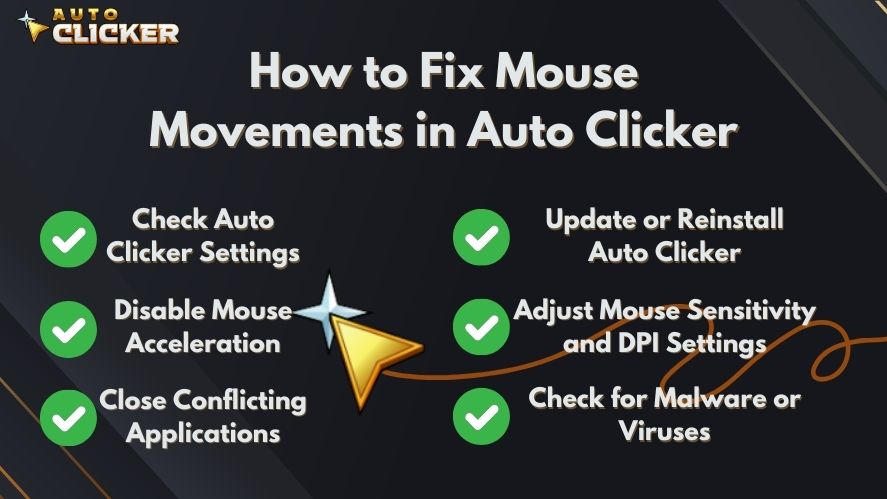
Follow these steps in order. Start with the auto clicker settings first, then move to Windows, background apps, and hardware checks.
Check Auto Clicker Settings

Open your auto clicker and review the click location settings. If the click position is set to random, dynamic, or follow cursor, your mouse may move in ways you did not expect.
Start by checking your auto clicker settings:
- Make sure the click location is set to the correct position.
- Turn off random offset if you do not need it.
- Test fixed coordinates instead of dynamic cursor movement.
- Try screen-relative mode and window-relative mode to see which one works better.
- Reset the auto clicker settings if you are not sure what changed.
This is usually the first step when learning how to fix mouse movement issues because many problems come from incorrect click position settings.
Disable Mouse Acceleration
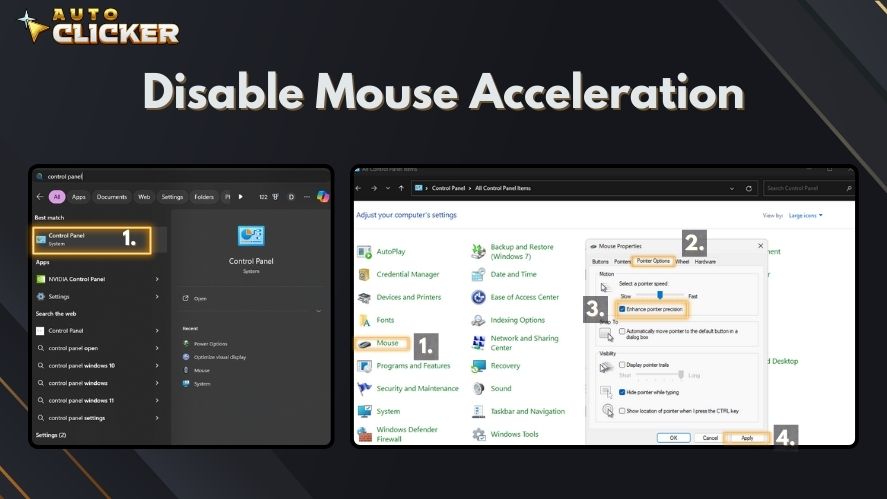
Mouse acceleration can make your cursor movement feel uneven. In Windows, this setting is called Enhance Pointer Precision.
- Open Control Panel and go to Mouse Settings.
- Navigate to the Pointer Options tab.
- Uncheck “Enhance Pointer Precision” (this is another name for mouse acceleration).
- Click Apply and test your automatic clicker again.
This setting ensures that your cursor moves predictably instead of changing speed based on how fast you move your mouse.
Close Apps That May Control the Mouse
Some programs can interfere with an auto clicker, leading to the computer mouse jumping around. To check for conflicts:
- Press Ctrl + Shift + Esc to open Task Manager.
- Look for apps that might be using mouse inputs, such as:
- Remote desktop programs (e.g., AnyDesk, TeamViewer)
- AnyDesk
- TeamViewer
- Steam Overlay
- Discord Overlay
- NVIDIA Overlay
- Macro recording tools
- Gaming overlays (e.g., Steam, Discord, NVIDIA Overlay)
- Other auto clicker tools
- Close any unnecessary applications and restart your mouse software.
Then restart your auto clicker and test it again. If the mouse works normally, one of those apps may have caused the conflict.
Update or Reinstall Auto Clicker
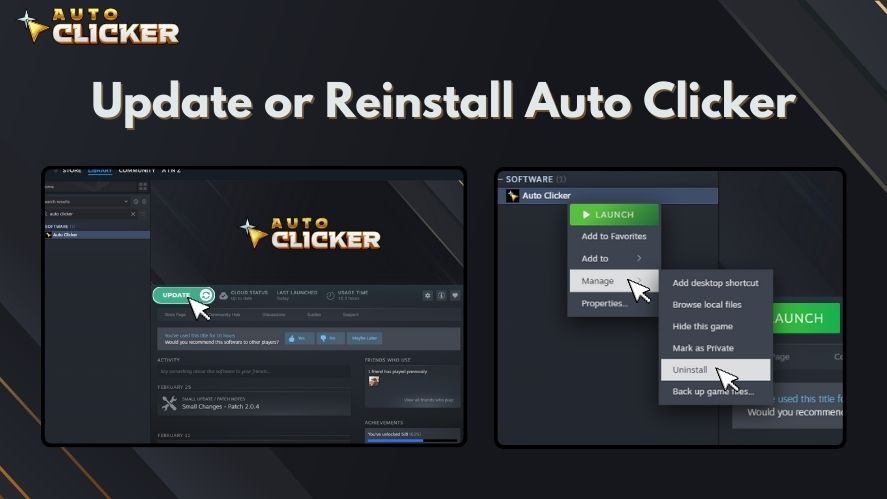
An outdated auto clicker may not work properly with newer versions of Windows, games, or apps. Update your software if a newer version is available.
- Check the official website or the Auto Clicker on Steam page for the latest version.
- If an update is available, install it, then reboot your computer.
- If the problem persists, uninstall and reinstall the auto clicker.
You can also uninstall and reinstall the program if the issue continues. This helps remove broken settings, corrupted files, or old configuration data.
Adjust Mouse Sensitivity and DPI Settings
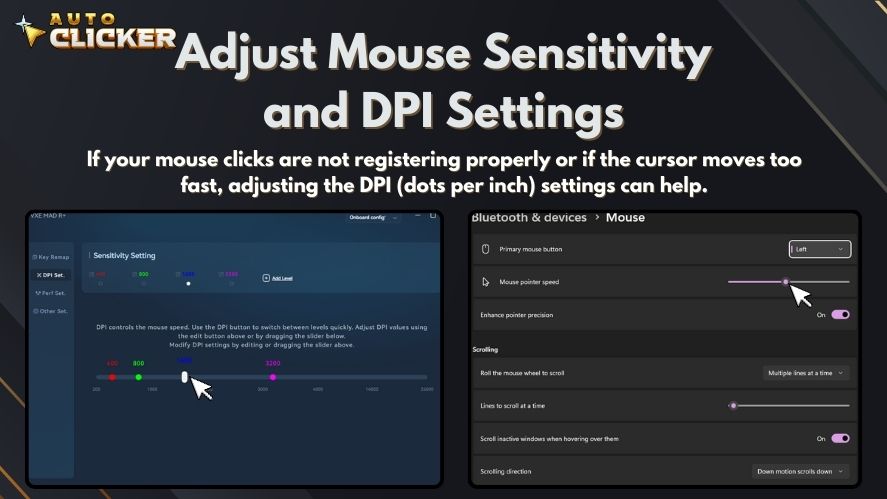
If your mouse clicks are not registering properly or if the cursor moves too fast, adjusting the DPI (dots per inch) settings can help:
- If you have a gaming mouse, lower the DPI setting using the mouse’s software.
- In Windows, go to Settings > Devices > Mouse and lower the pointer speed.
- Test a different USB port.
- Avoid using extreme DPI settings while using an auto clicker.
A lower and more stable DPI setting can make auto clicker behavior easier to control.
Check for Malware or Viruses
If your computer mouse is moving on its own or making automatic clicks without input, it could be malware-related. Some viruses hijack your input devices. To check:
- Launch Windows Security and navigate to the Virus & Threat Protection section.
- Click Quick Scan or run a full system scan using Windows Defender or Malwarebytes.
- If any threats are found, quarantine or remove them, then restart your PC.
Additional Troubleshooting Tips
If your mouse moves or clicks by itself even when the auto clicker is closed, scan your computer for malware.
Use Windows Security or another trusted security tool. Run a quick scan first, then run a full scan if the problem continues.
Try a Different Mouse
A faulty mouse can also cause random clicks, dragging, or cursor jumps. Try using another mouse for a few minutes. If the problem disappears, your current mouse may have a sensor, cable, button, or battery issue.
For wireless mice, also check the battery and receiver connection.
Use Auto Clicker in a Clean Boot Mode
Running Windows in Clean Boot Mode disables unnecessary startup programs and helps identify conflicts:
- Press Win + R, type msconfig, and hit Enter.
- Go to the Services tab and check “Hide all Microsoft services.”
- Click Disable All and restart your PC.
- Test your auto clicker again to see if the issue persists.
If the mouse works correctly in Clean Boot Mode, a background program may be causing the issue.
Reset Auto Clicker Settings
If you’ve customized many settings, resetting the automatic clicker to default can resolve unexpected behavior:
- Open the mouse application and look for a “Reset to Default” option.
- Apply the changes and restart the software.
FAQs About Auto Clicker Mouse Movement Problems
Your mouse may move by itself because of incorrect click coordinates, random offset settings, mouse acceleration, background apps, or a faulty mouse. Start by checking the auto clicker settings, then disable mouse acceleration and close conflicting apps.
To fix mouse movement issues in Auto Clicker, check the click location, disable random offset, turn off Enhance Pointer Precision, lower your mouse DPI, close overlay apps, and update or reinstall the auto clicker.
Yes. Mouse acceleration can make cursor movement less predictable. Turning off Enhance Pointer Precision in Windows can help make auto clicker movement more stable.
Your auto clicker may be clicking in the wrong place because the X/Y coordinates are incorrect, the target window moved, or the app is using the wrong coordinate mode. Try fixed coordinates or reset the click location.
Reinstalling the software may solve the issue when damaged settings or an older version are causing the problem. Before reinstalling, try resetting the auto clicker settings first.
Conclusion
Learning how to fix mouse movement problems in Auto Clicker starts with simple troubleshooting. Most issues come from incorrect click location settings, mouse acceleration, high DPI, app conflicts, outdated software, or mouse hardware problems.
Start by checking your auto clicker settings and turning off random offset. Then disable Enhance Pointer Precision, close conflicting apps, update the software, and test another mouse if needed.
With the right settings, your auto clicker should run more smoothly and your cursor should stay under control.
For further assistance, visit the official Auto Clicker support page or check forums where users discuss similar issues. Let us know in the comments if this guide helped fix your mouse issue!

Auto Clicker for Chromebook (2026): Built-in, Extensions & More (Updated Guide)

Manual Clicking vs Auto Clicker: What’s the Real Difference?

Schedule Mouse Clicks with Auto Clicker on Steam
About The Author
