
Auto Clicker Workshop: Discover Ready-to-Use Click Patterns
Auto Clicker Workshop makes it easier to find, share, and use ready-made click patterns. Instead of building every setup from scratch, users can browse community-made configurations and choose one that fits their game or task.
A basic auto click tool repeats mouse clicks. That can be useful, but many tasks need more than one action. You may need several click points, timed delays, repeat loops, or a set order.
That is where the Workshop helps.
Users can create their own automation setup, publish it, and let others use it. You can also search for patterns made for idle games, clicker games, Roblox experiences, testing, and simple productivity tasks.
The result is a shared library of automation profiles that can save time and help users learn from each other.
Use automation only where it is allowed. Check the rules of the game, server, app, or platform before running a click pattern.
What Is Auto Clicker Workshop?
The Auto Clicker Workshop is a community library for automation configurations.
A configuration is a saved click pattern. It may include:
- Click locations
- Click order
- Delays
- Repeat counts
- Loops
- Start and stop controls
- Screen resolution details
Without a Workshop, users often have to build every pattern on their own. They may also need to save notes about timing, screen positions, and setup steps.
The Workshop gives users a simpler option. They can browse patterns made by other people and load a setup that already exists.
Main features include:
- Community-made configurations
- Search by title, description, and tags
- Resolution filters
- Easy access from the Auto Clicker menu
- Tools for publishing your own profiles
- A growing library of shared click patterns
Based on the product details provided, Workshop access is available to users with the full version of Auto Clicker on Steam.
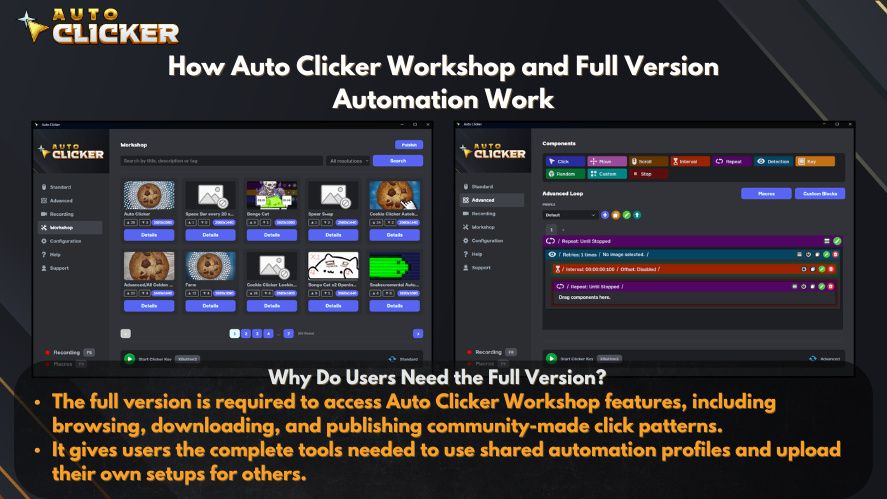
The menu path is:
Auto Clicker → Workshop
How to Access Auto Clicker Workshop
Opening the Workshop only takes a few steps.
Auto Clicker Workshop Step 1: Open Auto Clicker
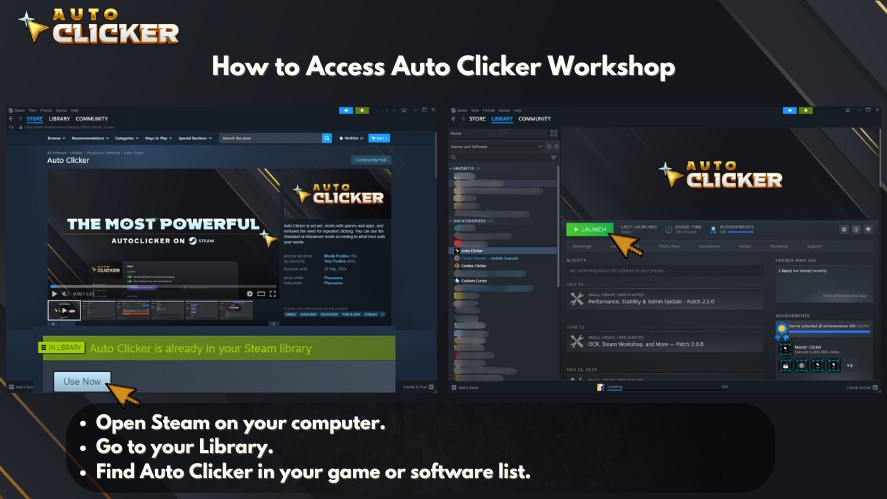
Launch Auto Clicker through Steam.
Open your Steam library, select Auto Clicker, and start the app.
Users who search for auto click download, auto clicker download, or download auto clicker should be careful about where they get the software.
Use an official and trusted source. Unknown download sites may include old versions, fake buttons, extra software, or unsafe files.
Auto Clicker Workshop Step 2: Select Workshop
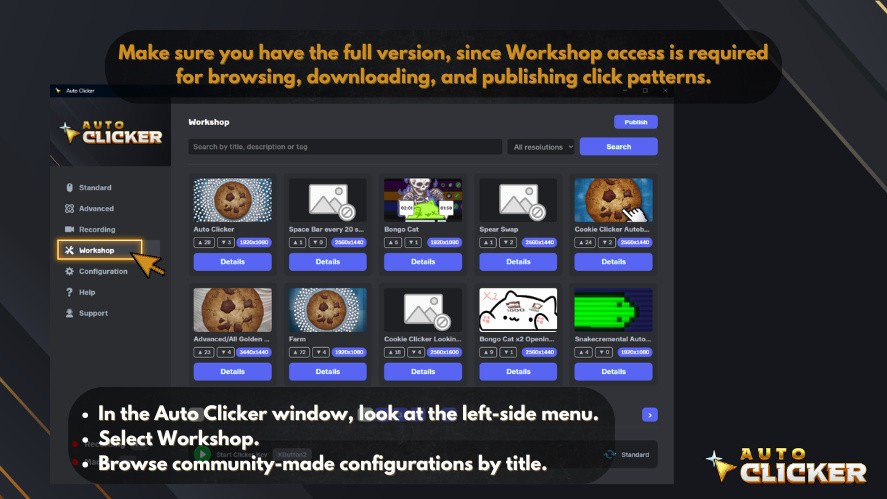
After Auto Clicker opens, look at the menu on the left side.
Click Workshop.
The path is:
Auto Clicker → Workshop
This opens the area where community configurations are listed.
Auto Clicker Workshop Step 3: Browse Community Configurations
You can search for profiles by:
- Title
- Description
- Tags
You can also filter by screen resolution.
This is useful because many click patterns use fixed screen positions. A setup made for 1920 × 1080 may not work well on a different resolution.
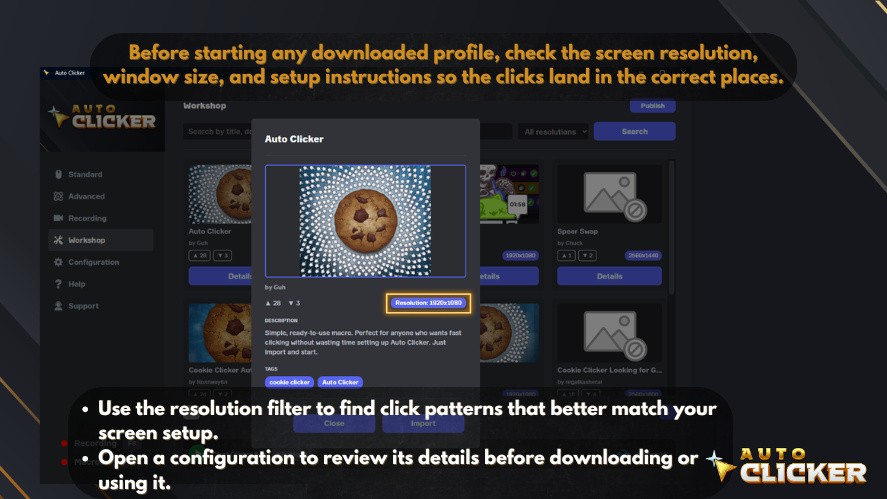
Before you run a profile, check:
- Your display resolution
- The game or app layout
- Window size
- Interface scale
- Starting screen
- Creator notes
Even when the resolution matches, menus can still appear in different places.
How to Use Auto Clicker Workshop Profiles
People searching for how to use auto clicker tools often want a fast answer. Still, it is better to test a profile before running it at full speed.
Read the Description
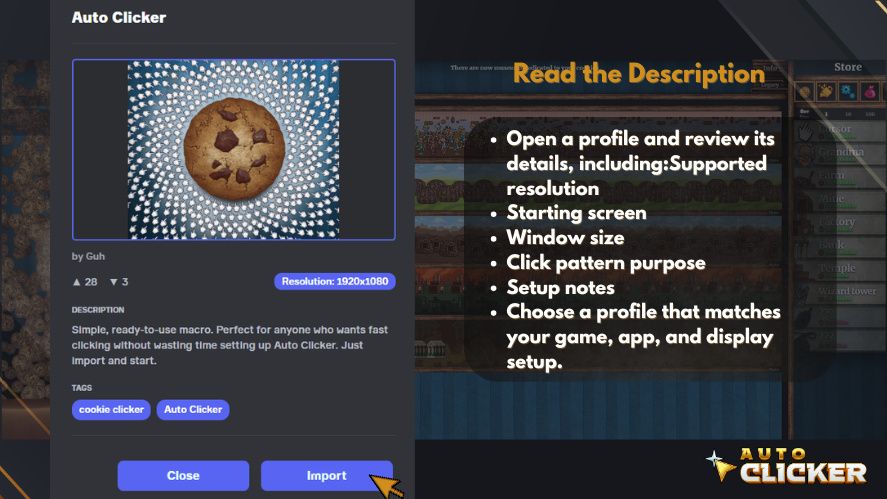
Start by reading the profile title, description, and tags.
A good description should explain:
- What the profile does
- Which app or game it supports
- Where you should start
- Which resolution it uses
- Whether full-screen or windowed mode is needed
- How to stop it
Do not run a pattern when its purpose is unclear.
Match the Screen Setup
Compare the preview with your own screen.
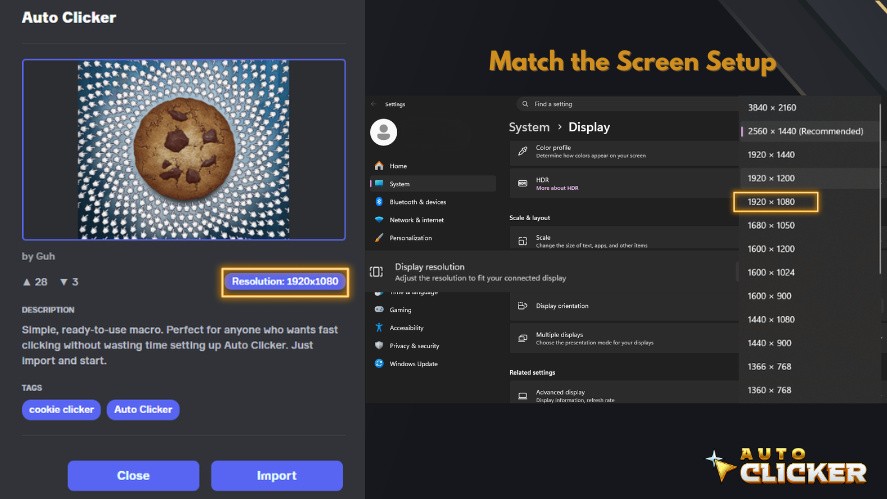
Check whether buttons, menus, and panels appear in the same place.
A small change in layout can cause the pattern to click the wrong area.
Start at a Slow Speed
A high auto click speed can cause many clicks in only a few seconds.
Start slowly. Watch the first loop and make sure each click lands in the correct place.
Once the pattern works, you can raise the speed if needed.
Keep a Stop Key Ready
Know how to stop the pattern before you start it.

A clear stop button or hotkey can prevent problems if the sequence moves to the wrong area.
Avoid Sensitive Screens
Do not test profiles while payment pages, account settings, private messages, or delete buttons are open.
Unexpected clicks can cause real problems.
Follow the Rules
An automatic clicker may be allowed in one game and banned in another.
Some games allow simple automation in private or single-player modes. Others do not allow it at all.
Always check the rules first.
Explore Community-Created Automation Profiles
The Workshop can include profiles for many types of games and tasks.
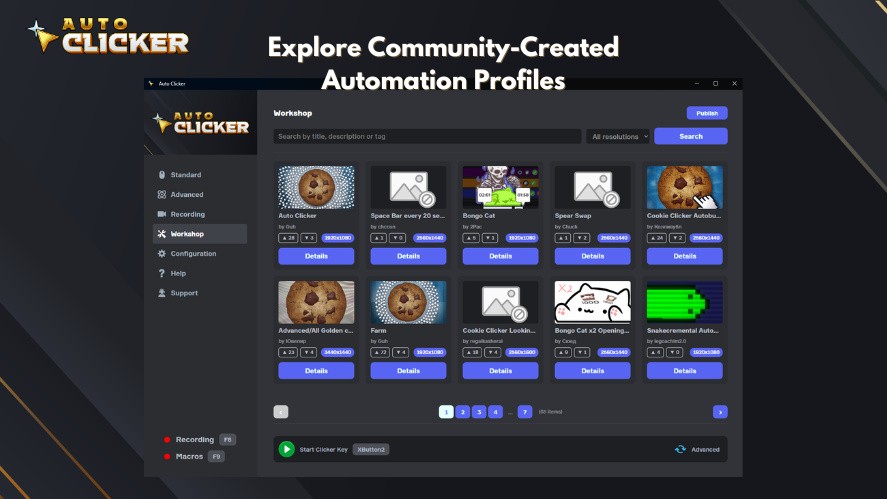
Some may repeat one action. Others may use several click points and delays.
Auto Clicker Workshop Profiles for Clicker Games
Clicker, idle, and incremental games often use repeated input.
Players may need to:
- Generate resources
- Buy upgrades
- Activate bonuses
- Repeat prestige actions
- Open menus
- Confirm rewards
- Target timed events
Community profiles may support games such as Cookie Clicker and other idle or incremental titles.
One profile may focus on fast clicking. Another may move between the main game area and upgrade buttons.
This is more useful than a basic mouse clicker that only stays in one place.
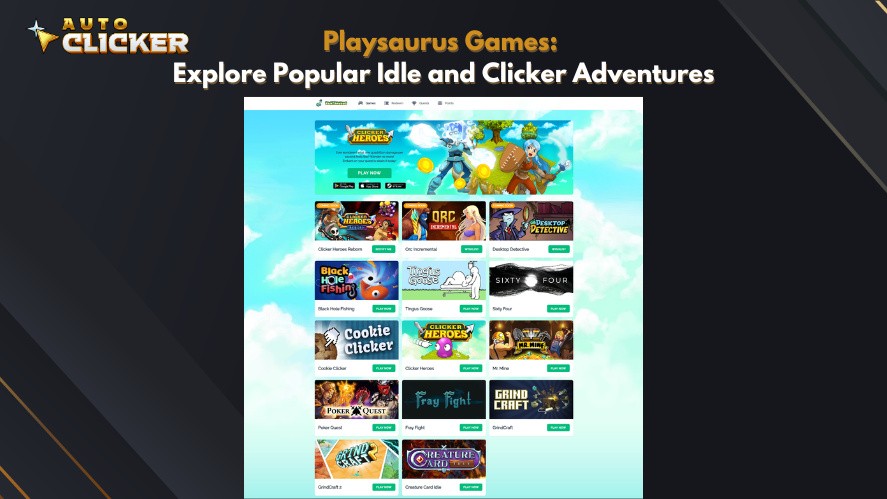
Some players may also search for content related to Playsaurus, a name linked with clicker and idle games. A community profile should not be treated as official unless the game developer clearly says it is.
Game updates can also break old profiles. A new button layout or menu design may move click targets.
Always check the profile details before using it.
Auto Clicker Workshop Profiles for Roblox Games
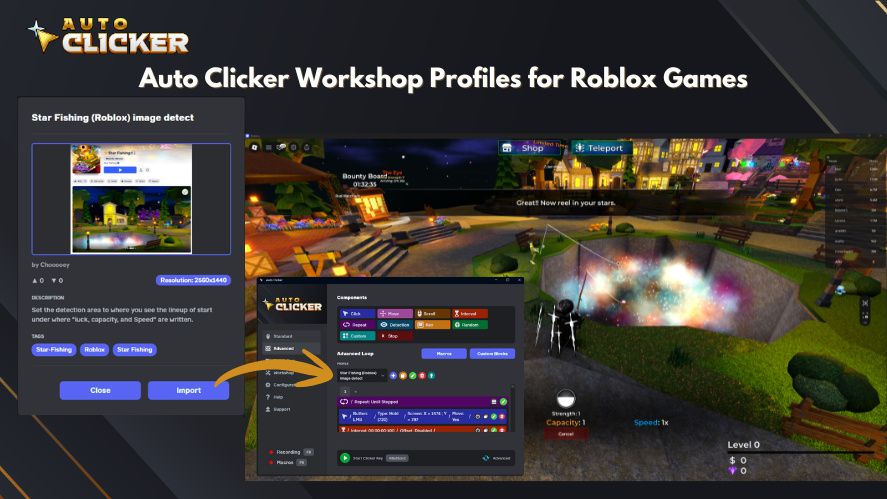
The Workshop may also include patterns for Roblox experiences where automation is allowed.
Possible uses include:
- Testing interface buttons
- Repeating actions in private test areas
- Checking menus
- Testing user-created experiences
- Running simple input tests
Roblox includes many different games, and each one may have its own rules.
A pattern that is fine in a private test server may not be allowed in a public game.
Avoid profiles that give an unfair advantage, affect rankings, or break game rules.
For Roblox creators, the safest use is often testing. A click pattern can help check whether buttons and menus react as expected.
Auto Clicker Workshop Profiles for Gaming Utilities
Community members can share automation setups designed for frequently repeated in-game tasks.
Examples include:
- Resource collection
- Repeated crafting
- Menu navigation
- Timed interactions
- Skill rotations where allowed
- Inventory actions
- Training mode
- Interface testing
These profiles can save time, but they still need supervision.
A fixed pattern cannot always react to popups, lag, moved windows, or new menus.
The best profiles have a clear starting point. They may tell the user to open a menu, set a screen mode, and place the window in a fixed position before starting.
Auto Clicker Workshop Profiles for Productivity
The Workshop is not only for games.
Users may also share profiles for:
- Interface testing
- Repeated office tasks
- Workflow demos
- Kiosk testing
- Button testing
- Training tools
- Repeated mouse actions
- Software checks
These profiles can act as simple automated clicking tools.
They are useful when the screen does not change much. They are less reliable when buttons move or pages load at different speeds.
For important work, always check the result after the sequence ends.
Publish Your Own Configurations
The Workshop becomes more useful when people share clear and reliable profiles.
You can create a setup, test it, add details, and publish it for others.
Create Your Click Pattern
Build the pattern inside Auto Clicker.
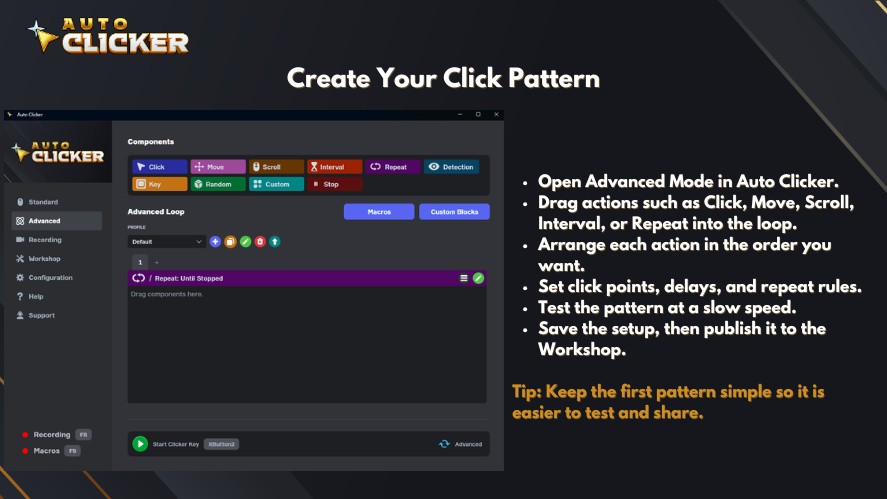
Depending on the tool, you may be able to set:
- Click positions
- Mouse button type
- Delays
- Repeat counts
- Loops
- Sequence order
- Stop controls
- Resolution notes
Test the full pattern more than once.
A profile that works one time may still fail when a menu loads slowly.
Use a Clear Title
The title should explain what the pattern does.
A useful title may include:
- Game or app name
- Main task
- Resolution
- Version
- Window mode
For example:
Idle Upgrade Loop — 1920 × 1080
This is much better than a title like “My Setup.”
Write a Helpful Description
Tell users how to prepare before starting the profile.
Include:
- Required screen
- Display resolution
- Window mode
- Game or app version
- Start point
- Stop key
- Known limits
- Expected result
Clear instructions help other users avoid mistakes.
Add Useful Tags
Tags make profiles easier to find.
Good tags may include:
- Idle game
- Incremental
- Clicker game
- Roblox testing
- Interface test
- Productivity
- Menu navigation
- 1080p
- Timed sequence
Do not use tags that do not match the profile.
Publish It
Once the profile is ready, upload it to the Workshop.
Other eligible users can then find it through search, tags, descriptions, and resolution filters.
A strong Workshop upload is more than a set of clicks. It is a tested setup with clear instructions.
How to Build Better Click Patterns
Good patterns are simple, clear, and easy to stop.
Choose One Main Goal
Do not make one profile handle too many tasks.
It is often better to create separate profiles for:
- Main clicking
- Upgrades
- Menus
- Prestige actions
- Testing
- Repeated office steps
Smaller patterns are easier to fix.
Use Safe Delays
Very short delays may seem better, but the app still needs time to respond.
A high auto click speed can cause missed inputs or wrong clicks.
A slower setup that works well is often better than a fast setup that fails.
Set a Clear Starting Point
Tell users where to begin.
For example:
“Switch the game to windowed mode at 1920 × 1080, open the upgrades screen, and confirm that the first upgrade option appears on screen.”
That is much clearer than saying, “Open the game and start.”
Test More Than Once
Run the pattern several times.
Check what happens when:
- The app loads slowly
- A popup appears
- The window moves
- The menu takes longer to open
- The first click starts late
This helps users spot weak points.
Make It Easy to Stop
Every profile should have a clear stop method.
This is one of the most important features in good auto clickers.
Find the Right Configuration Faster
A large Workshop needs good search tools.
Search by Keywords
Use a clear task name.
Examples include:
- Cookie click pattern
- Idle upgrade loop
- Roblox interface test
- Menu click sequence
- 1080p auto click
- Productivity click pattern
A clear search is often better than a broad term like autoclick.
Browse by Tags
Tags help group similar profiles.
You may find profiles by:
- Game type
- Task
- Screen resolution
- Input style
- App category
A user looking for a simple autoclicker may also find a more advanced profile with several steps.
Filter by Resolution
Use the resolution filter to reduce setup problems.
Still, matching the resolution does not mean the pattern will work perfectly.
Window size, interface scale, and app updates can still change button positions.
Check Previews
A preview can show where clicks are meant to land.
This is very helpful for an auto click mouse pattern that moves across several screen areas.
Read the Notes
Creator notes may explain:
- Where to begin
- What the pattern does
- Which version it supports
- Which menus must be open
- How to stop it
- Which parts may need editing
Good notes save time.
Why Use Auto Clicker Workshop?
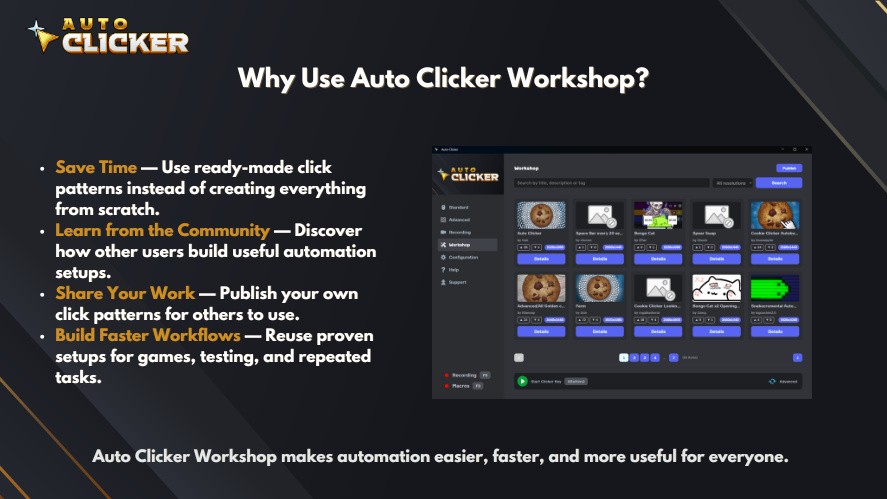
The Workshop adds more value than a basic click tool alone.
Save Time
Building a pattern from scratch can take many tests.
A ready-made setup gives you a useful starting point.
You may still need to make small changes, but that is often faster than creating the whole pattern again.
Learn from Other Users
Shared profiles show how other users build click sequences.
Beginners can learn about:
- Delays
- Loops
- Click order
- Screen setup
- Stop controls
- Profile naming
This is one reason people may compare the best auto clickers by more than speed.
Share Your Work
Publishing a profile helps other users.
It also lets you show your own automation ideas.
Other users may build new versions for different resolutions or layouts.
Build Better Workflows
You can save several small profiles instead of one large pattern.
This makes it easier to manage different tasks.
Avoid Unknown Downloads
Searches for auto clicker download, auto click download, and download auto clicker can lead to many different sites.
Some may not be safe.
Using an official store page and a built-in Workshop can make it easier to find the right product and trusted profiles.
What Makes Good Auto Clicker Software?
The best auto clicker software is not always the one with the fastest click rate.
Useful features include:
- Easy start and stop controls
- Safe hotkeys
- Adjustable delays
- Saved profiles
- Clear sequence editing
- Resolution notes
- Community sharing
- Trusted downloads
A simple auto click software tool may be enough for one repeated action.
For more advanced tasks, users may want full auto clicker software with saved sequences and community profiles.
Safety also matters. A tool should be easy to stop and easy to test at a slow speed.
Steam and Related Searches
Users may also see terms such as Custom Cursor on Steam and Auto Clicker on Steam.
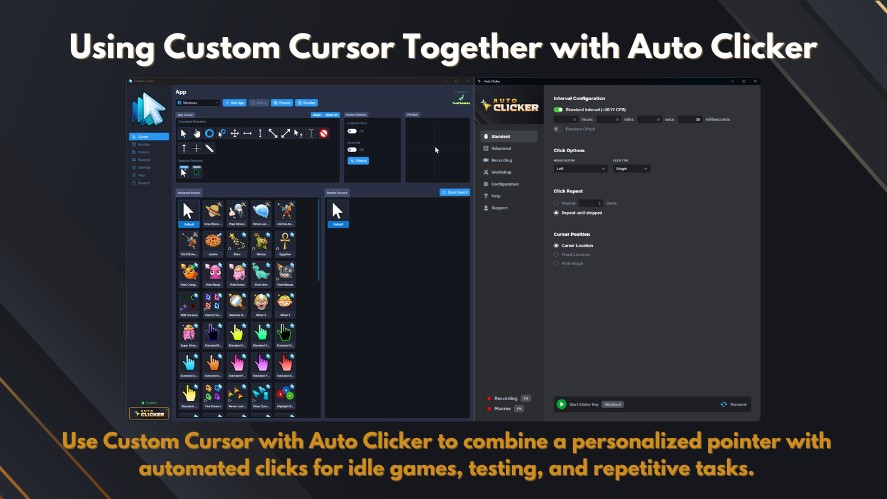
These products may appear in similar searches, but they do different things.
A custom cursor tool changes how the pointer looks. An auto clicker creates or repeats mouse input.
Before buying or installing any tool, check:
- The developer
- The publisher
- The product features
- System needs
- Recent reviews
- Update history
- Workshop access
- Full-version rules
Do not assume that similar Steam products are connected.
Also, a community profile made for a game is not always official or approved by the game developer.
Who Can Use Auto Clicker Workshop?
Based on the provided product details, public Workshop profiles are available to users with the full version of Auto Clicker on Steam.
Eligible users can browse profiles, find one that fits their task, and load it without rebuilding every setting.
The Workshop helps users:
- Find shared patterns
- Search by tags
- Filter by resolution
- Read setup notes
- Publish their own profiles
- Reuse proven click sequences
Product features can change, so users should check the official Steam page for current details.
Frequently Asked Questions
Yes. Create your pattern, test it, add a title and description, and publish it through the Workshop.
Yes. Other eligible users can discover and use published profiles.
Profiles may be made for clicker games, idle games, Roblox testing, office tasks, menu actions, interface testing, and repeated mouse input.
Yes. You can search by title, description, and tags. You can also filter by screen resolution.
No. Resolution, window size, interface scale, and software updates can affect click positions.
No. Rules are different for each game and platform.
Check the rules before using automation.
An autoclick pattern often repeats one click in one place.
A click sequence may use several positions, delays, and steps.
Yes. An autoclicker may also help with testing, demos, simple workflows, and repeated mouse actions.
Start slowly.
A very high auto click speed may cause missed clicks or errors.
No. A Workshop profile is usually a saved setup that runs inside the main app.
It is not the same as installing a separate program.
Final Thoughts
The Auto Clicker Workshop turns Auto Clicker into more than a basic clicking tool.
It gives users a place to find, share, and improve automation profiles.
Idle and incremental gamers can search for ready-made patterns. Roblox creators can use profiles for allowed testing. Productivity users can build simple workflows for repeated tasks.
The Workshop gives beginners a chance to study ideas and setups shared by more experienced users. They can see how other people use delays, loops, click points, and clear setup steps.
The best profiles are not always the fastest. They are easy to understand, easy to test, and easy to stop.
Instead of building every pattern from the start, users can browse the Workshop, find a close match, and adjust it for their own screen.
Explore Auto Clicker Workshop
Get the full version of Auto Clicker on Steam to explore community profiles, publish your own patterns, and discover new ways to handle repeated clicks.
Search by title, description, tags, or screen resolution. Test every profile at a safe speed, follow platform rules, and share clear instructions when you publish your own work.

Auto Clicker Safety: How to Use Auto Clickers Without Risk

How to Use an Auto Clicker for Games Like Clicker Heroes
Best QA Tools 2026: What Every Software Team Should Be Using
About The Author
