
Is Your Auto Clicker Safe? Tips to Avoid Malware and Bans
Keeping your auto clicker safe should be your first priority before downloading or using any click automation tool. Although auto clickers can save time in games, productivity apps, and testing workflows, unsafe downloads can expose your computer to malware, spyware, unwanted software, or even account bans.
Because auto clickers are easy to find online, many users install the first free option they see. However, not every tool is trustworthy. Some auto clickers may include hidden background processes, suspicious permissions, bundled programs, or terms of service risks.
In this updated 2026 guide, you will learn how to check if an auto clicker is safe, what warning signs to avoid, and why trusted platforms like Steam can be a smarter option for users who want safer click automation.
What Is an Auto Clicker?
An auto clicker is a software tool that automates mouse clicks based on settings chosen by the user. For example, you can set it to click at a certain speed, repeat a click pattern, or activate with a hotkey.
Auto clickers are commonly used for:
- Idle games
- Repetitive desktop tasks
- Software testing
- UI testing
- Productivity workflows
- Accessibility support
- Simple click automation
However, even though these tools are useful, they also require caution. Since an auto clicker interacts with your computer and apps, you should only use one from a source you trust.
Why Auto Clicker Safety Matters
Auto clicker safety matters because unsafe tools can create serious problems. In some cases, a bad download may damage your system. In other cases, it may put your personal data or game account at risk.
For example, some users search for questions like:
- Is OP Auto Clicker safe?
- Is GS Auto Clicker safe?
- Is SourceForge Auto Clicker safe?
- Is auto clicker download safe?
- Can auto clickers get you banned?
These are valid concerns. After all, an auto clicker can be helpful, but only if the tool is clean, transparent, and allowed for your intended use.
What Makes an Auto Clicker Unsafe?
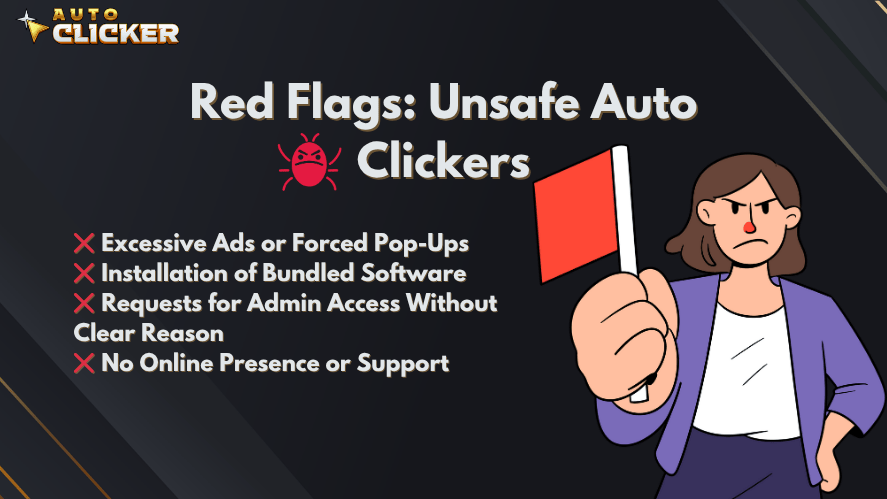
Not every auto clicker is dangerous. However, some tools include clear warning signs. Therefore, you should know what to look for before installing anything.
1. Malware and Spyware Risks
Some auto clickers from random websites may include malware or spyware. This can happen when the tool is bundled with harmful files or modified by an unknown uploader.
Unsafe auto clickers may:
- Steal personal information
- Track user activity
- Install unwanted programs
- Run unknown scripts
- Change browser settings
- Slow down your computer
Because of this, downloading from random websites can be risky. Instead, use trusted platforms and scan every file before opening it.
2. Hidden Background Processes
A suspicious auto clicker may continue running even after you close it. In some cases, it may also create hidden background tasks.
These hidden processes may cause:
- High CPU usage
- Slower system performance
- Unwanted network activity
- Battery drain on laptops
- Unknown programs running at startup
For this reason, you should check Task Manager after installing new software. If you see strange processes linked to the auto clicker, uninstall it immediately.
3. Suspicious Permissions
Most auto clickers should not need extreme system access. Therefore, be careful if a tool asks for permissions that do not match its purpose.
Avoid auto clickers that request:
- Unclear administrator access
- Registry changes
- Browser extension installation
- Microphone or camera access
- Unrelated file access
- Unknown internet connections
Some tools may need limited permissions to interact with certain apps. However, if the permission request feels unrelated to clicking, treat it as a warning sign.
4. Bundled Software
Many unsafe downloads include extra programs during installation. These bundled programs may include toolbars, browser extensions, adware, or system “cleaner” apps.
This is a common trick. The auto clicker may look free, but the installer may quietly add software you never wanted.
To avoid this, always choose custom installation when available. Then, uncheck any extra offers before continuing.
5. Terms of Service Violations
An auto clicker can also be unsafe for your account if it violates a game or platform’s rules. This is especially important for competitive games.

Using automation in the wrong place may lead to:
- Warnings
- Temporary restrictions
- Shadowbans
- Permanent bans
- Loss of account access
Because of this, always check the rules before using an auto clicker in any online game.
How to Check if an Auto Clicker Is Safe
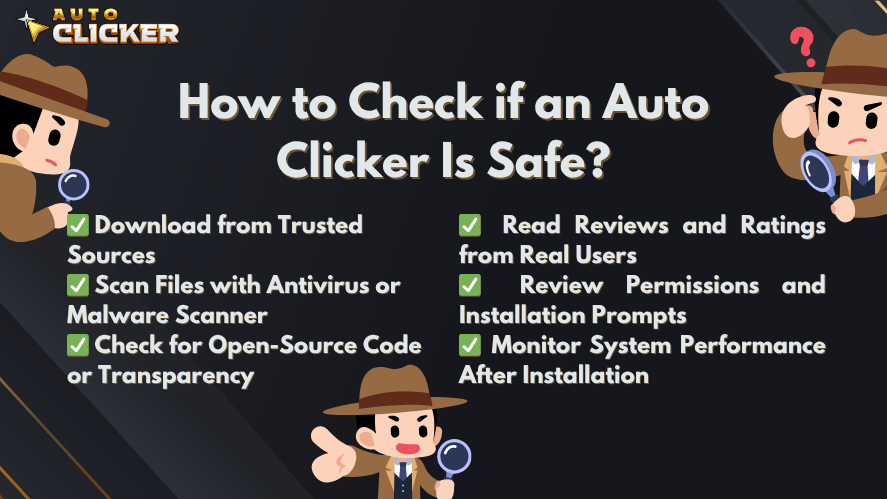
Before downloading or using any automation tool, follow these steps to ensure it’s a safe auto clicker.
Download from Trusted Sources
The safest first step is choosing a trusted source. Avoid random file-sharing websites, pop-up download pages, and unknown mirror links.
Better options may include:
- Steam
- GitHub (for open-source projects)
- Microsoft Store
- SourceForge (with caution; vet the project carefully)
Still wondering is SourceForge auto clicker safe? Only if the developer is known, the project is regularly updated, and reviews are positive.
Scan Files with Antivirus or Malware Scanner
Use reputable antivirus software like:
Right-click on the downloaded .exe file and scan it before running.
Check for Open-Source Code or Transparency
Open-source clickers offer transparency. If you’re asking:
- is op auto clicker safe
- is gs auto clicker safe
Look up the source code on GitHub. For example, OP Auto Clicker is open-source, which adds a layer of trust. Look for:
- Active contributions
- No obfuscated code
- Clear documentation
Read Reviews and Ratings from Real Users
Before you download auto clicker, check platforms like:
Look for common complaints about malware, ads, or sudden system slowdowns.
Review Permissions and Installation Prompts
A safe auto clicker should come from a developer that has some kind of public presence. This could be a website, support page, community profile, or update history.
Be cautious if the tool has:
- No developer name
- No support page
- No update notes
- No privacy information
- No community feedback
- No clear version history
A lack of transparency does not always mean the tool is harmful. However, it does make the download harder to trust.
Monitor System Performance After Installation
Even after installation, keep an eye on your computer. If something feels wrong, check your system activity.
Use tools like:
- Task Manager (Ctrl + Shift + Esc)
- Process Explorer by Microsoft
Look for unknown or resource-heavy processes tied to your new auto clicker. If performance dips or CPU usage spikes, uninstall immediately.
Is Auto Clicker on Steam Safe?
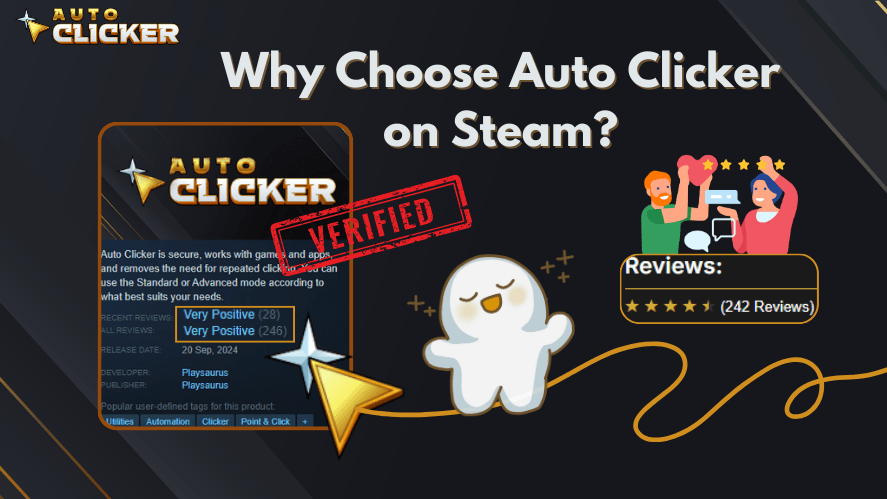
Auto Clicker on Steam can be a safer and more convenient option compared to downloading unknown files from random websites. Since it is available through Steam, users can install it from a familiar platform and manage updates through their Steam Library.
This does not mean users should ignore safety completely. However, Steam availability gives users a cleaner and more organized way to access the tool.
Why Steam Helps With Safety
Using Auto Clicker on Steam can help because:
- Installation happens through Steam
- Updates are easier to manage
- Users can check community feedback
- The product page shows information in one place
- You avoid random download buttons from unknown sites
- You can access it from your Steam Library
As a result, users get a more familiar installation process than they would from random third-party download pages.
Why It Can Be Better Than Random Free Downloads
Many free auto clickers are hosted on websites filled with ads, confusing buttons, or bundled installers. Therefore, users may accidentally download the wrong file.
By contrast, Auto Clicker on Steam offers a more direct path. You search for the tool, install it through Steam, and launch it from your library.
Because of this, it can be a strong option for users who want a safer auto clicker setup.
Verified Publisher and Steam Listing
This version is published on Steam’s official platform and goes through Valve’s verification process. Unlike random .exe files online, Steam’s auto clicker is:
- Verified
- Regularly updated
- Community-backed
Transparent Features with No Hidden Activity
There are no hidden installations, ads, or unexpected behaviors. What you see is what you get:
- Set click intervals
- Choose mouse buttons
- Assign hotkeys
No suspicious permissions or third-party software are involved.
Positive User Reviews and Community Feedback
Thousands of users have reviewed it on Steam Community Forums and Reddit, praising it for:
- Simplicity
- Reliability
- No bloatware
Search “best auto clicker for windows” and you’ll see Steam’s version on most recommended lists.
Actively Maintained and Updated
The Steam version receives regular updates, security patches, and feature improvements unlike outdated tools like GS Auto Clicker that haven’t been updated in years.
Safe Gaming Use Cases
Auto clickers are generally safer to use in:
- Single-player games
- Idle clicker games
- Offline games
- Sandbox testing
- Games that clearly allow automation
- Non-competitive farming tasks
For example, an idle game that focuses on repeated clicking may be a reasonable place to use click automation, as long as the game rules allow it.
Risky Gaming Use Cases
Avoid auto clickers in:
- Competitive multiplayer games
- Ranked matches
- PvP games
- Games with strict anti-cheat systems
- Online games that ban automation
- Any game where automation gives unfair advantage
Even if the tool itself is safe, using it in the wrong game can still put your account at risk.
Common Red Flags to Avoid
Some warning signs are easy to spot if you know what to look for. Before using an auto clicker, check for these red flags.
Too Many Ads or Pop-Ups
If the download page is filled with pop-ups, fake buttons, or redirects, leave the site. These pages often trick users into downloading the wrong file.
No Clear Developer Information
If you cannot find who made the tool, when it was updated, or where to get support, be careful. A safe tool should have basic transparency.
Forced Bundled Software
If the installer tries to add extra apps, toolbars, or browser extensions, cancel the setup. This is one of the most common signs of a risky download.
No Reviews or Suspicious Reviews
A tool with no real reviews can be hard to trust. However, fake-looking reviews are also a red flag. Look for detailed feedback from real users.
Requests to Disable Antivirus
No trustworthy auto clicker should ask you to disable antivirus protection. If it does, stop the installation immediately.
Best Practices for Safe Auto Clicker Use
Even after choosing a trusted tool, you should still use it carefully. These habits can help keep your device and accounts safer.
Keep Your Security Software On
Always keep antivirus protection active. In addition, make sure your operating system receives security updates.
Use Reasonable Click Speeds
Extreme click speeds may cause apps or games to behave strangely. Therefore, use safe intervals and test your setup before running long sessions.
Create Separate Profiles
If your auto clicker supports profiles, create separate settings for each app or game. This helps prevent mistakes and gives you better control.
Avoid Competitive Multiplayer Automation
Do not use auto clickers in competitive games. Even if you think the setup is harmless, it may still violate the rules.
Read Platform Rules First
Before using automation, check the game or platform terms. If automation is not allowed, do not use it.
Remove Tools You No Longer Use
If you stop using an auto clicker, uninstall it. This keeps your system cleaner and reduces unnecessary background apps.
Safe Auto Clicker Checklist
Use this quick checklist before installing or using any auto clicker:
| Safety Check | What to Look For |
|---|---|
| Trusted source | Steam, official website, Microsoft Store, or reputable open-source project |
| Clear developer | Known publisher, support page, or update history |
| Clean installer | No bundled apps, toolbars, or forced offers |
| Antivirus scan | No malware or suspicious detections |
| Good reviews | Real users report stable and safe use |
| Reasonable permissions | No unrelated system access |
| Game rules | Automation is allowed for your use case |
| System behavior | No strange processes or performance drops |
If an auto clicker fails several of these checks, it is better to choose another tool.
Tips for Staying Safe When Using Automation Tools
✅ Use Tools from Recognized Platforms (like Steam)
Always prioritize platforms like:
They vet software before publishing.
✅ Keep Antivirus Software Active
Real-time protection can detect:
- Trojan horses
- Keyloggers
- Suspicious runtime behavior
Use Windows Defender or Malwarebytes.
✅ Avoid Using Auto Clickers in Competitive Online Games
Clickers that simulate rapid-fire clicks or auto farming can result in:
- Game bans
- Shadowbans
- Loss of account access
Check the game’s terms of use before automating anything.
✅ Stay Informed About Platform Policies (e.g., Steam TOS)
Each platform defines what constitutes unfair automation. See:
Violating these could get you permanently banned.
FAQs About Auto Clicker Safety
An auto clicker can be safe if it comes from a trusted source, has clean installation behavior, and is used responsibly. However, random downloads can include malware or unwanted software.
Yes, a risky auto clicker download can include malware, spyware, adware, or bundled programs. Therefore, you should scan files before opening them and avoid unknown download sites.
Yes, you can get banned if you use an auto clicker in games or platforms that prohibit automation. This is especially risky in competitive multiplayer games.
Auto Clicker on Steam is a more convenient option because it is installed through Steam instead of unknown download pages. However, users should still follow safety checks and use automation responsibly.
Some users consider OP Auto Clicker safe when downloaded from the correct official or open-source source. However, fake copies may exist, so always verify the download location and scan the file.
GS Auto Clicker has been used by many people, but users should still be careful with download sources. Avoid reuploaded copies, scan the file, and check recent user feedback before installing.
The safest way is to download from a trusted source, scan the file, review permissions, avoid competitive games, and check platform rules before using automation.
Conclusion
Keeping your auto clicker safe is important if you want to avoid malware, unwanted software, and account bans. Although auto clickers can be helpful for repetitive tasks, not every download is trustworthy.
Before installing any tool, check the source, scan the file, read reviews, and review permissions. In addition, avoid using auto clickers in competitive multiplayer games or platforms that do not allow automation.
Auto Clicker on Steam can be a safer and more convenient option because it is installed through Steam and managed from a familiar platform. However, responsible use still matters.
In short, the best auto clicker is not just the fastest one. It should also be clean, transparent, easy to control, and allowed for your use case. If you follow the safety tips in this guide, you can automate repetitive clicks more confidently in 2026. automated mouse click tools, or just want to download a free and safe auto clicker, make sure to do your due diligence.
If you’re in doubt, choose the Auto Clicker on Steam. It’s verified, transparent, and backed by a strong user base.

How AutoClicker Use Can Boost Your Productivity Beyond Gaming

Autoclicker for Cookie Clicker: Which One Works Best?

Best Auto Clicker for Android and iOS in 2026
About The Author
