
Auto Clicker for PC: How to Automate Clicks Efficiently on Windows
Nowadays, many PC games and applications require constant clicking.
Over time, this becomes slow, tiring, and inefficient. This is why automation tools are becoming more popular on PC.
PC automation software allows you to automate tasks and improve efficiency without constant manual effort.
Among the popular options, an auto clicker for PC solves this problem. It works as an automatic mouse clicker that performs clicks based on your settings.
If you want a secure and reliable solution, Auto Clicker on Steam provides powerful automation with full customization. It offers precise control, easy setup, and optimized performance for Windows users.
In this article, you will explore the essential functions of click automation tools, step-by-step setup guides for maximum efficiency, and how to safely utilize an auto clicker to streamline both your gaming progress and professional workflows on Windows.
What Is an Auto Clicker for PC and How Does It Work
Let’s learn about click automation software and its key functions.
Understanding Click Automation Software
An auto clicker is a type of click automation software designed to perform mouse clicks automatically.
It simulates real mouse input using automated mouse clicks. The system then sends click commands to your PC just like a physical mouse would.
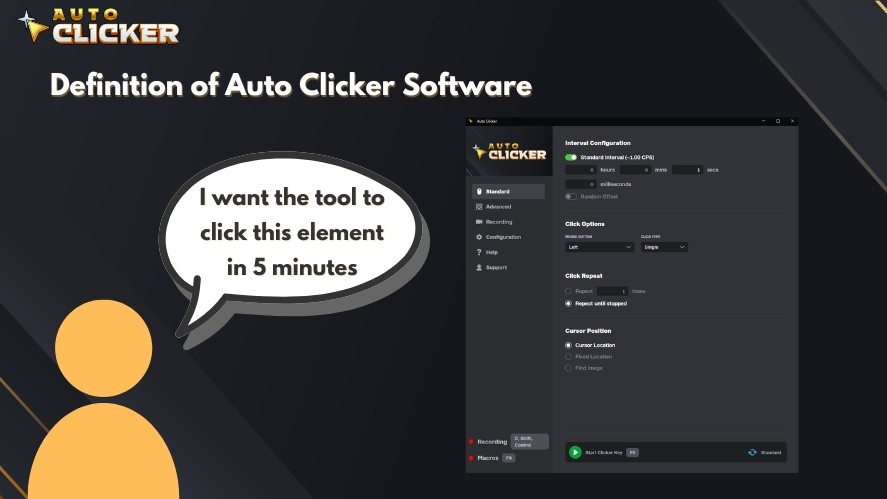
After that, applications and games respond the same way as they would to manual clicks. This allows users to automate repetitive tasks safely and efficiently.
Common use cases include:
- Gaming automation for farming and grinding
- Data entry and repetitive office workflows
- Software testing and UI interaction
- Automating routine computer tasks
A professional auto clicker improves speed, consistency, and efficiency across these tasks.
Key Functions of Auto Clicker for PC
Auto clicker software works by following simple rules defined by the user.
One key feature is adjustable click intervals.
You can set how fast the clicks occur, from milliseconds to seconds, to ensure precise timing for different tasks.
Most automatic clicker tools also allow customizable click types, including:
- Single-click
- Double-click
- Click and hold
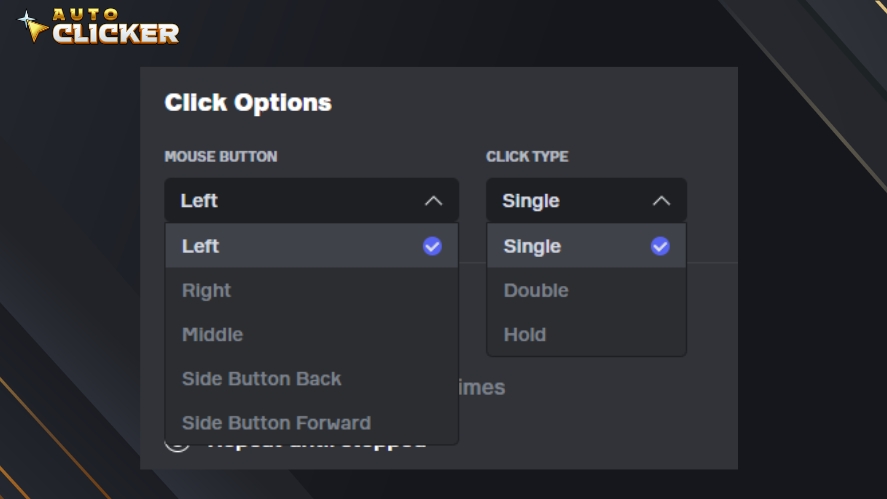
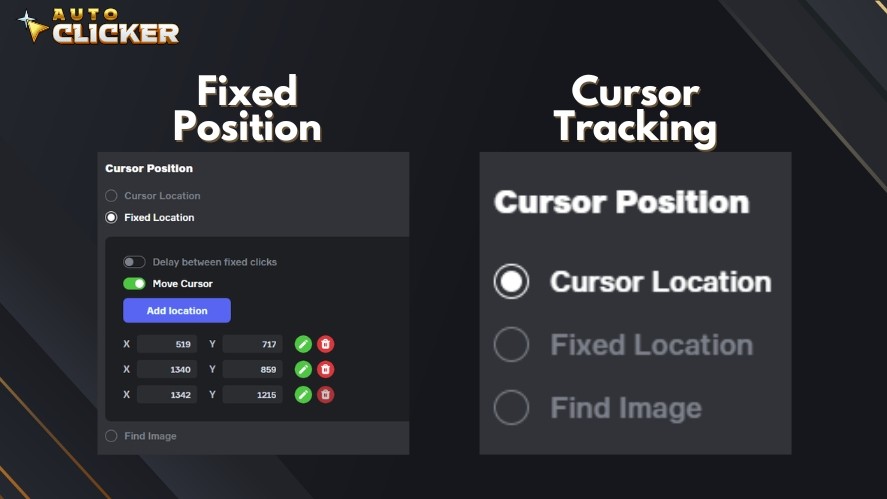
Click location settings give you more control. You can choose:
- Fixed position to click the same spot repeatedly
- Dynamic cursor mode to click wherever your mouse moves
Lastly, hotkey support allows quick activation and deactivation. You can start or stop the autoclicker instantly using a keyboard shortcut.
These features make auto click software an efficient solution for automating repetitive tasks on PCs.
Why Use Auto Clicker for PC
An auto clicker for PC helps automate repetitive clicking and improves efficiency in both gaming and productivity tasks.
Benefits for Gamers
Many PC games require constant clicking to progress.
This is common in idle games, incremental games, and grinding-heavy titles. In these game genres, players often need to click thousands of times to collect resources or level up.
A Windows auto clicker helps optimize these tasks by automating repetitive input.
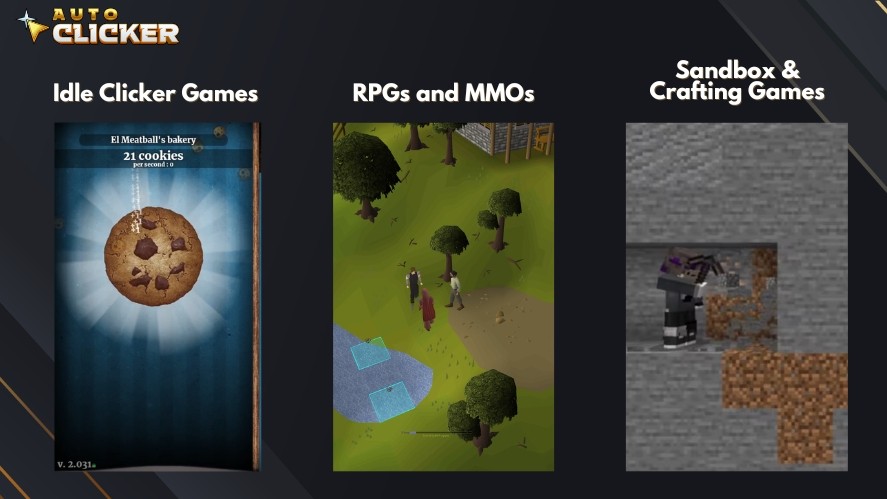
Key benefits include:
- Faster grinding and resource collection
- Improved progress in idle and incremental games
- Reduced physical strain during long gaming sessions
- Consistent performance in click-intensive mechanics
Automated mouse clicks also improve timing accuracy, giving players a competitive advantage in games that rely on precise input speed.
Benefits for Productivity Users
Auto clicker software is also useful for productivity and professional workflows.
Many office and development tasks involve repetitive clicking.
Doing this manually takes time and increases the risk of errors. That’s why an automatic clicker helps automate these repetitive actions.
Common productivity benefits include:
- Automating repetitive office workflows
- Assisting with data entry and system navigation
- Supporting software testing and development automation
- Saving time and improving workflow efficiency
A professional auto clicker ensures consistent and accurate input. It allows users to focus on important tasks instead of repetitive clicking.
Features That Make Auto Clicker on Steam Stand Out
Not all auto clicker software offers the same level of control and reliability, and not all are considered good auto clickers.
Here are the reasons why Auto Clicker on Steam stands out.
User-Friendly Interface
You can install Auto Clicker on Steam and start using it within minutes. The settings are clearly labeled and easy to adjust.
Plus, the layout is clean and simple. This makes it beginner-friendly, so even first-time users can configure automated mouse clicks without confusion.
Advanced Customization Options
A good automatic clicker should offer full control over how clicks behave.
Auto Clicker on Steam includes:
- Precise click speed adjustments
- Custom click patterns
- Scheduled automation for timed tasks
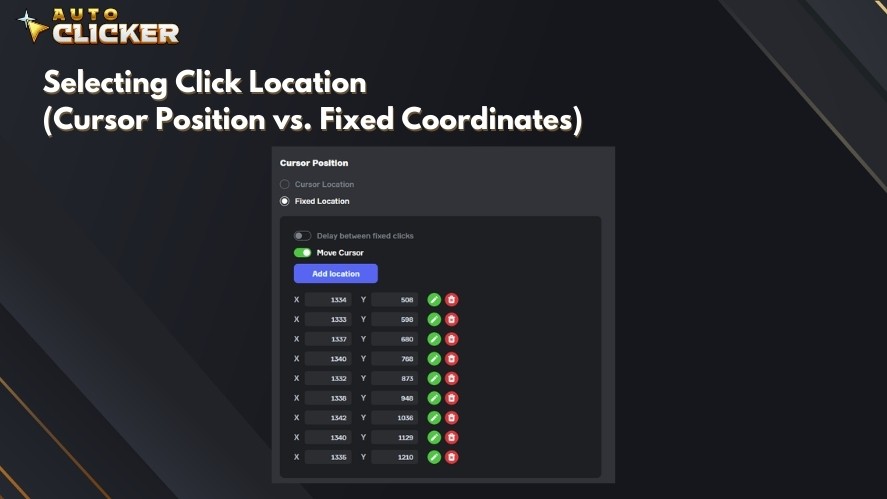
You can fine-tune click interval settings for gaming, testing, or productivity workflows. This level of customization makes it suitable as both a casual tool and a professional auto clicker.
Secure and Lightweight Performance
Performance matters for any Windows auto clicker and auto clicker for Windows 11.
Auto Clicker on Steam is optimized for Windows PCs, including auto clicker Windows 11 environments. It runs smoothly in the background with low CPU usage.
Because it is distributed through Steam, users get a safe auto clicker download. There is no need to search for unknown third-party files.
On top of that, updates are delivered securely through the Steam platform.
Continuous Updates and Community Support
Steam integration provides more than easy installation.
Users can leave reviews and share feedback, and this creates ongoing improvement based on real user experience.
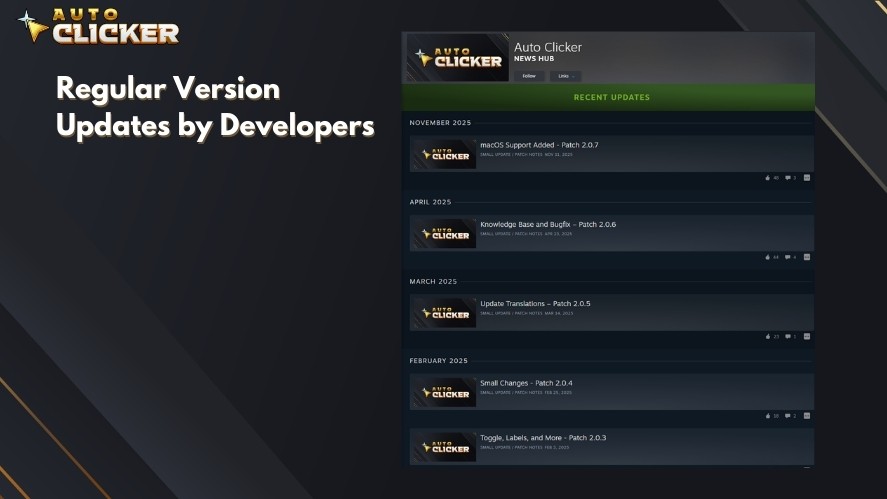
In addition, regular updates ensure stability and compatibility with new Windows versions.
Together, these features make it one of the best auto clickers available for PC users who want performance, safety, and flexibility.
How to Use Auto Clicker for PC (Step by Step)
Setting up an auto clicker for PC is simple. You can install it, configure your settings, and start automating clicks in just a few minutes.
Installing Auto Clicker on Steam
Follow these steps to download auto clicker software and install it from Steam.
- Open the Steam client on your PC
- Go to the Steam Store
- Search for Auto Clicker
- Purchase the app
- Click Install and wait for the download to finish
- Launch the auto clicker for PC Windows 11 from your Steam Library
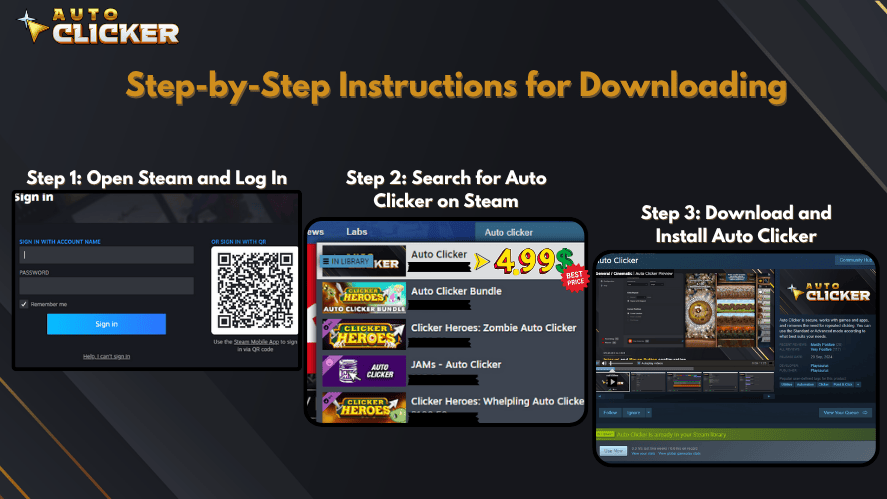
The plus point is that Steam handles installation and updates automatically.
Setting Up Your First Automation Task
Once installed and launched, you can configure your first automated mouse clicks.
Start with these basic steps:
- Choose Click Interval: Set how fast the clicks occur.
- Select Mouse Button: Left, Right, Middle, Side Button Back, and Side Button Forward
- Select Click Type: Single-click, double-click, or click and hold.
- Select Cursor Position: Cursor Location, Fixed Position, or Find Image.
- Assign a Hotkey: By default, F6 is the start/stop key. You can change this in the Configuration tab.
Finally, test your configuration. Run the automatic clicker and confirm it works as expected. Then, adjust settings if needed.
Advanced Tips for Maximum Efficiency
You can improve efficiency by using advanced automation strategies.
First, use hotkeys together with automated clicks to speed up complex workflows and game actions.
Secondly, run the auto click software in the background while working on other tasks to improve productivity and save time.
Lastly, optimize settings for specific games.
Different games require different click speeds. So, adjust click interval settings to match the game’s mechanics to improve performance and consistency.
With the right setup, a professional auto clicker can automate repetitive tasks efficiently and reliably.
Is Auto Clicker for PC Safe to Use?
Auto clicker for PC is safe when you use trusted software and follow proper guidelines.
Security and Steam Verification
The safety of any auto clicker depends on where you download it.
Steam provides a secure and verified distribution platform. When you install Auto Clicker for PC on Steam, you receive the official version without hidden modifications.
Key security advantages include:
- Safe distribution through the Steam platform
- No hidden malware or bundled unwanted software
- Transparent permissions and trusted installation process
- Automatic updates to maintain stability and security
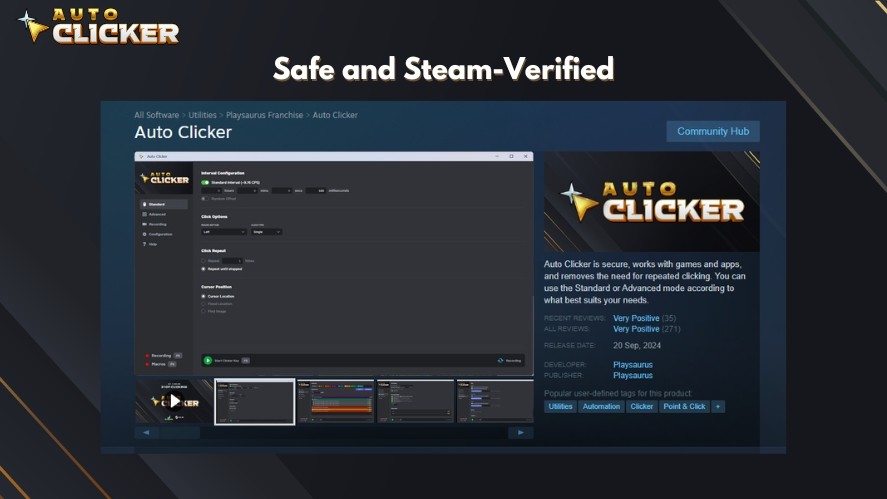
This makes it safer than downloading auto clicker software from unknown websites.
Steam also allows users to view community reviews, which adds another layer of transparency and trust.
Responsible Use in Games
It is important to use auto click software responsibly, especially in games.
Some games allow automation, particularly idle and single-player games. These games are designed for repetitive clicking and support automation tools.
However, competitive or online games may have restrictions.
Always follow these guidelines:
- Check the game’s rules and automation policies
- Use automation only where it is allowed
- Avoid unfair advantages in competitive environments
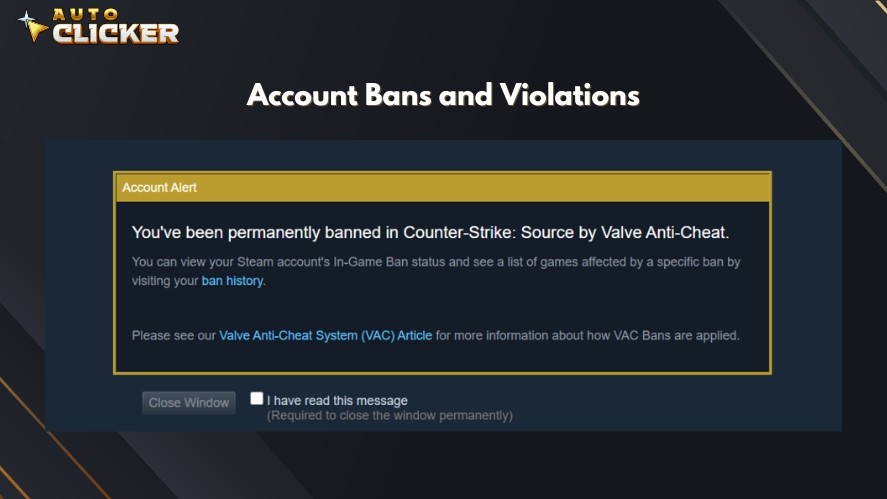
Responsible use ensures a safe and fair experience.
When installed from a trusted platform and used properly, a Windows auto clicker is a safe and effective tool for automating repetitive tasks.
Comparing Auto Clicker for PC With Other Click Automation Tools
The table below compares Auto Clicker for PC on Steam with typical third-party auto clicker software.
| Features | Auto Clicker on Steam | Third-Party Auto Clickers |
|---|---|---|
| Ease of Use | Clean interface, simple setup, beginner-friendly | May have outdated UI or complex setup |
| Installation Method | Secure install via Steam platform | Manual auto clicker download from various websites |
| Click Customization | Adjustable click interval settings, multiple click types, dynamic or fixed location | Often limited speed control and fewer click options |
| Hotkey Support | Built-in hotkey activation and deactivation | May lack flexible hotkey controls |
| Performance & Stability | Optimized for Windows PCs | May have compatibility issues with newer systems |
| Updates | Automatic updates through Steam | Infrequent or manual updates |
| Security & Credibility | Verified distribution, community reviews, transparent updates | Risk of unsafe sources or bundled software |
For users looking for the best auto clicker for PC or the best auto clicker for Windows, Steam-based solutions provide greater reliability, stronger security, and more advanced automation features.
Read More: Auto Clickers Compared: Best Free and Paid Tools in 2026 (Updated & Ranked)
Who Should Use Auto Clicker for PC
An auto clicker for PC is useful for many types of users.
Casual gamers can use an automatic clicker to progress faster in idle and incremental games. Meanwhile, hardcore gamers benefit from precise and consistent automated mouse clicks.
This helps with grinding, farming, and click-intensive mechanics. It also reduces fatigue during long gaming sessions.
Moreover, office professionals can use auto click software to automate repetitive workflows, including form submissions, system navigation, and routine tasks.
In addition, developers and testers can use a Windows auto clicker to simulate user input. This helps test software performance, UI responsiveness, and repetitive scenarios more efficiently.
Last but not least, content creators can use click automation tools to streamline repetitive actions. These tools improve workflow speed when managing tools, editing, or running automated processes.
Because of its flexibility, auto click for Windows is valuable for both personal and professional use.
Frequently Asked Questions
An auto clicker for PC is software that automates mouse clicks, helping users handle repetitive tasks in games, desktop applications, and everyday workflows.
Look for adjustable click intervals, custom click positions, multiple click types, hotkey controls, and lightweight performance for smooth automation.
Yes, it can automate repetitive actions like form submissions, system navigation, and data entry, helping you save time and reduce manual effort.
Yes, Auto Clicker on Steam offers secure installation through Steam, automatic updates, and community reviews, making it a safer option than many third-party downloads.
Auto Clicker on Steam combines easy setup, advanced customization, stable performance, and trusted Steam-based security for a more reliable automation experience.
Why Auto Clicker for PC Is a Smart Automation Choice
Auto clicker for PC is the best auto clicker software that works well for both gaming and productivity.
Among third-party tools, Auto Clicker on Steam provides secure installation, advanced customization, and stable performance. It offers reliable performance, flexible customization, and a professional click automation experience for modern PC users.
If you want to improve efficiency and automate repetitive tasks, try the tool out.

Best Auto Clicker for Windows in 2026 (Updated & Ranked)

Auto Click Macro: How to Use It for Gaming Like a Pro

Auto Click Clicker Guide for Faster Gaming and Productivity
About The Author
