
Auto Click APK: Guide for Android Users
An Auto Click APK is an Android application that automates screen taps.
It’s commonly used for mobile games, repetitive tasks, accessibility needs, and app testing, where repeated tapping can quickly become tedious.
As mobile games and apps continue to add repetitive interactions, many Android users look to download free auto clicker apps to save time and reduce manual effort.
In this guide, you’ll learn how an Auto Click APK works, the features to look for, how to install one safely, and the best practices for using tap automation on Android.
What Is an Auto Click APK
Before learning how to download a auto clicker, it’s important to understand how tap automation works and what makes APK-based applications different from apps installed through Google Play.
Understanding Automatic Clicking on Android
An Auto Click APK simulates taps on your Android device based on settings that you configure.
Instead of repeatedly tapping the screen yourself, the app performs those actions automatically according to the tap speed, duration, and locations you choose.
Most auto click apps support both single-tap and multi-tap automation.
- Single-tap mode repeatedly taps one location on the screen, making it useful for idle games or repetitive app interactions.
- Multi-tap mode can automate several touch points in sequence. This mode allows more complex workflows that involve multiple buttons or interface elements.
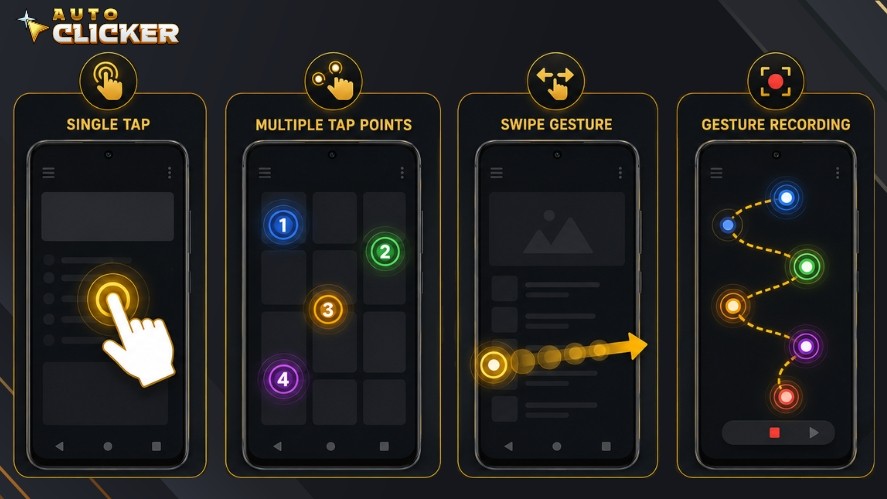
Many Android auto clickers also include gesture recording, which lets you record a series of taps, swipes, and other touch actions before replaying them automatically.
This is particularly useful for repetitive in-app routines or testing mobile interfaces.
How APK Files Work
An APK (Android Package Kit) is the installation file format used by Android applications.
While many apps are installed through the Google Play Store, APK files allow users to install software directly from other sources.
To download auto clicker APK files and install them successfully, Android typically requires you to enable installation from trusted sources in your device settings.
Once enabled, you can download the APK file, open it, and complete the installation like any other app. These are the basic steps for how to download an auto clicker safely.
Because APK files can come from outside the Play Store, it’s important to download them only from trusted developers or reputable websites.
Installing software from unknown sources increases the risk of modified or malicious applications, so always verify the source before installing any Auto Click APK.
Key Features to Look for in an Auto Click APK
The best auto clicker software offers the right combination of capabilities for your needs. Choosing one with the right features can make tap automation more accurate, flexible, and easier to control.
Here are the key features to consider before an auto click download.
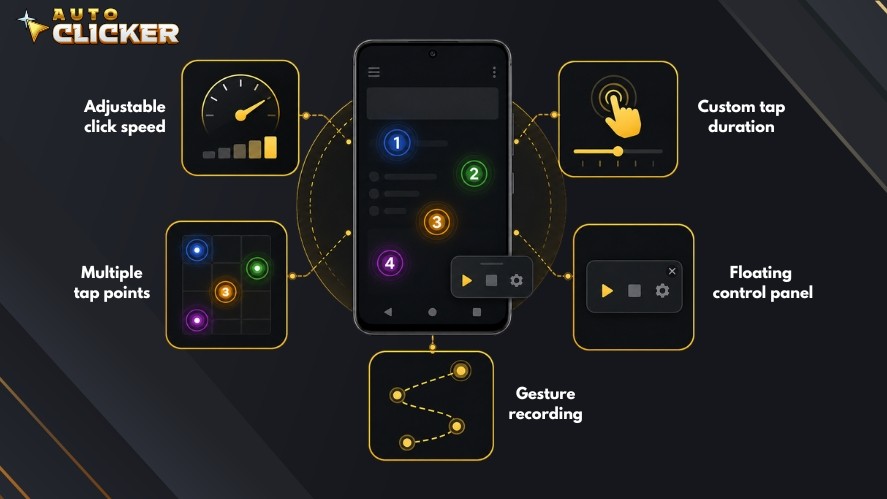
Adjustable Click Speed
A good automatic clicker should let you adjust the tap speed to suit different tasks. Some activities require rapid taps, while others work better with slower, more natural intervals.
Look for apps that support precise timing, including millisecond intervals, as well as continuous tapping until you stop the automation.
Multiple Click Points
Many tasks require more than a single tap location. Apps with multiple click points let you place several tap markers on the screen and execute them in sequence.
This is useful for games, app testing, and workflows that involve interacting with multiple buttons or menus. Multi-touch support also expands the types of automation you can create.
Custom Tap Duration
Some Android apps respond differently to a quick tap than to a long press.
An Auto Click APK with custom tap duration lets you simulate touch-and-hold actions by specifying how long each tap should last.
This provides greater flexibility for apps and games that rely on long-press interactions.
Floating Control Panel
A floating control panel makes it easy to manage automation without leaving the current app.
You can quickly start, pause, stop, or adjust your automation using on-screen controls that remain accessible while you work or play.
Gesture Recording
Some Auto Click APK apps go beyond simple tapping by offering gesture recording.
Instead of manually configuring every tap, you can record a sequence of taps, swipes, and pauses, then replay the entire action automatically.
This feature is particularly useful for repetitive workflows and more complex automation tasks that involve multiple touch gestures.
Benefits of Using an Auto Click APK
An Auto Click APK can do much more than automate repetitive taps. Below are the benefits of using one.
Save Time
Many Android apps require users to perform the same tap repeatedly.
An automatic clicker takes over these repetitive actions, allowing tasks to run automatically instead of requiring constant screen taps.
This can be especially useful when collecting rewards, navigating repetitive menus, or interacting with the same on-screen controls multiple times.
Improve Mobile Gaming
One of the most popular uses for an Auto Click APK is mobile gaming.
Many idle games, RPGs, and farming games involve repetitive tapping that can become time-consuming during long play sessions.
By automating these taps, players can streamline repetitive activities such as resource farming, completing routine actions, or progressing through idle mechanics.
Increase Productivity
Auto click apps can also simplify a variety of non-gaming tasks.
Developers and QA testers often use tap automation to repeat interface interactions while testing Android applications, reducing the need to perform the same actions manually.
For everyday users, an Auto Click APK can assist with repetitive workflows that involve frequent screen taps.
Many apps also rely on Android’s accessibility features, making tap automation a helpful option for users who benefit from reduced manual interaction.
Is It Safe to Download an Auto Click APK
An Auto Click APK can be safe to use, but choosing the safest auto clicker largely depends on where you download it from and how you manage its permissions.
Following a few simple best practices can help improve auto clicker safety, reduce security risks, and ensure the app works as intended.
Download Auto Click APK from Trusted Sources
Whenever possible, download an Auto Click APK from the official developer’s website or a reputable app store.
At the same time, avoid unofficial download sites that bundle modified APK files or include unwanted software.
Before installing any APK, verify that you’re downloading the latest version from a trusted source and check user reviews if they’re available.
Review App Permissions
Most auto click apps require Accessibility Services to simulate taps and perform automated actions. They’re necessary for the app to function properly.
Before granting access, review the permissions being requested.
If an app asks for permissions unrelated to click automation, such as unnecessary access to your contacts, messages, or files, consider whether those permissions are justified before proceeding.
Keep Apps Updated
Developers regularly release updates to improve compatibility, fix bugs, and address security issues.
Keeping your Auto Click APK up to date helps ensure you have the latest improvements and reduces the likelihood of running into known problems.
If your auto click app supports automatic updates through its official source, enabling them can help you stay current without manually checking for new versions.
How to Install an Auto Click APK
Because APK files are often downloaded outside the Google Play Store, you’ll need to complete a few extra steps before you can start using the app.
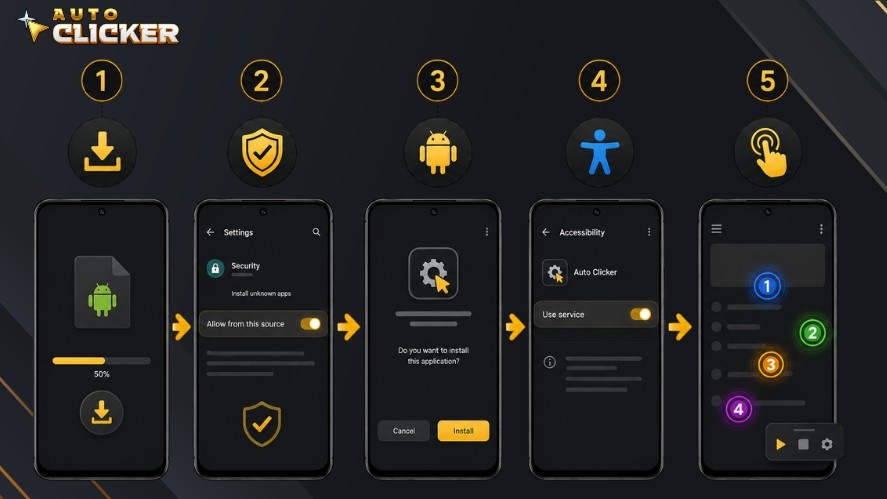
1. Enable Installation from Trusted Sources
Before installing an APK, Android may require you to allow app installations from trusted sources.
Depending on your device and Android version, this option is usually found under Settings > Security or Settings > Apps > Special app access > Install unknown apps.
Only enable this setting for apps or browsers that you trust, and disable it afterward if you don’t plan to install additional APK files.
2. Install the APK
Once you’ve downloaded the APK, do the following:
- Locate the downloaded APK file in your Downloads folder or file manager.
- Tap the file to begin the installation.
- Review any prompts shown by Android and confirm the installation.
- Wait for the installation to finish, then open the app.
The process usually takes less than a minute on most Android devices.
3. Grant Accessibility Permissions
Most Auto Click APK apps rely on Android’s Accessibility Services to simulate taps and perform automated actions. Without this permission, the app won’t be able to control screen interactions.
After launching the app, you’ll typically be prompted to enable Accessibility permissions.
Follow the on-screen instructions, select the auto click app from the Accessibility settings, and turn the permission on.
Once enabled, you can return to the app and begin configuring your tap automation.
Best Practices for Using Auto Click APK
Using an Auto Click APK effectively isn’t just about automating taps.
Following these best practices can help improve reliability while reducing the risk of unexpected issues.
Use Reasonable Click Speeds
Setting the fastest possible tap rate isn’t always the best approach.
Some games and apps may not register extremely rapid taps correctly, while others may flag unrealistic input patterns.
Start with a moderate tap speed and adjust it based on the task. A well-balanced interval often produces smoother and more reliable automation than simply maximizing the tap rate.
Respect Game Rules
Before using an Auto Click APK in a game, review its terms of service or community guidelines.
Some games allow tap automation in single-player or idle modes, while others prohibit any form of automated input.
If you’re unsure whether automation is permitted, it’s safer to use the app in offline or non-competitive environments to avoid potential account penalties.
Create Efficient Tap Profiles
Many Auto Click APK apps let you save different automation configurations for different tasks.
Instead of changing your settings every time, create separate profiles for the activities you perform most often.
For example, you might save one profile for an idle game, another for app testing, and a third for everyday automation.
Organizing your presets makes it easier to switch between tasks while keeping your preferred tap speeds, positions, and gestures ready to use.
Auto Click APK vs Auto Clicker on Steam
If you use both Android devices and a Windows PC, you may wonder whether an Auto Click APK or Auto Clicker on Steam is the better choice.
The answer depends on where you need automation and what type of input you want to automate.
Android Automation
An Auto Click APK is designed specifically for touchscreen devices. It automates taps, swipes, long presses, and multi-touch actions directly on your Android screen.
It’s the better option when you need:
- Mobile game automation
- Touchscreen-based repetitive tasks
- Multi-tap or gesture automation
- Portable automation on a phone or tablet
Because it works with touch input, it is optimized for Android apps and mobile gaming rather than traditional desktop mouse control.
Windows Automation with Auto Clicker on Steam
Auto Clicker Windows users can choose Auto Clicker on Steam. It’s a mouse clicker built for Windows PCs and focuses on mouse automation rather than touchscreen gestures.
It offers more advanced click customization and is particularly useful for desktop gaming and productivity workflows.
Key advantages include:
- Precise automated mouse click intervals
- Separate start and stop hotkeys
- Fixed or cursor-based click positions
- Multiple automation profiles
- Randomized click delays
- Integration with the Steam platform
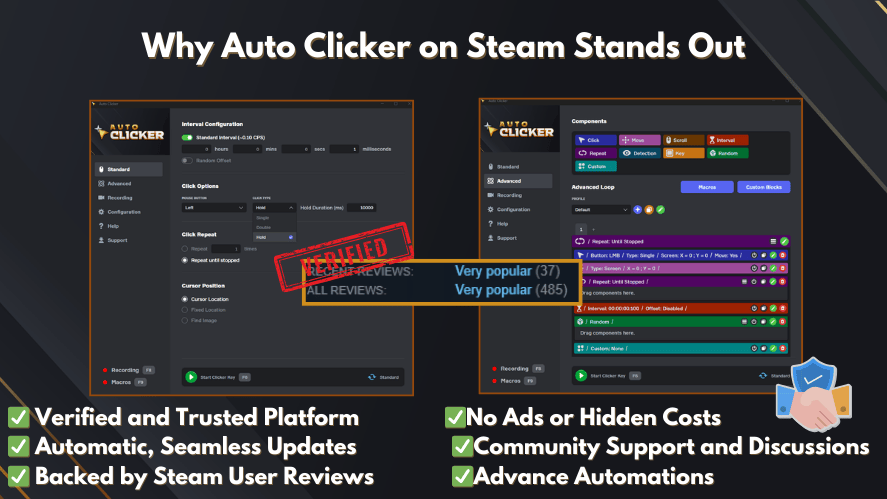
This makes it a strong choice for idle games, desktop applications, software testing, and other repetitive mouse-driven tasks, making it one of the best auto clickers for Windows.
Which Option Is Right for You
The best choice depends on the device you use and the type of automation you need.
Choose an Auto Click APK if you:
- Primarily use Android devices
- Need touchscreen automation
- Want multi-tap or gesture-based automation
- Play mobile games that involve repetitive tapping
Choose Auto Clicker on Steam if you:
- Use a Windows PC regularly
- Need advanced mouse automation features
- Want separate profiles for different tasks
- Use automation for gaming, productivity, or software testing
Many users end up using both solutions.
An Auto Click APK can handle mobile automation on Android, while Auto Clicker on Steam provides more advanced click automation for desktop workflows and PC gaming.
Frequently Asked Questions
An Auto Click APK is an Android application that automates screen taps based on settings you configure. It can perform single taps, multiple tap points, long presses, or recorded gestures.
Yes, an Auto Click APK can be safe if you download it from a trusted source and review the permissions it requests. Avoid installing APK files from unknown websites, and only grant the permissions necessary for the app to function.
Most modern Auto Click APK apps do not require root access. They typically use Android’s Accessibility Services to simulate taps, allowing them to work on most devices without modifying the operating system.
Yes, many Auto Click APK apps support multiple tap points, allowing you to place several touch markers on the screen and execute them in sequence.
Many Auto Click APK apps are available as a free and safe auto clicker solution when downloaded from trusted sources, while others offer premium versions with additional features. The available features depend on the specific app you choose.
Yes, Auto Clicker on Steam is distributed through Steam, allowing users to receive updates directly through the platform.
Yes, many players use Auto Click APK apps for mobile games that involve repetitive tapping. However, you should always check the game’s terms of service before using any automation tool, as some games restrict or prohibit automated input.
Conclusion
An Auto Clicker APK is a practical tool for Android users who want to automate repetitive screen taps in games, app testing, or everyday mobile tasks.
To keep your auto clicker download safe, always download APK files from trusted sources, review app permissions carefully, and use automation responsibly.
If you also use a Windows PC, Auto Clicker Steam offers a feature-rich solution for desktop click automation.
With advanced mouse customization, flexible click settings, multiple profiles, and productivity-focused features, it’s an excellent companion for users who want reliable automation across both mobile and desktop platforms.

Is an Auto Clicker for Freelancers Worth It?

Auto Clicker for Accessibility and Assistive Technology

Using Auto Clicker for Non-Gaming Applications in 2026 (Updated Guide)
About The Author
