
Click Lock Feature: Enable Hands-Free Clicking on Your Mouse
Click lock feature is a helpful mouse setting that lets you drag, highlight, or select items without holding down the mouse button the entire time. Instead of pressing and holding, you click briefly, move the item or selection, and then click again to release it.
In 2026, this feature is still useful for students, office workers, gamers, and users who want a more comfortable way to control their mouse. As a result, it can reduce hand strain and make repetitive clicking tasks easier. However, it works best when users understand when to enable it, how to adjust it, and when another tool may be a better option.
But how does click lock compare to other mouse automation tools like automatic clickers? And how can you enable it on your Windows device? In this guide, we’ll cover everything you need to know about click lock, how to set it up, and alternative methods for hands-free clicking.
What Is the Click Lock Feature?
The click lock feature is a Windows accessibility tool that allows users to lock a mouse click temporarily. Instead of holding down the left mouse button, you can click once, move the mouse as needed, and then click again to release the hold.
How Click Lock Works
When click lock is enabled:
- You press and hold the left mouse button for a few seconds.
- Windows locks the click so you can release the button.
- You move the mouse to drag or highlight without needing to keep the button pressed.
- Clicking again releases the lock.
This feature is built into Windows and is a simpler alternative to auto clickers or button pressers. While click lock is great for basic use, it lacks customization options like adjustable click intervals and automation loops, which are available in automated click software.
Click Lock vs. Auto Clickers
Many users wonder how click lock compares to third-party tools like automatic clickers. While click lock is a built-in Windows feature, auto clickers are external programs designed to automate clicking at high speeds or for prolonged durations. Some popular auto-clicking tools include:
- Smart Auto Clicker – Ideal for games requiring continuous clicking.
- Auto Key Presser – Simulates key presses along with mouse clicks.
- Auto Clicker No Download – Browser-based click automation for simple tasks.
- Best Auto Clicker for Windows – Advanced features for gaming and productivity.
If click lock isn’t enough for your needs, an automatic clicker might be a better solution.
Why the Click Lock Feature Is Still Useful in 2026
The click lock feature remains useful because many people still spend long hours using a mouse for work, study, browsing, and gaming. For example, it can help when dragging files, selecting long blocks of text, or moving objects on the screen.
In addition, it can support users who feel discomfort from holding the mouse button for too long. Instead of keeping pressure on the button, users can click once, move naturally, and then click again to stop the action. Therefore, this feature can make basic computer tasks feel smoother and less tiring.
However, click lock is not always the best choice for every situation. In fast games, detailed design work, or tasks that require quick release timing, it may feel slower or less accurate. Because of this, users should test the setting first before using it as their main mouse control option.
How to Enable Click Lock on Windows
Enabling click lock on Windows is simple. Follow these steps to activate it:
Steps for Windows Users
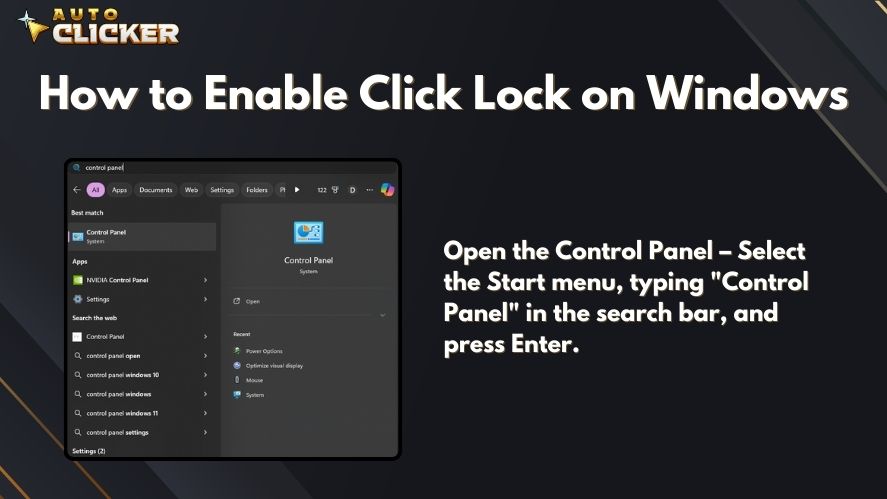
- Open the Control Panel – Select the Start menu, typing “Control Panel” in the search bar, and press Enter.
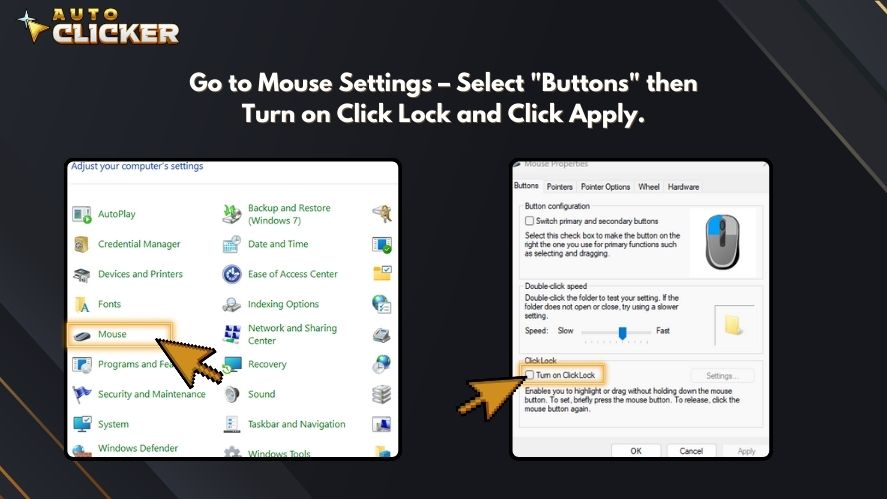
- Go to Mouse Settings – Select “Mouse.”
- Navigate to the Buttons Tab – Find the Click Lock option.
- Enable Click Lock – Check the box next to “Turn on Click Lock.”
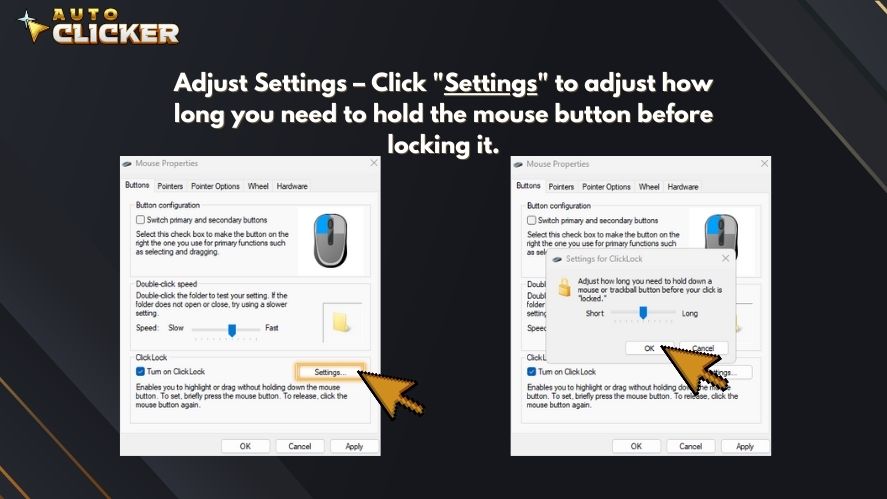
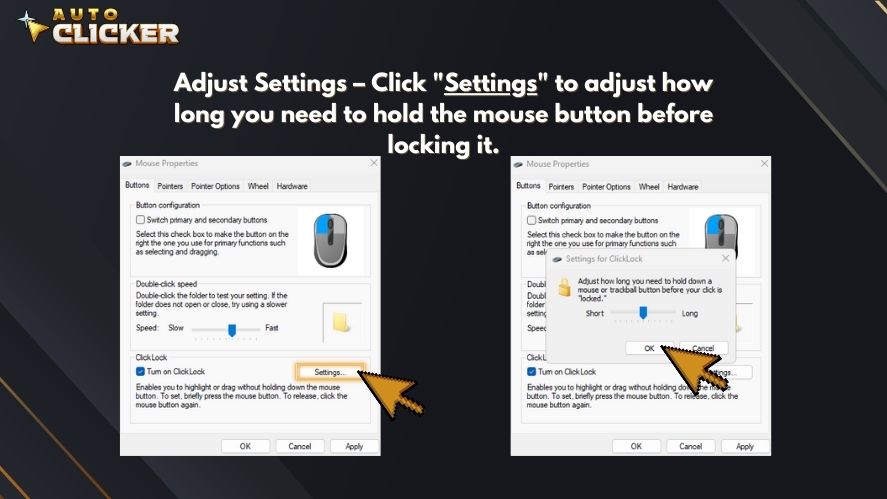
- Adjust Settings – Click “Settings” to adjust how long you need to hold the mouse button before locking it.
- Click Apply and OK – Save your settings and exit.
Once enabled, click lock will remain active until you manually disable it.
Alternative Methods for Hands-Free Clicking
While click lock is useful, some users need more advanced solutions for hands-free clicking. Here are some alternatives:
Using Auto Clickers for Advanced Automation
If you need more control over your mouse clicks, consider using an auto clicker. These tools offer:
- Customizable click speeds – Set clicks to happen at specific intervals.
- Hotkey support – Activate/deactivate clicks with a keyboard shortcut.
- Loop functions – Repeat clicks indefinitely.
Some of the best auto clickers include:
- Auto Clicker on Steam – A gaming-friendly and great for productivity automated clicking tool.
- Smart Auto Clicker – Good for clicker games and repetitive tasks.
- Auto Clicker No Download – Great for quick, temporary use.
If you frequently play auto clicker games or need continuous clicks, a button presser or key clicker might be more efficient than click lock.
Best Use Cases for the Click Lock Feature
The click lock feature is beneficial in various scenarios:
1. Gaming
- Holding down the attack button in FPS and MMORPG games.
- Playing clicker games where constant clicking is required.
- Enhancing automation in auto clicker games.
2. Productivity
- Dragging and dropping files without continuous pressing.
- Selecting large portions of text in documents or spreadsheets.
- Using graphic design software where click-holding is needed.
3. Accessibility
- Helping users with mobility impairments avoid finger strain.
- Reducing hand fatigue for individuals with repetitive strain injuries.
If click lock doesn’t meet your needs, tools like auto key presser or auto click on PC can offer additional support.
| Use Case | How Click Lock Helps | Best For |
|---|---|---|
| Dragging files | Lets you move files without holding the mouse button | Office work and file management |
| Selecting text | Makes long text selection easier | Students, writers, and researchers |
| Moving windows | Helps reposition windows with less hand pressure | Daily computer users |
| Accessibility support | Reduces the need for constant clicking pressure | Users with hand fatigue |
| Basic browsing tasks | Makes some repeated actions easier | Casual users |
Troubleshooting Click Lock Issues
If click lock isn’t working properly, try these fixes:
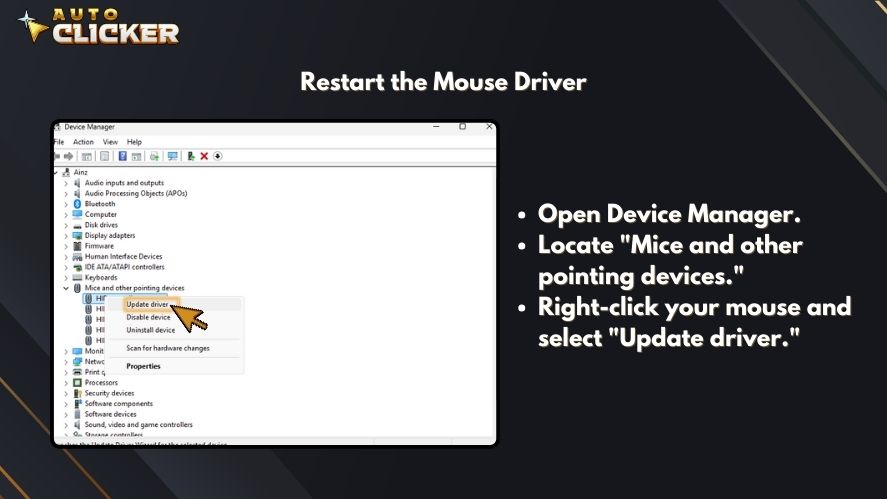
1. Restart the Mouse Driver
- Open Device Manager.
- Locate “Mice and other pointing devices.”
- Right-click your mouse and select “Update driver.“
2. Adjust Sensitivity Settings
- Go to Control Panel > Mouse Settings.
- Increase or decrease the click lock hold time.
3. Check for Hardware Issues
- Test a different mouse to see if the problem persists.
- Ensure your mouse buttons aren’t physically damaged.
If problems continue, consider using an auto clicker like auto click PC for a more stable experience.
Advanced Alternatives: Auto Clicker on Steam
When click lock isn’t enough, Auto Clicker on Steam is a powerful alternative. It provides:
- Custom click speeds – Adjust click rates for efficiency.
- Auto-hold functions – Keep buttons pressed without manual effort.
- Loop options – Automate repetitive clicking tasks.
This makes it one of the best auto clickers for Windows, especially for gamers.
FAQs About the Click Lock Feature
The click lock feature is a mouse setting that lets you drag or select items without holding down the mouse button.
Click lock can help in some casual games. However, it may not be ideal for fast games that need quick clicking and precise timing.
No. Click lock only helps with holding and dragging actions. Meanwhile, an auto clicker is used to automate repeated clicks.
Yes, it may help reduce hand strain because you do not need to hold the mouse button for long periods.
You should try it if dragging, selecting, or holding the mouse button feels uncomfortable. However, turn it off if it makes your mouse harder to control.
Conclusion
The click lock feature is a simple but useful mouse setting for hands-free dragging, selecting, and moving items on your screen. In 2026, it remains a practical option for users who want better comfort and easier mouse control during everyday computer tasks.
Overall, click lock is best for basic productivity, accessibility support, and reducing pressure on your hand. However, it may not be the right choice for fast gaming or tasks that need instant mouse release. Therefore, the best approach is to test the setting, adjust it to your comfort level, and use it only when it improves your workflow.
Try click lock today and explore auto clickers for even more control over your mouse interactions!

How to Fix Mouse Movements in Auto Clicker

Auto Clickers for Chrome Everything You Need to Know

Best Auto Clicker Settings for Faster Game Progress
About The Author
