
Autoclicker.com: The Best Auto Clicker for Gaming and Productivity
Are you tired of repeating the same clicks or taps while gaming, testing software, or completing everyday tasks? Autoclicker.com provides official Auto Clicker versions for Windows, macOS, and Android, giving desktop and mobile users a convenient way to automate repetitive actions and save time.
In 2026, auto clickers are useful for more than gaming. For example, players use them in idle and clicker games, while professionals use them for form filling, software testing, and basic workflow automation. In addition, users who deal with hand fatigue may use click automation to reduce strain during long sessions.
This guide explains what Autoclicker.com is, how it works, who can benefit from it, and why it remains a useful auto clicker for gaming and productivity.
What is Autoclicker.com?
Autoclicker.com is the official home of Auto Clicker by Playsaurus, an automation tool available for Windows, macOS, and Android.
On desktop, Auto Clicker can automate repetitive mouse actions at customizable intervals. On Android, it can automate taps and swipes on supported phones and tablets.
Because it reduces repetitive manual input, Auto Clicker can be useful for gaming, productivity, software testing, and other repetitive workflows across supported devices.
Who Can Benefit from Autoclicker.com?

| User Type | How It Helps |
|---|---|
| Gamers | Automates repeated clicks in idle, clicker, or single-player games |
| Office workers | Speeds up repetitive form filling, dashboard tasks, and basic workflows |
| Developers and testers | Helps repeat UI clicks during software testing |
| Content creators | Supports repeated clicks in editing, design, or publishing workflows |
| Accessibility users | Reduces strain from constant manual clicking |
As a result, Autoclicker.com is useful for users who want faster, easier, and more consistent click automation.
Key Features of Autoclicker.com
1. Adjustable Click Speed and Intervals
One of the most useful features of Autoclicker.com is its customizable speed. Users can set click intervals ranging from milliseconds to minutes, allowing precise control over automation. This feature makes it ideal for both fast-paced gaming and long-term workflow automation.
2. Single, Double, and Multiple Click Support
Unlike basic auto clickers, Autoclicker.com supports single, double, and multiple clicks. This flexibility allows users to tailor the tool to their specific needs, whether for gaming or productivity tasks.
3. Easy-to-Use Interface
A complicated setup can discourage users from trying new tools. However, Autoclicker.com is designed with a simple, intuitive interface. Even beginners can set it up and start automating clicks within minutes.
4. Cross-Platform Compatibility
Auto Clicker by Playsaurus is available across three major platforms:
- Windows — available for Windows 10 and 11
- macOS — an official notarized Mac version is available
- Android — available for supported Android phones and tablets through Google Play
This cross-platform availability lets users choose the version that fits their device instead of relying on a Windows-only workflow.
Android users can automate taps and swipes directly on mobile, while Windows and macOS users can use the desktop version for mouse-based automation.
5. Advanced Customization
For users who need more control, Autoclicker.com includes advanced features such as:
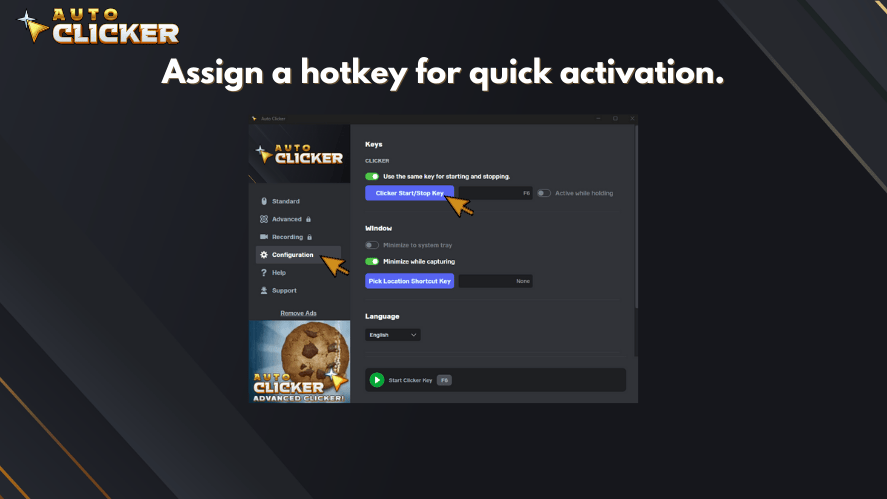
- Hotkey support: Start and stop automation instantly.
- Advanced automation: Build more complex sequences using actions, loops, delays, detection tools, recordings, and macros.
- Randomization options: Add variability to supported automation sequences when appropriate for the task.
These advanced features make it one of the best auto clickers for Windows and other platforms.
Supported Platforms
Auto Clicker by Playsaurus officially supports Windows, macOS, and Android.
| Platform | Availability | Download Method |
|---|---|---|
| Windows | Officially supported | AutoClicker.com / supported stores |
| macOS | Officially supported | AutoClicker.com |
| Android | Officially supported | Google Play |
Android users can choose the official Auto Clicker version designed for phones and tablets, while Windows and macOS users can download the desktop version appropriate for their operating system.
Download Auto Clicker for your device
Why Autoclicker.com Is Useful in 2026
Autoclicker.com remains useful because many digital tasks still require repeated clicking. Although apps and websites continue to improve, users still deal with forms, dashboards, games, testing tools, and repetitive workflows that can take extra time.
For this reason, an auto clicker can help users work faster and reduce unnecessary effort. However, it is important to use automation responsibly. Some games, websites, or platforms may not allow automated clicking, especially when it affects fairness or violates their rules.
Main Benefits
| Benefit | Why It Matters |
|---|---|
| Saves time | Repeats clicks automatically instead of requiring manual input |
| Reduces strain | Helps users avoid constant clicking during long sessions |
| Improves consistency | Runs clicks at steady intervals |
| Supports testing | Helps developers repeat interface actions |
| Helps with idle games | Automates basic clicking in games designed around repetition |
Therefore, Autoclicker.com is most useful when it is used for safe, allowed, and repetitive tasks.
How to Use Autoclicker.com Effectively
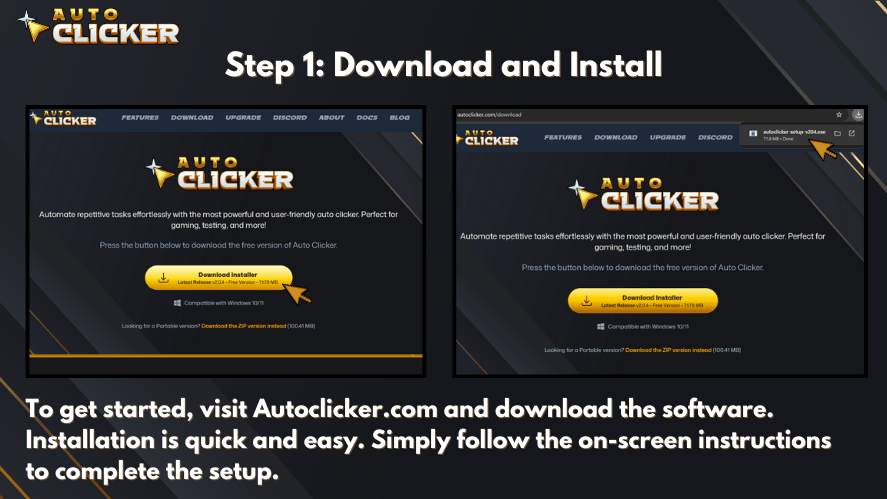
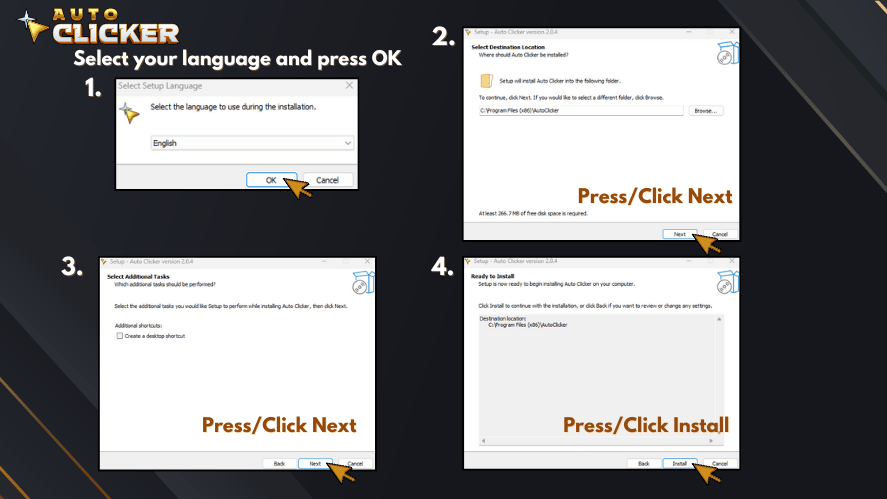
Step 1: Choose Your Platform and Download
Visit the official Auto Clicker download page and choose the version designed for your device.
- Windows users: Download the Windows installer or available portable version.
- macOS users: Download the official macOS version.
- Android users: Use the official Google Play release for supported phones and tablets.
Always download Auto Clicker from an official source rather than an unfamiliar third-party website.
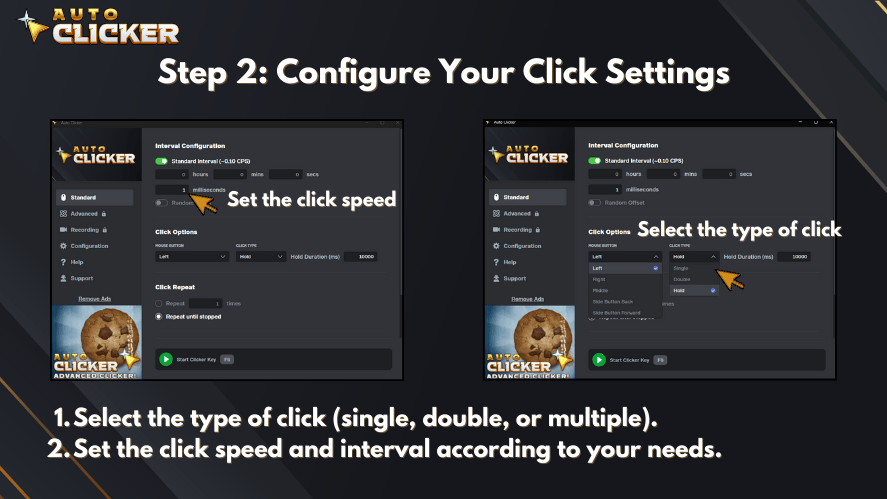
Step 2: Configure Your Click Settings
After installing, open the program and adjust the settings:
- Select the type of click (single, double, or multiple).
- Set the click speed and interval according to your needs.
3. Assign a hotkey for quick activation.
Step 3: Use Auto Clicker for Gaming or Productivity Tasks
How you use Auto Clicker depends on your platform. Windows and macOS users can configure mouse-based automation for supported games, applications, testing, and productivity workflows.
Android users can configure tap and swipe automation for supported mobile apps and games directly from their phone or tablet.
Always check the rules of the game, application, or service before using automation.
Step 4: Optimize for Better Performance
To avoid detection in games, adjust the speed settings to mimic human-like clicking. For work-related tasks, fine-tune the intervals to match your workflow for maximum efficiency.
Autoclicker.com for Gamers

Many games require constant clicking, which can be exhausting. An automatic clicker like Autoclicker.com helps gamers perform repetitive actions effortlessly.
Top Gaming Uses
- Idle and Clicker Games: Automate clicks in popular titles like Cookie Clicker.
- Resource Farming: Collect in-game resources without manual effort.
- Competitive Gaming: Improve reaction time by reducing manual clicking delays.
While auto clickers provide advantages, it’s important to check game policies. Some games may detect automation tools, so using undetectable settings can help prevent bans.
Auto Clickers in Idle and Incremental Games
In idle and incremental games like Cookie Clicker or Clicker Heroes, constant clicking is necessary to level up, earn currency, or activate mechanics. Auto clickers offer a major advantage:
- These games are designed for exponential progression each click yields resources that grow over time.
- Auto clickers enable background automation, letting users farm in-game currency or resources while staying idle.
- Some games even reward consistent intervals, which click automation tools can perfectly replicate.
With the right settings, Autoclicker.com can provide a smooth gaming experience without compromising system performance.
Autoclicker.com for Productivity

Beyond gaming, Autoclicker.com is widely used in workplaces. It automates repetitive clicking tasks, reducing strain and improving efficiency.
How It Enhances Productivity
- Data Entry: Fills out forms and spreadsheets quickly.
- Software Testing: Automates UI testing for developers.
- Workflow Automation: Handles repetitive business tasks with ease.
Industries like finance, healthcare, and IT benefit significantly from automation tools like Autoclicker.com. By reducing manual work, businesses can improve accuracy and productivity.
Boost Productivity Beyond Gaming
While many associate auto clickers with gaming, Autoclicker.com offers real value for everyone from office workers to software testers.
- Work Tasks Simplified: Automate repetitive clicking for data entry, form completion, dashboard updating, or survey interaction. Auto clickers replicate consistent mouse actions precisely and reliably.
- Software Testing Efficiency: Developers can automate UI stress testing or repetitive interface clicks with accuracy, replicable conditions, and reproducible test scenarios.
- Reduced Hand Strain: People who click repeatedly whether gamers or professionals can avoid fatigue, carpal tunnel risk, and repetitive strain injuries by automating basic tasks.
By using an auto clicker in productivity settings, users save hours of manual effort while minimizing the risk of repetitive motion injury.
Best Practices: Using Auto Clickers Smartly
To protect your system and accounts, follow these responsible usage tips:
- Check game or service rules before using an auto clicker. Some competitive titles may flag or ban automated behavior.
- Choose an appropriate click interval: Set the speed according to the task and avoid unnecessarily extreme rates that could cause unexpected behavior.
- Use image or color detection features for smarter automation that adapts to screen changes rather than operating on blind loops.
- Run the software in administrator mode when needed especially on Windows to ensure proper functionality and accurate click registration.
Using auto clickers responsibly ensures both compliance and long-term safety.
Real-Life Example: Automating a Daily Workflow
Meet Sarah, a data analyst who spends 30 minutes every morning logging into multiple dashboards, running reports, and uploading files. After installing Auto Clicker on Steam, she recorded a macro that clicks through her routine and sets everything up automatically.
Now, her mornings are streamlined no more clicking around or wasting time. With one hotkey, she runs her “Morning Reports” sequence and can focus on analysis instead of setup.
Mouse automation didn’t just save her time it reduced the mental drain of doing the same thing every day. And that’s just one example of how Auto Clicker on Steam brings efficiency to real-world users.
Frequently Asked Questions (FAQs)
Yes – it’s free of ads, trusted by a global user base, easy to install, and regularly updated, unlike many unverified clicker tools
Yes. Auto Clicker by Playsaurus is officially available for Windows, macOS, and Android. Mac users can download the official macOS version from AutoClicker.com, while Android users can install the mobile version through Google Play.
Availability and controls differ between desktop and mobile because Android uses tap and swipe automation rather than traditional mouse input.
Not recommended – many games have anti-cheat systems that may flag automation; best reserved for offline or single-player games, and adjust click speeds to mimic human behavior
Autoclicker.com offers more customization, cross-platform support, scripting options, and a cleaner interface. OP/GS are simpler but less flexible for advanced tasks
Conclusion
Autoclicker.com provides Auto Clicker by Playsaurus across Windows, macOS, and Android, making it useful for both desktop and mobile automation. Depending on the device, users can automate repetitive mouse clicks, taps, or swipes for gaming, software testing, productivity, and other repetitive tasks.
The right version depends on your platform and workflow, so use the official Auto Clicker download page to choose the appropriate release for your device.
Summary: Expand Your Auto Clicker Use
Autoclicker.com isn’t just for gaming it’s a versatile, safe, and productivity-enhancing tool. Whether you’re battling enemies in a clicker game, stress-testing a UI, or speeding up your workflow, this tool saves time and effort.
Consider these practical use cases:
- Automating repetitive admin tasks
- Clicking through boring tutorials or tests
- Running idle games in the background
- Testing game balance or button feedback
With the right settings and responsible use, you can get much more out of your click automation than you thought possible.
Download Autoclicker.com now – automate clicks safely across gaming and productivity!

Auto Clicker for Cookie Clicker: A Complete Guide

Auto Clicker for Steam: Does Steam Allow Auto Clickers?

Mac Auto Clicker Now Available: Patch 2.0.7 Auto Clicker on Steam
About The Author
