
How to Choose the Right Auto Clicker Download for Mac
Choosing the right auto clicker download for Mac can be tricky, especially when you want something safe, fast, and compatible with your version of macOS. Whether you’re a gamer looking to automate clicks or someone needing to speed up repetitive tasks at work, auto clickers are becoming a valuable tool for many Mac users.
But how do you know which one is the right fit?
In this guide, we’ll walk you through the most important features to look for, recommend the best options available for Mac, and explain how to download and use them effectively. We’ll also discuss safety concerns, native options, and creative use cases that go beyond gaming.
Let’s begin by exploring why more Mac users are turning to auto clickers than ever before.
Why Mac Users Need Auto Clickers

Auto clickers aren’t just a gaming cheat tool. For Mac users, they’re a solution to a wide range of problems that come with repetitive mouse work or limited macOS automation tools. If you’ve ever wished your mouse could click itself, you’re definitely not alone.
1. Automation of Repetitive Tasks
From clicking through large spreadsheets to confirming popups during batch file processing, repetitive mouse clicking can be a major time drain. An automatic clicker simplifies this by triggering clicks at set intervals or upon command. This isn’t just a time-saver; it’s also a way to reduce strain on your fingers and wrist from repeated manual clicks.
2. Popularity in Idle/Clicker Games on Mac
One of the most common reasons people search for an autoclicker mac tool is to enhance their experience in idle or click-based games. Popular games like Cookie Clicker, Clicker Heroes, or Adventure Capitalist are built around the idea of repetitive clicking. Using an auto clicker download for mac helps automate these interactions so you can progress faster without physically wearing out your mouse.
3. Use Cases in Testing, Data Entry, and Productivity Workflows
For developers and QA testers, automated clicking is often essential. In tasks like UI testing or workflow simulation, having a way to automate mouse clicks reliably saves hours of manual testing. Similarly, if your job involves data entry or form submission, an automated mouse click tool can keep you focused on higher-level tasks while the system handles the boring bits.
4. Limitations of macOS That Make Auto Clickers Useful
While macOS has a built-in tool called Automator, it has limits. For instance, it’s not designed for high-frequency clicking or gaming use. It also doesn’t offer real-time customization or hotkey support like third-party auto clickers do. That’s why many users look up how to get auto clicker apps that offer more control and flexibility.
Key Features to Look for in a Mac-Compatible Auto Clicker
Before you rush to download auto clicker software, it’s smart to know what features truly matter. Mac compatibility is a starting point, but you’ll also want reliability, performance, and ease of use. Here’s what to keep in mind:

1. Compatibility with macOS (Including macOS Ventura and Monterey)
The most important feature is compatibility. Some older auto clickers haven’t been updated to support the latest macOS versions like Ventura or Monterey. That’s why it’s essential to look for options that are actively maintained and specifically designed for Mac. When searching how to have auto clicker on Mac, make sure the tool is tested with your OS version.
2. Customizable Click Intervals and Hotkeys
Different users have different needs. Gamers may want hundreds of clicks per second. Office users may want a click every 10 seconds. A good auto clicker should let you customize the click interval, delay, and number of repeats. Hotkeys are another must-have feature, allowing you to start and stop clicking with a keyboard shortcut.
This flexibility is key when you’re learning how to download an auto clicker that won’t limit what you can automate.
3. Lightweight, No Resource Drain
You don’t want a tool that slows down your Mac or takes up excessive CPU. Especially if you’re running it in the background during games or work, your auto clicker should stay out of the way. That’s why mouse clicker apps that are lightweight and minimal are preferred by most users.
4. Safe and Malware-Free
Security is non-negotiable. You’ll often find sketchy links online offering a free auto click download, but not all are safe. The best tools are signed by trusted developers or come from verified platforms like Steam. When people ask whether a tool like Steam Auto Clicker is safe, the answer lies in how and where it’s downloaded.
You should always search for a safe auto clicker for Mac, and check that it doesn’t require weird permissions, doesn’t install unnecessary extras, and is clean from malware.
5. Easy to Use and Install Without Terminal Commands
Many Mac users don’t want to deal with Terminal commands or complex setups. A good auto clicker safe download should be plug-and-play. Look for software that comes in a DMG file, installs with a drag-and-drop, and opens with a friendly interface. No scripting knowledge required.
Top Auto Clicker Downloads for Mac
Now that you know what to look for, let’s compare some of the best auto clicker download for Mac options available today. We’ll look at both free and paid solutions, native apps, and even some clever workarounds for unsupported software.
Auto Clicker on Steam — Now Available for Mac
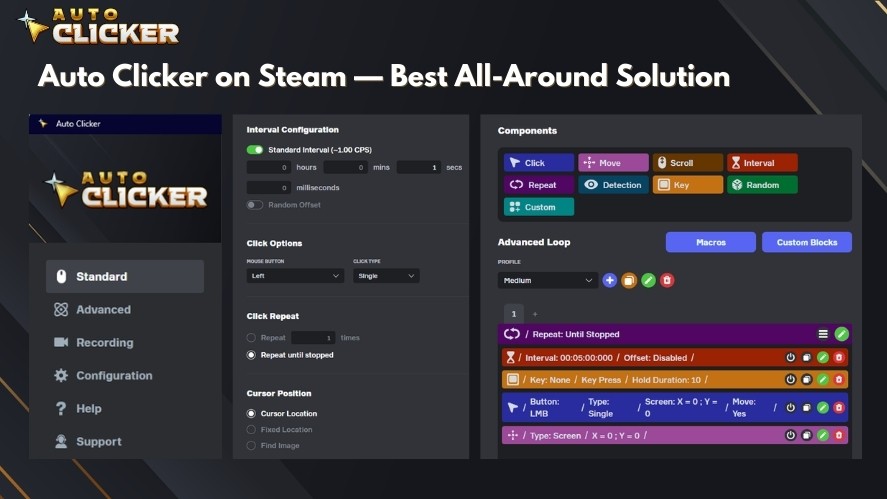
Steam is known primarily as a gaming platform, but it’s also home to utilities. One of the newest additions is Auto Clicker on Steam, and it now includes official support for macOS.
Official Mac Compatibility
You no longer need to run virtual machines or emulators. Auto Clicker on Steam is fully compatible with macOS and works on most modern versions including Monterey and Ventura. You can find it directly in the Steam store and install it just like any other game or tool.
Features That Mac Users Will Love
Auto Clicker on Steam comes with all the essentials:
- Adjustable click speed and interval
- Hotkey support for starting and stopping automation
- Low CPU usage so it won’t bog down your system
- Simple UI with real-time controls
Because it’s hosted on Steam, it also benefits from community feedback and frequent updates. Users have already confirmed that Auto Clicker on Steam safe checks out, making it one of the more reliable platforms to use.
How to Download Auto Clicker on Mac via Steam
If you’re wondering how to download an auto clicker through Steam, here’s a quick guide:
- Download and install Steam from the official site.
- Create a free account or log in.
- Search for “Auto Clicker” in the Steam Store.
- Click Install and wait for the setup to finish.
- Once installed, grant Accessibility Access when prompted (this is needed so the app can simulate clicks).
- Open the app, set your hotkeys and interval, and you’re ready to go.
Now your Mac has a fully functional auto clicker with minimal setup.
Murgaa Auto Clicker for Mac
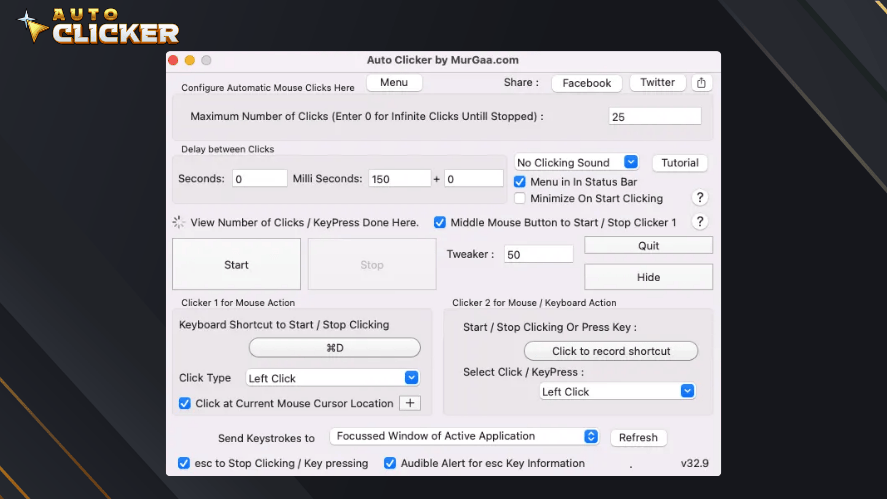
Murgaa Auto Clicker is a well-known paid option designed specifically for Mac users. It offers more advanced features, but it comes with a price tag.
Overview of Features
- Precise interval setting (milliseconds)
- Start and stop with a single hotkey
- Scheduled clicking options
- Option to click at specific screen locations
Pros:
- Native Mac app
- Extremely customizable
- Reliable performance
Cons:
- Costs $6.54 for a license (after free trial)
- Interface feels outdated
- Limited support for advanced gaming features
Despite its cost, it remains a popular choice among users who need reliable, long-term performance.
OP Auto Clicker (via Emulator or Wine for Mac)
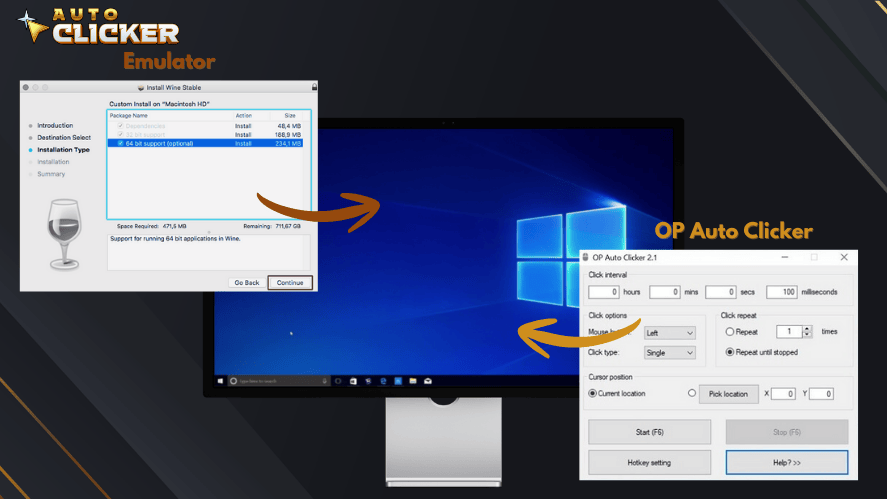
OP Auto Clicker is a popular tool for Windows, but it doesn’t run natively on macOS. However, users have found ways to make it work using compatibility layers.
Not Native but Can Work on Mac
You can use OP Auto Clicker on Mac with tools like:
- Wine (a compatibility layer for running Windows apps)
- CrossOver (paid option based on Wine with easier setup)
- VirtualBox or Parallels Desktop (if you run a Windows VM)
How to Set It Up
Here’s a brief outline:
- Install Wine or CrossOver.
- Download OP Auto Clicker EXE from the official site.
- Use Wine to run the EXE file.
- Set hotkeys and interval like normal.
While this isn’t ideal for beginners, it does offer a workaround for those who really want OP Auto Clicker on their Mac.
iClickMac Auto Clicker
If you’re looking for a completely native and beginner-friendly option, iClickMac Auto Clicker is worth exploring. It’s a lesser-known but useful free auto clicker made specifically for Mac users.
Native Mac App with Clean Interface
Unlike some other tools that require emulators or workarounds, iClickMac works right out of the box. It doesn’t try to do too much, which makes it ideal for users who want something simple.
Features and Benefits:
- Adjustable click intervals (from milliseconds to seconds)
- Single or double-click automation
- Basic hotkey support
- Option to choose click location on screen
- Free to use
Why Choose iClickMac?
While it may not offer advanced features like screen recording or multi-click automation, it checks all the boxes for most casual users. It’s especially good if you’re trying to learn how to have auto clicker on Mac without downloading risky third-party apps.
Limitations to Consider:
- Fewer updates and limited support
- Not suitable for high-speed gaming automation
- Basic UI and functionality
Still, for users who want a free and safe mouse clicker tool on macOS, this is one of the best lightweight options.
Automator + AppleScript (Built-in Mac Solution)
Many users don’t realize that macOS has built-in automation tools capable of basic clicking. If you’re hesitant to install third-party apps and want full control, this option is worth trying.
For Advanced Users Only
This method involves using Automator and AppleScript, two native Mac tools that come pre-installed. While it’s a bit more complex, it can get the job done if you’re tech-savvy.
How to Automate Mouse Clicks with Automator:
- Open Automator on your Mac.
- Select New Document > Application.
- Add a Run AppleScript action.
- Paste in the following code: delay 2 tell application “System Events” repeat 10 times click at {500, 300} delay 1 end repeat end tell
- Save the application and run it.
This script will simulate 10 mouse clicks at specific coordinates with a one-second delay between each. You can customize it as needed.
Why Choose Built-In Automation?
- No need to download anything
- Fully controlled by the user
- Can be customized deeply
Why You Might Not:
- No GUI, all scripting
- No hotkey support unless manually added
- Requires trial and error to get it working smoothly
If you’re confident with scripting and want a private solution that won’t rely on external downloads, this method may suit you.
Best Use Cases for Auto Clickers on Mac
By now, you may be wondering exactly how people use auto clickers in real life. While gaming is a common use case, that’s just one part of the story. Let’s go over some of the most useful applications.
1. Idle and Clicker Games

Many users get into auto clickers through gaming. Games like:
…require thousands of clicks to progress. An automatic clicker can help automate grinding so you can level up faster without straining your hand.
These games are built around resource accumulation, where faster clicking means faster gains. By using a safe auto clicker, gamers can make progress while focusing on other tasks or even stepping away from their machine.
2. UI Testing and QA Automation
In software development, testing repetitive user interface actions is part of the job. Instead of manually clicking the same button hundreds of times, testers use an automated mouse click tool to simulate user behavior.
When combined with screen recording or bug reporting tools, this becomes a powerful testing setup.
3. Workflow and Productivity Automation
Let’s say you have a form that must be submitted every few minutes, or you’re cleaning up data in a spreadsheet by clicking the same cell repeatedly. A mouse clicker can automate this task for you.
Other examples include:
- Confirming popups in batch processing
- Clicking through navigation menus in legacy software
- Repeating drag-and-drop sequences in design tools
In these cases, an auto click download is more than just a time-saver — it’s a way to reduce the chance of error and make workflows smoother.
Auto Clicker on Steam – Why Mac Users Should Watch This Space
Now that Auto Clicker on Steam is available for Mac, it opens up a new level of reliability and accessibility. This tool has already built a reputation on Windows, and its future on macOS looks promising.

Let’s look at why this is important for the Mac user community.
Proven Success on Windows
On Windows, Auto Clicker on Steam has thousands of users who rely on it for gaming and automation. The app is lightweight, customizable, and secure. Since it’s distributed via Steam, users know it’s free of malware and easy to update.
As Mac users begin adopting this tool, we expect similar growth. That’s why how to get auto clicker tools through Steam has become a trending search in recent months.
More Secure Than Random Downloads
One of the most important concerns for users is safety. Steam provides a trusted platform, making the Auto Clicker on Steam safe label more than just marketing. With automatic updates and community reviews, users can feel confident in what they’re installing.
Unlike some sketchy links that offer free auto clicker download for mac files full of ads or malware, Steam-based tools are moderated and reviewed by the community.
Growing Community and Demand
As more people use Macs for gaming, testing, and work automation, the demand for reliable tools grows. Users are actively asking for new features, including support for Apple Silicon, more customization, and scripting capabilities.
Joining the conversation on Steam forums or Discord channels is a great way to help shape the future of the app. The more feedback the developers receive, the better the Mac version will become.
Conclusion: How to Choose the Best Auto Clicker Download for Mac
Let’s wrap up by summarizing what we’ve learned.
The best auto clicker download for Mac depends on your needs, skill level, and use case. Here’s a quick checklist to help you decide:
✅ What to Look For:
- Compatibility with your macOS version (Ventura, Monterey, etc.)
- Adjustable click speed and hotkeys
- Lightweight and doesn’t use too much CPU
- Simple to install without complex setup
- Verified as a safe auto clicker for Mac
🛠️ Best Options Reviewed:
- Auto Clicker on Steam – Trusted, easy, and secure
- Murgaa Auto Clicker – Advanced but paid
- iClickMac – Free, simple, and native
- OP Auto Clicker (via Wine) – Works with setup effort
- Automator + AppleScript – Built-in and customizable for advanced users
Whether you’re into games, productivity, or testing, there’s a solution that fits. And if you want something reliable and easy, Auto Clicker on Steam may be the best place to start.
💬 Final Thoughts:
If you’re new to this world, take your time to test a few tools. Start with the free ones and upgrade only if needed. Remember to download from trusted sources and check reviews before installing anything.
Once you find the right auto clicker, your Mac becomes a lot more powerful — and your fingers will thank you.

Manual Clicking vs Auto Clicker: What’s the Real Difference?

Auto Key Presser: The Best Way to Automate Keyboard Inputs

Click Lock Feature: Enable Hands-Free Clicking on Your Mouse
About The Author
