
Click Intervals: Customize Timing with Auto Clicker
One of the most important features of any automatic clicker is the ability to customize click intervals.
This setting allows users to control exactly how fast or how often automated clicks happen, making tasks more precise and consistent.
Auto Clicker on Steam, one of the top safe autoclickers available, makes interval customization simple and flexible.
Whether you want to auto click on PC for clicker games or streamline repetitive workflows, adjusting click intervals helps you optimize performance with ease.
This level of control is what makes mouse clicking software so effective for personalized auto mouse click tasks.
In the next section, we’ll take a closer look at what click intervals are and why they play such an important role in click automation.
What Are Click Intervals?
Click intervals are the time gaps between clicks, controlling how fast or slow mouse click actions occur.
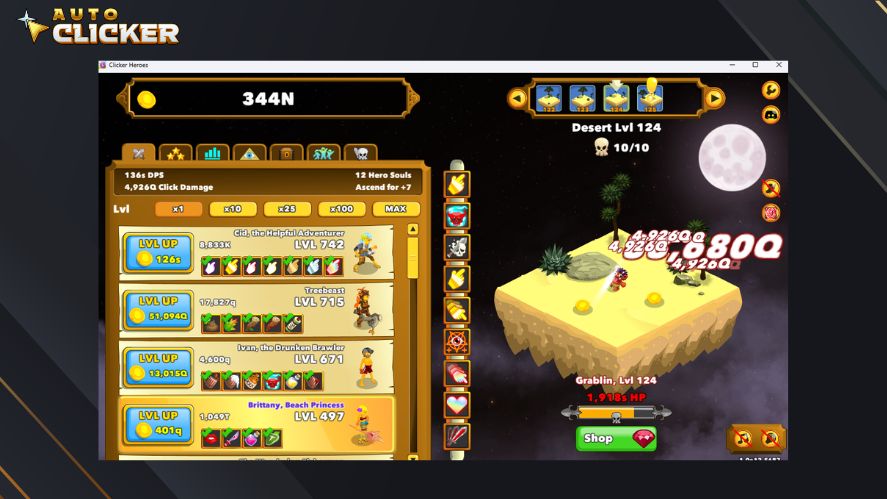
There are two types of clicker intervals:
- Fixed intervals
- Variable intervals
Fixed intervals deliver consistent automated click speeds, ideal for steady autoclick PC tasks.
On the other hand, variable intervals have a random click speed. This mode mimics human clicks and reduces detection in some gaming scenarios.
What Affects Optimal Click Timing?
The optimal click timing depends heavily on your specific use case. Here are the common factors that influence click frequency control:
- Game or App Mechanics: Some games penalize overly fast or robotic clicks. Others may require near-perfect timing to trigger combos, abilities, or actions.
- CPU and System Load: A fast click speed on a heavy app or low-spec machine can cause lag or missed actions.
- Task Complexity: Repetitive tasks like form submissions or data scraping might tolerate ultra-fast intervals, but UI-heavy applications benefit from slower, controlled intervals.
- Detection Avoidance: In some gaming or testing scenarios, mimicking natural click rhythms avoids triggering anti-bot systems.
Whether you’re playing a fast-paced game or automating repetitive tasks, finding the right milliseconds between clicks is key to efficiency and performance.
So, test different click intervals and adjust based on response quality, system performance, and your end goal. There’s no universal best speed, as the optimal timing is what fits your context.
Fixed vs. Variable Click Intervals: Which One Should You Use?
When setting up your automation tool, you’ll need to choose between fixed and variable click intervals. Both offer distinct advantages depending on your use case.
Here’s a breakdown to help you decide:
| Feature | Fixed Intervals | Variable Intervals |
|---|---|---|
| Click Speed Timing | Same interval every time (e.g., 100ms between clicks) | Interval changes randomly within a defined range |
| Use Case Fit | Repetitive, predictable tasks | Dynamic tasks, stealth automation in games |
| Human-Like Behavior | Can appear robotic and easy to detect | Mimics natural click patterns |
| Custom Click Intervals | Less flexible, unless manually changed | Fully adjustable clicking rate within upper/lower bounds |
| Performance Stability | High, and great for consistency | Slight variation, but adds realism |
Overall, use fixed intervals when you need repeatability and speed. Choose variable intervals when stealth, realism, or unpredictability is key, like in games, UX testing, or user simulation tools.
For the best results, experiment with adjustable clicking rates and test how your target system responds.
Benefits of Custom Click Intervals
Customizing click intervals is one of the most useful ways to get better results from an automatic mouse clicker.
By adjusting how fast or how often clicks happen, you can improve efficiency, accuracy, and overall performance.
Optimize Gaming Performance
In clicker games like Cookie Clicker, setting the right click interval can speed up resource farming without overwhelming the game.
For example, a 0.5-second interval can provide fast and steady auto mouse click actions while keeping gameplay smooth.
Some users also prefer variable intervals, which make autoclicker mouse patterns feel more natural.
This can be helpful in games that monitor repeated inputs, making Windows automatic clicker tools more effective for responsible and ethical automation.
Streamline Repetitive Tasks
Custom click intervals are also valuable outside of gaming.
For repetitive tasks like data entry, software testing, or UI navigation, a slower interval, such as 2 seconds, can ensure accurate mouse click inputs and reduce errors.
Using mouse clicking software for repetitive actions can save significant time while reducing strain from constant clicking.
It can also help reduce wear on your mouse and keyboard by limiting unnecessary manual input.
With safe autoclickers, you can create consistent and reliable click patterns for macro-based tasks, making daily workflows more efficient.
Reduce Resource Usage
Choosing the right interval can also improve system performance.
Longer delays, such as 5-second intervals for certain clicker games or background tasks, reduce unnecessary auto mouse click actions and lower CPU usage.
This helps auto clicker safe tools run smoothly in the background without slowing down your PC.
With optimized automated click settings, you can improve both productivity and performance while using fewer system resources.
How to Set Custom Click Intervals in Auto Clicker on Steam
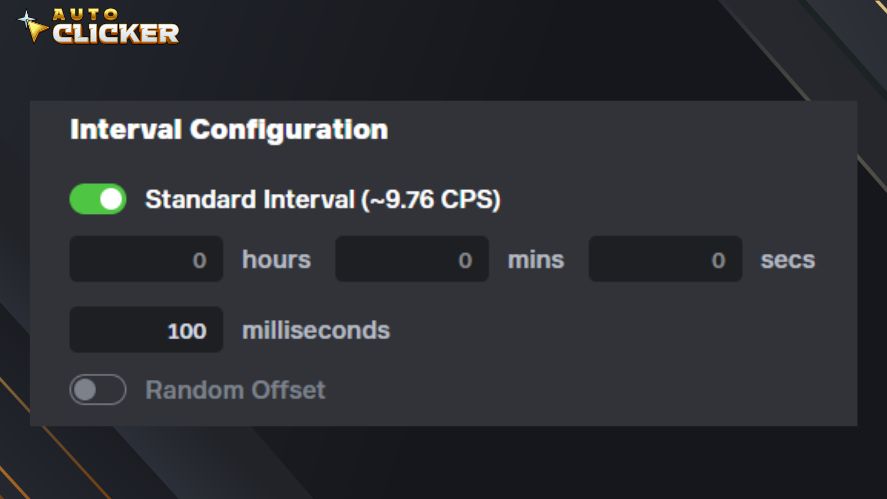
To set custom click intervals in Auto Clicker on Steam, launch the tool from your Steam library and navigate to the “Standard” tab. Then, pay attention to the Interval Configuration section.
In this section, you can adjust the click interval by entering the numbers in the four boxes: hours, mins, secs, and milliseconds.
The interface is straightforward. If you put 100 in the milliseconds box, the tool will click every 100 milliseconds, and so on. That’s how to configure a fixed click interval!
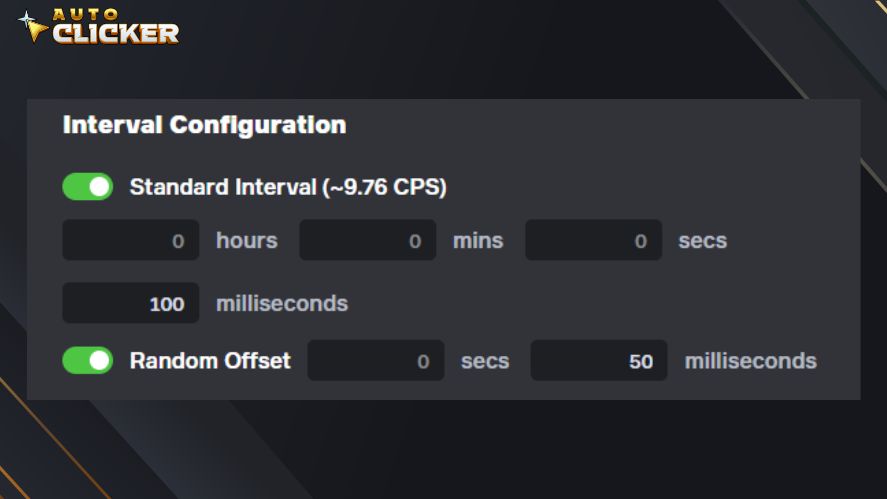
To configure variable intervals, toggle the “Random Offset” setting to reveal two new input boxes: secs and milliseconds.
Let’s say you put 50 milliseconds here and 100 milliseconds in the Standard Interval section, the tool will then perform a click every 50 (100-50) to 150 (100+50) milliseconds.
To test the auto mouse click functionality, simply press the F6 key.
For precision, use millisecond values for fast-paced tasks or seconds for deliberate clicks. Also, test different settings to balance speed and accuracy, ensuring the automated click aligns with your goals.
Use Case Examples for Different Click Intervals
Custom click intervals make automatic clicker tools versatile for various tasks.
Whether you’re speeding through clicker games or automating office tasks, autoclickers offer the perfect interval for every scenario.
Short Click Intervals (Fast Clicking)
Short intervals, such as 0.1 to 0.5 seconds, are best for tasks that need rapid and repeated input.
In fast-paced clicker games like Cookie Clicker, quick mouse click actions can help you generate resources much faster. These settings are ideal when speed directly affects progress.
Short intervals can also be useful in some action-based games or rapid testing scenarios, where controlled bursts of clicks improve efficiency without requiring constant manual input.
For users looking to maximize performance, fast auto clicker settings can significantly improve speed while keeping automation smooth and consistent.
Medium Intervals
Medium intervals, usually around 1 to 2 seconds, are ideal for productivity tasks that require both speed and accuracy.
For example, autoclick PC users can automate actions like form submissions, spreadsheet updates, or repeated button presses in mouse clicking software.
A steady interval helps ensure each click is registered correctly without overwhelming the application.
This timing is also useful for testing workflows or simple macros, where reliable and predictable automated click actions matter more than raw speed.
Long Intervals
Long intervals, such as 5 to 10 seconds, work best for delayed or low-frequency tasks.
In idle resource management games like Mr. Mine, an auto clicker can trigger actions like selling minerals or activating upgrades at a slower, more natural pace.
These settings are also helpful for background automation tasks, where occasional mouse clicker actions are enough to maintain progress without putting unnecessary strain on your system.
By choosing the right interval length, you can tailor your automated click setup for better performance, efficiency, and control.
How Auto Clicker on Steam Stands Out
Auto Clicker on Steam is a top automatic clicker for auto mouse click precision, thanks to its user-friendly design and robust features.
Its clean interface makes it easy to customize mouse click intervals for both clicker games and productivity tasks.
In addition, this tool supports custom profiles, letting you save settings for different scenarios.
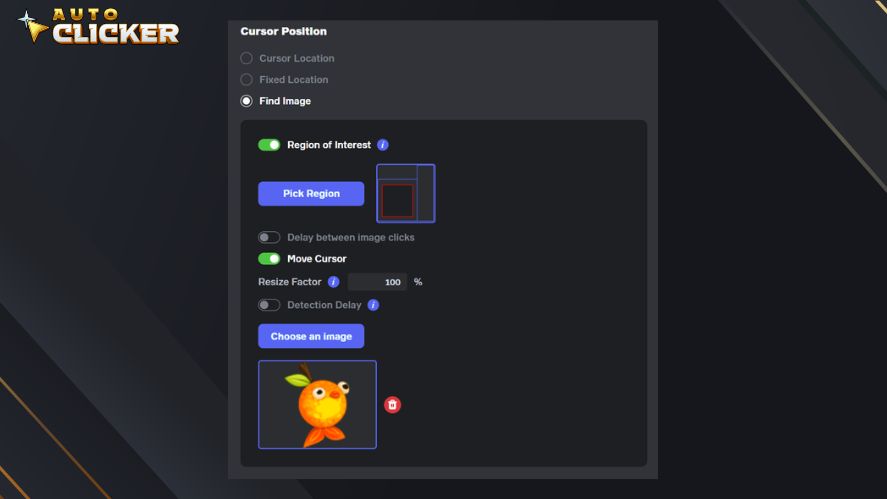
Compared to other free autoclickers, Auto Clicker on Steam has a unique feature called Image Detection, which is great for automating when a certain asset appears on the screen.
Lastly, Steam integration ensures easy access, automatic updates, and visibility. Overall, Auto Clicker on Steam is a safe and reliable choice for automatic clicker needs.
Frequently Asked Questions
You can adjust the interval settings in your auto clicker by entering a specific time or using built-in sliders.
The ideal click interval depends on your task. Shorter intervals for speed, longer intervals for accuracy and stability.
Yes, some auto clickers like Auto Clicker on Steam offer random interval settings to create more natural and less predictable clicking patterns.
System lag, background processes, or software limitations can affect interval precision.
Yes, properly tuned click intervals can improve efficiency, reduce errors, and help avoid detection in certain applications.
Conclusion
Custom click intervals are what turn basic auto clickers into truly flexible automation tools.
By adjusting how fast or how often clicks happen, you can tailor automated click actions to match the exact task you are trying to complete.
That is where Auto Clicker on Steam stands out.
With precise interval controls and an easy-to-use interface, it makes it simple to fine-tune your settings and create an automation setup that works for your specific needs.

Safe Auto Clicker: Avoid Malware with Steam’s Trusted Option

Top 5 Idle Games for Auto Clickers to Play on Steam

Stop Auto Clicker Automatically with These Easy Methods
About The Author
