
Top 5 Auto Clicker Software Solutions for Windows Users
Auto clicker software is a simple but powerful tool designed to automate mouse clicks on a Windows PC.
Instead of manually clicking the same spot over and over, the software handles repetitive clicking for you at a set speed and pattern.
This is exactly why auto clickers have become so popular among Windows users. They save time, reduce effort, and make repetitive tasks far less tedious.
Many people use auto clickers for gaming, especially in idle or grind-heavy games. Others rely on them for productivity tasks. As more users juggle multiple workloads, demand for reliable mouse click automation continues to grow.
That said, not all auto clickers are created equal.
A good auto clicker for Windows needs to be safe, flexible, and customizable. Reliability and security matter too, especially when downloading third-party software.
In this article, we’ll break down what auto clicker software is, why it matters, and which auto clicker software stands out in 2026.
What Is Auto Clicker Software and Why Do You Need It?
An auto clicker is a tool that simulates mouse clicks without constant manual input.
Once configured, it can perform single clicks, double clicks, or continuous clicks at a defined interval. This helps users automate repetitive mouse actions with precision.
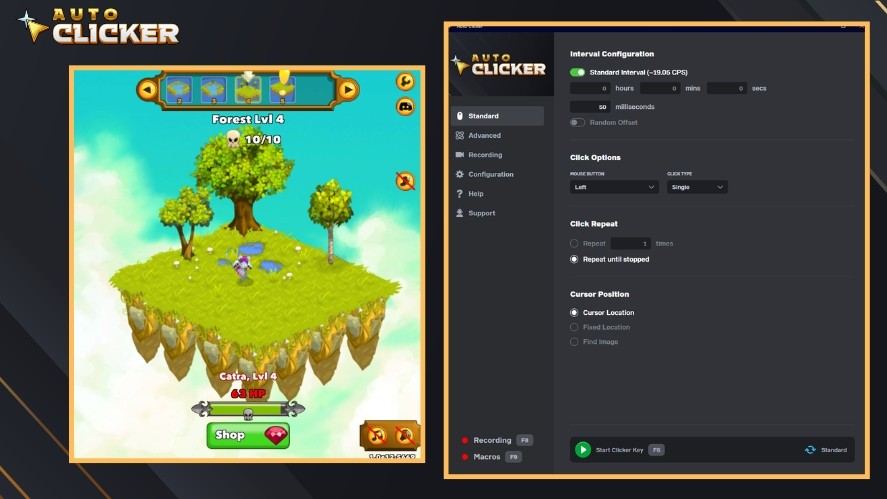
For gamers, auto clicker software is commonly used in idle games, clicker games, or grind-heavy titles where progress depends on fast or repeated clicking.
In non-gaming scenarios, auto clickers are useful for office tasks like:
- Data entry
- Quality assurance testing
- Interface validation
- Or any workflow that involves repeating the same mouse actions across applications
Beyond convenience, automation plays an important role in reducing physical strain.
Repetitive clicking can lead to fatigue or long-term discomfort, especially during extended work sessions.
By handling routine interactions automatically, an auto clicker improves efficiency, minimizes errors, and allows users to focus on tasks that actually require attention and decision-making.
Key Features to Look for in Reliable Auto Clicker Software
For Windows users, the best auto clicker software combines precise control, ease of use, and strong safety standards to ensure smooth automation without risking system stability or security.
Custom Click Intervals and Duration
A reliable auto clicker should let you control exactly how fast and how long it clicks.

Adjustable click intervals allow you to fine-tune speed for different tasks, whether you need slower, human-like clicks or faster automation for repetitive actions.
Duration controls are equally important. It helps you limit how long the auto clicker runs, so it doesn’t overclick or interfere with other work.
Click Pattern Flexibility
Basic auto clickers repeat a single action, but better tools offer flexibility in how clicks are performed.
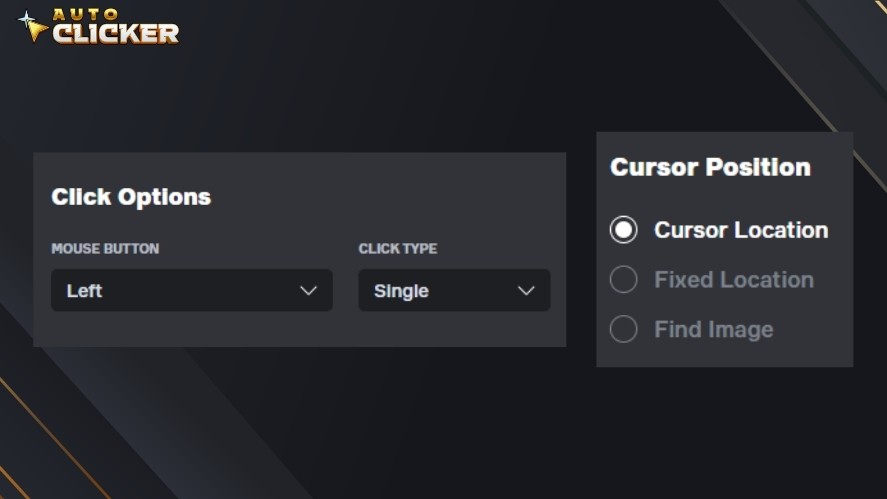
This can include:
- Choosing left, right, or middle mouse clicks
- Switching between single and double clicks
- Or clicking at specific locations on the screen
Flexible click patterns make the software useful for a wider range of tasks, from gaming to UI testing and workflow automation.
Hotkey Support and Ease of Use
Hotkeys are essential for controlling an auto clicker quickly.

Being able to start, pause, or stop automated mouse clicks with a single keypress prevents mistakes and keeps your workflow efficient.
At the same time, the software should have a clear and intuitive interface, so users don’t need a steep learning curve just to set up basic automation.
Safety, No Malware, and No Intrusive Ads
Safety is a major concern when downloading auto clicker software for Windows. Because many free tools come bundled with ads, trackers, or even malware.
A trustworthy automatic clicker should be clean, transparent, and free from intrusive ads or hidden background processes.
For that reason, choosing software from reputable sources greatly reduces these risks.
Platform Compatibility with Windows OS
Windows users need auto clickers that work seamlessly with the operating system.
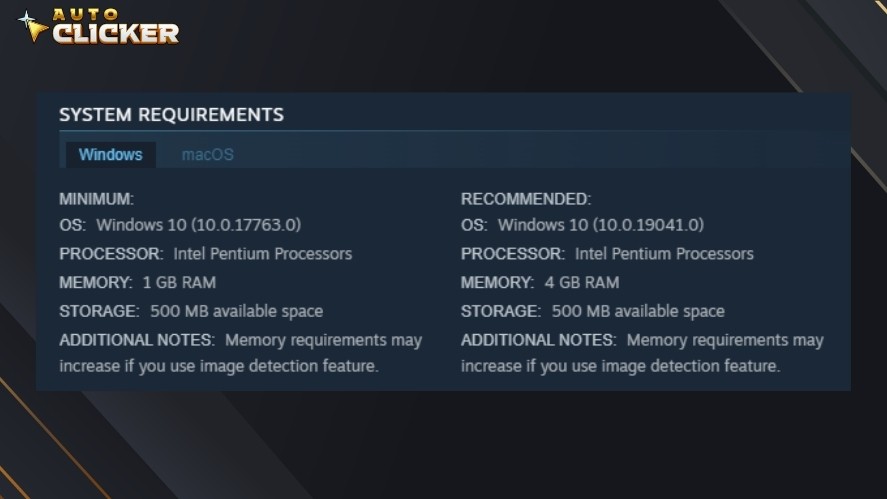
This means proper support for Windows 10 and Windows 11, respect for system permissions, and lightweight performance that doesn’t slow down your PC.
Well-optimized auto clickers integrate smoothly with Windows apps and games, run efficiently in the background, and avoid conflicts with system updates or security features.
Top Auto Clicker Software for Windows (2026 Edition)
Finding the right auto clicker PC means balancing functionality, safety, and ease of use. Below are some of the most reliable auto clicker tools you can use in 2026.
1. Auto Clicker on Steam — Best All-Around Solution
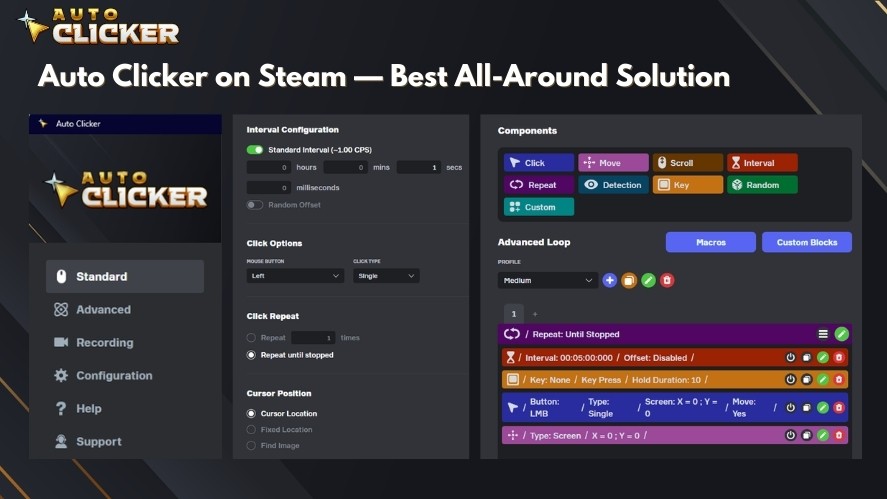
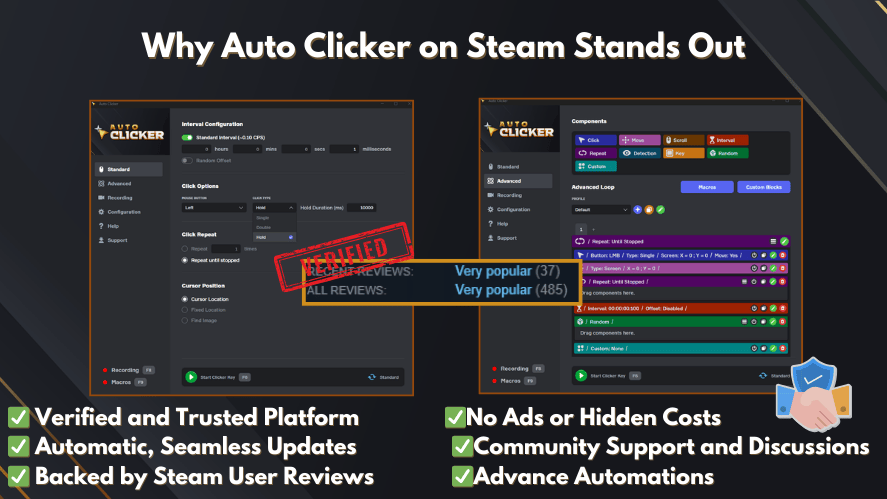
Auto Clicker on Steam is a modern, verified option available directly through the Steam platform, giving it a level of safety and reliability that many free downloads lack.
Because it’s Steam-verified, you don’t have to worry about unsafe installers or ad-laden bundled software. This makes it one of the best auto clicker software choices for Windows users.
This tool stands out for its simple, user-friendly interface that lets you configure clicking intervals, button types, and more without advanced setup.
It also includes standard and advanced modes for deeper automation sequences (including macros and keypress actions), plus regular updates and community support through Steam forums.
Overall, it combines ease of use with powerful customization, making it ideal for gamers and productivity users alike.
2. GS Auto Clicker
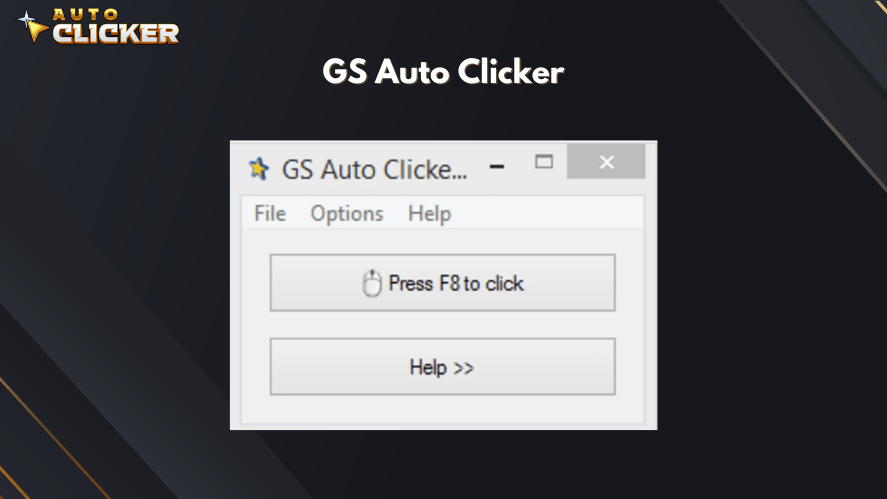
GS Auto Clicker is a classic free auto clicker for Windows that remains popular because of its simplicity and low resource use.
It doesn’t require installation and launches quickly, making it perfect for beginners who just want basic mouse click automation without complex settings.
While GS Auto Clicker lacks advanced scheduling or macro features, it does offer simple hotkey controls and dependable click loops.
This is perfect for straightforward tasks like repetitive clicking in applications or lightweight workflows.
3. OP Auto Clicker
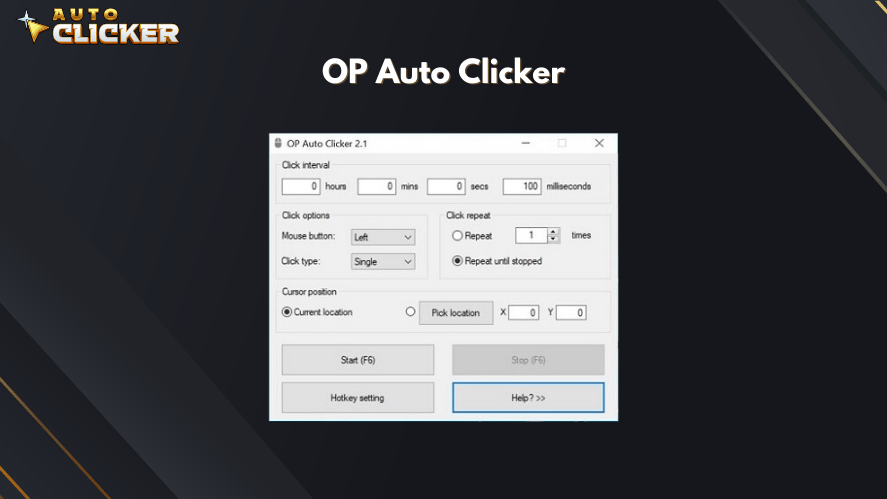
OP Auto Clicker is another free and open-source auto clicker that works well on Windows for basic and mid-level mouse automation.
It allows users to configure click intervals, choose click types, and set the number of repetitions. The tool gives you more control than some very basic clickers.
Being portable (no installation needed) and offering customizable hotkeys, this tool works across many scenarios.
However, it may not feel as intuitive for complete beginners compared to other tools. Also, you should always download from official or reputable sources to avoid unsafe copies of the software.
4. TinyTask
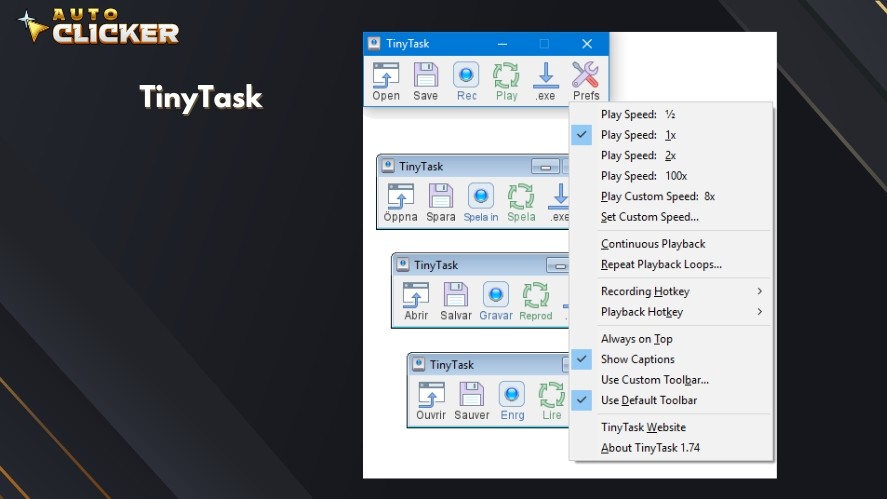
While not a pure auto clicker, TinyTask is an automation recorder that excels at capturing and replaying mouse clicks and keyboard actions.
This makes it useful for advanced users who want to automate whole interaction sequences, not just repetitive clicking.
With TinyTask, you can record clicks and keystrokes. Then, play them back at adjustable speeds. You can automate complex workflows in Windows beyond simple click intervals.
Its lightweight, portable design makes it easy to include in your productivity toolkit without installation.
Why Auto Clicker on Steam Is the Best Choice
When it comes to choosing an auto clicker you can trust, Auto Clicker on Steam stands out as the most reliable option for Windows users.
Unlike random downloads from third-party sites, Steam provides a controlled and verified ecosystem. This significantly reduces the risk of malware, intrusive ads, or hidden scripts.
One of the biggest advantages of using a Steam-based tool is convenience.
Installation, updates, and removal are all handled directly through Steam, meaning you don’t need to worry about outdated versions or unsafe installers.
This also makes it especially appealing for gamers who already use Steam daily and want a tool that integrates seamlessly with their existing setup.
Key features that make Auto Clicker on Steam the best overall choice include:
- Steam-verified and secure distribution
- Clean, user-friendly interface
- Adjustable click speed, intervals, and patterns
- Custom hotkeys for quick control
- Lightweight performance with minimal resource usage
- Automatic updates through Steam
- Strong community feedback and active development
Overall, Auto Clicker on Steam delivers the ideal balance of auto clicker safety, ease of use, and customization.
How to Download Steam Auto Clicker
Here’s the step-by-step process on how to download an Auto Clicker on Steam.
1. Find Auto Clicker on Steam, Download, and Install
Open the Steam client and use the Store search bar to look for “Auto Clicker”.
Click on the official Auto Clicker store page to review details, screenshots, and user feedback. You can also access it directly by clicking the button below.
On the store page, click “Add to Cart”. Then, complete the purchase just like any other Steam software or game.
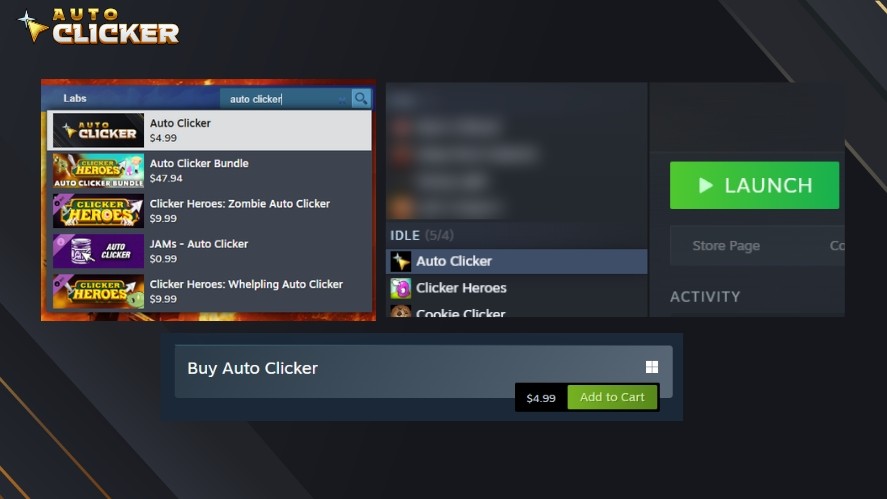
Once purchased, go to your Steam Library, locate Auto Clicker, and click “Install”. Steam will handle the download and setup automatically.
2. Launch and Configure
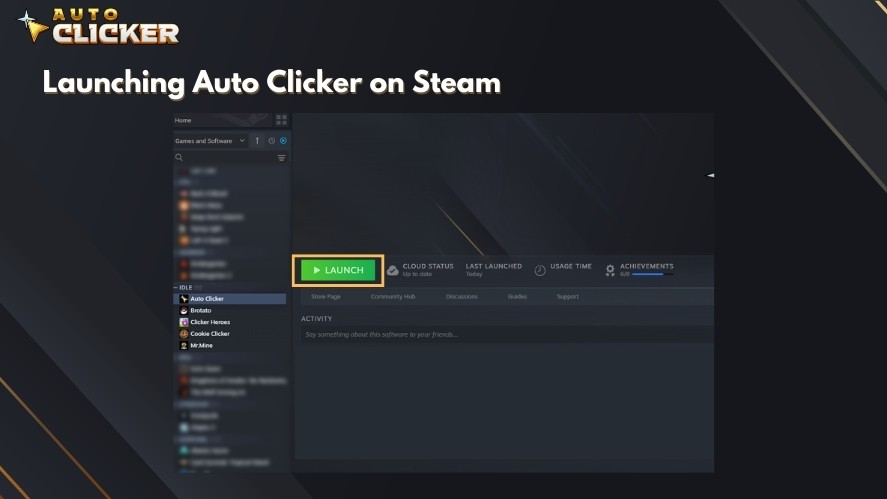
After installation, click “Launch”. From there, you can customize settings in the Standard tab, such as:
- Click intervals
- Mouse buttons
- Click types
- Click repeat
- Click position
Those are the configurations you need for standard automations.
3. Start Automating Responsibly
You’re now ready to automate repetitive tasks. Press F6 to start the auto clicker.
Remember, use Auto Clicker ethically, primarily in single-player or non-competitive contexts.
This Steam-based approach makes Auto Clicker one of the safest and most user-friendly options available for Windows users today.
Tips for Using Auto Clicker Software Safely and Effectively
An auto clicker for Windows 11 can be extremely useful, but using it responsibly is also important.
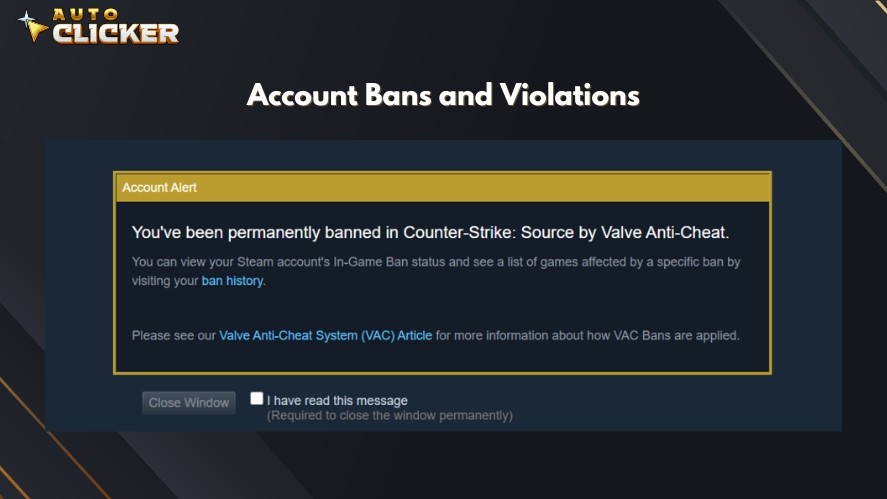
In games, especially online or competitive titles, excessive automation can lead to account warnings or permanent bans.
So, it’s best to limit auto clicker usage to single-player games, idle mechanics, or situations where automation is clearly allowed.
Next, always download auto clickers from legitimate sources.
Platforms like Steam help protect you from malware, bundled adware, or hidden background processes that are common with unofficial auto clicker downloads.
This is a critical step for maintaining both system security and personal data safety.
Click speed also matters.
Setting extremely fast or unnatural click rates may cause software crashes, errors, or raise red flags in certain applications.
For that reason, adjust your click interval to match realistic human input and the specific task you’re automating for smoother, safer performance.
Finally, take advantage of hotkey customization.
Assigning clear start and stop keys helps prevent accidental activation during work or gameplay, giving you better control and reducing the risk of unintended automated clicks.
Frequently Asked Questions
Auto clicker software automates mouse clicks on your Windows PC, allowing you to perform repetitive tasks without manually clicking the same spot over and over.
Auto Clicker on Steam is a top choice for its verified security, customizable features, and automatic updates, while GS Auto Clicker and OP Auto Clicker are popular free alternatives.
It’s commonly used for clicker games, idle gaming, data entry, UI testing, and other repetitive workflows that require frequent mouse clicks.
Yes, if you download from trusted sources like Steam or official websites. Avoid unofficial download sites, which may bundle malware or intrusive ads.
Look for adjustable click intervals, flexible click patterns, custom hotkeys, and reliable performance on Windows 10 or 11.
Some advanced tools, like Auto Clicker on Steam and TinyTask, can automate full macros including mouse clicks and keyboard actions.
Conclusion
Reliable auto clicker software can save time, reduce repetitive strain, and significantly improve productivity when used correctly.
However, safety, performance, and trust should always come first when choosing an automated clicking tool for Windows.
Among all available options, Auto Clicker on Steam stands out as the most secure and user-friendly solution. Its verified distribution, smooth updates, and flexible customization make it the best overall choice for both gamers and professionals.
If you’re ready to automate smarter and safer, download Auto Clicker on Steam now to get started with dependable mouse click automation on Windows!

Best Auto Clicker Settings to Maximize Efficiency

How to Use an Auto Clicker for Games Like Clicker Heroes

Mouse Clicker: What It Is, How It Works, and Why You Might Need One
About The Author
