
Auto Clicker vs TinyTask: A Complete Feature Comparison
Auto Clicker vs TinyTask is a common comparison for users who want to automate simple computer tasks. Both tools can save time. Both can reduce repeated manual work. But they are not built for the same purpose.
An Auto Clicker is made for repeated mouse clicks. It can click for you at a set speed, in a set place, or until you stop it. This makes it useful for idle games, software testing, data entry, and other click-heavy tasks.
TinyTask works in a different way. It records your mouse and keyboard actions. Then it plays them back. This makes it useful for simple desktop workflows, office tasks, and basic macro recording.
So, which one should you choose?
The answer depends on what you need to automate. If your task is mostly clicking, Auto Clicker is usually the better choice. If your task includes several steps, such as moving the mouse, typing, and clicking, TinyTask may be a better fit.
In this guide, we will compare Auto Clicker and TinyTask in detail. You will learn how each tool works, where each one performs best, and which option is better for gaming, productivity, and everyday automation.
What Is Auto Clicker?

Auto Clicker is a tool that performs mouse clicks automatically. Instead of clicking again and again by hand, you can let the software do the work for you.
Most Auto Clicker tools are simple to use. Choose how fast the clicks should happen. Select the mouse button you want to use. You can also decide whether the clicks should happen once, many times, or until you stop the tool.
Many users search for terms like autoclicker, auto click, automatic clicker, mouse clicker, and auto clicker software when looking for this type of program. These tools are popular because they are easy to set up and do not require coding skills.
Auto Clicker is often used for tasks that involve repeated clicking. For example, it can help with idle games, form interactions, software testing, and basic productivity tasks. It can also help users who want to reduce hand strain from constant clicking.
The main strength of Auto Clicker is control. You can often adjust the click speed, click type, mouse button, click location, repeat count, and hotkey. This makes it a strong option for users who need fast and accurate click automation.
What Auto Clicker Does
The main job of an Auto Clicker is to automate repetitive mouse clicks. This may sound basic, but click automation can be very powerful when configured properly.
A typical Auto Clicker can help users with:
- Automating repeated left clicks, right clicks, or middle mouse clicks
- Setting a custom click interval, such as milliseconds, seconds, or minutes.
- Choosing between single click and double click actions
- Clicking at the current cursor location
- Clicking at a fixed screen position
- Repeating clicks a set number of times
- Running clicks until stopped manually
- Starting and stopping automation with hotkeys
This makes Auto Clicker useful for both casual users and technical users. For example, a gamer might use it for an idle game where repeated tapping is required. A software tester might use it to simulate repeated button clicks. A data entry worker might use it to speed up repetitive interface actions.
When people search for how to use auto clicker, they usually want to learn the basic setup. In most cases, the steps are simple.
First, choose the click interval. Then select the mouse button. Next, decide if the clicks should repeat. After that, assign a hotkey. Once everything is ready, start the automation.
Many users also search for autoclicker download, auto clicker download, download auto clicker, download autoclicker, and auto clicker download when looking for installation options.
Be careful when downloading any automation software. Choose a trusted source. Avoid suspicious installers. Scan files before opening them.
Best Use Cases for Auto Clicker
Auto Clicker works best when the task is click-heavy. It is not meant to record every movement on your desktop like a full macro recorder. Instead, it is focused on making repeated clicking easier, faster, and more consistent.
Some of the best use cases include:
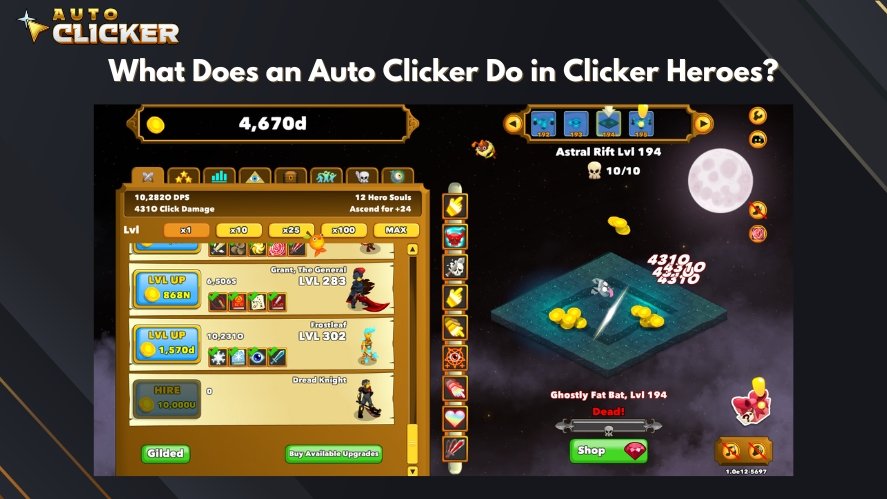
Idle games and incremental games. Auto Clicker is often used in idle games, clicker games, and incremental games. These games often require frequent clicks to collect points, resources, upgrades, or rewards. An automatic clicker can make the process easier and reduce hand fatigue.
Repetitive software testing. Developers and quality assurance testers may use Auto Clicker to test buttons, menus, pop-ups, and interface responses. For example, a tester may need to click the same button many times to check stability. Auto Clicker can make that task faster and easier.
Data entry and form interaction. Some office tasks require repeated clicks through menus, forms, or confirmation boxes. Auto Clicker can help when the click locations stay the same.
Productivity tasks. Some users perform the same mouse action many times a day. Auto Clicker can reduce that manual work. It is useful for simple tasks that do not need complex decisions.
Accessibility support. Auto Clicker may help users who deal with hand fatigue, limited mobility, or repetitive strain. It can reduce the effort needed for repeated clicking. It should not replace dedicated accessibility tools in every case, but it can help with simple click-based tasks.
What Is TinyTask?
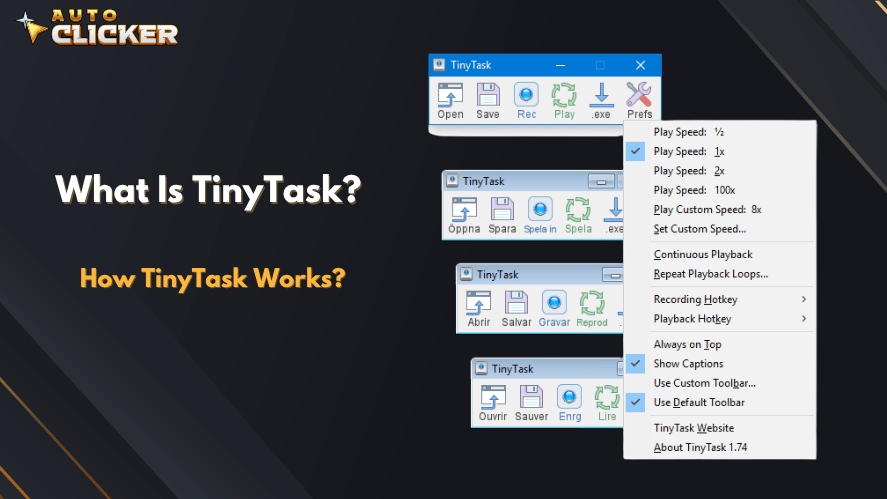
TinyTask is a lightweight desktop automation tool. It records your mouse movements and keyboard inputs. Then it plays them back.
Unlike Auto Clicker, TinyTask does not focus only on clicks. It captures a full sequence of actions. This makes it useful for simple macro automation.
Many users search for tinytask because they want a small and easy tool for routine desktop tasks. Others search for tinytask download when they want to install it. As with any software, users should choose safe sources and avoid unofficial files that may include unwanted programs.
TinyTask is often called a macro recorder. A macro is a saved set of actions that can run again later. For example, you might open a folder, click a file, type text, and press a shortcut. TinyTask can record those steps and replay them.
How TinyTask Works
TinyTask works by recording what you do on your computer. Once recording begins, it captures mouse movements, clicks, and keyboard actions. After you stop recording, you can replay the recorded sequence.
The basic process is usually:
- Open TinyTask.
- Start recording.
- Perform the task manually.
- Stop recording.
- Play the recording back.
- Repeat the playback as needed.
People searching for how to use tinytask are usually looking for this type of simple workflow. TinyTask is known for being minimal and lightweight, which means it does not usually require a complex setup process.
Unlike Auto Clicker, TinyTask does not specialize in detailed click interval control. Instead, it focuses on replaying the timing and sequence of recorded actions. This makes it better for tasks where multiple steps must happen in a specific order.
Best Use Cases for TinyTask
TinyTask is best for simple desktop workflows that involve more than just clicking. If your task includes mouse movement, keyboard input, menu navigation, and repeated steps, TinyTask may be more useful than a basic Auto Clicker.
Common use cases include:
Repeating desktop workflows. TinyTask can replay a short sequence of actions, such as opening a program, clicking through menus, entering text, and saving a file.
Simple macro recording. If you need a basic macro click or keyboard-and-mouse sequence, TinyTask is designed for that. It does not require advanced scripting knowledge.
Office tasks. TinyTask may help with repetitive office workflows, such as formatting repeated documents, navigating spreadsheets, or repeating simple file actions.
Basic software automation. For users who want lightweight automation without writing code, TinyTask can automate simple software routines.
Auto Clicker vs TinyTask Feature Comparison
The most important thing to understand about Auto Clicker vs TinyTask is that they are not identical tools. Both automate actions, but they approach automation differently.
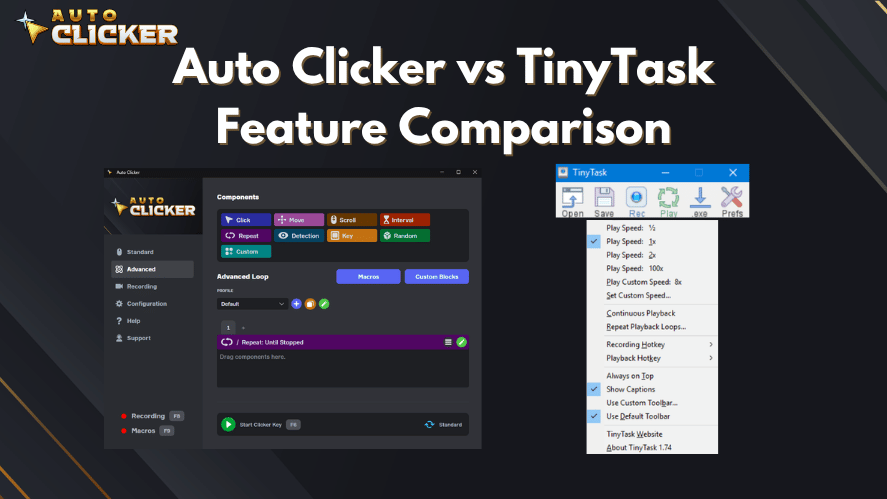
Auto Clicker is specialized. It is built for repeated mouse clicks. TinyTask is broader but simpler in another way. It records actions and plays them back, but it does not offer the same level of click-specific customization.
Auto Clicker vs TinyTask: Ease of Use
Both tools are generally easy to learn, but they are easy in different ways.
Auto Clicker is simple because the user only has to configure click behavior. You choose the click interval, click type, button, repeat settings, and hotkey. After the settings are configured, the program can carry out the clicking sequence on its own.
TinyTask is simple because the user does not need to configure many details. You just record yourself doing the task and then play it back. This can feel more natural for beginners because you are showing the program what to do instead of adjusting technical settings.
However, TinyTask may become less convenient if your recorded sequence needs editing. If one step is wrong, users often need to re-record the sequence. Auto Clicker, by contrast, is easier to adjust because settings like speed and repeat count can usually be changed directly.
For users who only need automated mouse clicks, Auto Clicker has the easier learning curve. For users who want to repeat a short workflow involving both mouse and keyboard actions, TinyTask may feel easier at first.
Auto Clicker vs TinyTask: Automation Capabilities
Auto Clicker focuses heavily on click automation. It can automate repeated clicking with precise control over timing and behavior. This makes it very effective for repeated click tasks.
TinyTask focuses on macro recording. It can capture more than just clicks, including keyboard input and mouse movement. This makes it better for multi-step workflows.
When comparing automation capabilities, the question is not simply which tool is more powerful. The better question is: what type of automation do you need?
Choose Auto Clicker if you need:
- Repeated clicking
- Adjustable click speed
- Fixed-location clicking
- Hotkey-controlled clicking
- Long-running click sessions
- Fast automated mouse clicks
Choose TinyTask if you need:
- Recorded workflows
- Keyboard and mouse playback
- Simple desktop task repetition
- Basic macro automation
- Replaying a sequence of actions
For click-heavy work, Auto Clicker is stronger. For workflow recording, TinyTask is more flexible.
Auto Clicker vs TinyTask: Customization
Customization is one of the biggest differences between these tools.
Auto Clicker usually provides more click-specific settings. Users can often control:
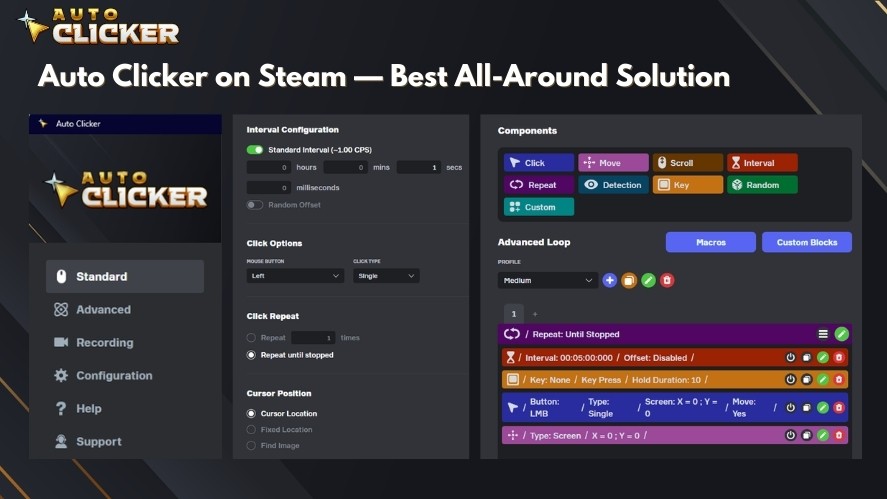
- Click interval
- Mouse button
- Click type
- Cursor position
- Repeat count
- Start and stop hotkeys
- Continuous clicking behavior
This control matters when timing is important. For example, users looking for the best auto clicker software often want three things: adjustable speed, reliable hotkeys, and steady click timing.
TinyTask offers a different type of customization. It records what you do and plays it back. This is useful for simple workflows. But it is not as flexible when you need to adjust each click.
TinyTask is not mainly built for clicks per second, click intervals, or exact repeat clicking. That is why many users who search for good auto clickers, best auto clickers, or auto click software may prefer Auto Clicker-style tools.
Auto Clicker vs TinyTask: Performance
Both Auto Clicker and TinyTask are lightweight tools. They usually use fewer system resources than large apps, browsers, games, or development tools.
Auto Clicker works well during long sessions. It only has to repeat one main action clicking. This makes it useful for idle games, testing, and simple productivity tasks.
TinyTask is also lightweight. But its playback can depend on the recorded workflow. It may not work as expected if a window moves, the screen size changes, an app loads slowly, or a pop-up appears.
For long sessions, Auto Clicker often has the edge. Repeated clicking is simple and predictable. TinyTask can also work well, but the desktop setup needs to stay the same.
Auto Clicker vs TinyTask: Gaming Compatibility
Gaming is one of the biggest reasons people compare these tools. Many players want automation for idle games, clicker games, casual games, or repetitive in-game actions.
Auto Clicker is usually better for games that require repeated clicking. It can provide faster clicks, adjustable click speed, and continuous clicking. This makes it useful for click-based mechanics.
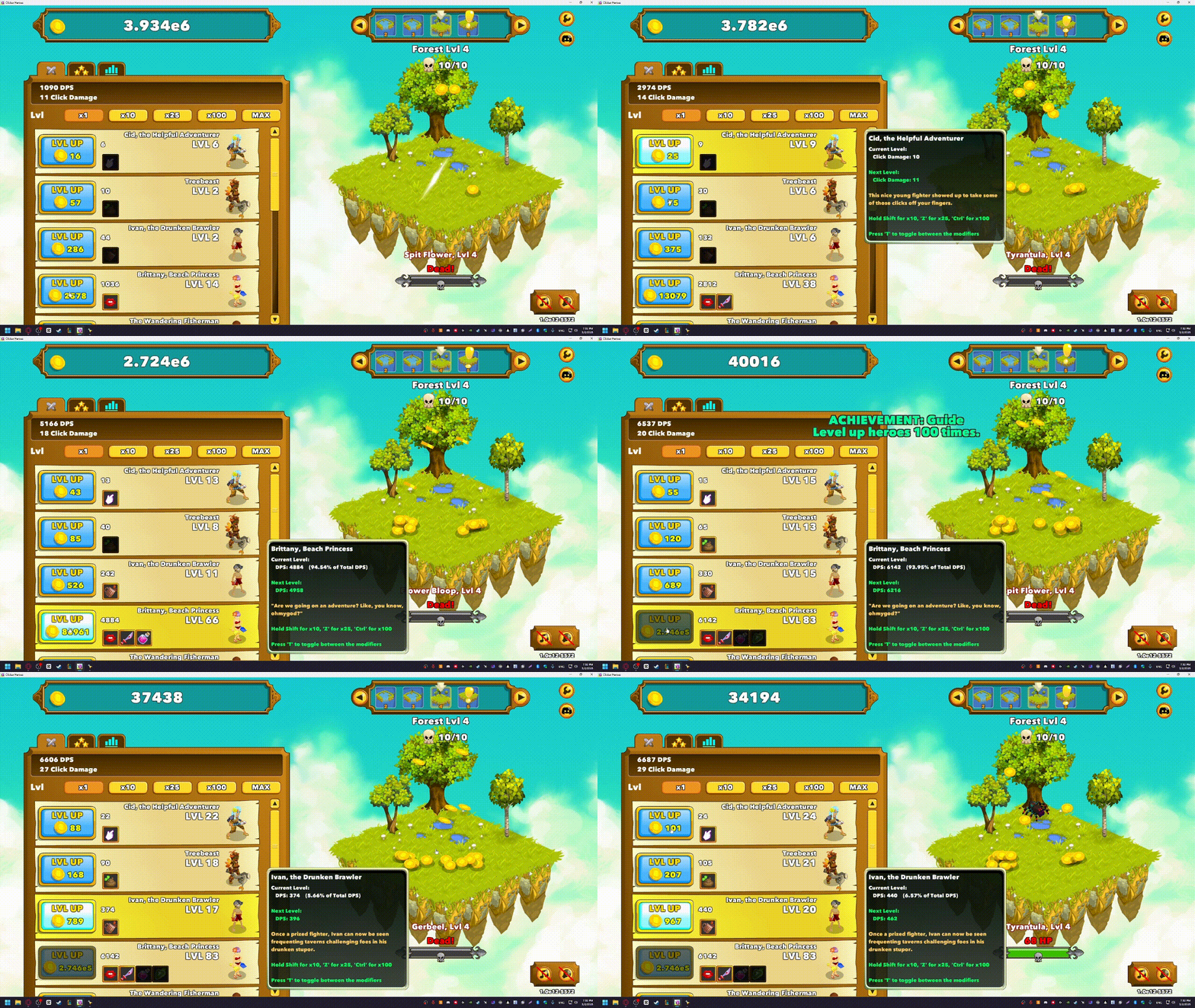
TinyTask can be useful in games when the task involves a sequence, such as clicking one area, waiting, pressing a key, then clicking another area. However, it is less ideal for rapid clicking because it does not specialize in high-speed click configuration.
A caution is important here: some games prohibit automation tools. Before using any automated clicking tools in a game, users should check the game’s rules, terms of service, and fair play policies. Automation may be allowed in some casual or offline games but restricted in competitive online games.
Auto Clicker vs TinyTask Pros and Cons
Both tools have clear advantages and limitations. The right choice depends on whether you need dedicated click automation or broader macro recording.
Auto Clicker Pros
Auto Clicker has several strengths that make it ideal for repetitive clicking tasks.
Built specifically for click automation. Auto Clicker is designed for one job and usually does it well. If the goal is repeated clicking, it is often the more direct solution.
Highly customizable. Users can usually adjust click speed, mouse button, click type, repeat count, and hotkeys. This flexibility makes Auto Clicker useful across many scenarios.
Easy to configure. Most Auto Clicker tools are simple enough for beginners. You do not need to create scripts or understand advanced automation.
Reliable for repetitive clicking. Since Auto Clicker performs a narrow task, it can be very consistent when properly configured.
Suitable for gamers and productivity users. From idle games to software testing, Auto Clicker can serve many users who need repeated clicking.
Auto Clicker Cons
The main limitation of Auto Clicker is that it is focused primarily on mouse click automation rather than full desktop macro recording.
If you need to record a complete workflow involving mouse movement, keyboard typing, application switching, and menu navigation, a basic Auto Clicker may not be enough. Some advanced auto clickers may include extra features, but traditional Auto Clicker software is usually not a full macro recorder.
TinyTask Pros
TinyTask has its own advantages, especially for users who want simple macro recording.
Records complete workflows. TinyTask can record both mouse and keyboard actions, making it useful for multi-step automation.
Extremely lightweight. TinyTask is known for being small and minimal. It does not overwhelm users with complex menus.
Simple playback. Once a task is recorded, users can replay it without rebuilding the steps manually.
Good for repetitive desktop actions. Tiny Task works well for office tasks, simple software routines, and repeated desktop workflows.
TinyTask Cons
TinyTask also has limitations.
Limited editing options. If the recorded sequence is wrong, editing individual steps may be difficult or unavailable. Users may need to record the task again.
Less precise click configuration. TinyTask does not offer the same detailed click interval control as dedicated Auto Clicker tools.
Not optimized specifically for rapid click automation. For fast clicking, adjustable CPS, or long click-only sessions, Auto Clicker is usually better.
Which Tool Is Better for Gaming?
For gaming, Auto Clicker is usually the better choice if the game relies heavily on repeated clicking. TinyTask may be better for games that require a recorded sequence of actions rather than continuous clicking.
Why Auto Clicker Is Better for Click-Based Games
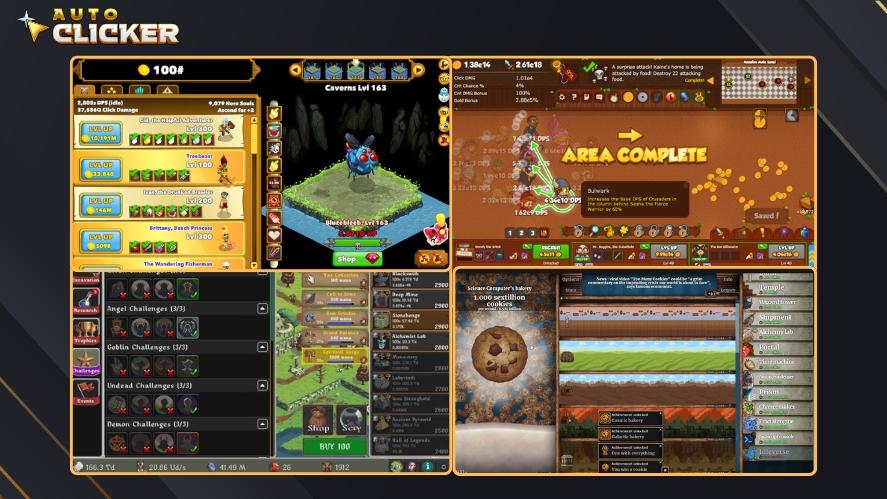
Auto Clicker is better for click-based games because it is designed around speed and repetition.
Key advantages include:
- Faster click automation
- Adjustable clicks per second
- Continuous clicking
- Hotkey control
- More precise click timing
- Better support for repeated clicking sessions
For idle games, incremental games, and casual clicker games, Auto Clicker is usually the more practical option. Players can set the click rate, choose where clicks happen, and stop the automation quickly using a hotkey.
This is why searches for best auto clickers, good auto clickers, and automatic clicker are often connected to gaming. Users want a tool that can click quickly, consistently, and with minimal setup.
When TinyTask Works Better
TinyTask works better in gaming when the task involves a sequence rather than pure clicking.
For example, TinyTask may be useful when a routine requires:
- Moving to one part of the screen
- Clicking a button
- Pressing a key
- Waiting for a response
- Clicking another area
- Repeating the same sequence
This type of task is closer to macro recording than click automation. TinyTask can record the routine and replay it.
However, TinyTask is not ideal for rapid clicking or highly precise click interval control. For that, Auto Clicker remains the stronger option.
Which Tool Is Better for Productivity?

For productivity, the best choice depends on the task. AutoClicker is better for repeated clicking, while TinyTask is better for recorded workflows.
Auto Clicker for Productivity
Auto Clicker is useful for productivity tasks that involve repetitive clicking. This can include:
- Clicking through repeated confirmation buttons
- Testing user interface elements
- Interacting with forms
- Repeating simple software actions
- Performing basic UI automation
- Reducing manual clicking during routine tasks
For example, a user testing a form may need to click the same submit button repeatedly. A worker may need to interact with the same software button many times during a process. An Auto Clicker can make these tasks easier.
Auto Clicker is also helpful when timing matters. If a click needs to happen every few seconds, the tool can repeat it consistently.
TinyTask for Productivity
TinyTask is better when the productivity task includes multiple steps.
For example, TinyTask can help with:
- Recording workflows
- Repeating office tasks
- Performing routine desktop actions
- Navigating menus
- Replaying keyboard and mouse input
- Automating simple software sequences
If your workflow includes opening a menu, selecting an option, typing a short entry, and saving a file, TinyTask may be more useful than a standard Auto Clicker.
In this sense, TinyTask is closer to a beginner-friendly macro tool, while Auto Clicker is closer to a specialized mouse automation tool.
Auto Clicker vs TinyTask Comparison Table
| Feature | Auto Clicker | TinyTask |
|---|---|---|
| Mouse Click Automation | ✔ Advanced | ✔ Basic |
| Macro Recording | Limited | ✔ Yes |
| Adjustable Click Speed | ✔ Yes | Limited |
| Hotkeys | ✔ Yes | ✔ Yes |
| Repeat Until Stopped | ✔ Yes | ✔ Yes |
| Gaming Friendly | ✔ Excellent | Good |
| Productivity | ✔ Excellent | ✔ Excellent |
| Lightweight | ✔ Yes | ✔ Yes |
| Easy to Learn | ✔ Yes | ✔ Yes |
This table makes the main difference clear. Auto Clicker wins for advanced click automation. TinyTask wins for simple macro recording. Both are lightweight and beginner-friendly, but they serve different automation styles.
Who Should Choose Auto Clicker on Steam?
You should choose Auto Clicker on Steam if your main goal is fast, accurate, and repeatable mouse clicking.
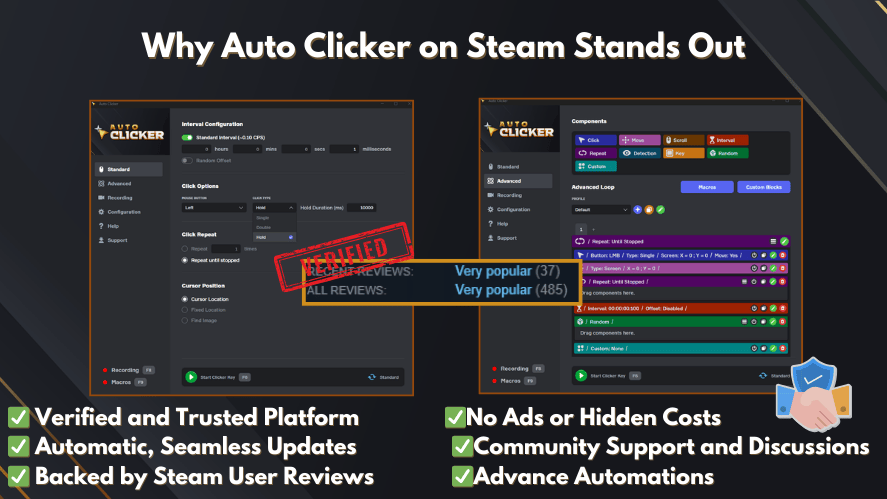
Auto Clicker is the better option for users who need:
- Fast and accurate click automation
- Gaming automation
- Idle games
- Repetitive clicking
- Flexible click settings
- Long automation sessions
- Adjustable click speed
- Hotkey control
- Consistent automated mouse clicks
It is also the better choice if you are searching for auto clicker software, auto click software, automated clicking tools, or a dedicated mouse clicker. These terms usually point toward software built specifically for repeated clicking rather than broader desktop recording.
Users who need an autoclicker download should focus on safety, reliability, and clear feature support. The same applies to anyone searching for auto clicker download, download auto clicker, or download autoclicker. Always avoid suspicious installers and choose reputable sources.
Auto Clicker is especially useful for users who want automation without complexity. You do not need to build scripts, record workflows, or learn advanced macro systems. You configure the click behavior and let the tool run.
Who Should Choose TinyTask?
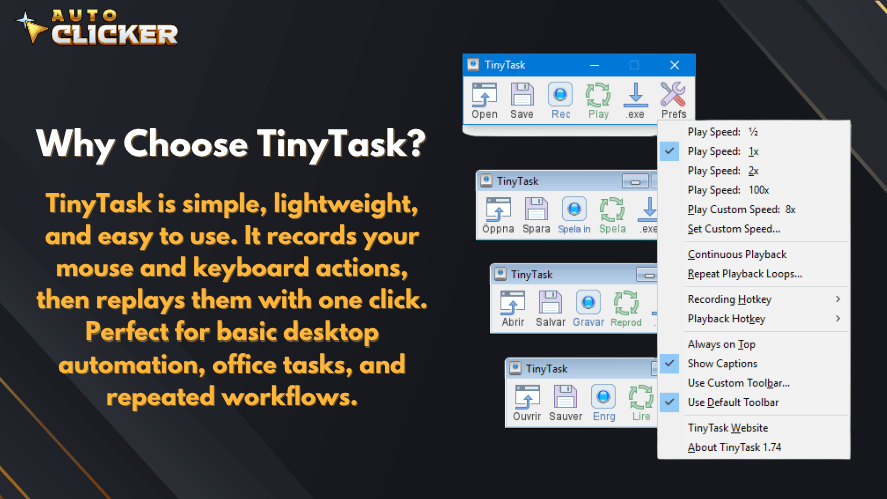
You should choose TinyTask if your main goal is to record and replay a simple desktop workflow.
TinyTask is the better option for users who need:
- Macro recording
- Desktop workflow automation
- Keyboard and mouse playback
- Simple task recording
- Lightweight automation
- Repeating a sequence of actions
- Basic office automation
TinyTask is useful when clicking alone is not enough. If your task involves moving the mouse, clicking, typing, pressing keys, and repeating those actions, TinyTask may be the better fit.
Users searching for tinytask download should also prioritize safe downloading habits. Since automation tools can be copied and redistributed by third-party sites, it is important to avoid unknown installers, bundled software, and suspicious download pages.
TinyTask is a good choice for users who want automation that feels like recording a video of their actions and replaying it. It is not the most advanced macro editor, but it is simple and practical for basic workflows.
Auto Clicker vs TinyTask for Different User Types
Different users will benefit from different tools. Here is a closer look at which option fits common user groups.
Gamers
Gamers who play click-heavy games will usually prefer Auto Clicker. It is faster, easier to control, and better for continuous clicking.
TinyTask may help gamers who need to repeat a longer routine, but it is not the best choice for rapid clicking.
Best choice: Auto Clicker for click-based games; TinyTask for simple recorded sequences.
Office Workers
Office workers may benefit from either tool.
If the task involves clicking the same button or area repeatedly, Auto Clicker is better. If the task involves a repeated workflow with typing, navigation, and multiple clicks, TinyTask is better.
Best choice: Depends on the workflow.
Software Testers
Software testers may use Auto Clicker to test repeated click behavior, button response, and interface stability. TinyTask may be useful for replaying a user journey through a simple application.
Best choice: Auto Clicker for repeated clicks; TinyTask for recorded test flows.
Casual Users
Casual users who just want to reduce repetitive manual effort may find both tools easy to use.
Auto Clicker is better for simple repeated clicking. TinyTask is better for repeating a routine they can record.
Best choice: Auto Clicker for simplicity; TinyTask for workflows.
Common Mistakes When Choosing Between Auto Clicker and TinyTask
Many users choose the wrong tool because they assume all automation software works the same way. Auto Clicker and TinyTask may seem similar, but they solve different problems.
Mistake 1: Choosing TinyTask for High-Speed Clicking
TinyTask can record clicks, but it is not designed for advanced click speed control. If you need rapid clicking, adjustable intervals, or click-only automation, Auto Clicker is usually better.
Mistake 2: Choosing Auto Clicker for Complex Workflows
Auto Clicker is not ideal if you need to record a full sequence of mouse and keyboard actions. For multi-step workflows, TinyTask may be more practical.
Mistake 3: Ignoring Hotkeys
Hotkeys are important because they let you start and stop automation quickly. This is especially useful during gaming, testing, or long-running tasks.
Mistake 4: Not Testing the Automation First
Before running automation for a long session, test it briefly. Make sure the clicks happen in the right place, the timing is correct, and the task behaves as expected.
Mistake 5: Downloading From Unsafe Sources
Searches like autoclicker download, tinytask download, download auto clicker, and download autoclicker.com can lead to many websites. Not every source is safe. Always be careful with executable files and avoid installers that seem suspicious.
Safety and Responsible Use
Auto Clicker and TinyTask can be helpful tools. They can save time and reduce repetitive work. But they should be used carefully.
Before using any automation tool, make sure it is allowed for the task you are doing. Some games, apps, and websites do not allow auto clickers or macro tools. Using them in the wrong place may break the rules. In online games, automation may even lead to account penalties.
You should also be careful when downloading these tools. Searches like autoclicker download, auto clicker download, download auto clicker, download autoclicker, and tinytask download can lead to many websites. Not all of them are safe. Always choose trusted sources and avoid files that look suspicious.
It is also smart to test your automation first. Run it for a short time before using it for a longer task. Make sure the clicks happen in the right place. Check that the timing is correct. This can help you avoid mistakes, such as clicking the wrong button or submitting the wrong information.
Automation works best when it is simple, safe, and controlled. Use it to reduce repeated work, not to break rules or create risk.
Final Verdict on Auto Clicker vs TinyTask
The final verdict on Auto Clicker vs TinyTask is simple. Both tools are useful, but they are made for different jobs.
Auto Clicker is the better choice for repeated mouse clicks. It is ideal for idle games, clicker games, software testing, data entry, and other click-heavy tasks. It gives users more control over click speed, click location, mouse buttons, repeat settings, and hotkeys.
TinyTask is the better choice for simple macro recording. It is useful when you need to record a short workflow and play it back later. This may include mouse movement, keyboard input, menu clicks, and other basic desktop actions.
Choose Auto Clicker if your main task is clicking.
Choose TinyTask if your task has several steps that need to be recorded and replayed.
In the end, the best tool depends on your goal. Auto Clicker is stronger for fast and accurate click automation. TinyTask is better for simple desktop workflow automation. Both can save time when used the right way.

Best Idle Clicker Games to Play Using Auto Clicker on Steam

Auto Click Clicker Guide for Faster Gaming and Productivity

Click Behavior in Automation: How Auto Clickers Work
About The Author
