
Record Mouse and Keyboard Actions: Easy Guide
Record Mouse and Keyboard Actions: Easy Guide Copy
Many computer tasks involve more than clicking the same button. You may need to move the cursor, open menus, type text, press keys, and wait for a page to load. Doing these steps over and over takes time. Worse, one missed click can disrupt the entire task. One way to save effort is to record mouse and keyboard actions and replay them when needed.
Instead of setting up each action by hand, a macro recorder captures your inputs as you work. You can then test the recording, adjust its timing, and repeat the sequence.
However, a recording works best when you plan it well.
In this guide, you’ll learn how to create your first recording, turn it into a useful automation workflow, and fix common playback problems. You’ll also learn when a simple auto clicker is the better choice.
What Does It Mean to Record Mouse and Keyboard Actions?
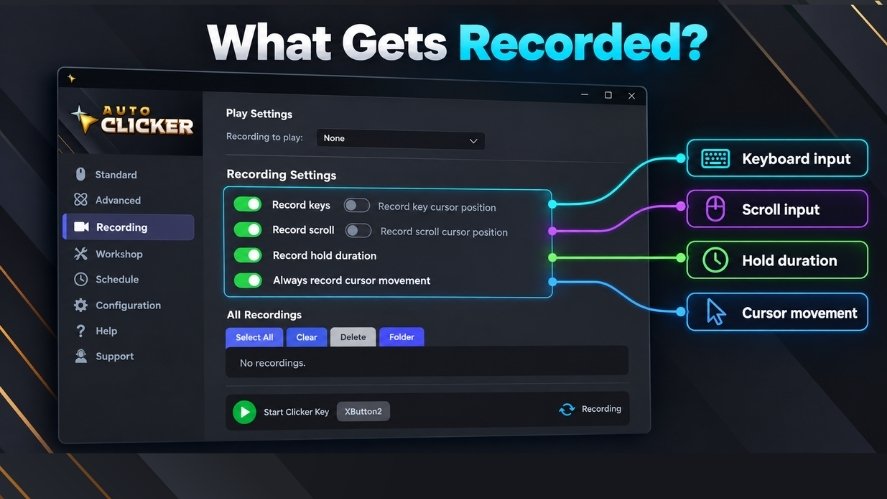
Recording mouse and keyboard actions means saving a set of computer inputs so you can replay them later.
This process is often called macro recording.
A macro is a saved series of actions. Depending on the software, it may include:
- Mouse clicks: Left, right, or double clicks.
- Keyboard inputs: Text, shortcuts, and special keys.
- Mouse movement: Cursor positions or movement paths.
- Scrolling: Mouse-wheel actions.
- Delays: Pauses between steps.
Not every recorder captures all these inputs. For example, some tools save clicks and keystrokes but do not record the full path of your cursor.
So, check which events the software supports before you begin.
From Manual Inputs to Recorded Sequences
Imagine you need to enter the same sample data into a test form.
Normally, you would:
- Move the cursor to the first field.
- Click the field.
- Type a sample name.
- Press Tab to reach the next field.
- Enter another sample value.
- Wait for the form to respond.
- Click Submit.
A mouse and keyboard recorder can save these actions in order.
After recording, you can return to the starting screen and replay the sequence. The software then performs the saved inputs without you repeating every step.
Still, the order matters.
If the macro types before selecting a field, the text may go somewhere else. Likewise, clicking Submit before the form is ready can cause an error.
For that reason, a useful recording must capture both the correct actions and suitable timing.
Recording vs. Simple Click Automation
Do you need a full macro recorder for every task?
Not always.
A basic auto clicker repeats mouse clicks using a set interval and target position. If you’re new to click automation, our guide explains how it works.
Here is how they compare:
| Feature | Basic Auto Clicker | Macro Recorder |
|---|---|---|
| Repeated clicking | Yes | Usually |
| Mouse movement recording | Usually no | Depends on tool |
| Keyboard recording | Usually no | Often |
| Multiple action steps | Limited | Yes |
| Recorded delays | Not usually needed | Often supported |
| Best use | Repeated clicks | Multi-step tasks |
For example, clicking one button 20 times may only need an auto clicker.
However, opening a menu, typing a value, waiting, and clicking another button calls for more control.
Choose the simplest tool that can complete your task. This saves setup time and makes errors easier to fix.
How to Record Mouse and Keyboard Actions Effectively
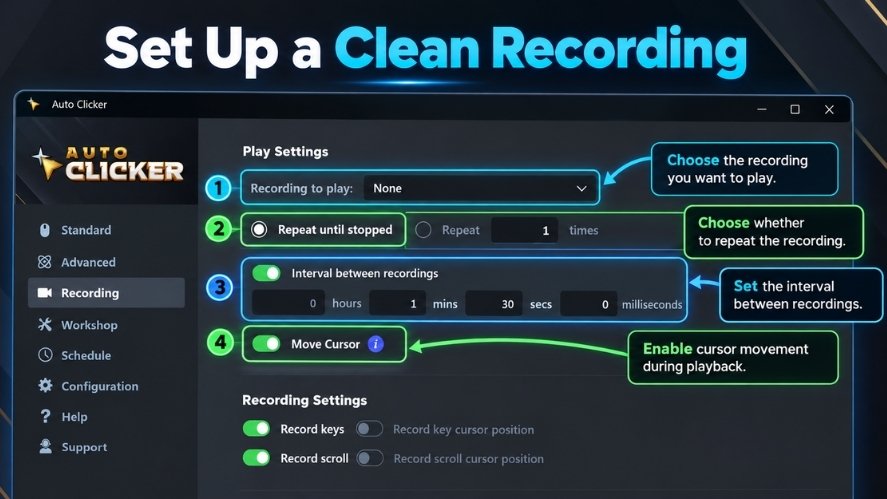
You don’t need programming skills to create a basic macro. For example, Microsoft’s desktop recording guide explains how to capture mouse and keyboard actions for automated workflows.
However, good preparation can prevent playback errors.
Follow these steps to create a clean recording.
Step 1: Choose One Task
Start with a short, repeatable task.
For example, you might open a menu, select an option, and enter a sample value.
Avoid recording several unrelated jobs at once. A shorter macro is easier to check and fix.
Step 2: Prepare Your Workspace
Open the application you want to automate.
Next, arrange its windows and controls before you start recording.
If your recorder uses fixed screen positions, moving a window later may cause clicks to miss their targets.
Also, close any pop-ups that might block your work.
Step 3: Start Recording
Open your macro recording software and find its recording feature.
Depending on the tool, you may start with a Record button or keyboard shortcut.
Before going further, confirm that it supports the input types you need.
Step 4: Perform the Task Once
Complete the task at a steady pace.
Try to avoid:
- Accidental clicks.
- Unneeded cursor movements.
- Unrelated keyboard shortcuts.
- Long pauses while deciding what to do.
You don’t need to rush. A clean recording is more useful than a fast but messy one.
Step 5: Stop and Save
Stop recording once the task is complete.
Then, save the sequence if your software allows it.
Use a clear name, such as “Open Test Form” or “Navigate to Report.”
That way, you can find it again later.
Step 6: Test Playback
Return the application to its original starting screen.
Now, play the recording once.
Watch each step. Check whether the clicks reach the right places and the keys enter the intended fields.
If anything fails, stop and fix the issue before adding loops.
Plan the Workflow Before Recording
A little planning can make a big difference.
Before using a mouse and keyboard macro recorder, write down the actions you want to capture.
For example:
Open menu → Select option → Enter text → Wait → Confirm
Next, decide which steps need mouse clicks and which can use keyboard shortcuts.
In some cases, pressing Tab between fields works better than moving the mouse to each one.
However, keyboard shortcuts still depend on the correct window being active.
Keep the sequence focused. If the task requires several unrelated decisions, consider splitting it into smaller recordings.
Pay Attention to Timing and Delays
Some actions take longer than others. Microsoft’s mouse and keyboard automation documentation explains how input actions and waits can be configured in desktop workflows.
A menu might open at once. However, a large file or new page may need extra time.
If the recording plays too quickly, later actions may happen before the application is ready.
Imagine this sequence:
- Click a button to open a dialog.
- Wait for the dialog to appear.
- Type into a text field.
- Click Confirm.
If the delay after the first click is too short, the text might go to the wrong place.
To fix this, increase the pause after the action that opens the dialog.
However, don’t add long delays everywhere. Focus on steps that need extra time.
Turn Recorded Actions Into Advanced Automation
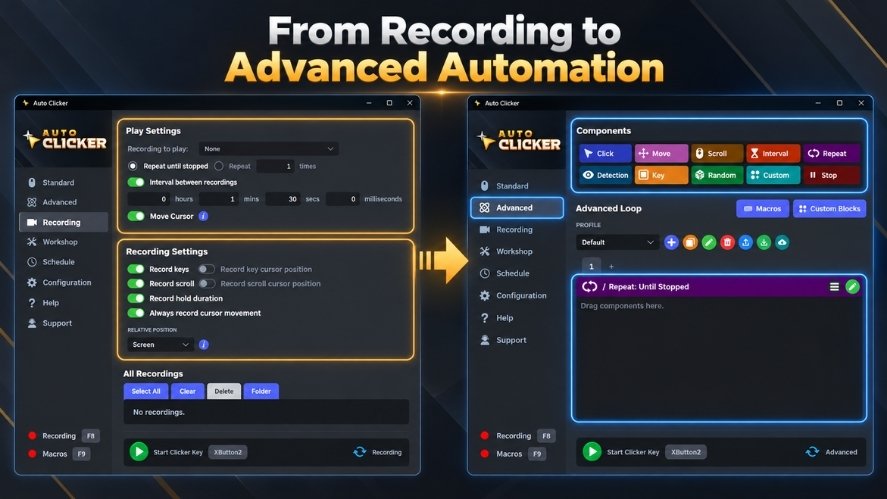
Once you record mouse and keyboard actions, you can improve the workflow by removing extra steps, adjusting delays, and testing playback.
A recording is only the beginning.
Once your macro works, you can improve it by removing extra actions, changing delays, and adding loops.
You don’t need a complex setup to make the workflow more useful.
Clean Up Unnecessary Recorded Actions
Most people make small movements or pauses while working.
A recorder may capture these extra inputs, even when they don’t help complete the task.
If your software supports editing, review the saved sequence.
Look for actions you can remove, such as:
- Accidental clicks.
- Extra cursor movements.
- Repeated selections.
- Delays that serve no purpose.
- Inputs that don’t affect the result.
For example, imagine you move the cursor across the screen several times before clicking a button.
If your task only needs a click at that button, the extra movement may not be needed.
However, some tasks depend on the cursor’s path. Drawing, dragging files, and opening hover menus are good examples.
Keep the movements that matter, and remove those that don’t.
This makes the macro easier to review and maintain.
Adjust Timing for More Reliable Playback
Many recording tools can save the pauses between actions.
Still, the original timing may not be ideal.
Perhaps you waited three seconds while looking for a button. That pause may be longer than needed during playback.
On the other hand, a short pause after opening a window may not give the application enough time to load.
You can improve the timing with this process:
- Replay the original recording.
- Find steps with extra waiting.
- Shorten those pauses one at a time.
- Look for actions that happen too soon.
- Add more time where needed.
- Test the full sequence again.
Make small changes and check the results.
A macro that takes 12 seconds and works every time is often more useful than one that finishes faster but fails often.
For more complex workflows, some tools can wait until a window or screen element appears. This may be more reliable than guessing how long to pause.
Repeat Recorded Sequences
Once the macro works, looping can help you repeat the task.
A loop runs the same sequence more than once.
Many recorders offer two common options.
Fixed repetitions
The macro runs a set number of times, such as three or ten.
This works well when you know how many cycles you need.
Continuous playback
The macro keeps running until you stop it or another stop condition applies.
This may suit tasks that repeat for longer periods. However, it also needs more care.
Before using either option, make sure the end of each cycle leaves the application ready for the next one.
For example, if a macro submits a form, the next loop might begin on a confirmation page rather than the original form.
Unless your recording returns to the form, the next cycle could fail.
Start with two or three loops. Then, check each result before increasing the count.
Combine Recorded Actions With Auto Clicker Workflows
Macro recording and automatic clicking can work together, but they serve different needs.
An auto clicker handles repeated mouse input. A recorder handles a sequence of actions.
Some tools offer both features.
For example, Auto Clicker by Playsaurus on Steam includes Standard, Advanced, and recording features.
Its Steam listing describes support for recording clicks, keypresses, and delays. Users can replay recordings or import them into custom actions.
Advanced Mode also includes actions for clicking, scrolling, waiting, repeating, and sending keys. For an example, see our auto scrolling guide to learn how scrolling, delays, and loops work together.
These features make it possible to build more complex routines without writing a script.
However, the listing does not clearly confirm full cursor-path recording. If your task depends on precise mouse movement, check that feature before choosing the software.
When an Auto Clicker Is the Better Choice
Use a basic auto clicker when your task needs repeated clicks with little or no change.
Common examples include:
- Clicking the same button many times.
- Repeating clicks at a steady interval.
- Using a fixed number of clicks.
- Repeating simple mouse input in an allowed application.
For instance, suppose an application requires you to click a control 30 times.
You may only need to set the target position, interval, and click count.
Recording a full mouse movement sequence would add work without much benefit.
If your goal is simple mouse click automation, start with the basic option.
When Recorded Actions Are More Useful
Choose recording when the task involves several steps or input types.
For example:
- Move to a menu.
- Select an option.
- Press a keyboard shortcut.
- Wait for a new screen.
- Click another control.
- Repeat the workflow.
A basic auto clicker cannot handle every part of this task on its own.
A suitable mouse and keyboard recorder can save the actions and replay them in order.
This is especially useful when clicks, keystrokes, and timing must work together.
Practical Ways to Use Recorded Mouse and Keyboard Actions
When you record mouse and keyboard actions for routine work, focus on tasks that follow the same steps each time.
Recorded macros can help with many routine computer tasks.
However, they work best when each step follows a predictable pattern.
Here are three common uses.
Repetitive Desktop Workflows
Many desktop jobs involve opening the same menus or moving through the same screens.
For example, you might need to:
- Open a standard report.
- Select a fixed menu option.
- Navigate to an export screen.
- Enter sample values during testing.
- Repeat a routine setup process.
A macro can reduce the time spent on these steps.
However, avoid using fixed recordings for tasks that involve changing or sensitive data.
For example, a recorded form entry may type the same value every time, even when a different value is needed.
Also, remember that keyboard recorders may capture sensitive text.
Never include passwords, payment details, or private data in a recording unless you have a secure, approved reason to do so.
For work systems, follow your organization’s security rules before automating any process.
Gaming and Repetitive Inputs
Some games require repeated clicks or keyboard actions.
Where automation is allowed, tools can reduce the need to perform the same inputs by hand.
Players may use click automation for simple actions or recorded sequences for more involved tasks.
However, not every game allows macros or auto clickers.
Some games ban automated input, especially when it provides an unfair advantage or allows unattended play.
Breaking these rules can lead to account restrictions or bans.
Before using any automation tool, check the game’s rules and platform policies.
Use automation only when it is permitted.
Testing and Demonstration Workflows
Recorded actions can also help when testing software.
For example, a developer may want to repeat the same clicks and keystrokes to see how an interface responds.
A recording can help with:
- Replaying simple test steps.
- Showing a repeatable workflow.
- Checking menu behavior.
- Testing basic form navigation.
- Reproducing some interface issues.
A mouse movement recorder may also help with hover menus or pointer-based controls, provided it can capture the required movement.
However, basic macros have limits.
A recording may click a button without knowing whether the expected page has loaded.
For complex tests, software that checks screen elements or application results may be more useful.
Treat simple macros as a helpful testing aid, not a complete replacement for dedicated testing tools.
How to Make Recorded Automation More Reliable
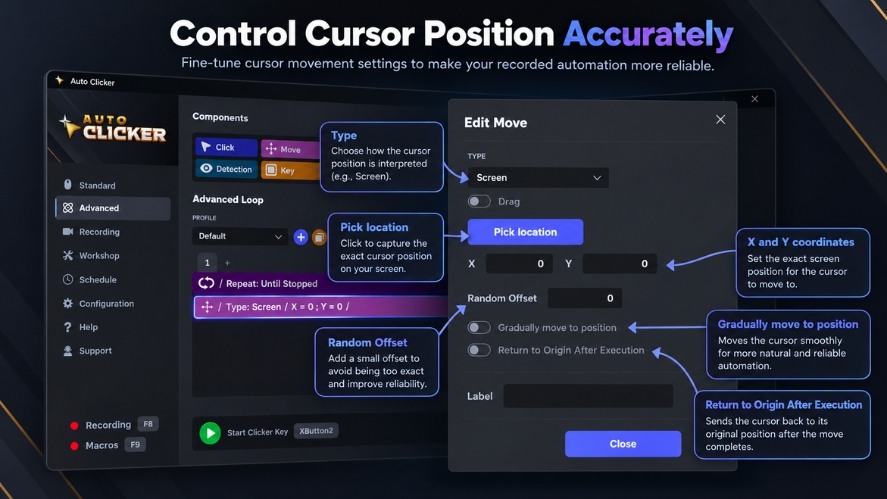
Before you record mouse and keyboard actions for a longer task, check the window layout and make sure you can stop playback at any time.
Even a clean recording can fail when the application changes.
A moved window, slow loading screen, or unexpected pop-up can affect playback.
Fortunately, a few simple habits can reduce these problems.
Keep the Environment Consistent
Many basic recorders use screen coordinates.
That means a recorded click targets a position on the screen, not always a specific button.
If the button moves, the click may miss.
Before playback, check the following:
| Check | Why It Matters |
|---|---|
| Window position | Moved windows can change click targets. |
| Window size | Resizing can move buttons and menus. |
| Screen resolution | Different settings can shift coordinates. |
| Display scaling | Scaling may change where controls appear. |
| Starting screen | The macro needs the expected first step. |
| Pop-ups | Extra windows may block clicks or take focus. |
Keep these settings as stable as possible.
If your software can locate an image or interface element instead of using only fixed coordinates, that may help with some layout changes.
Test Before Running Long Automation Sessions
A recording that works once may still fail after several loops.
So, begin with a short test.
Use this order:
- Run the macro once.
- Watch the cursor and keyboard inputs.
- Check the result.
- Run two or three loops.
- Look for errors or changes.
- Increase repetitions only after successful tests.
Also, learn how to stop playback before you start.
Your software may provide a stop button or keyboard shortcut. Use the method shown in its documentation.
Test the stop control during a safe trial.
Avoid leaving a long-running macro unattended when an unexpected action could cause harm.
Avoid Over-Automating a Workflow
Not every task should run without human input.
A macro can handle predictable steps. However, it may not know when something looks wrong.
For example, imagine this workflow:
- Open a document.
- Review its contents.
- Approve or reject it.
Automating the first step may be useful.
However, the review and approval steps need human judgment.
The same rule applies to payments, private records, and other important decisions.
Use automation for routine actions. Keep people involved when the task needs review, approval, or care.
Common Problems When You Record Mouse and Keyboard Actions
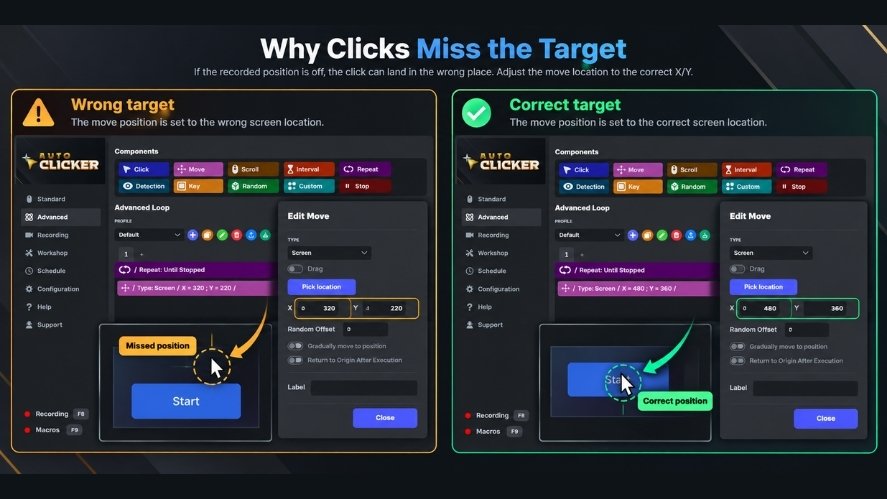
Playback problems are common, especially when a workflow involves several windows or timed steps.
Here are the most likely issues and how to fix them.
Recorded Clicks Land in the Wrong Place
Problem: The macro clicks an empty area or selects the wrong button.
Likely causes:
- The window has moved.
- The screen size or scaling has changed.
- A button is in a new position.
- A pop-up covers the intended target.
How to fix it:
Return the application to its original layout.
Then, test the recording again.
If the clicks still miss, update the target positions or create a new recording.
If your tool supports image-based targeting, it may help when controls move.
Actions Play Back Too Quickly
Problem: A macro clicks or types before the next screen is ready.
Likely cause: The delay after an earlier step is too short.
How to fix it:
Find the action that causes the screen to change.
Add a short delay after that step, then replay the macro.
Avoid slowing the entire sequence if only one step needs more time.
Keyboard Inputs Go to the Wrong Window
Problem: Text appears in the wrong place or a shortcut affects another application.
Likely cause: The intended window or field does not have keyboard focus.
How to fix it:
Bring the correct application to the front before playback.
Then, select the intended text field before typing begins.
If your automation software supports window activation, use that feature when needed.
Also, remember that shortcuts can behave differently between applications.
A Recording Works Once but Fails When Repeated
Problem: The first loop succeeds, but later loops fail.
Likely causes:
- The first run changes the screen.
- A dialog remains open or closes.
- The next loop starts in the wrong place.
- Loading time changes between runs.
How to fix it:
Check where the application ends after each cycle.
Your macro should return to the correct starting screen or handle the new state before repeating.
Next, test two or three loops to find where the error begins.
If the application changes in ways the recording cannot handle, you may need a more advanced tool.
Mouse Movement Does Not Replay Correctly
Problem: Clicks work, but drag actions or hover movements fail.
Likely cause: The recorder does not capture every cursor movement or mouse-button event.
How to fix it:
Check whether the tool supports:
- Cursor-path recording.
- Mouse-button hold and release.
- Drag-and-drop playback.
- Movement speed controls.
Some recorders only save click positions.
If your task needs a full movement path, choose a tool that clearly supports that feature.
Choosing the Right Mouse and Keyboard Automation Tool
Not all automation tools work the same way.
Some focus on repeated clicking. Others record input sequences or offer more advanced controls.
Before installing a tool, think about the task you want to automate. If you need help getting started, our Auto Clicker download guide covers installation and basic setup.
Features Worth Checking
| Feature | Why It’s Useful |
|---|---|
| Click recording | Saves mouse click actions. |
| Keyboard recording | Captures typing and shortcuts. |
| Movement recording | Helps with pointer-based tasks. |
| Editable steps | Makes errors easier to fix. |
| Adjustable delays | Improves playback timing. |
| Loop controls | Repeats a saved sequence. |
| Stop shortcut | Gives you control over playback. |
| Save and load | Lets you reuse a workflow. |
You may not need every feature.
For example, a simple auto clicker may be enough for fixed-position clicks. Meanwhile, a multi-step desktop task may benefit from editable recordings and loop controls.
Free vs. Advanced Recording Software
A free mouse recorder may cover basic recording and playback needs.
However, its features depend on the product.
Some free tools include editing and looping. Others provide only simple input capture.
More advanced software may offer image detection, window controls, or steps that change based on screen conditions.
So, don’t judge a tool by price alone.
Check what it can do, whether it works with your operating system, and how much control it gives you during playback.
When You Need More Advanced Automation
Sometimes, recording mouse and keyboard actions is not enough.
For example, your task might need to:
- Find a button after it moves.
- Check whether a window is open.
- Enter different data each time.
- Read information from a page.
- Respond to an error.
- Choose a different action based on a result.
A basic recorder usually cannot handle these changes on its own.
For such tasks, consider software with image detection, interface controls, or conditional steps.
You may also need scripting or a dedicated automation platform.
Still, for simple and predictable work, recording your inputs is often an easy place to start.
Frequently Asked Questions
Can I record mouse and keyboard actions without programming?
Yes. Many macro recorders let you capture clicks and keystrokes through a visual interface.
You can then replay those actions without writing code.
However, more complex tasks may require extra features or scripting.
What’s the difference between a macro recorder and an auto clicker?
An auto clicker repeats mouse clicks based on your settings.
A macro recorder saves a series of actions, which may include clicks, keyboard inputs, and delays.
Use an auto clicker for simple clicking. Choose a recorder when the task has several steps.
Can Auto Clicker on Steam record keyboard actions?
Yes. The official Steam listing states that Auto Clicker by Playsaurus can record clicks, keypresses, and delays.
It also supports replaying recordings and using them in custom actions.
However, this does not mean it records every type of mouse movement.
Can I record mouse movement as well?
Some tools can record mouse and keyboard actions movement and cursor paths.
Others only capture clicks or selected positions.
If you need precise movement for dragging or drawing, check the recorder’s features before using it.
Can I loop recorded mouse and keyboard actions?
Many recorders support repeated playback.
Depending on the software, you may set a fixed number of loops or run the sequence until you stop it.
Test a few cycles before starting a long session.
Why does my macro fail after I move a window?
Some macros use fixed screen coordinates.
When a window moves, the saved click positions may no longer match the intended controls.
Restore the original layout or use a tool that can locate screen elements.
Is recording mouse and keyboard actions safe?
It can be safe when you use trusted software and follow good security habits.
However, a recorder may capture sensitive keystrokes. Playback can also trigger unwanted actions.
Avoid recording passwords, test your macros carefully, and keep a working stop control.
Also, follow the rules of any game, service, or workplace system you automate.
Build Smarter Automation From Simple Recordings
Learning to record mouse and keyboard actions can make routine computer tasks easier to manage.
You don’t need to automate everything at once.
Instead, begin with one clear task. Record it, test the playback, and remove any extra steps.
Then, adjust the timing and try a few loops.
Keep this process in mind:
Record → Test → Refine → Repeat → Optimize
As your needs grow, you can combine recorded actions with click automation and other advanced features.
The important part is choosing the right method for the task.
For simple repeated clicks, a basic auto clicker may be enough. For longer workflows, recorded inputs provide more control.
Ready to try it? Explore Auto Clicker on Steam to learn about its click automation, recording, and Advanced Mode features.
Start with a short workflow, test it carefully, and build better automation one step at a time.

Image Detection Guide: How to Master Auto Clicker on Steam

Auto Clicker Steam: The Ultimate Tool for Gamers and Productivity

How to Auto Farm in Games Using Auto Clicker on Steam
About The Author
