
How to Use Auto Clicker to Save Time on Repetitive Tasks
In 2026, many daily computer tasks still involve repeated clicking, form filling, testing, and simple manual actions. Because of this, learning how to use auto clicker tools can help you save time, reduce hand strain, and make repetitive tasks easier to manage.
An auto clicker works by repeating mouse clicks based on the settings you choose. For example, you can set the click speed, click type, hotkey, and click location. As a result, you do not need to click manually again and again for simple tasks.
This guide explains how to use auto clicker software for gaming, productivity, software testing, and creative work. In addition, it covers setup steps, best practices, common mistakes, and safety tips so you can use click automation more effectively.
What is an Auto Clicker?

An auto clicker is a tool that automatically performs mouse clicks at a set interval Instead of clicking manually, you can choose how fast the clicks happen, where they happen, and when they start or stop.
For example, an auto clicker can help with idle games, repeated form submissions, software testing, and simple workflow tasks. In addition, some tools support hotkeys, macros, and click patterns for more advanced automation.
Common Uses for Auto Clickers
| Use Case | How It Helps |
|---|---|
| Gaming | Automates repeated clicks in idle games, clicker games, or farming tasks |
| Productivity | Helps with repeated form filling, data entry, and dashboard tasks |
| Software testing | Simulates user clicks for app or website testing |
| Creative work | Speeds up repeated actions in editing or design tools |
| Accessibility | Reduces physical strain from constant clicking |
However, auto clickers should always be used responsibly. Some games, websites, or work systems may have rules against automation, so always check the policy before using one.
Why Automation is Essential
The modern workplace and entertainment landscape are both increasingly automated. Therefore, using tools like automatic clickers not only reduces strain on your hands but also boosts your operational efficiency. Automation isn’t about laziness rather, it’s about working smarter and reallocating your time to the tasks that matter most.
How to Use Auto Clicker: Step-by-Step Guide
Using an auto clicker app may sound technical, but it’s surprisingly simple. Below is a step-by-step guide, especially focused on Auto Clicker on Steam, one of the most accessible and trusted tools.
A. Downloading and Installing Auto Clicker on Steam
The Auto Clicker available on Steam is user-friendly, ad-free, and secure making it a reliable option for both beginners and advanced users.
Steps:
- First, open Steam on your PC. If you don’t have Steam, download it from:
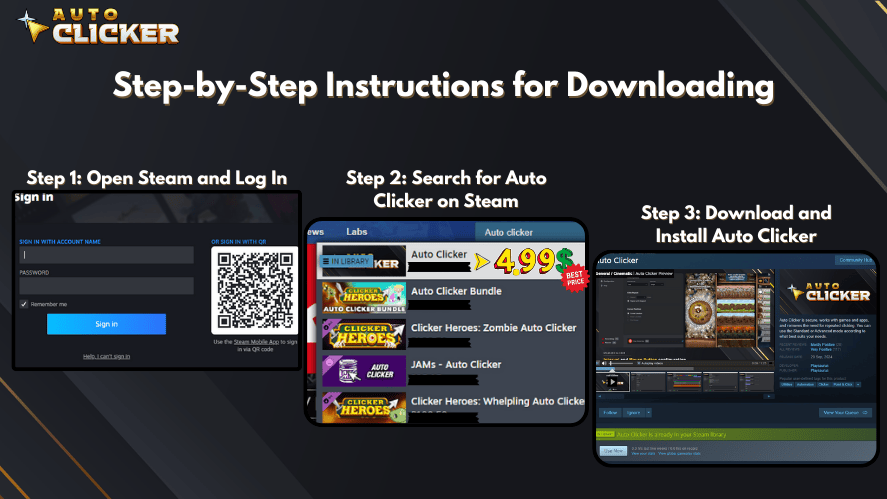
- Next, in the search bar, type “Auto Clicker” and select the app by Playsaurus.
- Click Install, then wait for the download to finish.
- Finally, launch the application once it’s installed.
✅ Tip: Steam also keeps your auto clicker app updated, ensuring you always use the latest features.
B. Configuring Auto Clicker for Your Needs
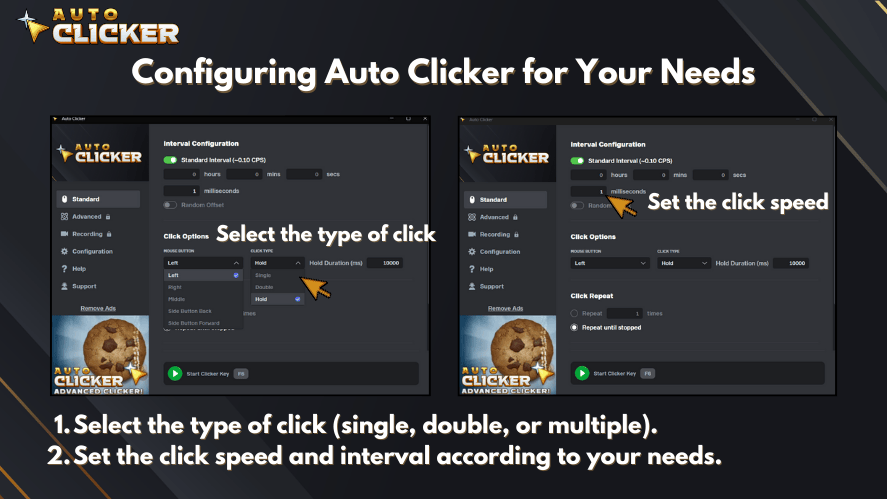
Once installed, the real customization begins. Here’s how to tailor it to your workflow:
1. Set Click Intervals
Depending on your task, you can choose how fast or slow the clicks occur:
- Milliseconds (for ultra-fast gaming)
- Seconds (common for productivity tasks)
- Minutes (ideal for slow repetitive work)
Generally, the auto clicker lets you input custom times through its control panel.
2. Select Click Type
You can configure the software to perform:
- Single-clicks
- Double-clicks
- Right-clicks (useful for accessing context menus)
3. Hotkey Setup
Assigning a hotkey allows you to easily start or stop the auto mouse click feature. Common choices include:
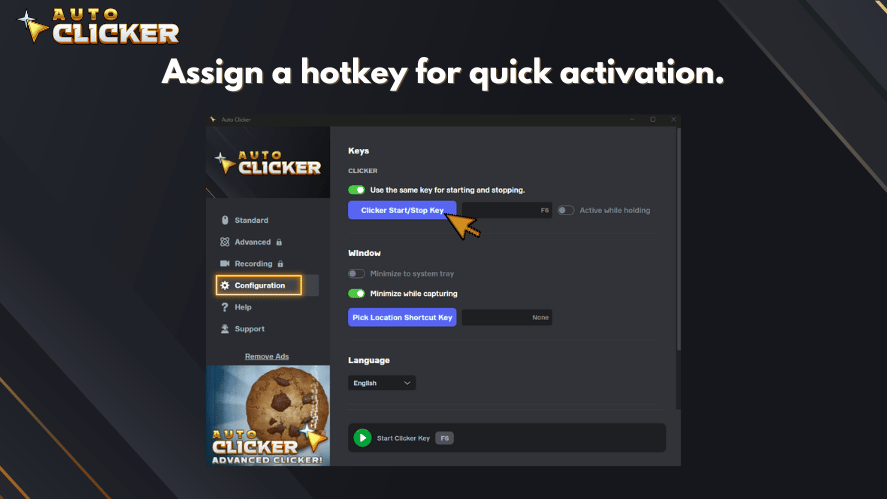
- F6
- Ctrl + Shift + A
- Other custom combinations
By using hotkeys, you won’t need to leave your current window to control the tool.
C. Using Auto Clicker for Different Tasks
For Gaming
Idle and clicker games like Cookie Clicker or Clicker Heroes benefit significantly from auto clickers. For instance, you can automate:

- Repetitive clicks on resources
- Collecting rewards
- Leveling up or upgrading skills
This is especially true when using a macro auto clicker, which can record and replay complex sequences of clicks and keystrokes.
For Work
In professional environments, auto clickers are often used to:
- Fill out web forms
- Enter data into spreadsheets
- Automate repetitive copy-paste tasks
- Simulate user actions during automated click testing
This is incredibly helpful for quality assurance, data entry clerks, and virtual assistants.
For Creatives
Graphic designers and video editors often use click-heavy tools like Adobe Premiere or Photoshop. Repeating actions such as:
- Applying filters
- Trimming clips
- Adjusting layers
…can be time-consuming. However, with a click macro or auto macro, these steps can be automated and executed with precision.
Best Ways to Use Auto Clicker in 2026
For Gaming
Auto clickers can help with idle games, clicker games, and farming tasks. For example, players may use them to collect resources, repeat simple actions, or reduce manual clicking.
However, avoid using auto clickers in competitive multiplayer games unless the rules clearly allow it. Some games may detect automation and apply penalties.
For Productivity
Auto clickers can also help with repeated office tasks. For example, they can assist with form filling, dashboard updates, spreadsheet actions, or simple browser workflows.
In addition, auto clickers can reduce the time spent on low-value repeated actions. This allows users to focus on work that needs more attention.
For Software Testing
Developers and QA testers can use auto clickers to repeat interface actions. For example, they can test buttons, menus, and simple workflows.
Because auto clickers can repeat the same clicks consistently, they are useful for basic testing tasks.
For Creative Work
Creative tools sometimes require repeated clicks for editing, trimming, applying effects, or adjusting layers. Therefore, an auto clicker can help reduce repetitive actions in design and video editing workflows.
Still, it is best to test settings carefully before using automation on an important project.
Best Practices for Using Auto Clicker Efficiently
While auto clickers provide great functionality, using them wisely is essential to prevent issues or detection in sensitive environments.
Avoiding Detection in Games
Some games have anti-cheat systems that can detect automated click patterns. Therefore, to minimize risks:
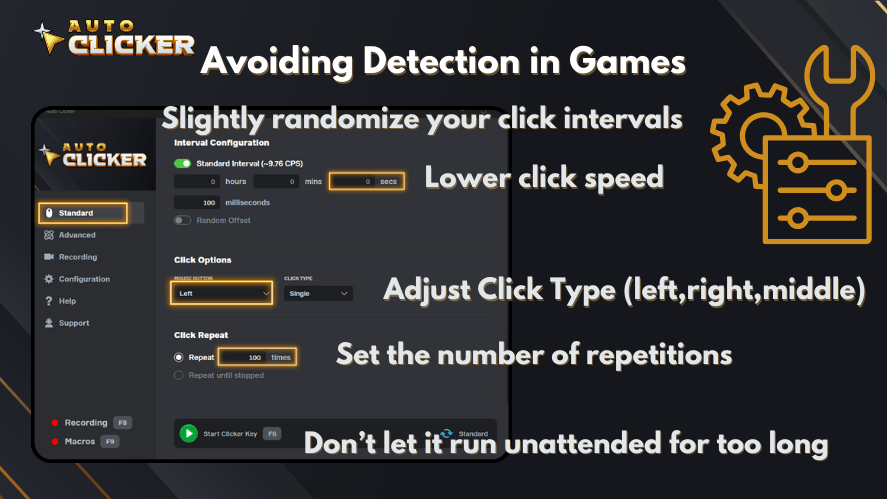
- Slightly randomize your click intervals
- Use lower click speeds
- Don’t let it run unattended for too long
Adjusting Click Speed
Clicking too quickly can:
- Crash programs
- Cause unintentional input errors
- Trigger warnings in some applications
Hence, always test your setup on a small scale before applying it broadly.
Using Auto Clicker in Professional Settings
In a work environment, it’s best to:
- Ensure compliance with your company’s automation policies
- Avoid automating security-related tasks like password input
- Use the auto clicker app to assist, not replace, core responsibilities
Advantages of Using Auto Clicker for Productivity and Workflow

Let’s explore how this tool can elevate your daily output across different domains.
Saves Time on Tedious Tasks
Repetitive actions like filling out online forms or running daily scripts are low-value but necessary. Fortunately, auto clickers execute them faster and more accurately.
Reduces Physical Strain
Prolonged clicking can lead to wrist fatigue and other strain-related injuries. Therefore, using mouse clicking software can dramatically reduce the stress on your hands.
Enhances Workflow Automation
When paired with scripts or macros, an automatic mouse clicker can:
- Open software
- Perform tasks in bulk
- Close the software automatically
As a result, it transforms your workflow into a seamless operation.
Increases Precision
Auto clickers allow you to click at the exact pixel with no deviation. Thus, you eliminate the risk of misclicks, especially in design or testing tasks.
Potential Drawbacks and How to Avoid Them
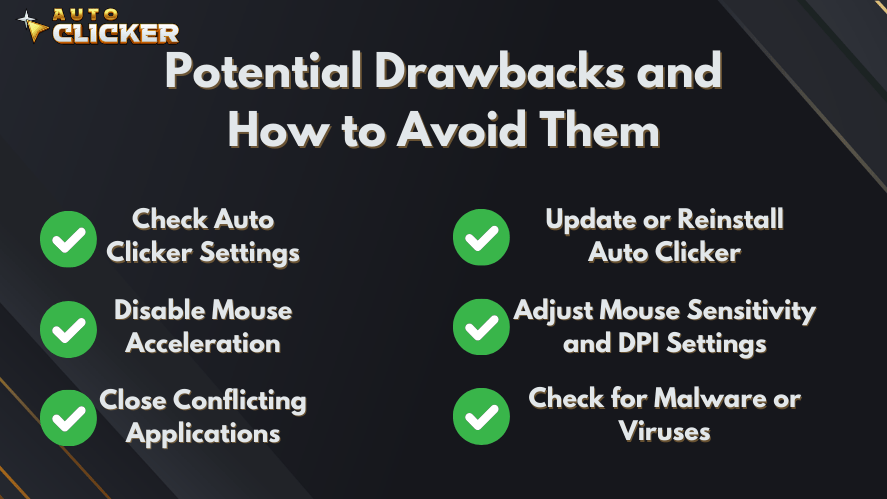
Despite its benefits, auto clickers can pose certain risks. However, these can be managed with proper usage.
Overuse in Games
Many games especially multiplayer ones disallow the use of auto clickers. Therefore, check the terms of service before enabling them in such environments.
Misconfigured Settings
If you accidentally set your click interval too fast or choose the wrong click type, you might:
- Crash your system
- Lose unsaved work
- Perform unintended actions
Solution: Always perform a quick test first.
Auto Clicker Not Working?
When your autoclick pc or windows automatic clicker tool malfunctions:
- Check permissions (run as administrator)
- Reassign your hotkey
- Temporarily disable antivirus to see if it’s being blocked
Also, make sure your system drivers and apps are up to date.
Best Practices for Using Auto Clicker Safely
Use these tips to avoid mistakes:
| Best Practice | Why It Matters |
|---|---|
| Start with slow click speeds | Prevents accidental clicks and system issues |
| Use hotkeys | Gives you quick control over start and stop actions |
| Test before real use | Helps avoid mistakes on important tasks |
| Check app or game rules | Prevents account warnings or bans |
| Avoid password fields | Protects sensitive information |
| Download from trusted sources | Reduces the risk of malware |
Most importantly, use auto clickers as support tools, not as replacements for judgment. Automation works best when the task is simple, repetitive, and safe to repeat.
FAQs About How to Use Auto Clicker
An auto clicker is used to automate repeated mouse clicks. It can help with gaming, productivity tasks, software testing, creative workflows, and accessibility support.
To use auto clicker software, install a trusted tool, set the click interval, choose the click type, assign a hotkey, and test the settings before using it on a real task.
Using an auto clicker can be safe if you download it from a trusted source and use it responsibly. However, avoid unknown downloads and always check the rules of apps or games before using automation.
Yes, you can use an auto clicker for simple work tasks such as form filling, repeated clicks, dashboard updates, and basic data entry. However, avoid automating sensitive tasks such as passwords or financial approvals.
Yes, auto clickers can reduce repeated manual clicking. As a result, they may help lower hand fatigue during long computer sessions.
Conclusion
Learning how to use auto clicker tools can help you save time, reduce repetitive clicking, and improve your daily workflow. Whether you use them for gaming, productivity, software testing, or creative work, an auto clicker can make simple repeated tasks easier to manage.
However, safe setup is important. Start with slow click speeds, test your settings first, and use hotkeys so you can stop automation quickly. In addition, always check the rules of the app, website, or game before using an auto clicker.
In 2026, auto clickers remain useful for anyone who wants to automate basic clicking tasks. With the right settings and responsible use, you can work faster while reducing unnecessary manual effort.
So why keep clicking manually when your PC can do it for you?
Ready to take control of your time? Try Auto Clicker on Steam for stronger control, smoother performance, customizable settings, and a more complete auto clicker experience. However, if you only want to test basic clicking first, you can also visit AutoClicker.com and try the free limited version before moving to the full experience.

Auto Clicker Apps: How They Work and Why You Might Need One

Clicker Speed Test: How Fast Can You Click?

Can Apps and Games Detect Auto Clickers?
About The Author
