
Auto Clicker Profiles: Set Up Custom Configurations for Any Task
If you often repeat the same clicking tasks, auto clicker profiles can make automation much easier to manage. Instead of changing your settings every time, you can save custom configurations for gaming, work tasks, testing, or other repeated actions.
In 2026, auto clicker profiles are useful because many users need different settings for different tasks. For example, a gaming profile may need faster clicks, while a work automation profile may need slower and more controlled timing. As a result, profiles help you switch between tasks quickly without rebuilding your setup from scratch.
This guide explains what auto clicker profiles are, why they are useful, and how to set them up for gaming, productivity, and software testing.
What Are Auto Clicker Profiles?

Auto clicker profiles are saved settings that control how your auto clicker works. A profile can include click speed, click type, duration, a hotkey, target location, and other automation settings.
Instead of adjusting everything manually each time, you can create separate profiles for different tasks. For instance, you might use one profile for an idle game, another for form filling, and another for software testing.
Key Benefits of Auto Clicker Profiles
| Benefit | Why It Helps |
|---|---|
| Saves time | You do not need to rebuild your settings every session |
| Improves accuracy | Each profile can be adjusted for a specific task |
| Makes switching easier | You can move between gaming, work, and testing setups faster |
| Reduces mistakes | Saved settings help avoid wrong click speeds or locations |
| Supports better organization | Clear profile names make each setup easier to find |
Because each task may need different timing and click behavior, profiles make auto clicker use more flexible and reliable.
Why You Should Configure Auto Clicker Profiles for Different Applications
Auto clickers are used for many different tasks. Setting up multiple autoclicker profiles allows users to optimize automation for specific needs.
1. Gaming Optimization
Many gamers use automatic clickers to automate in-game actions. Instead of clicking manually, they can let the software do the work.
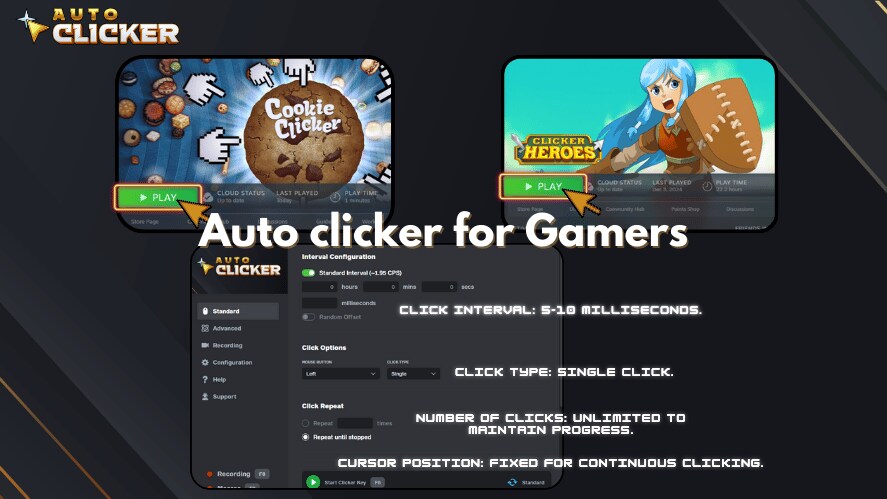
Here’s how auto clicker profiles improve gaming performance:
- Idle & Incremental Games – Automate resource collection and in-game farming.
- FPS & Action Games – Set up auto key clicker profiles for rapid-fire actions.
- MMORPGs – Automate repetitive tasks like inventory management or crafting.
For instance, players can use a space bar auto clicker for games that require constant jumping or pressing the spacebar repeatedly. Similarly, an automatic spacebar clicker can help with time-sensitive game mechanics.
2. Productivity and Work Automation
Auto clickers aren’t just for gaming they’re also valuable for work automation. Office workers and professionals use auto clicker for Mac or Windows to:
- Automate repetitive clicks in spreadsheets or web forms.
- Streamline copy-pasting and file processing tasks.
- Speed up workflow navigation in business applications.
For example, employees who frequently enter data into spreadsheets can set up an automatic key clicker to automate their workflow. This not only reduces manual effort but also improves accuracy.
3. Software Testing and Development
Developers and QA testers use autoclick PC tools for automation testing. With well-configured autoclicker profiles, they can:
- Automate UI interactions for software testing.
- Simulate different user behaviors without manual input.
- Execute repetitive test cases quickly and efficiently.
A properly configured auto key clicker helps developers run tests with minimal effort, ensuring their software functions correctly.
Best Auto Clicker Profile Examples for 2026
You can create different auto clicker profiles based on how you use the tool. However, each profile should match the task carefully so you do not click too fast, click in the wrong area, or trigger actions you did not intend.
| Profile Name | Best Use | Suggested Setup |
|---|---|---|
| Idle Game Profile | Clicker and incremental games | Medium to fast clicks with a fixed click location |
| Form Filling Profile | Online forms and repeated office tasks | Slower clicks with careful timing |
| Testing Profile | UI testing and app checks | Repeatable clicks with consistent intervals |
| Keyboard Automation Profile | Tasks that need key presses | Hotkeys or automatic key clicker settings |
| Safe Practice Profile | Testing settings before real use | Slow clicks with short duration |
For example, a gaming profile can focus on speed, while a productivity profile should focus more on accuracy. In addition, a software testing profile should use consistent settings so results are easier to repeat.
How to Set Up Auto Clicker Profiles
Setting up autoclicker profiles is simple and can be done in a few steps. If you are using Auto Clicker on Steam, follow this guide to create and customize your profiles.
Step 1: Install and Open Auto Clicker on Steam
First, make sure you are using a safe and reliable auto clicker. If you are using Auto Clicker on Steam, open the app and review the available settings before creating a new profile.
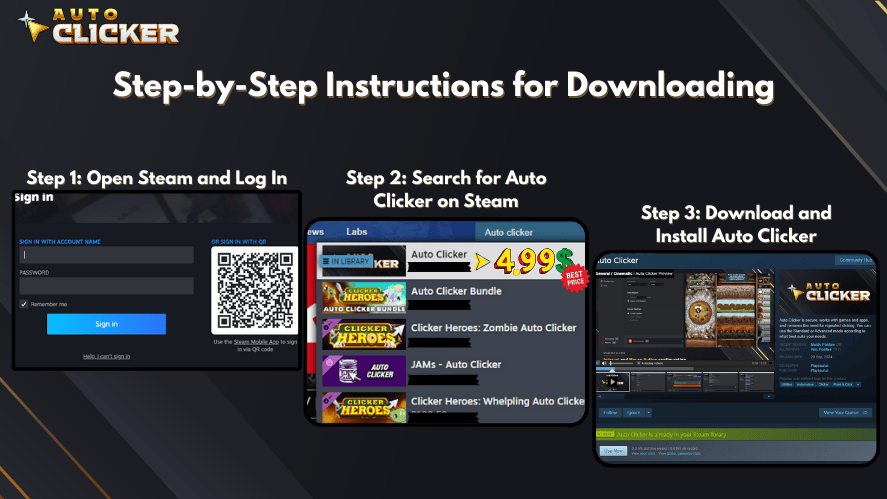
Before setting up profiles, ensure you have a safe autoclicker installed. Auto Clicker on Steam is a reliable option for both gaming and productivity tasks.
Step 2: Create a New Profile in Auto Clicker on Steam
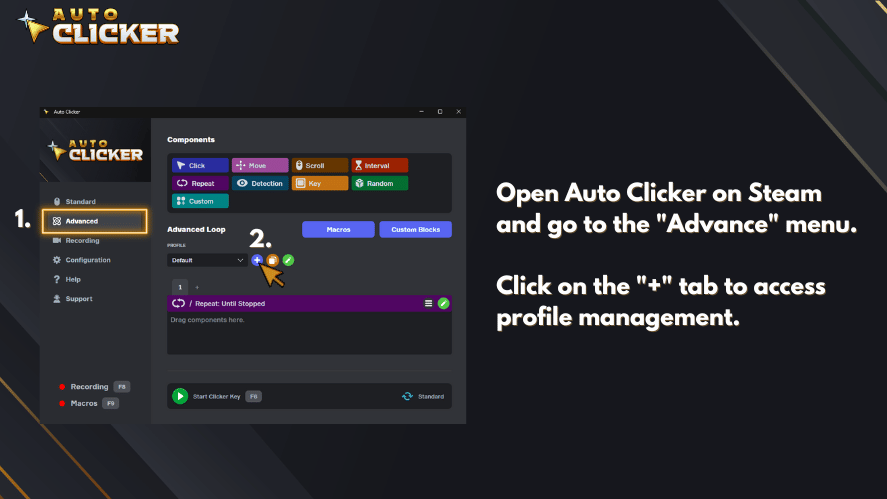
- Open Auto Clicker on Steam and go to the “Advance” menu.
- Click on the “+” tab to access profile management.
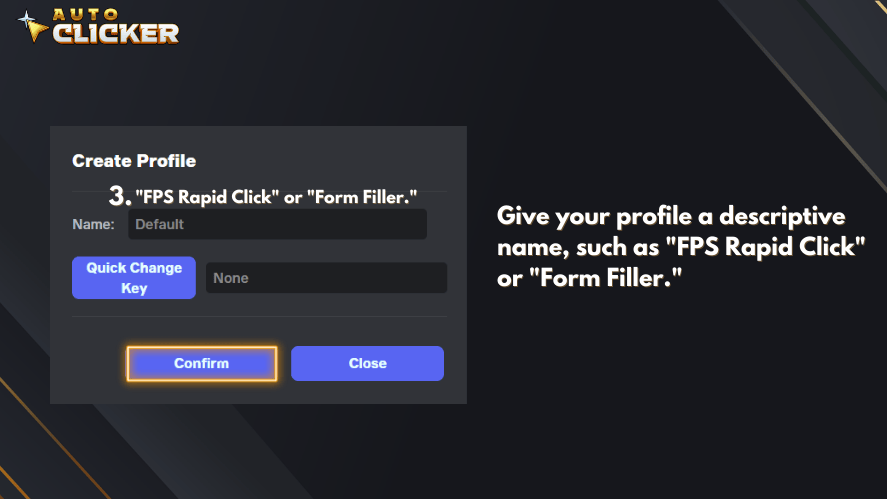
- Give your profile a descriptive name, such as “FPS Rapid Click” or “Form Filler.”
- Adjust the profile settings, including click intervals, type, and duration.
- Click “Confirm/Save” to store your profile. It will now be available in the profile list.
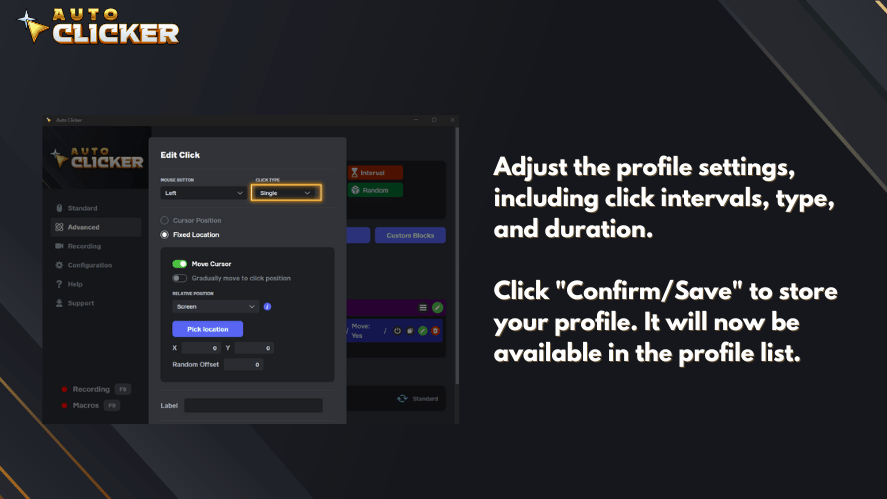
Once you have saved multiple profiles, you can quickly switch between them from the Profiles tab.
Step 3: Customize Click Settings
After creating a profile, fine-tune the settings based on your needs:
- Click Interval – Set how fast or slow the clicks should happen.
- Click Type – Choose between left, right, or middle mouse clicks.
- Click Location – Decide whether the clicks follow the cursor or target a fixed location.
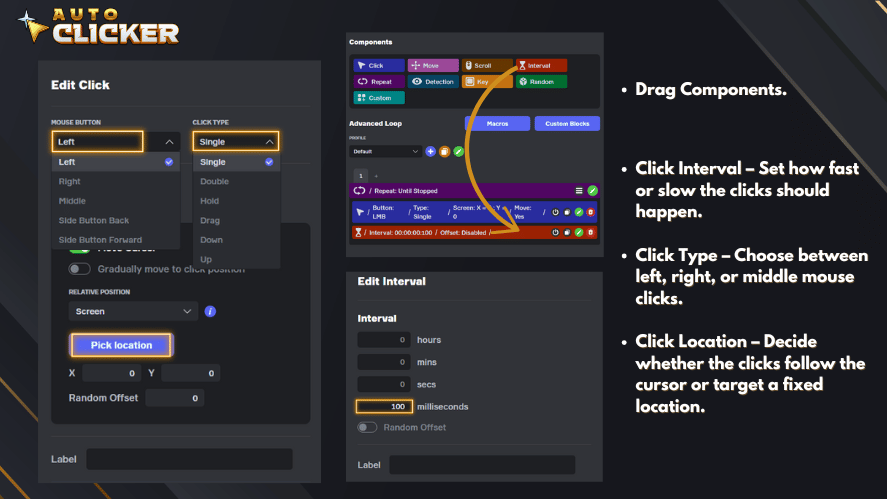
For keyboard-based automation, configure an automatic key clicker to trigger specific key presses.
Step 4: Assign Hotkeys for Quick Switching
Hotkeys make switching profiles easier. For example, you can set one hotkey for your gaming profile and another for your productivity profile. As a result, you do not need to open the settings menu every time.
Assign a hotkey for each profile to make switching faster. For example:
- F6 for Gaming Profile
- F7 for Work Automation Profile
- F8 for Software Testing Profile
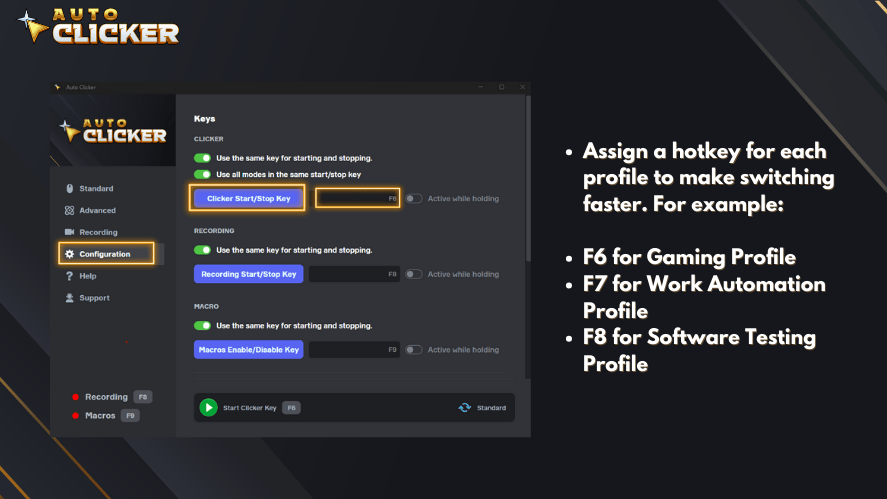
This allows users to switch between profiles instantly without opening the settings menu.
Step 5: Test and Adjust the Profile
Finally, test the profile before using it for a real task. Start with slower settings, then adjust the speed and duration if needed. This helps prevent wrong clicks, accidental actions, or unstable automation.
Best Practices for Managing Auto Clicker Profiles
To get the most out of your autoclicker profiles, follow these best practices:
1. Use Clear and Descriptive Names
Naming your profiles clearly helps you switch between them faster. Examples include:
- “Idle Game Auto Click”
- “Form Filling Automation”
- “Rapid Fire FPS Mode”
2. Adjust Settings for Different Use Cases
Fine-tune the following settings based on your needs:
- Speed – Use faster settings for gaming, slower for productivity.
- Duration – Short bursts for quick actions, longer durations for automation.
- Click Location – Fixed location for repetitive tasks, cursor-following for flexible clicking.
3. Backup and Restore Profiles
To avoid losing your settings, back up your profiles regularly. Many auto clicker tools allow users to export and import profile configurations.
FAQs About Auto Clicker Profiles
Auto clicker profiles are saved configurations for your auto clicker. They can store settings such as click speed, click type, hotkeys, duration, and click location.
You should use auto clicker profiles if you perform different repetitive tasks. They help you switch between gaming, work automation, and testing settings without rebuilding your setup every time.
Yes. You can create one profile for gaming and another for work tasks. For example, a gaming profile may use faster clicks, while a work profile may use slower and more accurate timing.
Yes. Software testers can use auto clicker profiles to repeat UI actions, test buttons, and check workflows. In addition, saved profiles help make tests more consistent.
Use clear names based on the task. Examples include Idle Game Profile, Form Filling Profile, UI Testing Profile, or Rapid Click Profile.
Conclusion
Auto clicker profiles make automation easier because they let you save custom settings for different tasks. Instead of changing your click speed, hotkeys, and target areas every time, you can create profiles and switch between them quickly.
For gaming, profiles can help with idle games and repeated actions. For work, they can support form filling, data entry, and workflow tasks. Meanwhile, software testers can use profiles to repeat interface actions more consistently.
In 2026, using autoclicker profiles is one of the easiest ways to make click automation more organized, flexible, and efficient. Start with simple profiles, test your settings carefully, and adjust each setup based on the task you want to automate.
Ready to improve your workflow? Try Auto Clicker on Steam today and create your first custom profile!

Best Idle Clicker Games to Play Using Auto Clicker on Steam

Click Lock Feature: Enable Hands-Free Clicking on Your Mouse

Auto Clickers for Chrome Everything You Need to Know
About The Author
