
Auto Clicker vs GS Auto Clicker: Which One Is Better?
With so many auto clicker software options available, it’s common for users to compare tools before deciding which one to use.
One of the most searched comparisons is Auto Clicker vs GS Auto Clicker, as both applications are designed to automate repetitive mouse clicks but offer different experiences.
While both function as automatic clicker tools, they target different audiences.
Auto Clicker on Steam is built for users who want a modern interface, regular updates, and seamless integration with the Steam ecosystem.
GS Auto Clicker, on the other hand, is a long-standing Windows application that focuses on simple click automation with a lightweight design.
In this comparison, we’ll examine how both tools perform across key categories, including features, ease of use, gaming performance, productivity, customization, security, and overall user experience.
By the end, you’ll have a better idea of which autoclicker best fits your needs.
Auto Clicker vs GS Auto Clicker at a Glance
Before diving into a detailed comparison, let’s take a quick look at what each application offers and who it is designed for.
What Is Auto Clicker on Steam
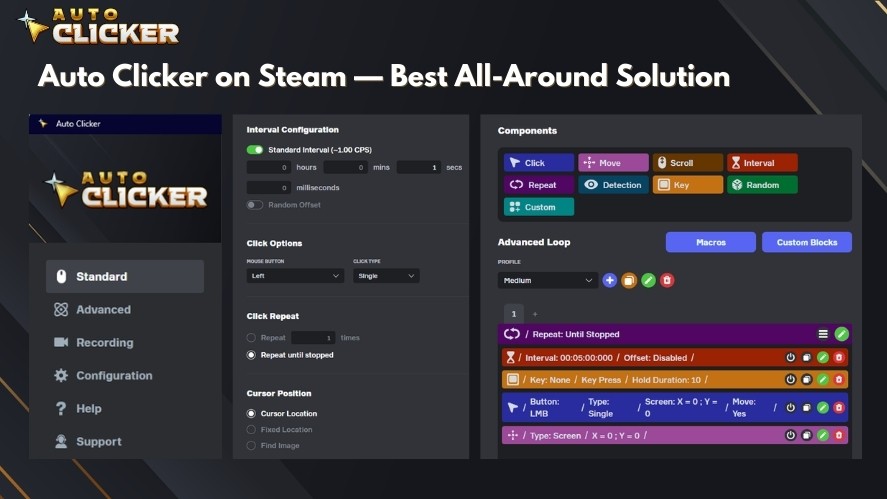
Auto Clicker on Steam is a modern auto click software available directly through Steam. It combines click automation with a user-friendly interface, making it suitable for both gaming and productivity tasks.
Some of its key highlights include:
- Available directly through Steam with easy installation
- Modern and intuitive interface
- Designed for both gaming and productivity workflows
- Regular updates with ongoing improvements
- Steam achievements and community integration
These features make it a convenient choice for users who already use Steam and want a continuously maintained mouse clicker with modern functionality.
What Is GS Auto Clicker
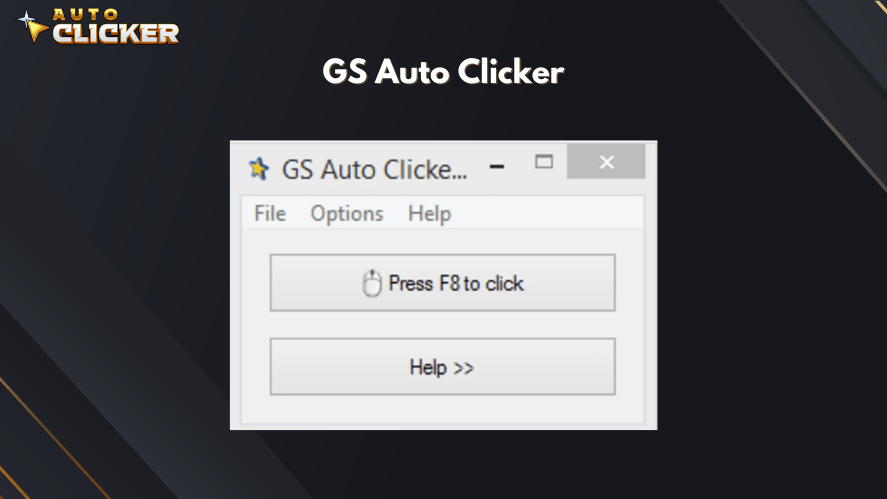
GS Auto Clicker is one of the oldest and most recognized Windows autoclicker applications. It focuses on providing straightforward click automation without requiring extensive configuration.
Its main characteristics include:
- Classic Windows desktop application
- Lightweight and minimal system requirements
- Basic click automation features
- Long history of use among Windows users
GS Auto Clicker remains a popular option for users who only need simple automated mouse clicks and prefer a standalone application over a platform-integrated solution.
Feature Comparison: Auto Clicker vs GS Auto Clicker
Both applications provide the core functionality expected from an automatic clicker, but they differ in terms of features, convenience, and overall user experience. The table below compares the most important capabilities to help you decide which tool better fits your needs.
| Feature | Auto Clicker on Steam | GS Auto Clicker |
|---|---|---|
| Click Automation | Automated mouse clicks with flexible settings | Basic automated clicking |
| Hotkeys | Customizable hotkeys for starting and stopping automation | Supports configurable hotkeys |
| Mouse Button Selection | Left, right, and middle click | Left, right, and middle click |
| Click Interval Customization | Adjustable click intervals with custom delay | Adjustable click intervals |
| Repeat Options | Continuous mode or fixed repeat count | Continuous mode or specified repetitions |
| Recording Capabilities | Supports recording click positions and playback | Records click locations for repeated playback |
| Steam Integration | Native Steam installation, updates, achievements, and community features | Not available |
| User Interface | Modern, intuitive interface | Functional but dated Windows interface |
| Updates | Actively maintained with regular improvements | Limited update frequency |
| Customer Support | Steam community and developer support | Primarily documentation and community resources |
| Multi-monitor Compatibility | Designed to work across modern multi-monitor setups | Supported, depending on configuration |
| Macro Support | Supports configurable automation workflows and macro functions | Limited macro functionality focused on click automation |
Overall: If you are looking for one of the best auto clicker software options with active development, Steam integration, and more customization options, Auto Clicker on Steam offers a broader feature set. If your goal is simply to automate mouse clicks with minimal setup, GS Auto Clicker remains a lightweight and straightforward alternative.
Ease of Use
Both applications are designed to automate repetitive clicks, but the setup experience is quite different.
If ease of installation and ongoing maintenance are important to you, it’s worth considering how each tool is distributed and configured.
Setting Up Auto Clicker on Steam
Getting started with Auto Clicker on Steam is straightforward. Simply download auto clicker through Steam, install it like any other Steam title, and launch it from your library.
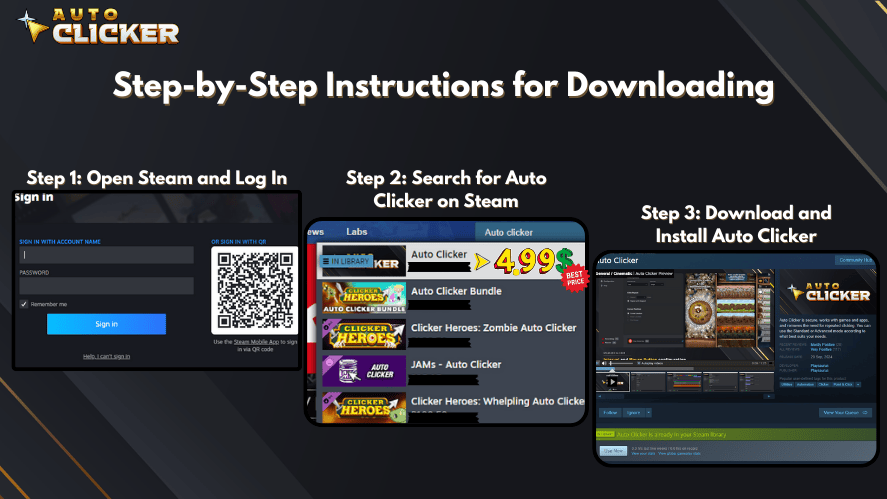
Because Steam manages updates automatically, you don’t have to manually download new versions or check for patches.
After launching the application, you can quickly configure click intervals, hotkeys, and other settings before starting your automation task.
This streamlined setup makes it especially convenient for users who already use Steam regularly.
Setting Up GS Auto Clicker
GS Auto Clicker follows a more traditional installation process.
Users need to complete the auto clicker download from the official website and launch the program separately from Steam.
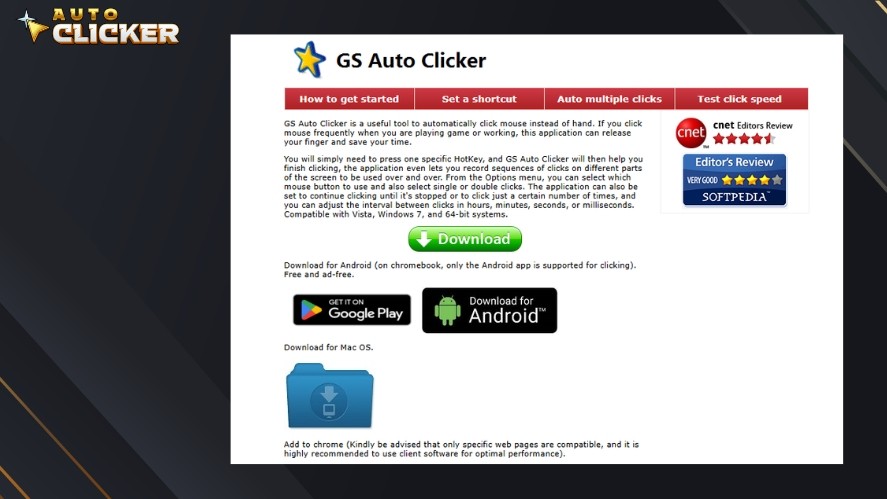
The interface is simple and easy to understand, although it reflects an older Windows design.
Basic settings such as click intervals, repeat options, and hotkeys can be configured with only a few clicks, making it suitable for users who want straightforward click automation without many advanced options.
Gaming Performance
Both applications can automate repetitive mouse clicks, making them useful for a variety of games. The better choice often depends on the type of game you play and the features you value most.
Best for Idle Games
Auto clickers are especially useful in idle and incremental games where progress depends on repeated clicking.
Popular examples include:
- Cookie Clicker
- Clicker Heroes
- NGU Idle
- AdVenture Capitalist
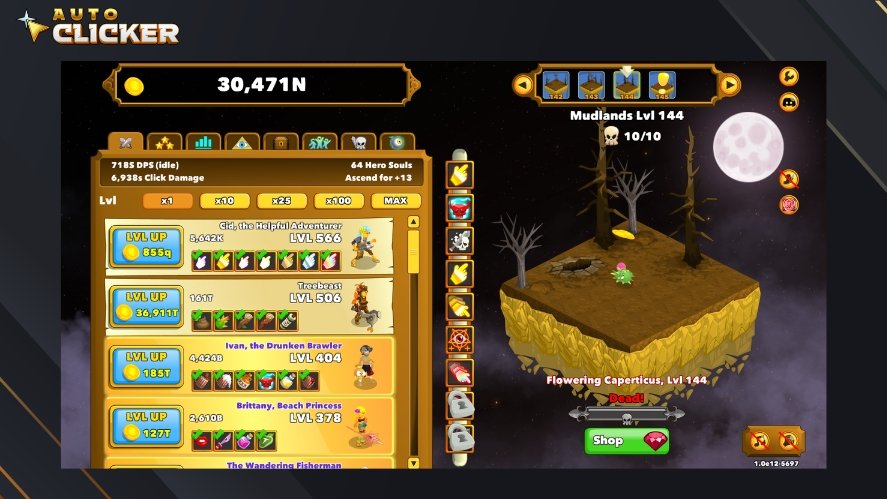
For these types of games, both Auto Clicker on Steam and GS Auto Clicker provide reliable click automation. Users can customize click intervals to optimize resource generation while reducing repetitive manual input.
Best for RPG and Grinding Games
Many RPGs and grinding-focused games require players to perform the same actions repeatedly, whether it’s gathering resources, crafting items, or interacting with menus.
An automatic clicker can reduce repetitive clicking during these routine tasks, allowing players to spend less time performing manual actions.
However, you should always check each game’s rules before using automation, especially in online or multiplayer environments where it may not be permitted.
Steam Compatibility
For users who primarily play games through Steam, Auto Clicker on Steam offers an additional layer of convenience.
Since it is installed, updated, and launched through the same platform as your games, managing the application is simple and requires no separate update process.
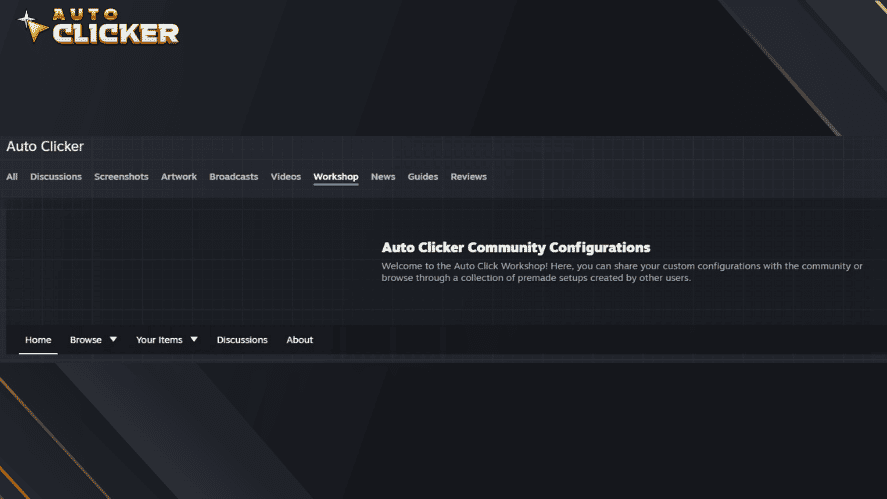
GS Auto Clicker can also be used with many Steam games, but because it is a standalone Windows application, installation, updates, and management are handled separately.
If you’re already invested in the Steam ecosystem, having your auto clicker integrated into the same platform can provide a smoother overall experience.
Productivity Use Cases
Auto clickers are not just useful for gaming, as they can also improve productivity by automating repetitive mouse actions across a wide range of professional tasks.
For data entry, both applications can repeatedly click buttons, select fields, or confirm prompts. They help users complete repetitive work with greater consistency.
In software testing and UI testing, automated clicking makes it easier to repeatedly interact with buttons, menus, and interface elements without performing the same actions manually hundreds of times.
They are also useful for repetitive office work, such as processing forms, navigating internal systems, or confirming recurring dialog boxes.
For users building larger workflow automation routines, an auto clicker can handle repetitive mouse input while other tools manage the remaining parts of the process.
Both applications are capable of automating these tasks.
However, Auto Clicker on Steam is generally better suited for users who want a modern interface, regular updates, and a tool that works well for both gaming and professional workflows.
GS Auto Clicker remains a practical choice for users who simply need basic click automation without additional platform features.
Customization Options
Customization is one of the biggest differences between modern auto clicker software and older automation tools.
The more control you have over your settings, the easier it is to tailor automation to different tasks.
Click Intervals
Both applications allow you to customize click intervals, letting you control exactly how fast or how often clicks occur.

This flexibility is useful for everything from idle games to repetitive office work.
Fixed vs. Randomized Timing
Both tools support fixed click intervals, where every click occurs at the same rate.
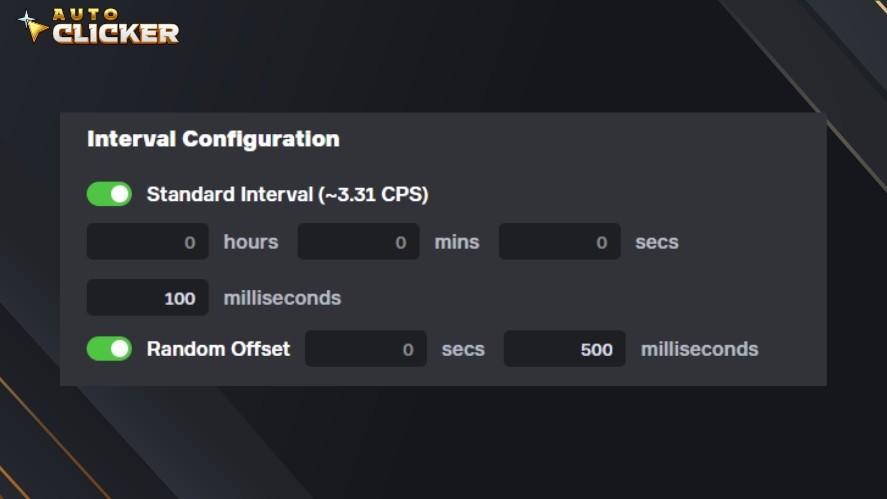
However, Auto Clicker on Steam also offers randomized click delays, adding small variations between clicks to create more natural input patterns.
This provides greater flexibility for users who want more realistic automation or need different timing profiles for different tasks.
Mouse Positions
Both tools support clicking at selected screen locations, making it possible to automate interactions with buttons, menus, and other interface elements.
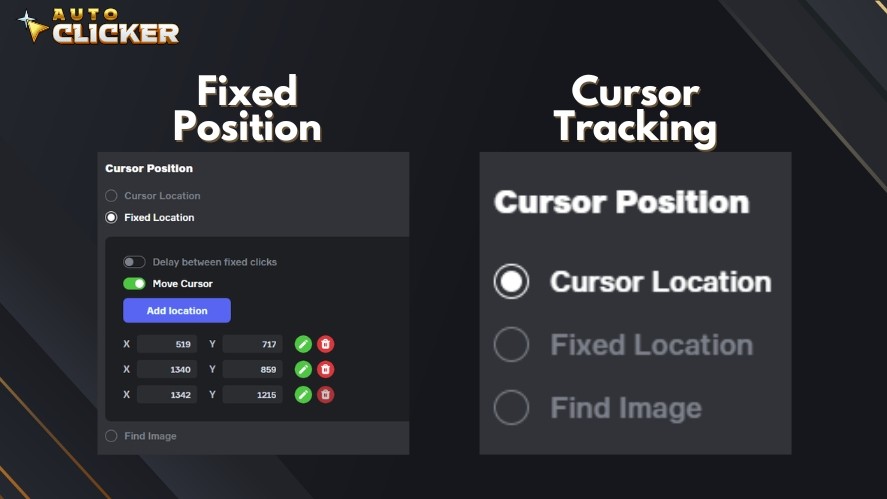
This is particularly useful for repetitive workflows and UI testing.
Keyboard Shortcuts
Both applications support keyboard shortcuts, but they offer different levels of flexibility.
Auto Clicker on Steam lets you assign separate hotkeys for Start and Stop, giving you more precise control over your automation.
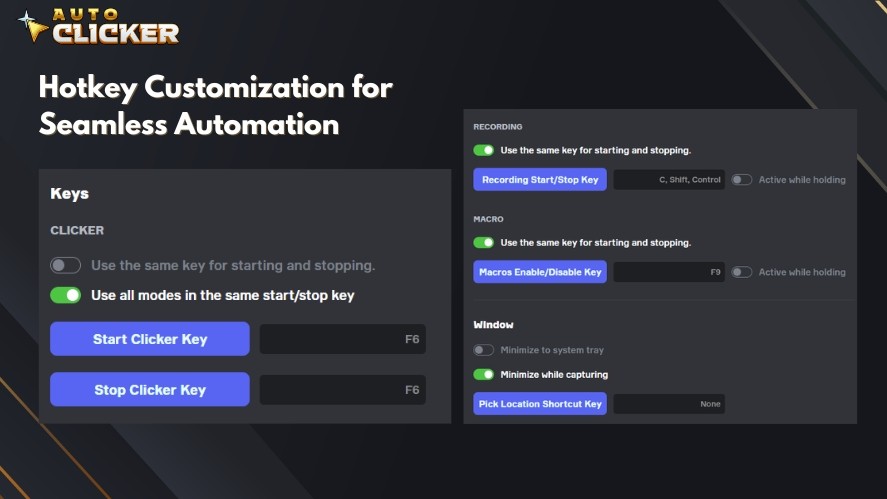
This is especially useful when switching between manual and automated input during gameplay or productivity tasks.
GS Auto Clicker uses a single hotkey to both start and stop the auto clicker. While this approach is simple, it offers less customization than having dedicated controls for each action.
Profiles
Auto Clicker on Steam allows you to create and save multiple profiles, making it easy to switch between different configurations for various games or productivity workflows.
For example, you can maintain one profile for idle games, another for office tasks, and another for software testing without having to reconfigure your settings each time.
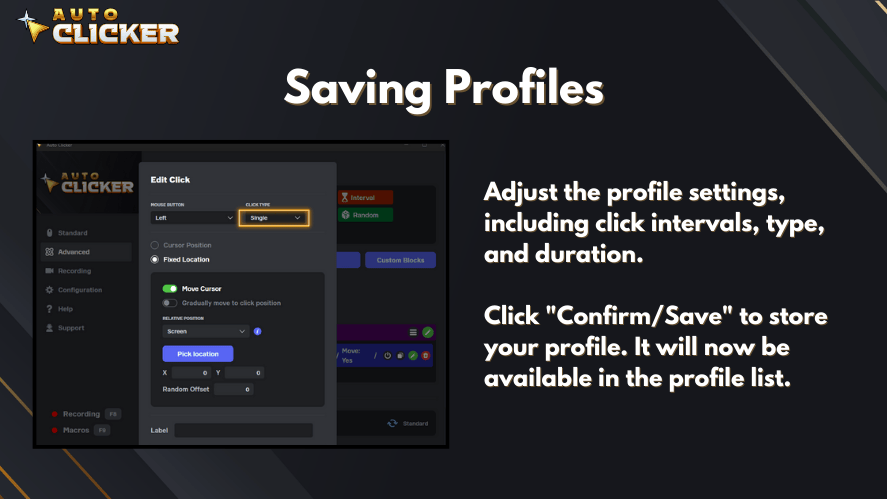
GS Auto Clicker does not include a profile management feature. If you need different click settings for different tasks, you’ll need to manually adjust the configuration whenever you switch use cases.
Saved Configurations
Being able to save and reload your settings eliminates the need to reconfigure the application each time you use it.
For users who frequently switch between different automation tasks, saved configurations can significantly improve convenience and efficiency.
Performance and System Resources
Both applications are lightweight and designed to automate mouse clicks without placing significant demands on your computer.
However, there are some differences in how they fit into your overall workflow.
| Category | Auto Clicker on Steam | GS Auto Clicker |
|---|---|---|
| CPU Usage | Low resource usage during normal operation | Low resource usage during normal operation |
| Memory Usage | Slightly higher due to Steam integration, but still lightweight | Very lightweight memory footprint |
| Startup Speed | Launches through the Steam client | Standalone application with fast startup |
| Stability | Regularly updated to improve compatibility and stability | Stable for basic click automation with less frequent updates |
| Long-running Sessions | Well suited for extended gaming and productivity sessions | Suitable for long-running automation tasks with proper configuration |
For most modern PCs, the performance difference between the two applications is minimal.
Users who already keep Steam running in the background will likely notice little difference, while those looking for a completely standalone application may prefer GS Auto Clicker’s lightweight footprint.
Security and Reliability
When choosing an auto clicker software, it’s important to consider not only its features but also where you download it from and how well it is maintained.
Official Distribution Channels
Whenever possible, download autoclicker and other automation tools from their official distribution channels.
This helps reduce the risk of installing modified or outdated versions of automated clicking tools from third-party websites.
Auto Clicker on Steam is distributed directly through the Steam platform, while GS Auto Clicker should be downloaded only from its official website or other trusted sources.
Steam Download Security
One advantage of Auto Clicker on Steam is that the autoclicker download, installation, and updates are handled through Steam.
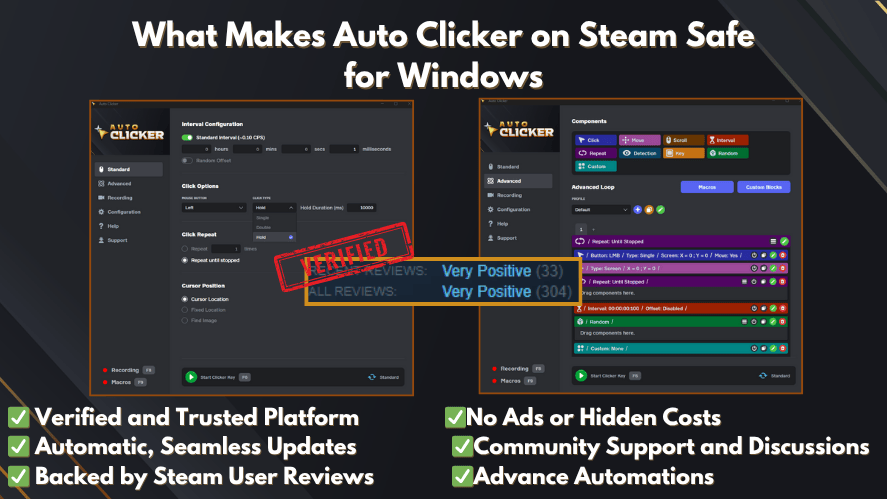
Users can install the application directly from their Steam library without searching for installers on external websites.
Software Updates
Keeping your software up to date helps improve compatibility and ensures you receive bug fixes and feature improvements.
Auto Clicker on Steam benefits from Steam’s automatic update system, while GS Auto Clicker typically requires users to manually download and install newer versions when they become available.
Trustworthiness
Regardless of which application you choose, using official downloads and keeping the software updated are good security practices.
Avoid downloading installers from unknown mirrors or unofficial websites, as these may not provide the original software.
Community Reputation
Both applications have established user communities and are widely used for click automation.
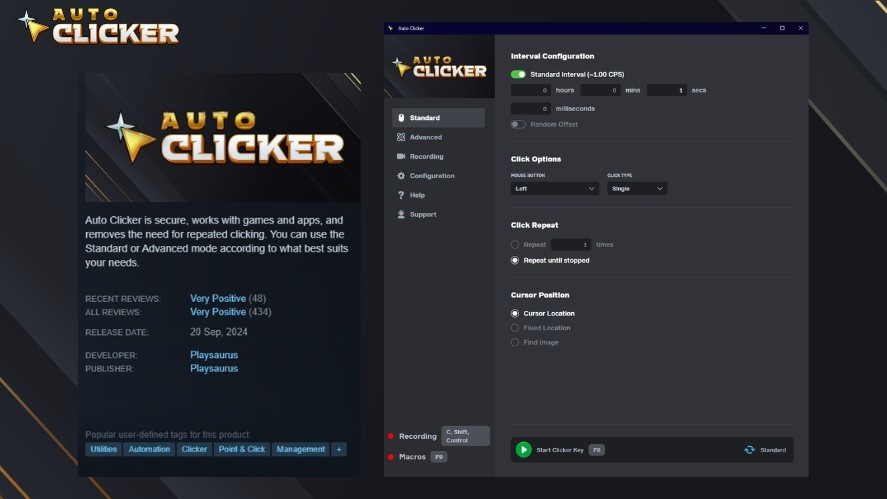
Before downloading any autoclicker, it’s a good idea to read recent user feedback, review release notes, and verify that you’re installing the latest official version.
Auto Clicker vs GS Auto Clicker: Pros and Cons
The comparison below highlights where each application excels and where it has limitations.
Auto Clicker on Steam
Pros
- Steam integration
- Automatic updates
- Modern UI
- Active development
- Suitable for gaming and productivity
- Easy installation
Cons
- Requires Steam
GS Auto Clicker
Pros
- Lightweight
- Simple interface
- Easy for beginners
- Free
Cons
- Windows only
- Older interface
- Fewer modern conveniences
- No Steam ecosystem integration
Which Auto Clicker Is Right for You?
The best choice ultimately depends on how to use auto clicker for your own gaming or productivity needs.
While both applications automate repetitive mouse clicks effectively, they are designed with different users in mind.
Choose Auto Clicker on Steam if you:
- Play Steam games regularly and want an application that fits naturally into the Steam ecosystem.
- Prefer automatic updates so you always have the latest features and improvements.
- Like a modern, user-friendly interface that’s easy to navigate.
- Want software that is actively developed with ongoing enhancements.
- Need a versatile tool that works well for both gaming and productivity tasks.
Choose GS Auto Clicker if you:
- Need a basic Windows auto clicker for simple click automation.
- Prefer a standalone application that doesn’t require Steam.
- Only need straightforward automated clicking without advanced features or platform integration.
For users who value simplicity, both tools are easy to learn.
However, if you want a more modern experience with regular updates and features that continue to evolve, Auto Clicker on Steam offers greater long-term flexibility.
Frequently Asked Questions
No. Auto Clicker on Steam is a paid application available on the Steam Store. The price may vary during Steam sales and regional promotions, so it’s best to check the current listing for the latest pricing.
GS Auto Clicker can be safe to use when downloaded from its official website or another trusted source. To reduce security risks, avoid downloading installers from unofficial mirrors or third-party download sites, and always keep the software updated when new versions are available.
If you primarily play Steam games, Auto Clicker on Steam offers greater convenience because it integrates directly with the Steam ecosystem. GS Auto Clicker can also automate clicks in many Steam games, but it operates as a standalone Windows application and must be installed and maintained separately.
Yes. Both applications share the same core purpose: automating repetitive mouse clicks.
Both applications are beginner-friendly, but they offer different experiences. If you already use Steam, Auto Clicker on Steam is generally easier to get started with. If you simply want a lightweight standalone application with only the essential click automation features, GS Auto Clicker is also easy to learn and configure.
Conclusion
When comparing Auto Clicker vs GS Auto Clicker, there isn’t a single answer that’s right for everyone.
Both applications are good auto clickers for automating repetitive mouse clicks, but they are designed for slightly different types of users.
If you value a modern interface, automatic updates, Steam integration, and ongoing feature development, Auto Clicker on Steam is the stronger choice.
On the other hand, if you only need a lightweight Windows application for basic click automation, GS Auto Clicker remains a reliable and straightforward option.
Ultimately, the best autoclicker depends on your preferred platform, the features you need, how often you expect updates, and whether seamless Steam integration is important to your workflow.
By considering these factors, you can choose the auto clicker software that best matches your gaming or productivity needs.

Where to Download Trusted Auto Clicker Apps Safely

Mouse Clicker: What It Is, How It Works, and Why You Might Need One

How to Use an Auto Clicker for Games Like Clicker Heroes
About The Author
